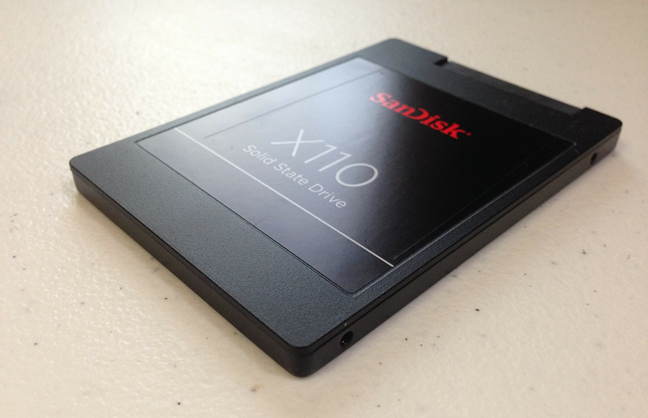
In the last couple of years, solid state drives have increasingly gained popularity. It is also probable that you have read or at least heard someone else talking about how fast an SSD (Solid State Drive) is compared to traditional hard drives. If you are already using one or you want to buy an SSD to improve your computer's performance, you should know that TRIM support is essential. What is SSD TRIM, why does it matter for SSDs, and how do you check whether it is turned on, in Windows? You can find the answers to these questions, in this guide:
What is TRIM for SSD drives?
TRIM is a command with the help of which the operating system can tell the solid state drive (SSD) which data blocks are no longer needed and can be deleted, or are marked as free for rewriting. In other words, TRIM is a command that helps the operating system know precisely where the data that you want to move or delete is stored. That way, the solid state drive can access only the blocks holding the data. Furthermore, whenever a delete command is issued by the user or the operating system, the TRIM command immediately wipes the pages or blocks where the files are stored. This means that the next time the operating system tries to write new data in that area, it does not have to wait first to delete it.
SSD, TRIM
Let's dig a bit further into this notion: to understand what TRIM is and what it does you first need to know how SSDs work and how they handle the information stored on them.
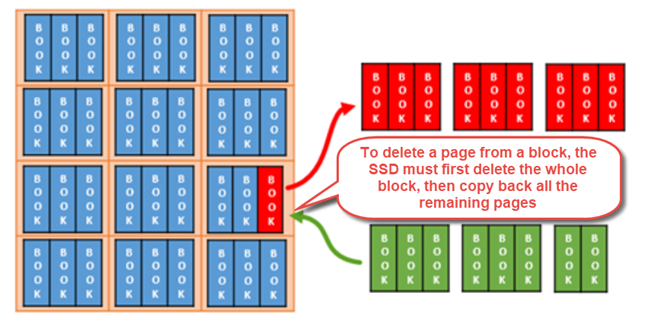
A solid-state drive is nothing more than a device full of flash memory chips. The operating system needs to be able to read and manipulate the data on these chips. To do that, the SSD has to have a way to arrange this data. Information stored on an SSD is divided into blocks of data. These blocks are, in turn, divided into pages of data. To better exemplify, imagine that the SSD is a library. The library has lots of shelves, and these shelves are filled with books.
SSD, TRIM
However, what happens when you no longer want to keep one of these books? Say you want to sell it or lend it to a friend. It would seem obvious that you only have to take the book out of that shelf. Well, if your library is a solid-state drive, things would not work that way. On an SSD, if you decide to delete some data, it would not matter if it only occupies a page from a block. The whole block would need to be removed! All the information on the other pages would move to a temporary buffer memory, then be put back on the original block. It is like emptying a whole shelf from your library whenever you want to take a book out or replace it with a new one. Then, you would have to put all the other books back in their places. It is not efficient!
To conclude, for a solid state drive to write new data on a previously occupied space, it first has to wipe it completely. Doing it every time you move or delete data on your SSD translates into reduced performance for data writing speeds.
Why is TRIM useful for SSD drives?
You already know by now that when deleting and rewriting data, a solid state drive that does not use TRIM has to partially move significant pieces of information, wipe out all the block(s) containing it and, finally, write the new data onto those blocks. On the one hand, this means that the device's performance is poor. On the other hand, it means that the SSD does lots of erasing and rewriting. These all pile up and cause fast wear of the flash memory chips that are found inside the SSD.
TRIM ensures that both these issues are prevented, by eliminating the need to erase and rewrite large chunks of memory continually. Instead of managing whole blocks, a TRIM enabled SSD can work with the smaller memory clusters called pages. Even more, whenever a delete command is issued by the operating system or the user, the SSD automatically sends a TRIM command to wipe the storage space being erased. This ensures a faster writing speed when new data is stored in that area.
How to check whether Windows has turned on TRIM for your SSD
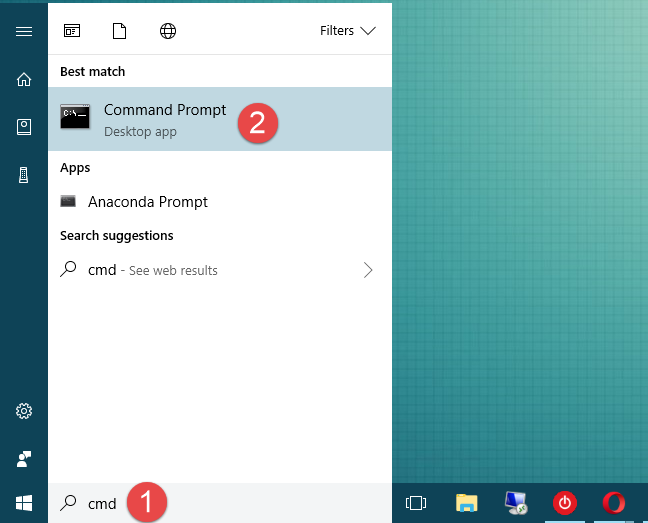
If you want to check whether TRIM is enabled or disabled on your solid state drive, you have to use the Command Prompt. A quick way to launch it is to use the search. There are also many other methods, which we have shown in this guide: 10 ways to launch the Command Prompt in Windows.
SSD, TRIM
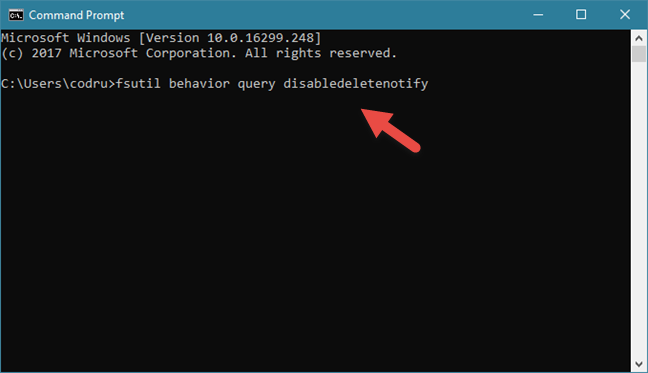
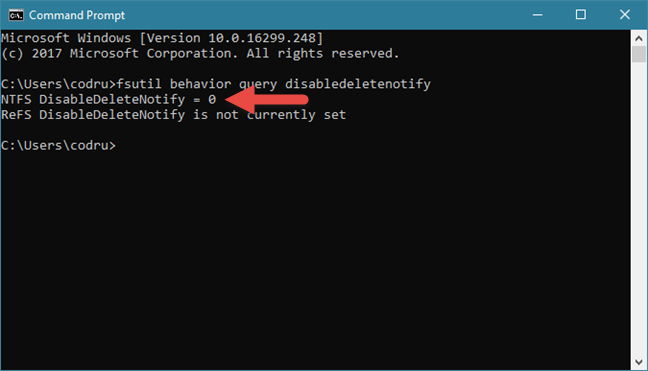
Then, in the Command Prompt window, type this command: fsutil behavior query disabledeletenotify.
SSD, TRIM
Press Enter on your keyboard and, after a short while, Command Prompt displays a message that contains one of these two options:
"NTFS DisableDeleteNotify = 0" - means that the TRIM feature is enabled on your SSD.
"NTFS DisableDeleteNotify = 1" - means that the TRIM feature is disabled on your SSD.
SSD, TRIM
NOTE: You might have noticed that on our test PC, which runs on Windows 10, the above command also issued another response: "ReFS DisableDeleteNotify is not currently set." This is nothing to worry about and means that the TRIM feature is automatically enabled if you connect an SSD that uses ReFS. ReFS, also known as Resilient File System, is a Microsoft proprietary file system that is not commonly used on Windows home PCs. You can read more about it on Wikipedia.
How to enable SSD TRIM in Windows
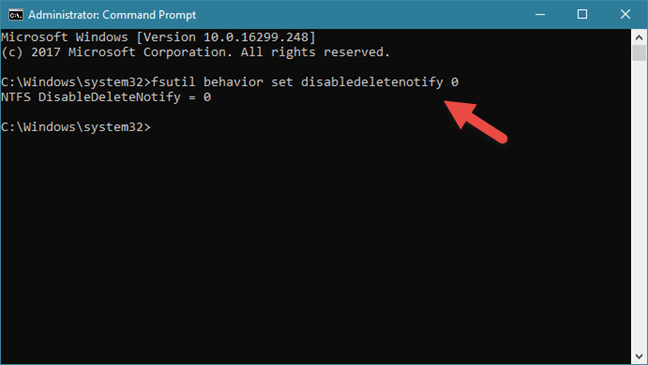
If you run the command for finding out whether TRIM is enabled or not on your Windows PC, and you found that it is disabled, you might want to turn it on. To do so, you have to open Command Prompt as administrator, enter this command: fsutil behavior set disabledeletenotify 0, and press Enter on your keyboard.
SSD, TRIM
If you get the message "NTFS DisableDeleteNotify = 0", it means that TRIM has been enabled on your SSD.
How to disable SSD TRIM in Windows
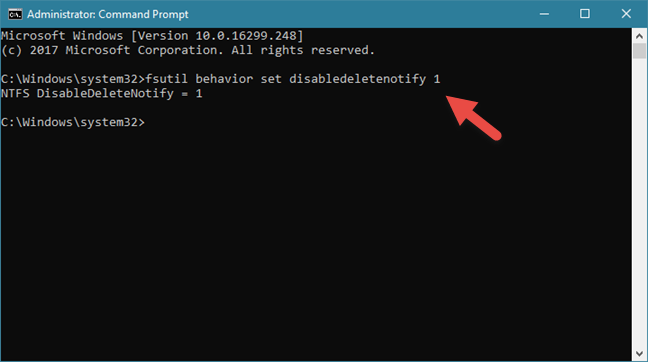
Although there are no reasons for doing this, in case you want to disable TRIM on your Windows PC, you can do that too. Open Command Prompt as administrator, enter the command: fsutil behavior set disabledeletenotify 1, and press Enter on your keyboard.
SSD, TRIM
If you get the message "NTFS DisableDeleteNotify = 1", it means that TRIM has been disabled on your SSD.
Is TRIM turned on your SSD? What SSD do you have?
Solid state drives offer lots of performance. When it comes to their read or write speeds, they are much faster than traditional hard drives. However, because of the way they work with data, SSDs must use specific firmware commands to prevent excessive wear and performance degradation. Now you know why TRIM is essential and what it does, so we are curious: is TRIM enabled on your SSD? What SSD do you have? Is it an affordable one or is it a gamer superfast model? Leave a comment in the comments section and let's discuss.
I use a WD Green 2.5. 480GB drive with a SATA interface on windows 7 on a Dell latitude E4320 laptop with AHCI so Trim is available. While DisableDeletenotify is 0 , windows 7 standard defragment process in Disk Properties does not recognize it as an SSD and wants to defragment it so I have disabled it. what I have noticed is that if it recognises it as an ssd then one can set up a Trim schedule the same as the defragment schedule. Is there a command I can use and set up in a .bat file that will Trim the drive or in Task Scheduler
Disabled “DisableDeleteNotify” means Enabled. It’s a double-negation if you like, so no, I’m not wrong.
Bartels Juice ·
Do not be confused by the results of the above commands. MS is using something of a double negative with this command and results. The cmd is to DIS-able Delete Notify (i.e. DIS-able notifying an SSD to run TRIM) then the desired result is zero (0) (Disabled)
In typical MS fashion we are disabling the disable routine, which means to turn TRIM ON.
sosakan ·
according to my cmd, the 0 and 1 are reversed in this article. Mine says (enabled) or (disabled) at the end and 1 is marked as enabled.
David Carter ·
My signifier is “0” but in brackets after this is the word (disabled). Can you tell me what that means? I’m confused now if TRIM is enabled or disabled.
I hate trim ·
Trim is not useful. If you accidentally format your SSD or wipe the partition – that’s it… you’re f*cked and the data is gone forever. On a HDD you can easily recover said data.
I just lost some very important files when reinstalling Windows because I accidentally formatted the wrong SSD.
Stabby ·
Which is why I physically disconnect other drives when I do a windows install.
Belfontan ·
Thank you for the nice article.
I have a quite old
– Samsung 850 EVO (250 GB) via SATA
and a newer
– Samsung 970 EVO+ (1 TB) via NVMe/PCIe
running both on Win7-64Bit pretty well.
TRIM is of course enabled.
Bye
Brian ·
C:WINDOWSsystem32>fsutil behavior set disabledeletenotify 0
NTFS Disabledeletenotify = 0 (Disabled)
C:WINDOWSsystem32>fsutil behavior set disabledeletenotify 1
NTFS Disabledeletenotify = 1 (Enabled)
When I use 0, it tells me Disabled. When I use 1, it tells me Enabled. Am I missing something? The exact opposite of what is written in the post.
Christopher ·
look at the setting, “Disable the ability to notify about deletions”. So if you enable it then you are enabling the “Disable the ability” so the correct way to set it is to disable the “Disable the Ability”and then it will notify about deletions. Whomever created the setting used the “Negative” approach so double negative means positive rather than using a label of “EnableDeleteNotify”
Ron ·
I have a Kodak 960GB drive, trim is enabled.
Dean ·
I think you have the commands backwards, “0” means it is disabled and “1” is eneabled.
Anonymous ·
No… if you get 0 (disabled) then TRIM is enabled, and if you get 1 (enabled) TRIM is disabled.
Ron ·
I used the Windows 10 Powershell app with your command. I have a Samsung EVO850 sata SSD that is my C drive and both NTFS and ReFS were 0 (enabled). I then tested my Western Digital black NVMe M.2 SSD (my D drive) and got the same result. Thanks for the article.
Jake ·
My SSD is connected via a SATA to USB 3.0 cable and the windows disk defragmenter recognise it as HDD. I’ve already performed ‘winsat formal’ on cmd run as administrator but it doesn’t work.
How do I 1. tell Windows it is a SSD (change it) and 2. enable TRIM?
Kimberly L ·
Thanks for the information! Checked & enabled on my new laptop. I’m not taking it apart to see what brand/model of SSD is installed but it is using ReFS so I appreciate the info on that also.
Anonymous ·
Happy to help. Do not hesitate to subscribe to our newsletter, for more useful tutorials. 😉
Jesse Meush ·
I have a jetdrive 820 solid state installed on my mac and it is giving me the option for TRIM. im running OSX mojave on a macbook pro late 2014. 2.4gz 8gb DDR3 RAM core i5
Vipul Jain ·
Very nice article. Using a Samsung 970 EVO PCIe NMVe SSD. Blazing fast performance.
Anonymous ·
That’s a fast SSD drive indeed. Enjoy using it!
George From Alaska ·
SSD: LITEONIT LCS-128L9S-11 2
Trim is enabled by default on my SSD
Julio ·
Interesting…this is what I get when I use the trim command:
If I change it to 1 it shows as (Disabled). Any ideas?
PNY 250G SSD
Julio ·
Oops! sorry typing error, its the other way around. I get 0 = (disabled), while 1 = (enabled)
Mike ·
Mine says the same thing. So which is it? Did they screw up this article?
Anonymous ·
Please check the last comment in this thread.
Bruno V ·
Hi, I am confused too… Command Prompt returns NTFS DisableDeleteNotify = 0 (Disabled) whereas, which seems to be in contradiction with ts article stating that 0 means Enabled. How about a reply from the author?
Anonymous ·
The result you got is OK.
If the "fsutil behavior query disabledeletenotify" command returns: NTFS DisableDeleteNotify = 0 (Disabled), it means that TRIM is ENABLED on your SSD.
If the command stated above returns NTFS DisableDeleteNotify = 1 (Enabled), it means that TRIM is DISABLED on your SSD.
The confusion can come from the fact that a result that states “Disabled” actually means that TRIM is Enabled, and the other way around.
Nipun ·
Great article. Sandisk x110 , with TRIM turned on, and runs it monthly.
Anonymous ·
Thank you for appreciating our work. 😉
William Rack ·
What if you have 2 SSD’ s on your system. How do you check if both have TRIM enabled.
William Rack ·
Just answered my own question. Ran CMD on 2nd drive and got my answer. Only after figuring out how to run CMD on that drive.
Rubidad ·
If SSD’s are so fast, why do we need RAM?
Mauro Junior ·
Because RAM is much faster.
SNair ·
I believe you got the technicalities a bit wrong. NAND flash by virtue of how the floating gate transistors are physically wired up, will necessitate an erase of entire page. But since erase operations can only be performed at block level, entire block goes through a read-erase-modify-write operation. TRIM lets the OS inform the SSD that entire block is disposable, which allows the SSD controller to erase the entire block before hand and be ready for write operation.
Above is in contrary to your description wherein you say TRIM SSDs can erase data at page level, while others can only do so at block level.
Please research more and let me know if I am wrong.
Thanks.
Ciprian Adrian Rusen ·
Thank you for sharing this information. When we get to updating this article, we will definitely take your feedback into consideration. Highly appreciated! 😉
Codrut Neagu ·
I meant delete. Whenever data is deleted, the space occupied by it must be wiped, meaning a TRIM command is sent and everything is rewritten with zeroes. While on a HDD data is simply marked as deleted, on a SSD it really has to be physically deleted.
Ken ·
seems like you contradicted yourself. in your initial scenario, did you mean to say rewrite instead of delete? later you say again that the block must be deleted, just as you previously said











Discussion (38)
I use a WD Green 2.5. 480GB drive with a SATA interface on windows 7 on a Dell latitude E4320 laptop with AHCI so Trim is available. While DisableDeletenotify is 0 , windows 7 standard defragment process in Disk Properties does not recognize it as an SSD and wants to defragment it so I have disabled it. what I have noticed is that if it recognises it as an ssd then one can set up a Trim schedule the same as the defragment schedule. Is there a command I can use and set up in a .bat file that will Trim the drive or in Task Scheduler
C:\Windows\system32>fsutil behavior query disabledeletenotify
NTFS DisableDeleteNotify = 0 (Disabled)
ReFS DisableDeleteNotify = 0 (Disabled)
C:\Windows\system32>
You’re wrong. 1 is enabled 0 is disabled.
Disabled “DisableDeleteNotify” means Enabled. It’s a double-negation if you like, so no, I’m not wrong.
Do not be confused by the results of the above commands. MS is using something of a double negative with this command and results. The cmd is to DIS-able Delete Notify (i.e. DIS-able notifying an SSD to run TRIM) then the desired result is zero (0) (Disabled)
In typical MS fashion we are disabling the disable routine, which means to turn TRIM ON.
according to my cmd, the 0 and 1 are reversed in this article. Mine says (enabled) or (disabled) at the end and 1 is marked as enabled.
My signifier is “0” but in brackets after this is the word (disabled). Can you tell me what that means? I’m confused now if TRIM is enabled or disabled.
Trim is not useful. If you accidentally format your SSD or wipe the partition – that’s it… you’re f*cked and the data is gone forever. On a HDD you can easily recover said data.
I just lost some very important files when reinstalling Windows because I accidentally formatted the wrong SSD.
Which is why I physically disconnect other drives when I do a windows install.
Thank you for the nice article.
I have a quite old
– Samsung 850 EVO (250 GB) via SATA
and a newer
– Samsung 970 EVO+ (1 TB) via NVMe/PCIe
running both on Win7-64Bit pretty well.
TRIM is of course enabled.
Bye
C:WINDOWSsystem32>fsutil behavior set disabledeletenotify 0
NTFS Disabledeletenotify = 0 (Disabled)
C:WINDOWSsystem32>fsutil behavior set disabledeletenotify 1
NTFS Disabledeletenotify = 1 (Enabled)
When I use 0, it tells me Disabled. When I use 1, it tells me Enabled. Am I missing something? The exact opposite of what is written in the post.
look at the setting, “Disable the ability to notify about deletions”. So if you enable it then you are enabling the “Disable the ability” so the correct way to set it is to disable the “Disable the Ability”and then it will notify about deletions. Whomever created the setting used the “Negative” approach so double negative means positive rather than using a label of “EnableDeleteNotify”
I have a Kodak 960GB drive, trim is enabled.
I think you have the commands backwards, “0” means it is disabled and “1” is eneabled.
No… if you get 0 (disabled) then TRIM is enabled, and if you get 1 (enabled) TRIM is disabled.
I used the Windows 10 Powershell app with your command. I have a Samsung EVO850 sata SSD that is my C drive and both NTFS and ReFS were 0 (enabled). I then tested my Western Digital black NVMe M.2 SSD (my D drive) and got the same result. Thanks for the article.
My SSD is connected via a SATA to USB 3.0 cable and the windows disk defragmenter recognise it as HDD. I’ve already performed ‘winsat formal’ on cmd run as administrator but it doesn’t work.
How do I 1. tell Windows it is a SSD (change it) and 2. enable TRIM?
Thanks for the information! Checked & enabled on my new laptop. I’m not taking it apart to see what brand/model of SSD is installed but it is using ReFS so I appreciate the info on that also.
Happy to help. Do not hesitate to subscribe to our newsletter, for more useful tutorials. 😉
I have a jetdrive 820 solid state installed on my mac and it is giving me the option for TRIM. im running OSX mojave on a macbook pro late 2014. 2.4gz 8gb DDR3 RAM core i5
Very nice article. Using a Samsung 970 EVO PCIe NMVe SSD. Blazing fast performance.
That’s a fast SSD drive indeed. Enjoy using it!
SSD: LITEONIT LCS-128L9S-11 2
Trim is enabled by default on my SSD
Interesting…this is what I get when I use the trim command:
NTFS DisableDeleteNotify = 0 (Enabled)
ReFS DisableDeleteNotify = 0 (Enabled)
If I change it to 1 it shows as (Disabled). Any ideas?
PNY 250G SSD
Oops! sorry typing error, its the other way around. I get 0 = (disabled), while 1 = (enabled)
Mine says the same thing. So which is it? Did they screw up this article?
Please check the last comment in this thread.
Hi, I am confused too… Command Prompt returns NTFS DisableDeleteNotify = 0 (Disabled) whereas, which seems to be in contradiction with ts article stating that 0 means Enabled. How about a reply from the author?
The result you got is OK.
"fsutil behavior query disabledeletenotify"command returns:NTFS DisableDeleteNotify = 0 (Disabled), it means that TRIM is ENABLED on your SSD.NTFS DisableDeleteNotify = 1 (Enabled), it means that TRIM is DISABLED on your SSD.The confusion can come from the fact that a result that states “Disabled” actually means that TRIM is Enabled, and the other way around.
Great article. Sandisk x110 , with TRIM turned on, and runs it monthly.
Thank you for appreciating our work. 😉
What if you have 2 SSD’ s on your system. How do you check if both have TRIM enabled.
Just answered my own question. Ran CMD on 2nd drive and got my answer. Only after figuring out how to run CMD on that drive.
If SSD’s are so fast, why do we need RAM?
Because RAM is much faster.
I believe you got the technicalities a bit wrong. NAND flash by virtue of how the floating gate transistors are physically wired up, will necessitate an erase of entire page. But since erase operations can only be performed at block level, entire block goes through a read-erase-modify-write operation. TRIM lets the OS inform the SSD that entire block is disposable, which allows the SSD controller to erase the entire block before hand and be ready for write operation.
Above is in contrary to your description wherein you say TRIM SSDs can erase data at page level, while others can only do so at block level.
Please research more and let me know if I am wrong.
Thanks.
Thank you for sharing this information. When we get to updating this article, we will definitely take your feedback into consideration. Highly appreciated! 😉
I meant delete. Whenever data is deleted, the space occupied by it must be wiped, meaning a TRIM command is sent and everything is rewritten with zeroes. While on a HDD data is simply marked as deleted, on a SSD it really has to be physically deleted.
seems like you contradicted yourself. in your initial scenario, did you mean to say rewrite instead of delete? later you say again that the block must be deleted, just as you previously said