



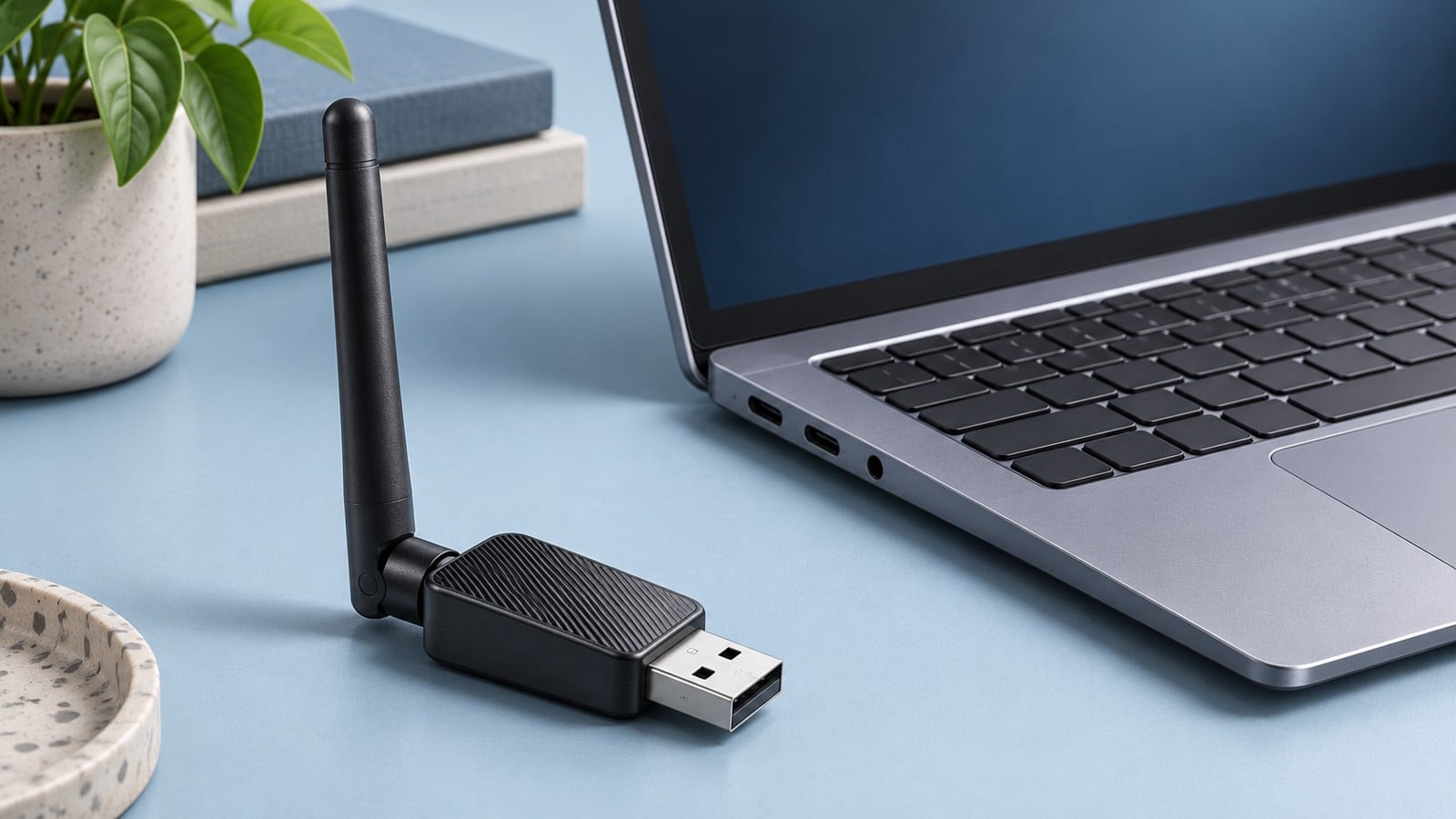
A compatible USB Wi-Fi 7 adapter can add a Wi-Fi 7 connection to a laptop without replacing its internal wireless card. It does not automatically give every laptop every Wi-Fi 7 feature. Check the operating system, processor architecture, driver, and access point together.
Use an actual supported adapter as the checklist
TP-Link’s Archer TBE400U is a tri-band Wi-Fi 7 USB adapter. Its official download page lists Windows 10 x86/x64 and Windows 11 x64 drivers. That list should not be read as a promise of Windows on Arm support.
- Check the laptop’s Windows version and system architecture.
- Check the adapter’s hardware revision and regional support page.
- Download the matching official driver before replacing your working connection.
- Confirm that the router or access point supports the features you want to use.
MLO has additional requirements
For the TBE400U, TP-Link’s feature guidance requires Windows 11 24H2 or later and a supported driver for Multi-Link Operation. Installing the adapter on an older supported operating system does not imply that MLO becomes available there.
A compatible Wi-Fi 7 access point is also required for the corresponding wireless features. Replacing only the laptop adapter cannot upgrade an older router’s radio capabilities.
Judge performance with the right expectations
Advertised aggregate link rates are not the speed of a file copy. The USB connection, radio conditions, access point, and destination all affect real throughput. Test the same transfer before and after installation rather than adding the advertised rates of several bands.
Verify current support for the exact model before purchasing, especially on an Arm laptop or when MLO is the main reason for upgrading.
Featured image: AI-generated illustration of representative equipment, not an exact product photograph or a hands-on test.
Discussion (0)
Comments are closed.