




If Skype looks slightly soft or outright blurry on your desktop, it’s not a random glitch. It’s almost always tied to how Windows handles scaling on modern displays.
This issue shows up most often on laptops and monitors with high resolutions like Full HD on smaller screens or 2K/4K panels. The system scales apps to keep text readable, but not every app handles that scaling properly.
The result is a UI that looks stretched instead of sharp.
What’s Actually Causing the Blur
Windows uses DPI scaling to make elements larger on high-resolution displays. For example, instead of running everything at 100%, it might scale the interface to 125% or 150%.
Well-optimized apps render themselves correctly at these scaling levels. Others rely on Windows to stretch them.
Skype often falls into the second category in certain setups. When that happens, Windows essentially enlarges a lower-resolution version of the app, which leads to blur, especially around text and icons.
This is why the issue feels inconsistent. It depends on your display, scaling level, and how Skype is rendering in that environment.
Step 1: Check Your Display Scaling First
Before changing anything advanced, look at your system settings.
Go to Settings > System > Display, then check Scale and layout.
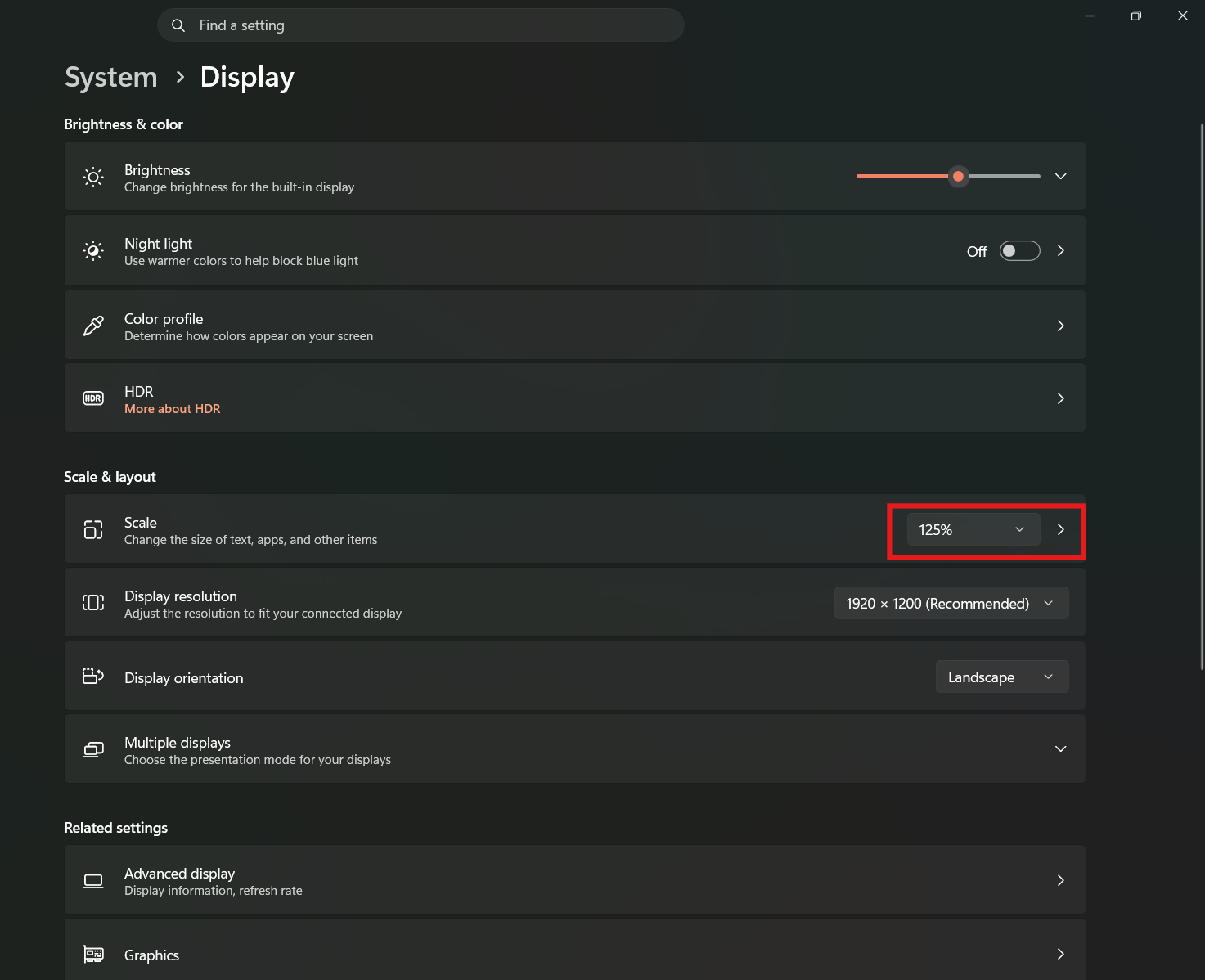
If you’re using 125% or 150%, try switching between available options. Some scaling levels render more cleanly than others depending on your screen.
This alone can fix the issue in certain cases, especially on standard Full HD displays.
Step 2: Override DPI Scaling for Skype
If Skype still looks blurry, you’ll need to take control of how Windows scales it.
Right-click the Skype shortcut and open Properties. Under the Compatibility tab, select Change high DPI settings.
Enable Override high DPI scaling behavior and set it to Application.
This forces Skype to handle its own scaling instead of letting Windows stretch it.
In most cases, this is the single most effective fix. The UI becomes sharper immediately, although it may appear slightly smaller depending on your display.
Step 3: Understand the Trade-Off
This is where most guides stop, but it’s important to be clear about the compromise.
When you force application scaling:
- Text becomes sharper
- UI elements may shrink slightly
- Some spacing or layout quirks can appear
You’re choosing clarity over automatic scaling.
For most users, this is the better option, but it’s still a trade-off.
Multi-Monitor Setups: The Hidden Problem
If you’re using more than one monitor, especially with different resolutions or scaling settings, things get more complicated.
Windows doesn’t always handle mixed-DPI environments cleanly. Moving Skype between screens can cause it to re-render incorrectly, leading to blur again.
The simplest workaround is consistency:
- Use the same scaling on all monitors
- Keep Skype on your primary display
This reduces the chances of rendering issues.
When the Problem Isn’t the Interface
Sometimes users confuse two different issues.
If Skype looks blurry only during calls, the problem isn’t DPI scaling. It’s video quality.
That can be affected by:
- Camera resolution
- Internet bandwidth
- Call compression
In that case, adjusting video settings or improving your connection is more relevant than changing display settings.
Why This Still Happens
Windows has improved scaling significantly over the years, but not every app keeps up.
Skype has gone through multiple redesigns and platform changes, and scaling behavior hasn’t always been consistent across versions.
This isn’t a hardware issue, and it’s not exactly a bug either. It’s a compatibility gap between how Windows scales apps and how certain apps render themselves.
What You Should Actually Do
If you want a practical approach:
Start with display scaling adjustments. If that doesn’t fix it, apply the DPI override.
Don’t overcomplicate it beyond that.
Most users don’t need registry tweaks or advanced fixes. The issue is usually resolved with these two steps.
Final Thoughts
Blurry Skype on desktop is a side effect of modern display scaling, not a failure of your system.
Once you understand that, the fix becomes straightforward.
Force proper scaling, accept the minor trade-offs, and you’ll get a noticeably sharper and more usable interface.
It’s less about fixing a bug and more about choosing how you want Windows to render your apps.
FAQs
Why does Skype look blurry on high-resolution screens?
Because Windows scales the app, and Skype doesn’t always render cleanly at those scaling levels.
What’s the best fix for blurry Skype?
Override DPI scaling and set it to Application.
Will changing scaling affect other apps?
Yes, system-wide scaling changes affect all apps, but DPI override only affects Skype.
Why does it get worse on multiple monitors?
Different scaling settings across monitors can cause inconsistent rendering.
Can updates fix this permanently?
Sometimes, but scaling issues can still appear depending on your setup.


Discussion (0)
Be the first to comment.