




If you want to add Microsoft Teams to Outlook on Windows 11, you can do it by enabling the Teams add-in in Outlook. This integration allows you to schedule Teams meetings directly from Outlook without opening the Teams app separately.
Once the add-in is active, you can create online meetings with a single click while sending calendar invites. This guide explains how the integration works and how to add Microsoft Teams to Outlook on Windows 11.
Why Add Microsoft Teams to Outlook?
Many users rely on Outlook for managing meetings and email. When you add Microsoft Teams to Outlook, it becomes easier to schedule online meetings from your calendar.
Benefits of adding Microsoft Teams to Outlook include:
- Schedule Teams meetings from Outlook
- Automatically generate meeting links
- Invite participants easily
- Sync meetings with the Teams app
This integration is especially useful for remote work and online collaboration.
How to Add Microsoft Teams to Outlook on Windows 11
Follow these steps to enable the Microsoft Teams add-in in Outlook.
Step 1: Open Outlook
Launch Microsoft Outlook on your Windows 11 computer.
Then open the Calendar section from the left panel.
Step 2: Check for the Teams Meeting Button
Look at the top ribbon in the Calendar view.
If the add-in is already installed, you will see a New Teams Meeting button. Clicking it will create a meeting with a Teams link automatically.
If you do not see the button, the add-in may not be enabled.
Step 3: Enable the Microsoft Teams Add-in
- Open Outlook.
- Click File.
- Select Options.
- Click Add-ins.
- Under Manage, choose COM Add-ins.
- Click Go.
- Check Microsoft Teams Meeting Add-in for Microsoft Office.
- Click OK.
Restart Outlook if necessary.
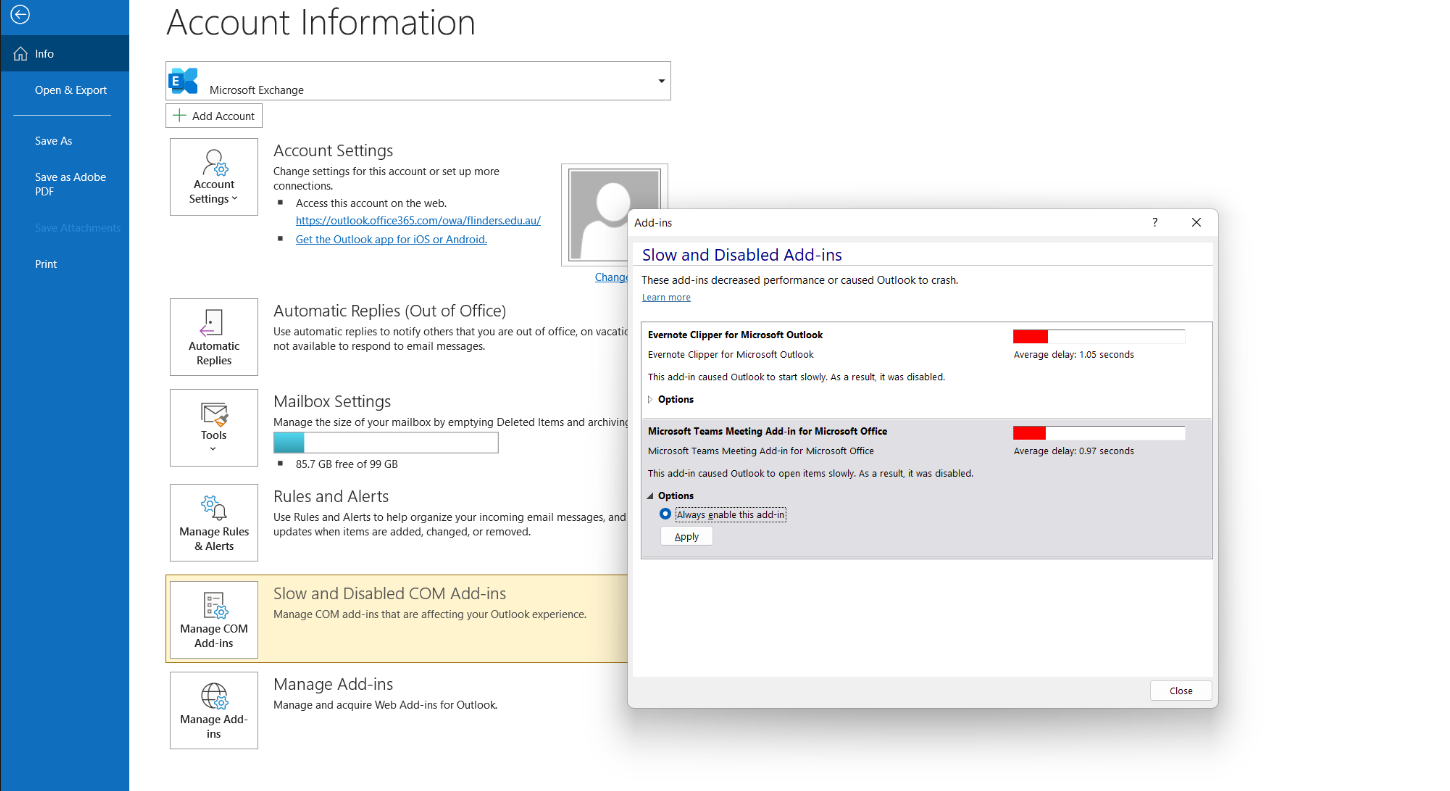
How to Schedule a Teams Meeting from Outlook
After adding Microsoft Teams to Outlook on Windows 11, you can create meetings easily.
- Open Outlook Calendar.
- Click New Teams Meeting.
- Enter meeting details such as title, date, and participants.
- Click Send.
Outlook will automatically include the Teams meeting link.
What to Do If the Teams Add-In Is Missing
If you cannot find the Microsoft Teams add-in, try the following fixes.
Sign in to Teams First
Make sure you are signed into the Microsoft Teams desktop app. The add-in usually installs automatically after signing in.
Update Outlook and Teams
Outdated apps may prevent the add-in from appearing.
- Open Outlook.
- Go to File > Office Account.
- Click Update Options.
- Select Update Now.
Also update the Teams app.
Restart Outlook
After enabling the add-in, restart Outlook to apply the changes.
Requirements for the Teams Add-In
To add Microsoft Teams to Outlook successfully, you need:
- Microsoft Outlook desktop app
- Microsoft Teams installed
- A work or school Microsoft account
- The same account signed in to both apps
Personal Outlook accounts may not always support Teams meeting integration.
Final Thoughts
Adding Microsoft Teams to Outlook on Windows 11 makes meeting scheduling faster and more convenient. Once the Teams add-in is enabled, you can create online meetings directly from the Outlook calendar without switching between apps.
If the option does not appear, check that the Teams add-in is enabled and both Outlook and Teams are updated. Once configured correctly, the integration works smoothly and improves productivity.
FAQs
How do I add Microsoft Teams to Outlook on Windows 11?
Enable the Microsoft Teams Meeting Add-in from Outlook Options under the Add-ins section.
Why is the Teams meeting button missing in Outlook?
The Teams add-in may be disabled, or the Teams desktop app may not be installed or signed in.
Do I need Microsoft Teams installed to schedule meetings in Outlook?
Yes. The Teams desktop app must be installed for the Outlook add-in to work properly.

Discussion (0)
Be the first to comment.