Windows stores the passwords that you use to log in, access network shares, or shared devices. Some of these passwords are stored safely, in an encrypted format, while others are not. Here is how to see which passwords are insecurely stored by Windows, and identify those that can be easily stolen by others:
Step 1. Download Network Password Recovery, for free
First, you need an app that knows where Windows stores passwords and reads them for you. One of the best apps for this task is Network Password Recovery. It is available for free, without bloatware of any kind, both in portable and installable forms. Another positive is the fact that it is available in dozens of languages, not just English.
Network Password Recovery, netpass, Windows
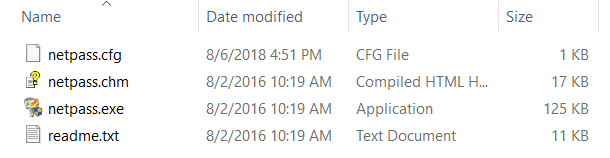
Download the netpass.zip file archive and extract it somewhere on your computer. The app can be used to read passwords from the current operating system or from an external drive where you installed Windows. The external drive can be also from another Windows computer.
Step 2. Run Network Password Recovery and see which Windows passwords are vulnerable
Next, run the netpass.exe file, and when you see a UAC prompt asking for administrative permissions to run the app, click or tap Yes.
Network Password Recovery, netpass, Windows
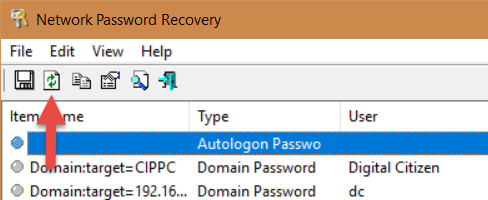
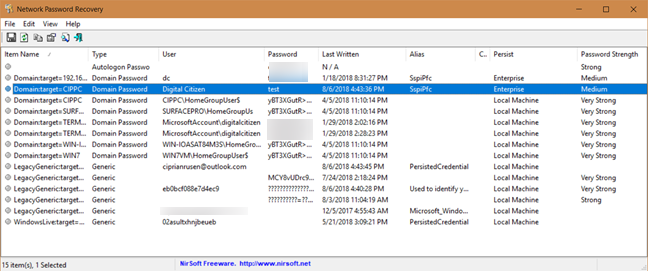
The Network Password Recovery app is loaded. It immediately displays all the passwords stored by Windows. If you want to refresh the data displayed, press the F5 key on your keyboard, or the Refresh button in its toolbar.
Network Password Recovery, netpass, Windows
For each item in the list you see: its name stored by Windows, the type of password (generic, domain password, autologon password), the username, the password, when the password was "last written" or stored by Windows, the internal alias Windows uses, comments stored by Windows or the apps using the password, the persist value, and the password strength.
Network Password Recovery, netpass, Windows
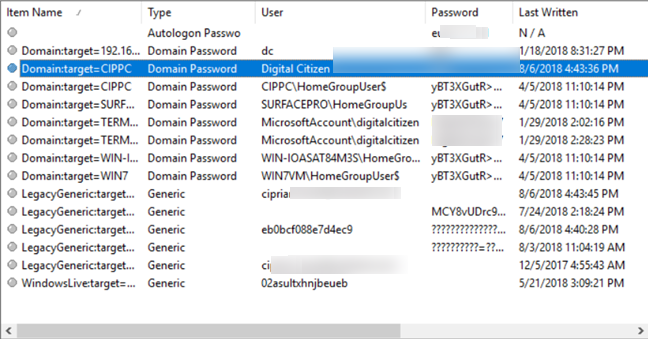
We were surprised to see that Windows store some passwords in plain text. For example, if you log into a network share using a local user account, the password gets stored in plain text, easy to read.
If you set Windows to log you in automatically, without having to type your password, then your password has become insecure. It does not matter whether you use a Microsoft account or a local user account, it is stored in plain text, easy to read by anyone. Generally, Microsoft accounts have their password stored in an encrypted format. Unfortunately, the automatic logon makes them vulnerable, and easy to read with the right tools.
Network Password Recovery, netpass, Windows
With Network Password Recovery you can also read passwords used by Microsoft Outlook to connect to Exchange mail servers, or the passwords stored when using Remote Desktop. This tool reveals and shows all the data that is easy to steal by anyone with access to your Windows computer or its hard disk.
What to do when you want Windows to forget a password stored insecurely?
If your Windows password has become vulnerable because you turned on the automatic login, then you should turn off this feature. If you want Windows to forget some passwords that you use inside a network, to access shared folders and devices, then open the Credential Manager and remove them from there. This tutorial helps with all the steps you need to go through: Credential Manager is where Windows stores passwords and login details. Here's how to use it!
Which easy to read passwords did you find?
Network Password Recovery is a powerful tool that can also be used from the Command Prompt. Try it out and see what passwords are vulnerable on your PCs with Windows. Also, do not forget to take corrective measures. You never know when one of your passwords gets stolen by someone who should not have access to it.
There seems to be no download link. It’s just a graphic image.
Alan ·
With Win10 ver 20.04 it does not work.
Keith Brooks ·
I guess I have my pc configured really safe.
This found no passwords on my pc and trust you I have alot that I use with a password manager in Windows 10.
George ·
That is great news. 😉 keep doing what you are doing. 🙂
ARG ·
does not work in windows 8 64bit
Lyle Hensley ·
Sunbelt Vipre didn’t like the file I tried several sites and got the same results. Trojan. I even added Nisoft as a exception. The only way I could download it was to turn Vipre off. Now we will see what luck I have installing it.
While it’s clear that Network Password Recovery is not malware, maybe it’s worth mentioning that some antivirus applications will react to this utility being present on your computer. Other than that, this is another great application from nirsoft 😉
Keep up the good work!
Ciprian Adrian Rusen ·
That is a very good tip. Thank you very much!
Kent ·
Well, Ciprian. I have a list of passwords stored in credential manager but this network password recovery didn’t pull a single one. So I am not sure where I went wrong here.
Cheers.
Ciprian Adrian Rusen ·
Did you run it as administrator?
Kent ·
Yes, I did.
Ciprian Adrian Rusen ·
If you are using a 64-bit edition of Windows, then make sure you download the 64-bit version of the tool. Maybe you are using the 32-bit one.
Kent ·
Right…haha…I was using 32bit version on my 64-bit windows. it’s pulling all my passwords now.
Ron ·
Wow! Thanks for the amazingly fast turn around on that question!
It is typical of MS. They include 256 bit AES in Office, but simple reversible HASH’s for desktop encryption. They talk security but don’t live it. Like you, I too hope they have done better in Win8. They have had enough time to do it, so they have no excuse.
Although Bitlocker (and Applocker) seems like a reasonable suggestion it fails in the real world because it is not available. BitLocker and AppLocker are reserved for Windows Enterprise and Windows Ultimate, which almost no one has, including enterprises! Too bad they don’t get smart and move features like that down to the base Windows Business release.
Ciprian Adrian Rusen ·
These findings and your comments convinced me to consider writing a series of articles about encryption solutions for people who don’t own an Ultimate or Enterprise version of Windows 7. However, it will take us a while as other stuff is lined up right now. Thanks for the dialogue. I hope more of our readers will comment and share their questions. It helps us a lot in providing useful content to everybody.











Discussion (15)
There seems to be no download link. It’s just a graphic image.
With Win10 ver 20.04 it does not work.
I guess I have my pc configured really safe.
This found no passwords on my pc and trust you I have alot that I use with a password manager in Windows 10.
That is great news. 😉 keep doing what you are doing. 🙂
does not work in windows 8 64bit
Sunbelt Vipre didn’t like the file I tried several sites and got the same results. Trojan. I even added Nisoft as a exception. The only way I could download it was to turn Vipre off. Now we will see what luck I have installing it.
Salut Ciprian,
I downloaded the zip version of Network Password Recovery from nirsoft.net and right after extracting its contents, Microsoft Security Essentials got upset saying this:
https://www.microsoft.com/security/portal/Threat/Encyclopedia/Entry.aspx?name=HackTool%3aWin32%2fNetpass&threatid=2147605535
While it’s clear that Network Password Recovery is not malware, maybe it’s worth mentioning that some antivirus applications will react to this utility being present on your computer. Other than that, this is another great application from nirsoft 😉
Keep up the good work!
That is a very good tip. Thank you very much!
Well, Ciprian. I have a list of passwords stored in credential manager but this network password recovery didn’t pull a single one. So I am not sure where I went wrong here.
Cheers.
Did you run it as administrator?
Yes, I did.
If you are using a 64-bit edition of Windows, then make sure you download the 64-bit version of the tool. Maybe you are using the 32-bit one.
Right…haha…I was using 32bit version on my 64-bit windows. it’s pulling all my passwords now.
Wow! Thanks for the amazingly fast turn around on that question!
It is typical of MS. They include 256 bit AES in Office, but simple reversible HASH’s for desktop encryption. They talk security but don’t live it. Like you, I too hope they have done better in Win8. They have had enough time to do it, so they have no excuse.
Although Bitlocker (and Applocker) seems like a reasonable suggestion it fails in the real world because it is not available. BitLocker and AppLocker are reserved for Windows Enterprise and Windows Ultimate, which almost no one has, including enterprises! Too bad they don’t get smart and move features like that down to the base Windows Business release.
These findings and your comments convinced me to consider writing a series of articles about encryption solutions for people who don’t own an Ultimate or Enterprise version of Windows 7. However, it will take us a while as other stuff is lined up right now. Thanks for the dialogue. I hope more of our readers will comment and share their questions. It helps us a lot in providing useful content to everybody.