



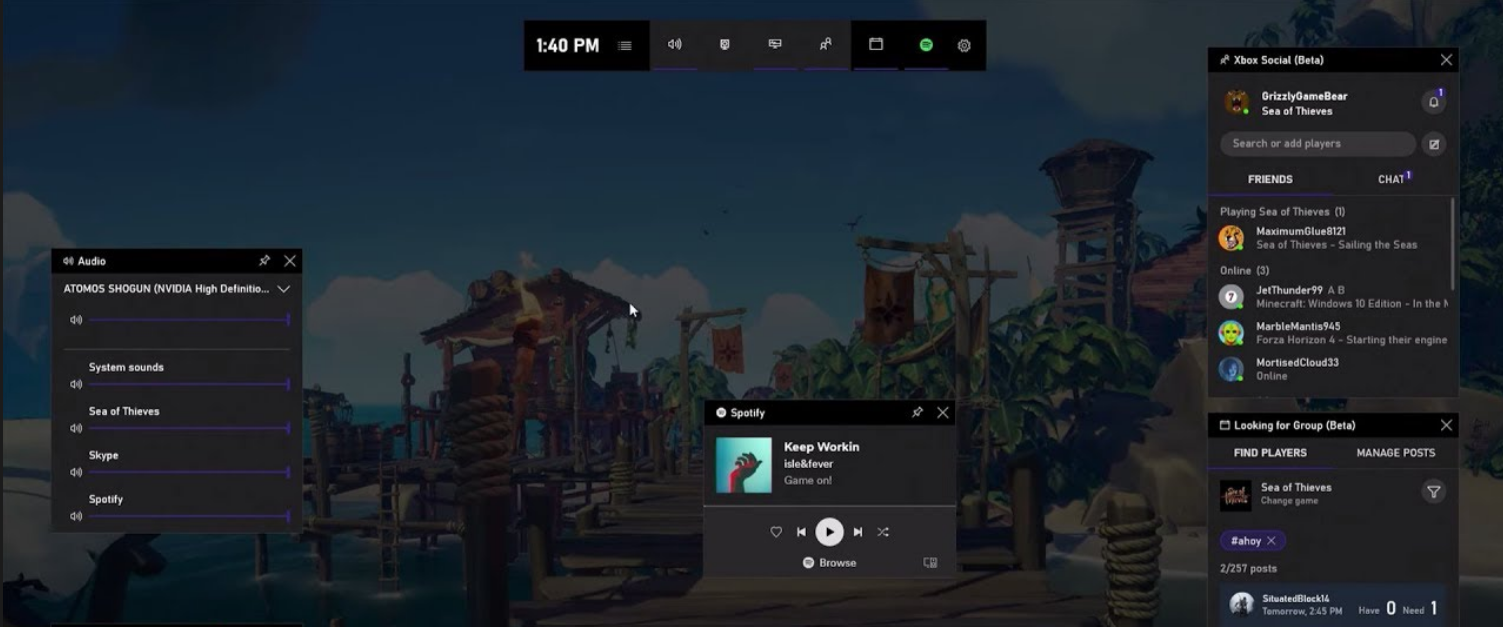
If you’ve ever pressed Win + G and seen an overlay pop up, you’ve already used Xbox Game Bar in Windows. It’s a built-in tool designed to help you record gameplay, monitor performance, and access gaming features without leaving your game.
It works like a lightweight control panel for gaming and screen capture.
What Is Xbox Game Bar?
Xbox Game Bar is a built-in Windows feature that provides an overlay for gaming and system tools.
It allows you to:
- Record gameplay or screen
- Take screenshots
- Monitor CPU, GPU, and RAM usage
- Control audio and chat
- Access widgets without exiting your game
It is available in both Windows 10 and Windows 11.
How to Open Xbox Game Bar
You can open it anytime using a shortcut.
Shortcut:
- Press Windows + G
This opens the overlay on top of your current screen.
Key Features of Xbox Game Bar
Xbox Game Bar includes several useful tools.
1. Screen Recording
- Record gameplay or desktop
- Save clips instantly
- Works in most apps and games
2. Screenshot Capture
- Take screenshots quickly
- Save images automatically
3. Performance Monitor
- View CPU, GPU, RAM usage
- Monitor FPS (frames per second)
4. Audio Controls
- Adjust system and app volume
- Control microphone input
5. Widgets and Overlays
- Add widgets like Spotify, performance, chat
- Customize layout
How to Record Screen Using Xbox Game Bar
Follow these steps.
Step 1: Open Game Bar
Press Windows + G
Step 2: Start Recording
- Click the Capture widget
- Press the Record button
Or use shortcut:
- Windows + Alt + R
Step 3: Stop Recording
- Click stop button
- Video will be saved automatically
Where Are Recordings Saved?
By default, recordings are saved in:
Videos > Captures
You can access them anytime.
When Should You Use Xbox Game Bar?
It is useful for:
- Recording gameplay
- Capturing tutorials
- Monitoring performance
- Quick screenshots
It is great for casual users and gamers.
Limitations of Xbox Game Bar
There are some limitations.
- Cannot record File Explorer or desktop in some cases
- Limited editing features
- May not work with all apps
- Not as advanced as professional tools
For advanced recording, other software may be needed.
How to Enable or Disable Xbox Game Bar
Steps:
- Press Windows + I
- Go to Gaming > Xbox Game Bar
- Toggle it ON or OFF
You can disable it if you don’t use it.
Final Thoughts
Understanding what Xbox Game Bar in Windows is helps you take advantage of built-in tools for recording, monitoring, and gaming. It is simple, quick, and does not require extra software.
For most users, it provides everything needed for basic screen recording and performance tracking.
FAQs
What is Xbox Game Bar used for?
It is used for recording gameplay, taking screenshots, and monitoring performance.
Is Xbox Game Bar free?
Yes. It is built into Windows.
Can I record my screen with it?
Yes, using the capture feature.
Does it affect performance?
It may use some resources, but usually minimal.


Discussion (0)
Be the first to comment.