




The Xbox One green screen of death appears when the console gets stuck during startup and never reaches the dashboard. In most cases, the issue comes from a failed system update, corrupted system files, or an interrupted boot process, and you can fix it at home following the steps in this guide.
Table of contents
- What the Xbox One green screen of death means
- Before you start: Quick checks that save time
- Fix 1: Power cycle the Xbox One
- Fix 2: Restart the console from the Xbox startup troubleshooter
- Fix 3: Reset Xbox One while keeping games and apps
- Fix 4: Perform an offline system update (USB method)
- Fix 5: Full factory reset as a last software option
- What to do if the green screen error keeps returning
- Does this affect Xbox One S and Xbox One X differently?
- When to contact Xbox support or repair services
- Tips to prevent the Xbox green screen error in the future
- FAQ
- Summary
What the Xbox One green screen of death means
The green screen shows that the console powers on but cannot load the operating system. The system stalls before finishing startup, which prevents access to games, apps, and settings.
Before you start: Quick checks that save time
Unplug all external devices except power and HDMI to remove conflicts. Make sure the console connects directly to a wall outlet and not a power strip.
Fix 1: Power cycle the Xbox One
A full power cycle clears temporary firmware issues that often cause startup loops.
- Press and hold the power button on the console for 10 seconds until it shuts off.
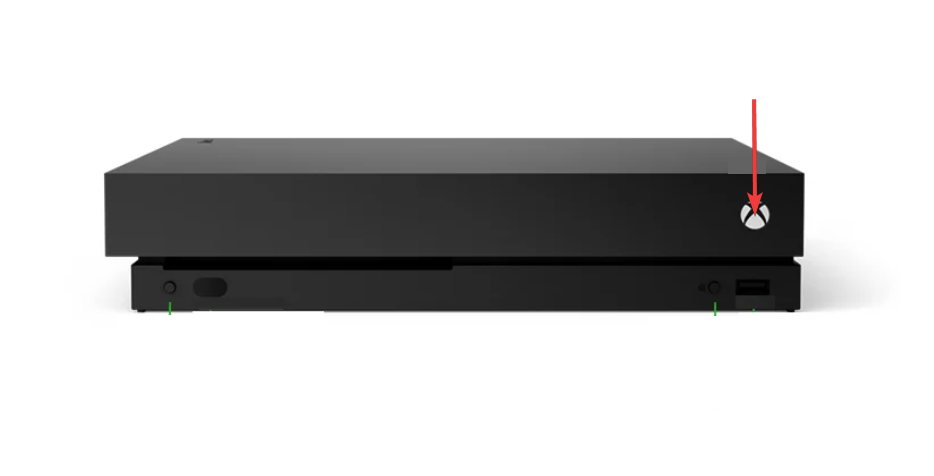

- Unplug the power cable from the back of the console.
- Wait at least 30 seconds, then plug the cable back in and turn the console on.
If the console boots normally, the issue was temporary and no further steps are needed.
Fix 2: Restart the console from the Xbox startup troubleshooter
The startup troubleshooter allows the system to recover when normal boot fails.
How to open the Xbox startup troubleshooter
You can access recovery mode using a button combination on the console.
- Turn off the console completely.
- Press and hold the Pair button and the Eject button.
- While holding both buttons, press the power button once.


- Keep holding Pair and Eject until you hear a second startup beep.
The troubleshooter menu should appear on screen.
Fix 3: Reset Xbox One while keeping games and apps
This option repairs system files without deleting installed games.
- Open the startup troubleshooter.
- Select Reset this Xbox.


- Choose Reset and keep my games and apps.
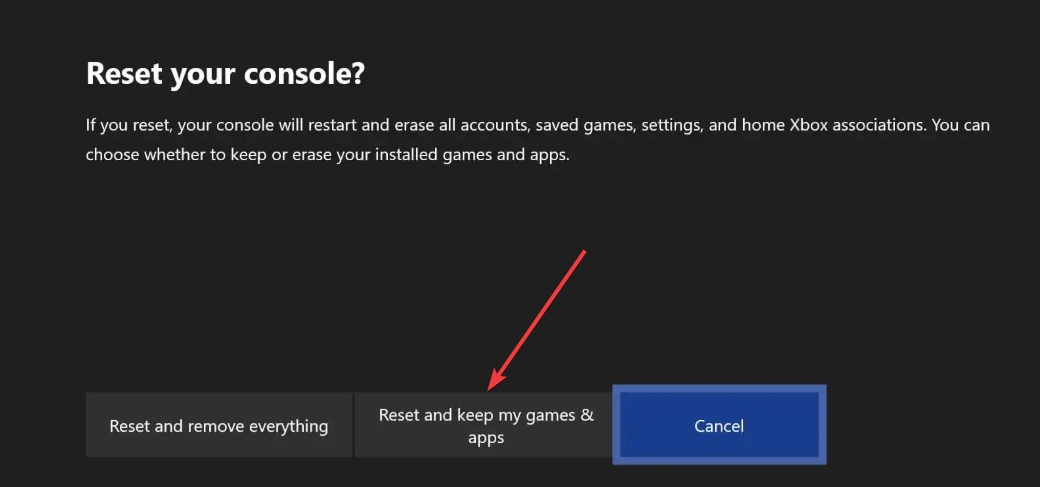

The console reinstalls the system software while preserving your data.
When this option works best
Use this reset if the green screen appears after an update or crash but the console still responds to recovery tools.
Fix 4: Perform an offline system update (USB method)
Offline updates fix cases where corrupted updates block startup completely.
What you need before starting
You need a USB flash drive with at least 8 GB of space formatted as NTFS. You also need access to a working PC to prepare the update files.
How to install the offline update
Follow these steps carefully to avoid errors.
- Download the offline system update file on a PC.
- Extract the file and copy the $SystemUpdate folder to the USB drive.
- Turn off the console and open the startup troubleshooter.
- Insert the USB drive into the console.
- Select Offline system update and wait for the process to finish.


The console restarts automatically if the update succeeds.
Fix 5: Full factory reset as a last software option
A full reset removes all data but fixes severe system corruption.
- Open the startup troubleshooter.
- Select Reset this Xbox.
- Choose Reset and remove everything.
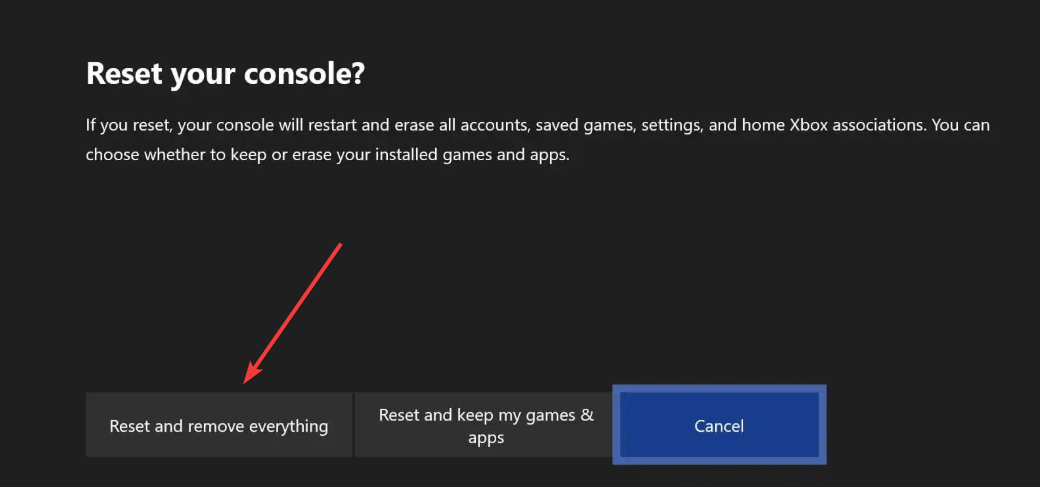
Only use this option if other fixes fail, since it deletes games, apps, and saved data.
What to do if the green screen error keeps returning
Repeated green screen errors often point to failing internal storage or deeper hardware faults. Software fixes rarely solve issues that return after a successful reset or update.
Does this affect Xbox One S and Xbox One X differently?
The symptoms look the same across Xbox One, One S, and One X models. The fixes follow the same steps, though hardware failures appear more often on older consoles.
When to contact Xbox support or repair services
Contact support if the console cannot access the startup troubleshooter or fails offline updates repeatedly. Professional repair becomes the best option when storage or motherboard issues appear.
Tips to prevent the Xbox green screen error in the future
- Avoid unplugging the console during updates.
- Keep the console connected to stable power.
- Allow system updates to finish completely.
- Shut down the console properly instead of unplugging it.
FAQ
How long should I wait on the green screen before turning the console off?
Wait no longer than five minutes. If the screen does not change, shut down the console and start troubleshooting.
Will resetting Xbox One delete my games and saves?
The “keep games and apps” reset preserves installed games but may remove some settings. A full factory reset deletes all local data.
Does the offline system update fix most green screen issues?
Yes, offline updates fix many cases caused by corrupted updates. This method works best when the console cannot boot normally.
What does error code E101 or E102 mean on a green screen?
These error codes usually point to update corruption or internal storage problems. Repeated errors often indicate failing hardware.
Summary
- Power cycle the console to clear temporary startup issues.
- Use the startup troubleshooter to reset or repair the system.
- Install an offline update if normal boot fails.
- Factory reset only when other software fixes do not work.
- Seek repair if the green screen keeps returning.
With Xbox making popular games free for a limited time, you wouldn't want the green screen of death to let you miss out on the opportunity. Most of these errors resolve after one of the recovery steps above. However, if the console still fails to boot, hardware repair is usually the final and necessary step.


Discussion (0)
Be the first to comment.