




There is a padlock in your browser right now. It means your connection to whatever site you are reading is encrypted. Nobody between you and the server can read the content. Most people see that padlock and assume their browsing is private.
It is not. Not fully.
Every time you visit a website, before that encrypted connection even starts, your computer shouts the site's name across the network in plain text. No encryption. No protection. Your internet provider sees it. Anyone monitoring the Wi-Fi you are on sees it. It has worked this way since the internet was built, and most people have no idea it is happening.
DNS over HTTPS fixes this. Windows 11 supports it natively. Enabling it takes about three minutes.
The Problem With Regular DNS
When you type a website address into your browser, your computer does not know where to find it. It knows the name, like bbc.co.uk, but not the actual numeric address it needs to connect. So it asks a DNS server, essentially the internet's phone book, to look up the address and send it back.
This lookup, called a DNS query, has traditionally happened completely unencrypted over a protocol called UDP on port 53. It travels in plain text across your network, readable by anyone who can observe the traffic. Your ISP logs it. Network administrators see it. On a public Wi-Fi network, anyone with the right tools can intercept it.
The irony is that even when HTTPS protects the content of your connection, the DNS lookup that happened just before it is completely visible. Someone watching your traffic cannot read what you do on a website, but they can see the list of every website you visit.
What DNS over HTTPS Actually Does
DNS over HTTPS, or DoH, wraps those DNS queries inside an encrypted HTTPS connection before sending them. Your DNS request travels over port 443, the same port used by all regular encrypted web traffic, making it indistinguishable from normal browsing traffic.
The result is that your DNS queries become invisible to network observers. Your ISP can no longer build a picture of your browsing habits from DNS logs. Someone on the same public Wi-Fi network cannot see which sites you are visiting. Attackers who attempt DNS hijacking, intercepting your DNS responses to redirect you to fake websites, cannot do so because the responses are encrypted and authenticated.
What it does not do is worth being clear about. It does not hide your IP address. It does not make you anonymous. The websites you visit still know who you are once you connect. But it closes a real, specific privacy gap that most people do not know exists.
Which DNS Server to Use
To use DNS over HTTPS, you need to switch to a DNS provider that supports it. Three are worth knowing about.
Cloudflare uses the addresses 1.1.1.1 and 1.0.0.1. It is consistently the fastest public DNS resolver by independent benchmarks and has a clear privacy policy committing to not selling query data.
Google uses 8.8.8.8 and 8.8.4.4. Highly reliable and fast, though Google's broader data practices are worth bearing in mind.
Quad9 uses 9.9.9.9 and 149.112.112.112. Operated by a non-profit. It also blocks known malicious domains at the DNS level, which adds a layer of protection against malware and phishing without any extra configuration.
Cloudflare or Quad9 are the strongest choices for most people. Pick one before starting.
How to Enable It in Windows 11
1: Open Settings and Go to Network
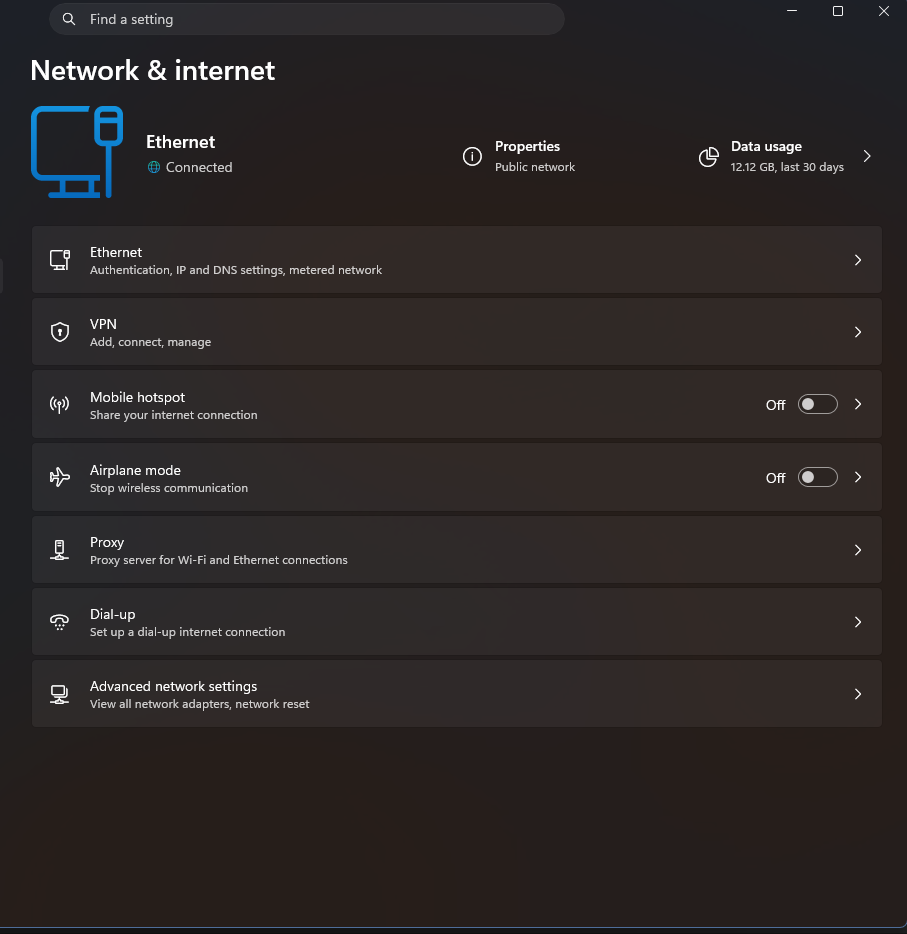
Press Windows + I to open Settings. Click Network and internet in the left sidebar.
2: Open Your Connection Properties
Click Wi-Fi or Ethernet depending on how you connect. Then click on your network name. If you are on Wi-Fi, click through to Hardware properties on the next screen.
3: Edit DNS Server Assignment
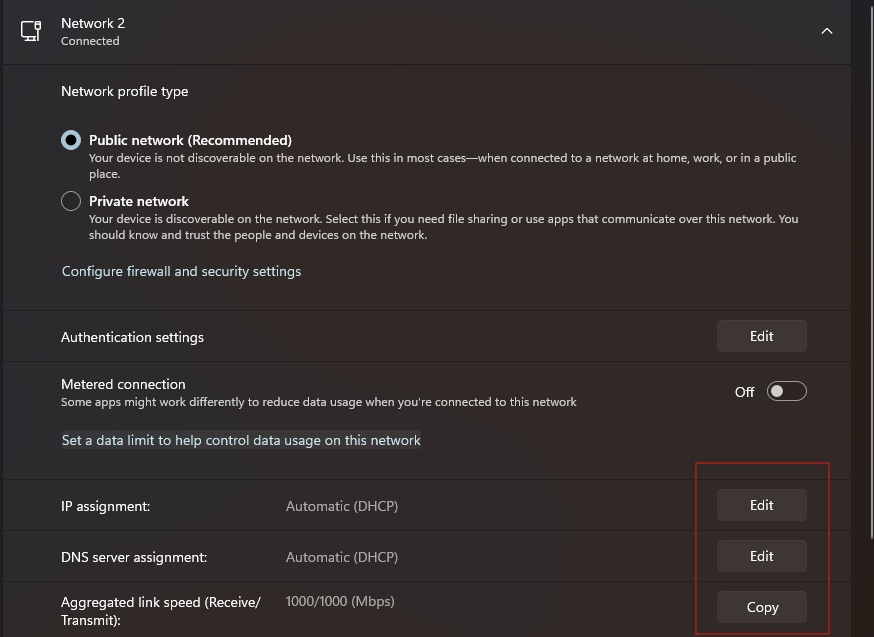
Scroll down to find DNS server assignment. It will show Automatic (DHCP) by default. Click Edit.
4: Switch to Manual
In the dialog box, change the dropdown from Automatic (DHCP) to Manual. Toggle the IPv4 switch on.
5: Enter Your DNS Addresses
In the Preferred DNS field, enter the primary address of your chosen provider. Using Cloudflare: 1.1.1.1. In the Alternate DNS field, enter the secondary: 1.0.0.1.
6: Turn On Encryption
Below each DNS address field is a DNS over HTTPS dropdown. This is the step that actually enables encryption. Set it to On (automatic template) for both the Preferred and Alternate entries. If you see Encrypted only (DNS over HTTPS) as an option and want stricter enforcement, choose that instead.
Click Save.
7: Check It Is Working
If you used Cloudflare, open a browser and go to 1.1.1.1/help. The page will confirm whether DNS over HTTPS is active. For other providers, search for a DNS leak test tool and run a quick check.
Does It Affect Speed or Break Anything?
No and no. The encryption overhead on a DNS query is measured in single-digit milliseconds. You will not notice it. Switching from a slow ISP-provided DNS to Cloudflare or Google can actually make browsing feel marginally faster, not slower.
Everything on your PC continues working normally. Websites, apps, games, streaming services, none of them know or care that your DNS queries are now encrypted. The change is invisible to everything except the people who were previously able to read your DNS traffic.
Unlike browser-level DoH settings, which only protect traffic from that specific browser, enabling it through Windows Settings applies system-wide to every app on your machine.
Final Thoughts
The padlock in your browser is real protection, but it was never the whole story. DNS queries have been the overlooked gap in an otherwise encrypted connection since the beginning of the web. DNS over HTTPS closes that gap at the operating system level without any software to install, any subscription to pay for, or any meaningful tradeoff. It is a three-minute change that does exactly what it claims.
Frequently Asked Questions
Does DNS over HTTPS make me anonymous?
No. It encrypts your DNS queries so that ISPs and network observers cannot see which domains you are visiting. But websites still see your IP address when you connect, and your browser, cookies, and login sessions still identify you normally. It is a meaningful privacy improvement for a specific part of your traffic, not a full anonymity solution.
Is this different from using a VPN?
Yes. A VPN encrypts all your traffic and routes it through a different server, masking your IP address. DNS over HTTPS only encrypts DNS lookups and does not change your IP address or reroute other traffic. Using both together provides stronger protection than either alone.
Does it apply to all apps or just my browser?
When enabled through Windows 11 Settings, it applies system-wide to every application that uses Windows for DNS resolution. This includes your browser, email client, games, and background processes. Browser-level DoH settings, available in Chrome, Firefox, and Edge separately, only protect that specific browser.
What is the difference between the Encrypted only and automatic template options?
Encrypted only means Windows will refuse to send DNS queries if encryption is unavailable, which is stricter but could cause connection issues if the server is temporarily unreachable. Automatic template allows fallback to regular DNS if needed. For everyday use, automatic template is the more practical choice.
Will this slow down my internet?
No. The encryption adds a negligible processing overhead. DNS queries are tiny and fast. Switching to a well-maintained public resolver like Cloudflare or Google often results in faster DNS resolution than a slow ISP-provided server, so if anything your browsing may feel slightly more responsive.



Discussion (0)
Be the first to comment.