



Hard drives and SSDs fail without warning. One day your PC is fine, the next you hear a click or get an error, and suddenly files you have had for years are gone. The frustrating part is that most drives give warning signs weeks or months before they actually fail. They track their own health internally, constantly logging error counts, temperature history, and wear data. The problem is that Windows never shows you any of it.
CrystalDiskInfo does. It is a free tool that reads the health data built into every drive on your PC and displays it in plain, colour-coded language. Good, Caution, or Bad. This guide explains what it is, how to use it, and what to do when it tells you something is wrong.
What Is CrystalDiskInfo?
CrystalDiskInfo is a free, open-source disk health monitoring tool developed by Noriyuki Miyazaki and available from crystalmark.info. It works on Windows 10 and Windows 11 and supports traditional hard drives, SSDs, NVMe drives, and most external USB drives. The latest version as of early 2026 is 9.8.0.
The tool works by reading something called S.M.A.R.T. data, which stands for Self-Monitoring, Analysis and Reporting Technology. Every hard drive and SSD manufactured in the last twenty years has this system built in. The drive continuously monitors itself and logs dozens of health metrics including read error rates, temperature, how many times it has been powered on, how many hours it has run, and how many sectors have developed errors and been remapped to spare areas.
CrystalDiskInfo reads all of that data, interprets it, and tells you in plain language how your drive is doing. Windows itself has access to this data but surfaces none of it in a useful way. CrystalDiskInfo makes it visible.
How to Download and Install CrystalDiskInfo
Go to crystalmark.info and click on CrystalDiskInfo. Download the Standard Edition installer. Run it and click through the standard setup steps. The application is small and installs in seconds.
If you would rather not install anything, a portable version is also available on the same page. Download the ZIP, extract it, and run DiskInfo.exe directly. The portable version is useful if you want to carry it on a USB drive and check the health of drives on other PCs.
Reading the Dashboard
Open CrystalDiskInfo and it immediately scans every drive connected to your PC. If you have more than one drive, you can switch between them using the Disk menu at the top.
The most important thing on screen is the Health Status box in the upper left. It will show one of three things.
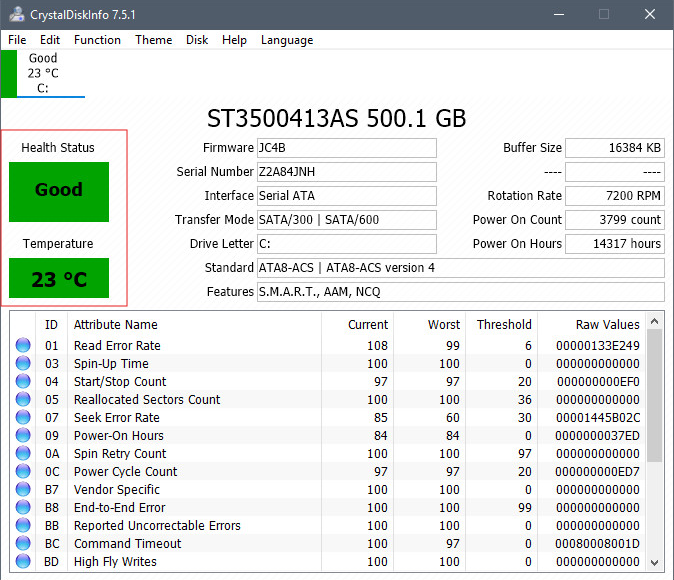
Good in blue means your drive is healthy and all monitored attributes are within normal ranges. This is what you want to see.
Caution in yellow means one or more attributes have crossed a warning threshold. The drive is still working but something has been flagged. This is a signal to back up your data immediately and start thinking about replacement.
Bad in red means serious or imminent failure. Back up everything right now and replace the drive as soon as possible. Do not wait.
Just below the health status, CrystalDiskInfo shows your drive's current temperature, how many times it has been powered on, and the total number of hours it has been running. These numbers give useful context. A drive that has been running for 50,000 hours and powered on 10,000 times has had a long life. A relatively new drive showing Caution is more concerning than an old drive doing the same.
Understanding the S.M.A.R.T. Attribute Table
Below the summary information is a table of individual S.M.A.R.T. attributes. Each row is a specific metric the drive tracks. The table has several columns but the one that matters most for everyday users is the Raw Value column on the right. This shows the actual count in human-readable numbers.
The Current and Worst columns use a normalised scale that varies between manufacturers and is often confusing and inconsistent. A Current value of 100 might be perfect for one attribute and meaningless for another. Ignore those columns unless you want to go deep. The Raw Value is what actually tells you something.
A few specific attributes are worth knowing by name because they are the most reliable early warning signs.
Reallocated Sectors Count is one of the most important. When a sector on a hard drive develops an error, the drive quietly remaps it to a spare area and logs it here. A raw value of zero is ideal. Any number above zero on a traditional hard drive is worth paying attention to. On SSDs this attribute works differently and small numbers are less alarming, but a rapidly rising count is always a concern.
Uncorrectable Sector Count is more serious. These are errors the drive detected but could not fix by remapping. On a traditional hard drive, any non-zero value here warrants immediate attention.
Reallocated Event Count tracks how many times remapping events have happened. Rising rapidly is a bad sign.
Power-On Hours simply tells you the total running time of the drive. Useful for context when buying second-hand hardware.
Temperature is shown both in the summary section and as an attribute. Most drives run comfortably between 30°C and 50°C. Consistently above 55°C warrants better ventilation.
For SSDs, an additional attribute called Percentage Used or SSD Life Left shows how much of the drive's rated write endurance has been consumed. When this approaches 100% used, the SSD is reaching the end of its rated lifespan.
Setting Up Background Monitoring
CrystalDiskInfo can run silently in the background and alert you if something changes, which is more useful than checking manually every few months.
Go to the Function menu and select Resident. This puts CrystalDiskInfo in your system tray where it monitors your drives continuously without getting in the way. If a drive's health status changes from Good to Caution, or if temperature rises above a threshold you set, CrystalDiskInfo shows a notification.
To make it start automatically with Windows, go to Function, then Startup. From now on CrystalDiskInfo loads silently when you log in, monitors your drives in the background, and only asks for your attention when something actually needs it.
What to Do If CrystalDiskInfo Shows a Warning
If you see Caution or Bad, the single most important thing to do is back up your data immediately. Before you research replacement drives, before you run more diagnostics, before you do anything else, copy your important files somewhere safe.
A Caution status does not mean the drive will fail today. Some drives sit at Caution for months before anything changes. But it does mean the drive has already crossed a threshold that you should not ignore, and waiting to back up is a gamble.
A Bad status means the situation is serious. Stop using the drive for anything important and prioritise getting your data off it as quickly as possible.
Once your data is safe, replacing the drive is the right move. There is no reliable way to fix a drive that has developed hardware-level errors.
Final Thoughts
Most people never check their drive health until something goes wrong and it is too late. CrystalDiskInfo takes about two minutes to install and thirty seconds to read. Running it once is better than never running it. Setting it to start with Windows and monitor in the background is better still. Drives do fail, often with advance warning that nobody saw because nobody looked. CrystalDiskInfo is the tool that makes looking effortless.
Frequently Asked Questions
Is CrystalDiskInfo free?
Yes. CrystalDiskInfo is completely free and open-source, released under the MIT licence. It is developed and maintained by Noriyuki Miyazaki and available from crystalmark.info at no cost for personal and commercial use.
Does CrystalDiskInfo work with SSDs and NVMe drives?
Yes. CrystalDiskInfo supports traditional hard drives, SATA SSDs, NVMe SSDs, and most external USB drives. NVMe drives require Windows 10 or Windows 11. The tool automatically detects all connected storage devices when it opens.
What does Caution mean in CrystalDiskInfo?
Caution in yellow means one or more S.M.A.R.T. attributes have crossed a warning threshold set by the drive manufacturer. The drive is still functioning but has flagged something worth paying attention to. The right response is to back up your data immediately and monitor the drive closely. If the status stays at Caution without worsening, the drive may continue working for a long time. If it progresses to Bad, replace it.
Can CrystalDiskInfo predict exactly when a drive will fail?
No. S.M.A.R.T. data indicates drive health and warns of developing problems but cannot predict an exact failure date. Some drives fail suddenly without warning even with Good status. Some drives sit at Caution for months without failing. CrystalDiskInfo gives you the best available information to make a decision, not a guarantee either way.
How often should I check my drive health?
Setting CrystalDiskInfo to run at startup in resident mode means it checks continuously without any effort from you. If you prefer to check manually, once a month is a reasonable habit for a PC you use daily. For a PC that stores important files with no other backup, more frequent checks and running CrystalDiskInfo in resident mode are both worth doing.



Discussion (0)
Be the first to comment.