



CPU-Z is a free system information tool that shows detailed information about your computer’s hardware. It is widely used to check processor specifications, memory details, motherboard information, and other system components.
Although CPU-Z is mainly known as a hardware identification tool, it also includes basic hardware monitoring features that help users view real-time system information. This guide explains what CPU-Z is and how its hardware monitoring works.
What Is CPU-Z?
CPU-Z is a lightweight utility developed by CPUID that displays technical information about your computer’s hardware. It is commonly used by technicians, gamers, and PC enthusiasts to analyze system components.
CPU-Z can show detailed information about:
- Processor (CPU) specifications
- Motherboard model and chipset
- RAM type, speed, and channels
- Graphics card information
- System clocks and frequencies
Because it reads hardware data directly from the system, it provides accurate details about your PC.
Why People Use CPU-Z
CPU-Z is useful for diagnosing hardware configurations and verifying system specifications.
Common uses include:
- Checking CPU model and clock speed
- Identifying installed RAM type and capacity
- Verifying motherboard chipset information
- Monitoring processor frequency changes
- Confirming hardware before upgrades
It is often used by gamers and overclocking enthusiasts.
CPU-Z Hardware Monitoring Features
CPU-Z offers basic real-time monitoring of some hardware parameters. While it is not a full monitoring tool like some other applications, it still shows useful live data.
Some hardware monitoring information includes:
- Current CPU clock speed
- Core multiplier
- Bus speed
- Memory frequency
- CPU core voltage (depending on hardware)
These values update automatically while the program is running.
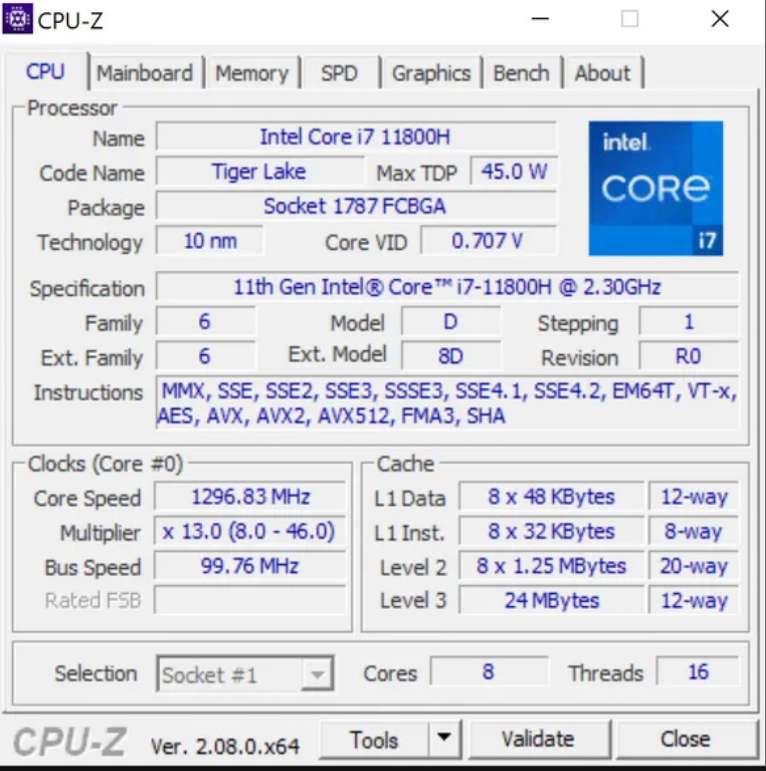
CPU Tab: Processor Monitoring
The CPU tab in CPU-Z shows important processor information.
This includes:
- Processor name and model
- Core speed
- Multiplier value
- Bus speed
- CPU voltage
The core speed field changes in real time, allowing users to observe how the CPU adjusts its frequency during workloads.
Memory Tab: RAM Monitoring
The Memory tab displays details about your system’s RAM.
Information shown includes:
- Memory type (DDR4, DDR5, etc.)
- RAM frequency
- Channel mode (single or dual channel)
- CAS latency and timing values
Monitoring memory frequency helps users confirm if RAM is running at the correct speed.
Mainboard Tab: Motherboard Information
CPU-Z also shows motherboard details.
This includes:
- Manufacturer
- Model number
- Chipset
- BIOS version
This information is useful when updating drivers or BIOS firmware.
Limitations of CPU-Z Monitoring
While CPU-Z provides useful hardware data, it is not a full system monitoring program.
Limitations include:
- Limited temperature monitoring
- No GPU usage tracking
- No fan speed monitoring
- No advanced performance graphs
For full hardware monitoring, users often combine CPU-Z with other tools.
Alternatives for Advanced Hardware Monitoring
If you need more detailed monitoring features, other tools may provide more data.
Popular options include:
- HWMonitor
- HWiNFO
- MSI Afterburner
- Core Temp
These tools can display temperatures, voltages, fan speeds, and system load.
Final Thoughts
CPU-Z is a lightweight and reliable tool for identifying and checking computer hardware. It provides accurate information about processors, memory, and motherboard components, along with basic real-time monitoring of system frequencies.
Although it is not a full monitoring application, CPU-Z remains one of the most popular utilities for checking PC hardware specifications quickly.
FAQs
Is CPU-Z free to use?
Yes, CPU-Z is a free utility available for Windows systems.
Does CPU-Z show CPU temperature?
CPU-Z usually does not display temperatures. Other tools like HWMonitor are better for that.
Is CPU-Z safe?
Yes, CPU-Z is a legitimate and widely used system information tool.
Can CPU-Z monitor GPU performance?
CPU-Z can show basic graphics card information, but it does not provide detailed GPU monitoring.


Discussion (0)
Be the first to comment.