




If you are using an AI-powered browser, learning about using Comet Assistant to automate tasks can significantly improve your workflow. Comet Assistant is designed to help you perform actions, analyze content, and automate repetitive tasks directly within your browser.
Instead of switching between tools or doing everything manually, you can rely on the assistant to handle routine work and speed up your daily tasks.
What Is Comet Assistant?
Comet Assistant is an AI-powered feature built into the Comet browser that helps users interact with web content more efficiently. It can understand instructions, analyze pages, and perform tasks based on your input.
You can think of it as a smart helper that works alongside your browsing.
It can assist with:
- Summarizing web pages
- Writing and editing content
- Extracting key information
- Automating repetitive actions
- Answering questions based on context
How Comet Assistant Automates Tasks
The main strength of Comet Assistant is automation.
Instead of manually performing steps, you can give instructions in natural language.
For example:
- “Summarize this article”
- “Extract key points from this page”
- “Draft a reply based on this content”
The assistant processes your request and completes the task instantly.
Common Tasks You Can Automate
There are many practical ways to use Comet Assistant.
Research and Summarization
You can quickly summarize long articles or reports without reading everything.
Data Extraction
You can pull out important information like key points, lists, or summaries from a webpage.
Repetitive Browsing Tasks
Tasks like copying information, comparing content, or gathering insights can be automated.
How to Use Comet Assistant
Using Comet Assistant is simple once you have access to it.
Step 1: Open Comet Browser
Launch the Comet browser on your PC.
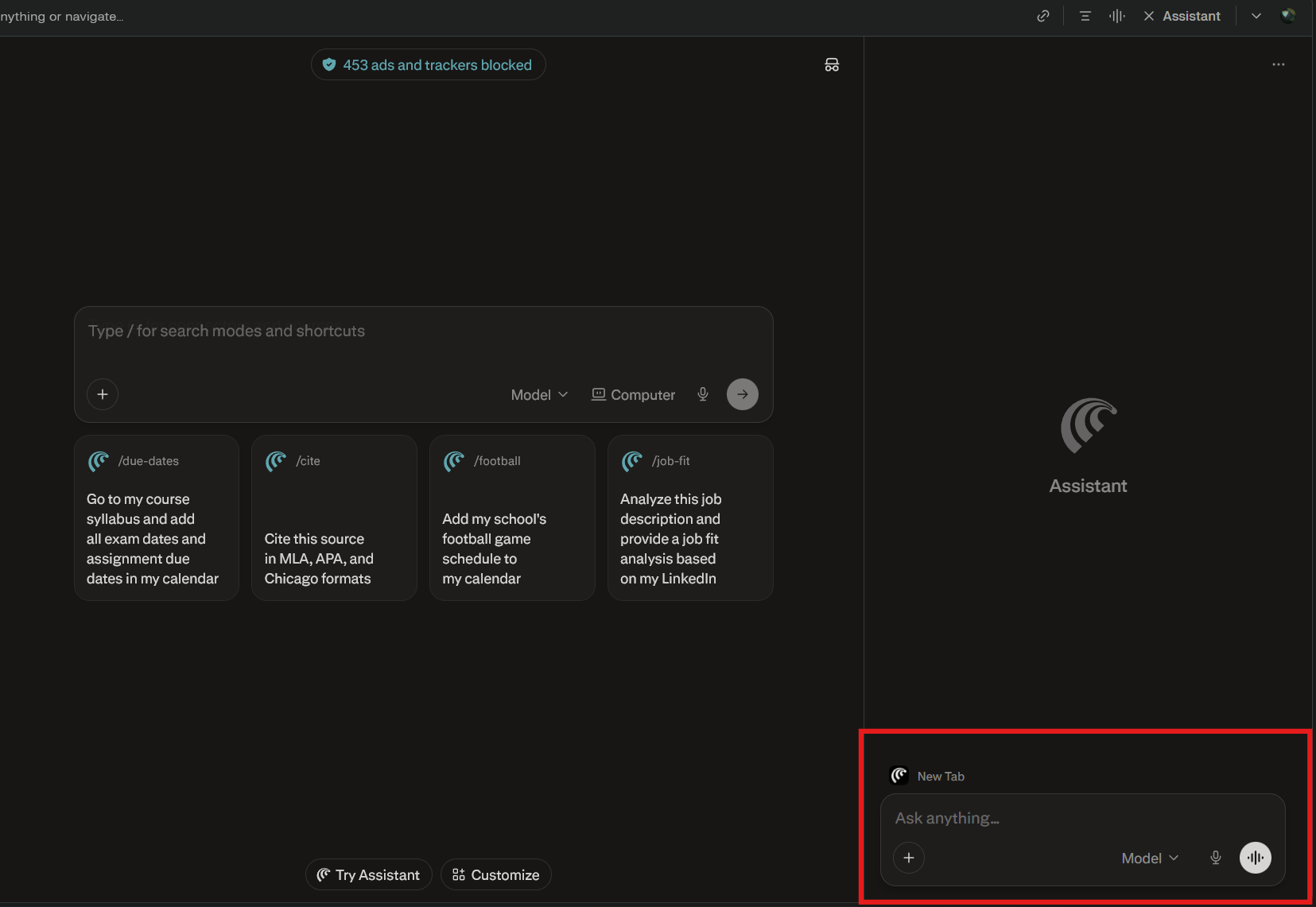
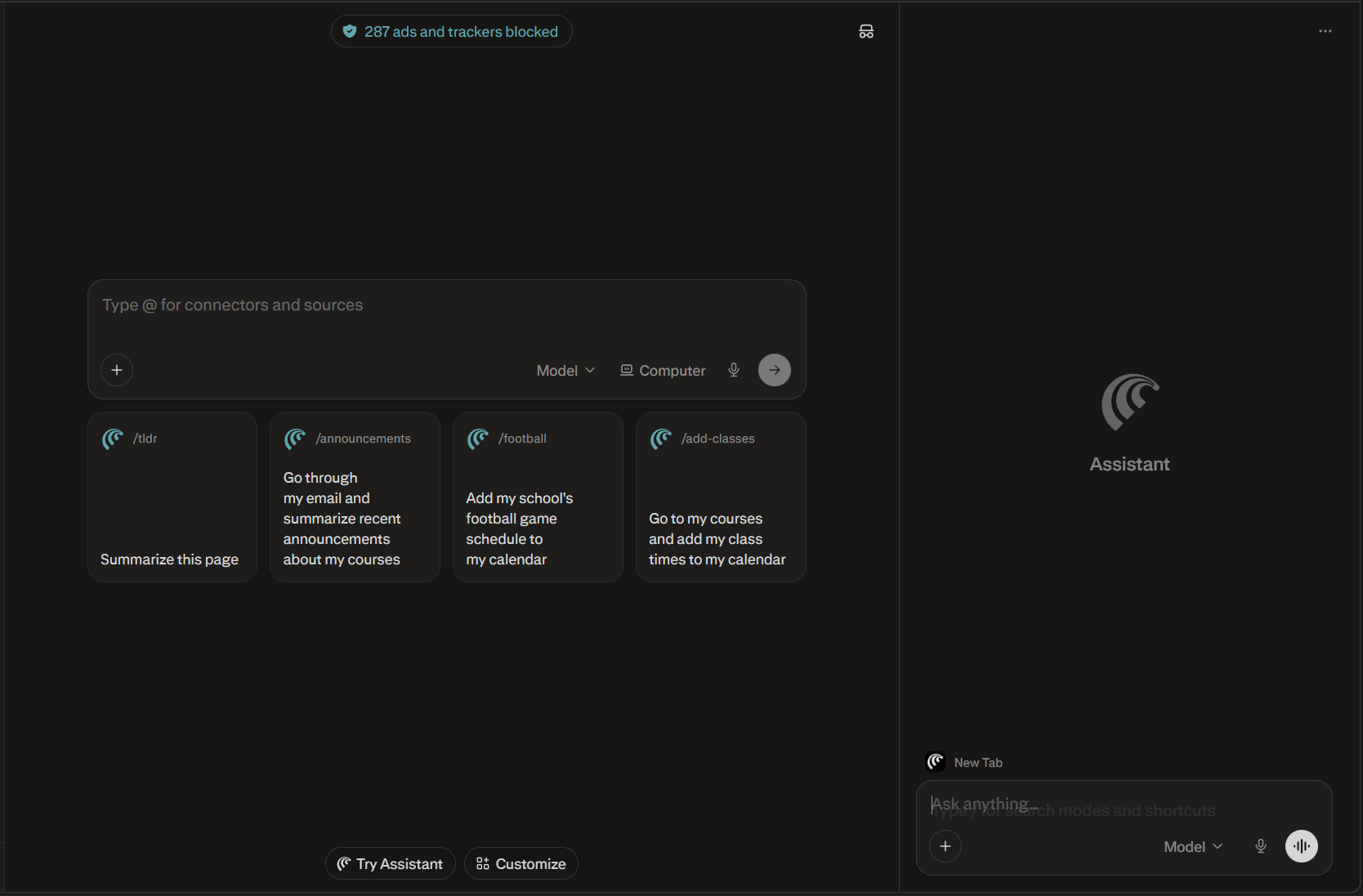
Step 2: Activate the Assistant
Open the assistant panel or use the shortcut provided in the browser.
Step 3: Give Instructions
Type your request in natural language.
Examples:
- Summarize this page
- Explain this topic
- Create notes from this content
Step 4: Review and Refine
Check the output and refine your prompt if needed.
Better instructions usually give better results.
Tips for Better Automation
To get the most out of Comet Assistant:
- Be clear and specific in your instructions
- Break complex tasks into smaller steps
- Use follow-up prompts to refine results
- Combine tasks like summarizing and rewriting
Small improvements in prompts can make a big difference.
Benefits of Using Comet Assistant
Using Comet Assistant for automation offers several advantages.
- Saves time on repetitive tasks
- Reduces manual effort
- Improves productivity
- Helps process information faster
- Simplifies research workflows
It is especially useful for students, professionals, and content creators.
Limitations to Keep in Mind
While helpful, Comet Assistant is not perfect.
- Results may need verification
- Complex tasks may require multiple prompts
- Automation depends on how well instructions are written
It works best when used as a support tool.
Final Thoughts
Understanding using Comet Assistant to automate tasks can change how you work online. Instead of manually handling everything, you can rely on AI to assist with research, writing, and repetitive actions.
It does not replace your workflow, but it makes it faster and more efficient. If used correctly, it can become a powerful productivity tool.
FAQs
What is Comet Assistant used for?
It is used to automate tasks like summarizing, writing, and analyzing web content.
Can Comet Assistant automate tasks?
Yes. It can handle repetitive and time-consuming tasks based on your instructions.
Do I need technical knowledge to use it?
No. You can use natural language commands.


Discussion (0)
Be the first to comment.