




Apple makes it easy to use an iPad and a Mac together, but the experience depends on which feature you choose. Sidecar focuses on turning your iPad into a display or drawing surface, while Universal Control links both devices with one keyboard and mouse. When you pick the right option, your workflow becomes faster and more flexible.
Table of contents
- Understand the ways iPad and Mac work together
- Set up iPad and Mac to work together
- Use Sidecar step by step
- Use Universal Control step by step
- Real-world workflows using iPad and Mac together
- How to choose between Sidecar and Universal Control
- Fix common issues when using iPad and Mac together
- Tips to get the best experience
- Summary
Understand the ways iPad and Mac work together
Apple offers several built-in features that connect iPad and Mac, each solving a different problem.
Sidecar turns your iPad into a Mac display
Sidecar lets you mirror your Mac screen or extend it onto your iPad. You can use Apple Pencil as an input tool, which works well for drawing, photo editing, and precise control.
Universal Control links input across devices
Universal Control allows one keyboard, mouse, or trackpad to control both devices. You move the cursor between screens and drag files without turning the iPad into a display. But you need to first check if your iPad and Mac can use Universal Control.
Continuity features enhance everyday tasks
Features like Handoff, Universal Clipboard, and AirDrop support both Sidecar and Universal Control. They help move text, links, and files between devices without manual transfers.
Set up iPad and Mac to work together
Before enabling anything, confirm your devices meet Apple’s requirements.
Check device and software requirements
Both devices must support the feature you want to use. They need compatible macOS and iPadOS versions, the same Apple ID, and active Bluetooth and Wi-Fi.
Prepare settings for a smooth connection
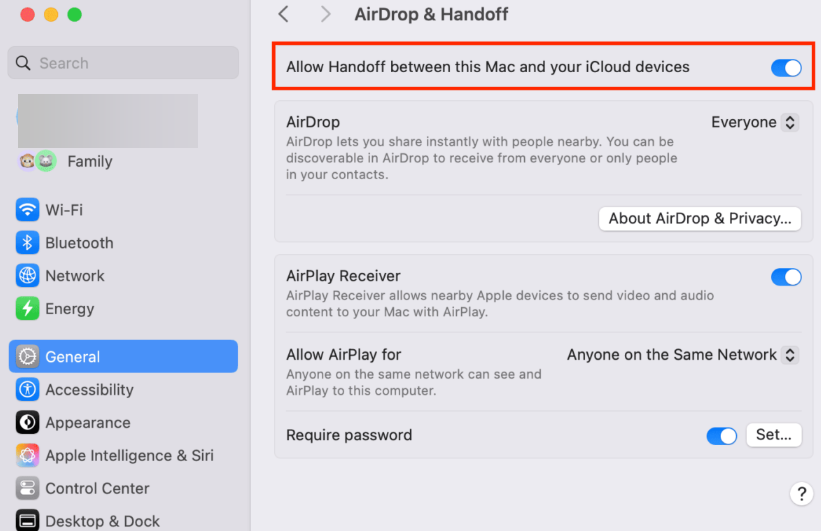
Turn on Bluetooth, Wi-Fi, and Handoff on both devices. Sign in with the same Apple ID and disable any conflicting network settings.
Use Sidecar step by step
Sidecar setup takes only a few clicks once everything is ready.
Enable Sidecar from Mac display settings
- Open System Settings on your Mac.
- Select Displays.
- Choose your iPad from the Add Display menu.


Your iPad connects instantly as a second screen.
Use Apple Pencil and touch controls
Sidecar supports Apple Pencil for drawing and precision input. You can also use on-screen modifier keys and gestures for quick actions.
Customize display and positioning
You can change screen scaling, orientation, and position in Display settings. Adjusting these options improves comfort and performance.
Use Universal Control step by step
Universal Control focuses on shared input instead of screen sharing.
Enable Universal Control in system settings
- Open System Settings on your Mac.
- Go to Displays.


- Enable Allow your cursor and keyboard to move between nearby Mac or iPad.
Arrange the iPad position to match its physical location.
Move cursor, keyboard, and files between devices
Move the cursor to the screen edge to switch devices. Drag files, images, or text directly from Mac to iPad apps.
Understand gestures and shortcuts
Trackpad gestures work across devices, but app shortcuts remain device-specific. Learning these limits prevents confusion.
Real-world workflows using iPad and Mac together
Using both devices together improves productivity when set up correctly.
Writing, research, and study setups
Keep research or PDFs open on the iPad while writing on the Mac. Universal Control makes switching tasks feel natural.
Design, illustration, and photo editing
Sidecar combined with Apple Pencil creates a powerful drawing surface. Many creative apps benefit from this setup.
Meetings, presentations, and multitasking
Use the iPad for notes or chat apps while presenting on the Mac. This setup reduces screen clutter and distractions.
How to choose between Sidecar and Universal Control
Many users confuse these two features, so choosing the right one matters.
When Sidecar makes more sense
Sidecar works best for creative tasks, note-taking, and multitasking that benefits from a second screen. Designers, illustrators, and students often prefer this setup.
When Universal Control works better
Universal Control fits writing, browsing, and file management workflows. You keep apps native to each device while controlling everything from one input setup.
Can you use both at the same time?
You cannot use Sidecar and Universal Control simultaneously. You need to switch modes depending on your current task.
Fix common issues when using iPad and Mac together
- iPad not showing up as a display or device: Confirm both devices use the same Apple ID. Restart Bluetooth and Wi-Fi if the connection fails.
- Lag, disconnects, or input delays: A wired connection improves Sidecar performance. Reducing background apps also helps maintain stability.
- Universal Control not working reliably: Recheck device positioning in Display settings. Restart both devices if the cursor refuses to move between screens.
Tips to get the best experience
- Lower brightness on the iPad and use a cable for Sidecar sessions. These changes reduce lag and power drain.
- External keyboards, mice, and stands improve ergonomics. A stable setup matters for extended sessions.
Summary
- Sidecar works best as a second display and creative input surface.
- Universal Control focuses on shared keyboard and mouse control.
- Both features require compatible devices and the same Apple ID.
- Choosing the right feature depends on your workflow.
Using an iPad and a Mac together unlocks powerful workflows when you match the feature to the task. Sidecar shines for visual work, while Universal Control excels at productivity and multitasking. Once you set everything up correctly, switching between devices feels seamless and natural.


Discussion (0)
Be the first to comment.