




Parental controls on a Chromebook work through Google Family Link and a supervised child account. Once set up correctly, you can control screen time, filter websites, manage apps, and monitor basic activity from your own device.
Table of contents
- How parental controls work on Chromebooks
- Set up parental controls on a Chromebook
- Manage screen time and bedtime limits
- Control apps, extensions, and permissions
- Filter websites and search results
- Monitor activity and location
- Common problems and how to fix them
- School Chromebook restrictions explained
- How to remove parental controls from a Chromebook
- Tips for safer Chromebook use for kids
- FAQs
- Summary
How parental controls work on Chromebooks
Understanding the system avoids unrealistic expectations.
Google Family Link on ChromeOS
Chromebooks rely entirely on Family Link for supervision. All limits, filters, and approvals sync through the child’s Google account.
What parental controls cannot do
Parental controls cannot override school administrator rules. Offline activity and some system settings remain unrestricted.
Set up parental controls on a Chromebook
Set up Family Link app
- Go to your phone’s app store and install the Family Link app.
- Next, open the app and sign in with your account.
- Now, click the +Add child option.
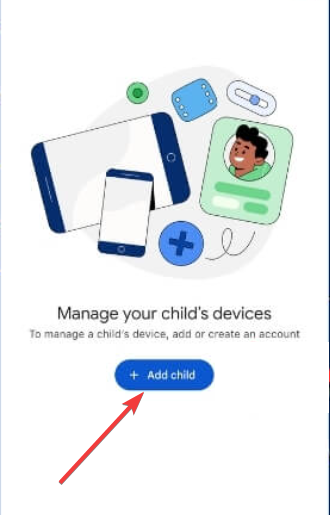

- Add your child’s account. You can create a new account for your child if needed.
Complete Parental Control settings on Chromebook
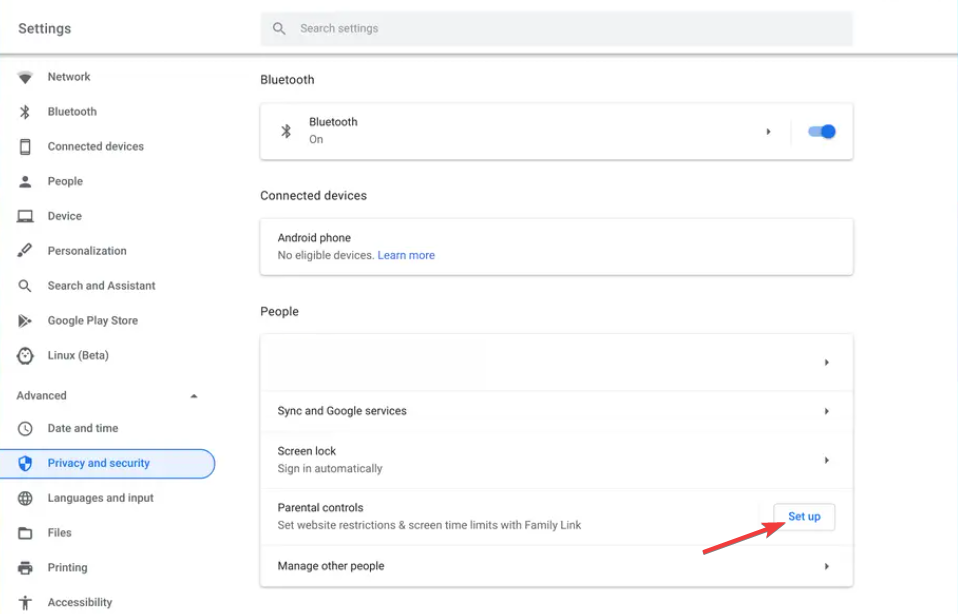
- Open Settings on your Chromebook and go to Advanced > Privacy and security > People.
- Click the Set up button before Parental Control.

- Now, click on Get started and select Next.
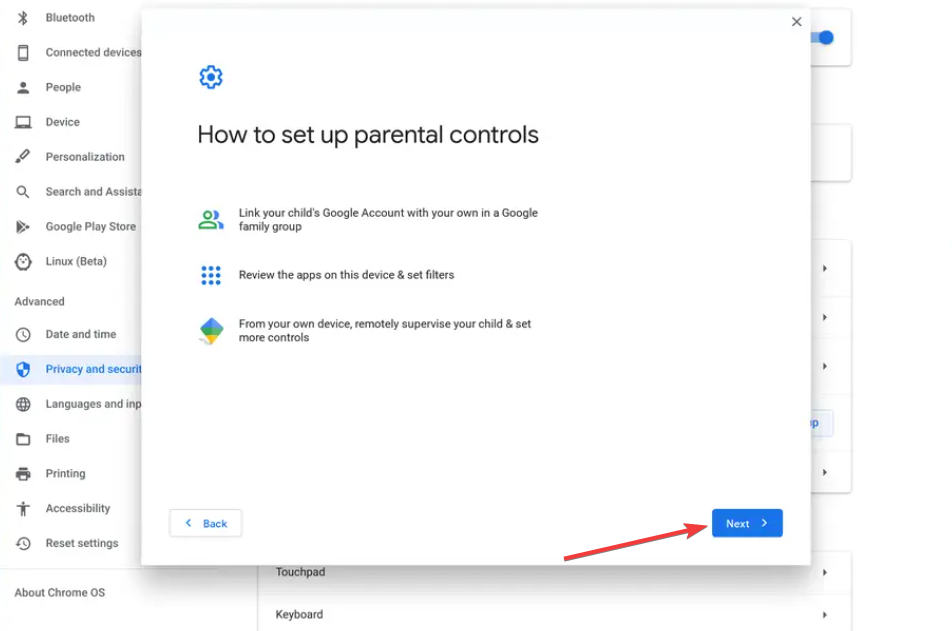

- Next, select your child’s Google account and click Next.
- From here, enter your Gmail account (parent) and password and click the Next button.
- Finally, follow the onscreen instructions to complete the setup and click the Sign out button when prompted.
Manage screen time and bedtime limits
Screen time control is the most used parental feature.
Set daily usage limits
- Open the Family Link app.
- Select the child profile.
- Set a daily screen time limit.
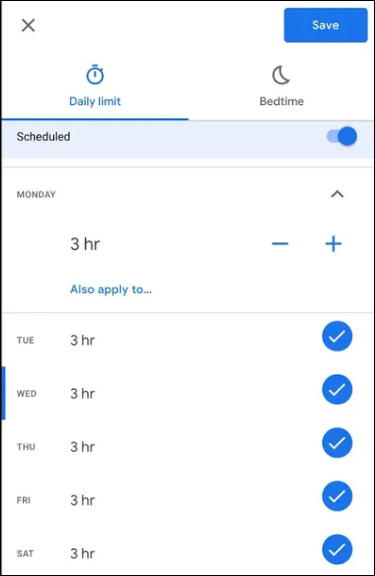

The Chromebook locks when time runs out.
Configure bedtime schedules
- Open the Family Link app.
- Select the child profile.
- Set a bedtime window.
The device signs out automatically during restricted hours.
Control apps, extensions, and permissions
Chromebooks support both Android apps and Chrome extensions.
Approve or block Android apps
Parents must approve new Play Store apps manually. You can also block app categories by age rating.
Manage Chrome extensions and permissions
Use Family Link to block unapproved extensions. Review permissions like camera, microphone, and location access.
Filter websites and search results
Web filtering helps prevent unsafe browsing.
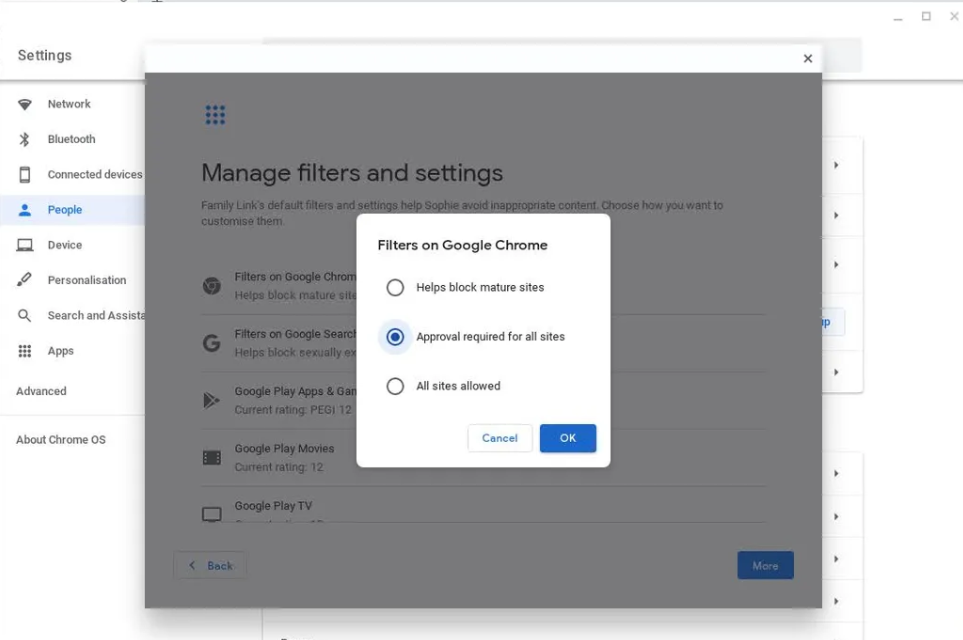
Block explicit sites and enable SafeSearch
Family Link enforces SafeSearch across Google services. This setting applies automatically once enabled.
Allow or block specific websites
Create custom allowlists and blocklists for precise control. Changes apply instantly when the Chromebook reconnects online.
Monitor activity and location
Monitoring remains limited but useful.
Review activity reports
Parents can view app usage and screen time history. Browsing details remain partially restricted for privacy.
Location tracking limitations
Location works only when the Chromebook stays online. Accuracy varies based on network and device settings.
Common problems and how to fix them
- Family Link not syncing with the Chromebook: Sign out of the child account, restart the Chromebook, and sign back in. Confirm the device appears in Family Link.
- Parental controls missing or grayed out: Check if the Chromebook belongs to a school or organization. Managed devices restrict parental supervision.
- Child account stuck at sign-in: Verify the child account still shows as supervised in Family Link. Remove and re-add the account if necessary.
School Chromebook restrictions explained
School devices follow strict rules.
Why parental controls don’t fully work on school devices
School administrators control system policies. Family Link cannot override those settings.
What parents can still control
Parents can manage the child’s Google account, screen time outside school hours, and some app permissions.
How to remove parental controls from a Chromebook
Always remove supervision properly.
Remove supervision correctly
Open Family Link, select the child account, and remove supervision. Sign out on the Chromebook afterward.
Reset the Chromebook if supervision breaks
Use a factory reset only if removal fails. Resetting deletes all local data.
Tips for safer Chromebook use for kids
- Review app permissions monthly.
- Combine Family Link with router-level filtering.
- Test bedtime rules before relying on them.
FAQs
Can I set parental controls without Family Link?
No. Chromebooks require Family Link for parental controls.
Do parental controls work offline?
No. Most limits and filters require an internet connection.
Can two parents manage the same child account?
Yes. Family Link supports multiple parent managers.
Will parental controls block YouTube automatically?
Family Link restricts YouTube based on the child’s age and settings.
Summary
- Create a supervised child Google account.
- Add the child account to the Chromebook.
- Link supervision through Family Link.
- Manage limits, apps, and websites.
- Troubleshoot sync or school-device issues.
Parental controls on Chromebooks work best when supervision is completed correctly, and expectations stay aligned with ChromeOS limits. Review settings regularly to keep protections effective as your child grows.

Discussion (0)
Be the first to comment.