



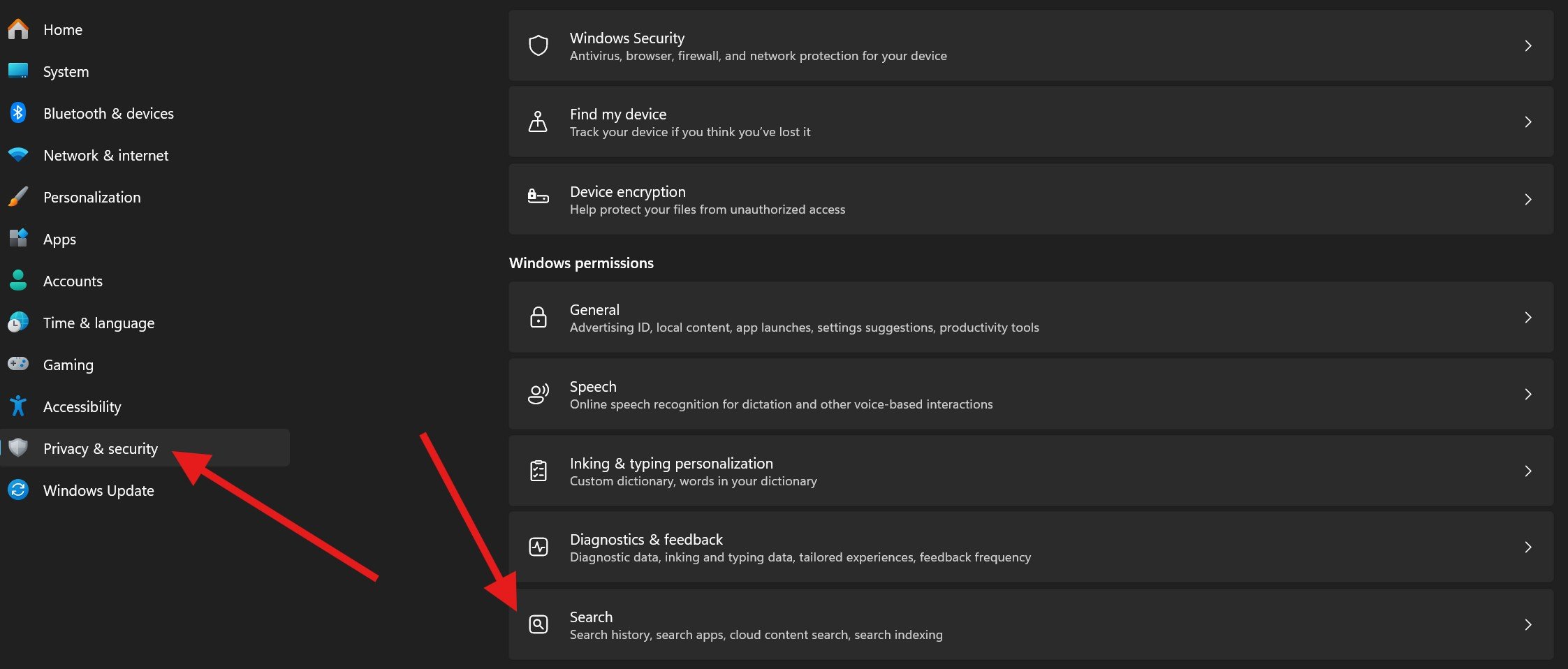
SafeSearch filters explicit results from web search. With the latest Windows 11 updates, SafeSearch is no longer a toggle you manage inside the Windows Settings app. Instead, you control it per Bing account (for your browser searches) or you force Strict mode for a whole PC or network using simple DNS/hosts rules. Below are the fastest methods that work today, plus fixes when SafeSearch seems “stuck.”
1) Change SafeSearch for your account (fastest)

- Open Bing in your browser.
- Go to Settings → SafeSearch.
- Pick:
- Strict - blocks explicit text, images, and videos
- Moderate - blocks explicit images and videos (default)
- Off - no filtering
- Save your changes.

Scope: Applies to Bing results in that browser profile. Repeat if you use multiple browsers or profiles.
2) Force Strict SafeSearch on a whole network (recommended for schools & offices)
If you want every user on your network to get Strict results with the control locked:
- In your router/DNS, map
www.bing.comtostrict.bing.comas a CNAME. - To lock the Microsoft Edge sidebar search, also map
edgeservices.bing.comtostrict.bing.com.
Why CNAME: Using a CNAME keeps working if the IP behind strict.bing.com changes.
3) Force Strict SafeSearch on a single Windows PC (hosts file)
Good for a child’s PC or a shared home computer.
- Open Notepad as Administrator.
- Open the hosts file:
C:\Windows\System32\drivers\etc\hosts - In Command Prompt, run:
ping strict.bing.comand note the IP you get. - Add these lines at the end of the hosts file (replace with the IP you saw): csharpCopyEdit
<IP-from-ping> www.bing.com <IP-from-ping> edgeservices.bing.com - Save. Bing (and the Edge sidebar) will now return Strict results and the SafeSearch control will be disabled.
Note: Only admins can undo this change.
4) Why SafeSearch might be “stuck” on Strict
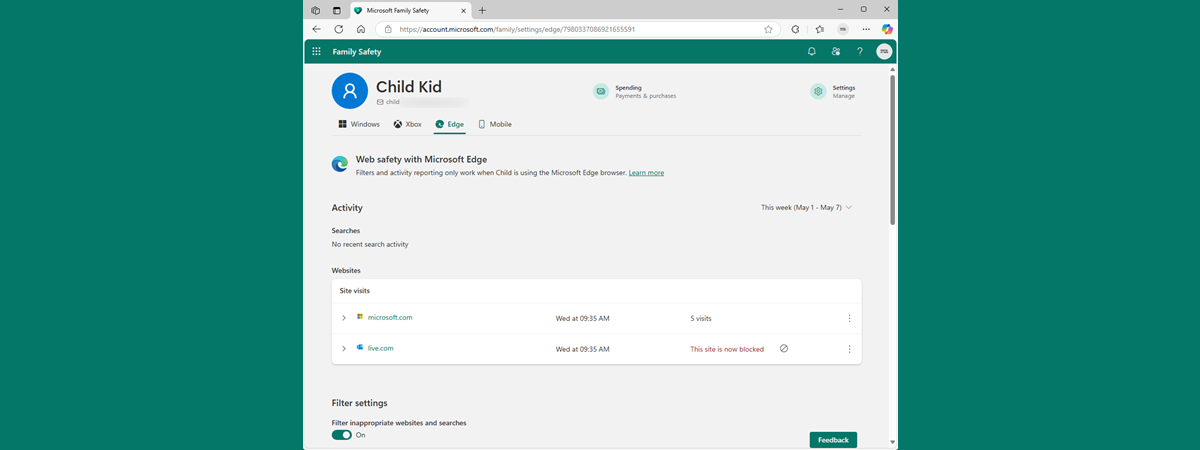
- Under 18 or Microsoft Family - Accounts for minors may be auto‑set to Strict to comply with local laws and family settings.
- Managed devices - Your work/school may enforce network or device rules.
- Browser profile mismatch - You changed it in one browser/profile but search in another.
FAQ
SafeSearch controls web search results (Bing). Windows taskbar search isn’t where you toggle SafeSearch anymore.
For account-level settings, yes—per browser profile. For network/device enforcement, no—rules apply universally.
Off removes Bing’s SafeSearch filtering. Separate filtering by your ISP, organization, or security software can still apply.
Enforce Strict for the sidebar by mapping edgeservices.bing.com to strict.bing.com (see sections 2–3).
Quick summary
| Goal | Best method | Where | Who it affects |
|---|---|---|---|
| Change just for me | Set SafeSearch in Bing settings | Browser → Bing | Your current browser profile |
| Force Strict for everyone on my Wi‑Fi | DNS CNAME www.bing.com → strict.bing.com (+ edgeservices.bing.com) |
Router/DNS | All users on the network |
| Force Strict on a single PC | Hosts file map to strict.bing.com |
C:\Windows\System32\drivers\etc\hosts |
That Windows device only |
For a quick personal change, use Bing settings. If you need guaranteed Strict filtering, use DNS (network-wide) or hosts (per device). If SafeSearch won’t change, check for Family Safety or organization policies.


Discussion (0)
Be the first to comment.