




The Redragon K551-R Vara supports several lighting modes, including static color presets on models equipped with full RGB firmware. Some older batches only support rainbow effects, so the first step is identifying your variant. Once you confirm compatibility, you can switch to static mode and lock a single color using onboard shortcuts.
Table of contents
- Understand what the Redragon K551-R Vara supports
- Use built-in shortcuts to set a single RGB color
- Firmware-dependent shortcuts for older and newer batches
- Reset the RGB lighting to fix incorrect or stuck colors
- Troubleshooting when single-color mode does not work
- Recommended presets for common single colors
- FAQs about Redragon K551-R Vara RGB modes
- Summary
Understand what the Redragon K551-R Vara supports
Lighting features differ across manufacturing runs, and some units do not support uniform single-color output. Confirming your model saves time and prevents using shortcuts that do not apply to your keyboard.
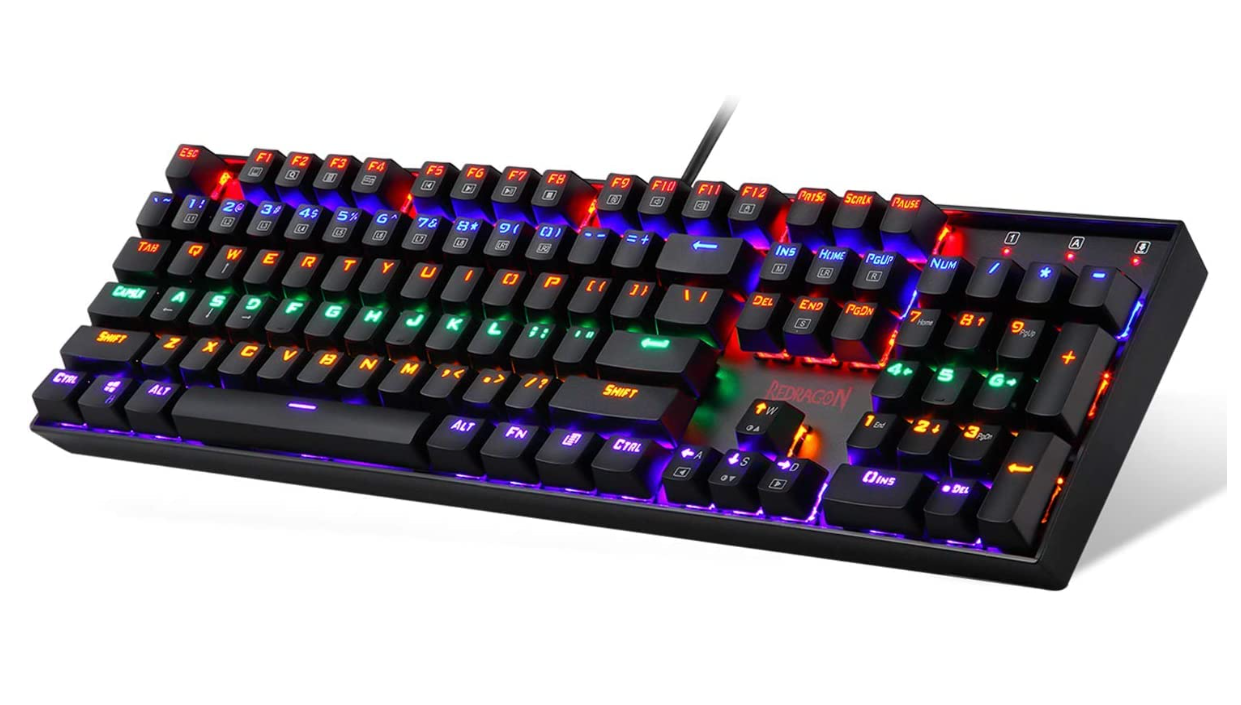
How to identify your K551 variant
Check the model sticker on the keyboard’s underside. If it lists K551-R or K551-RGB, your unit supports static single colors. If it only lists K551 or K551 Rainbow, it uses fixed lighting zones and cannot display one uniform color.
Use built-in shortcuts to set a single RGB color
The fastest way to display one consistent color is cycling into static mode. The keyboard stores your last saved effect, so you can return to it at any time without repeating the setup.
Enter static single-color mode
Press FN + Ins to cycle through lighting presets. Continue tapping until you reach the non-animated static mode. This preset displays a solid color without breathing or wave effects.
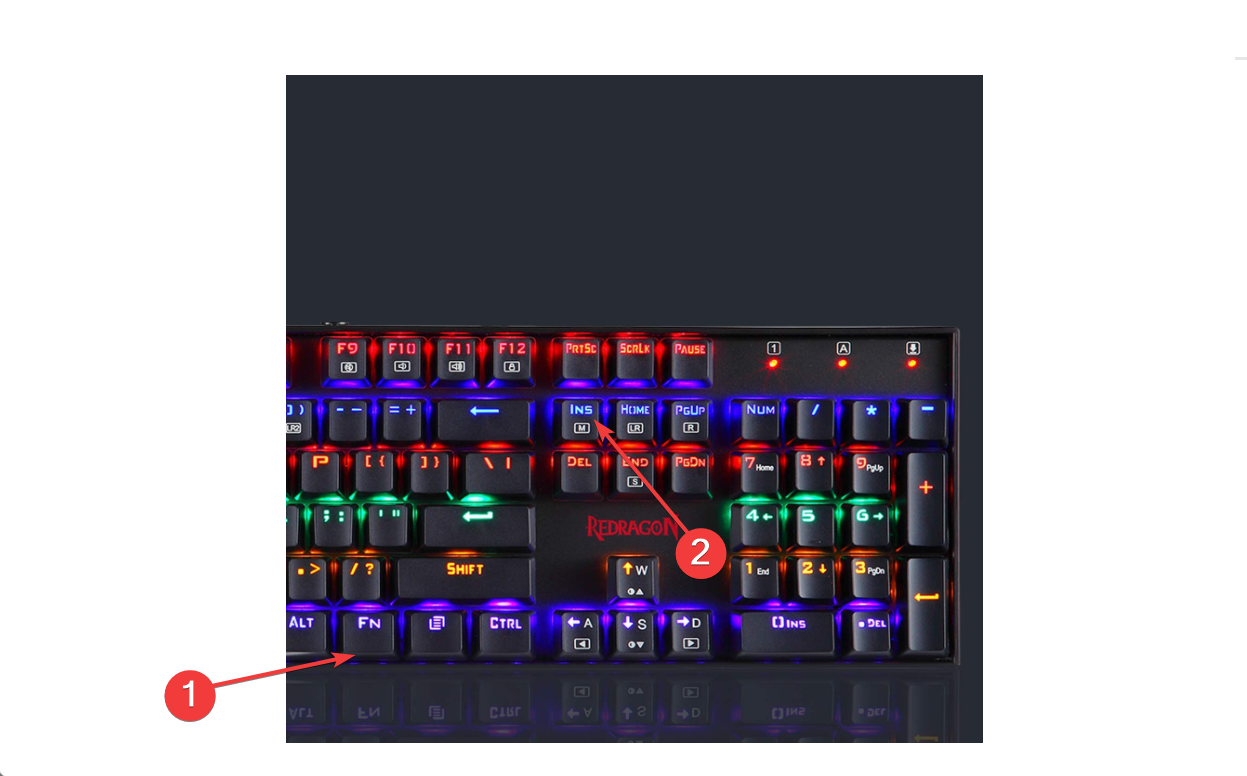
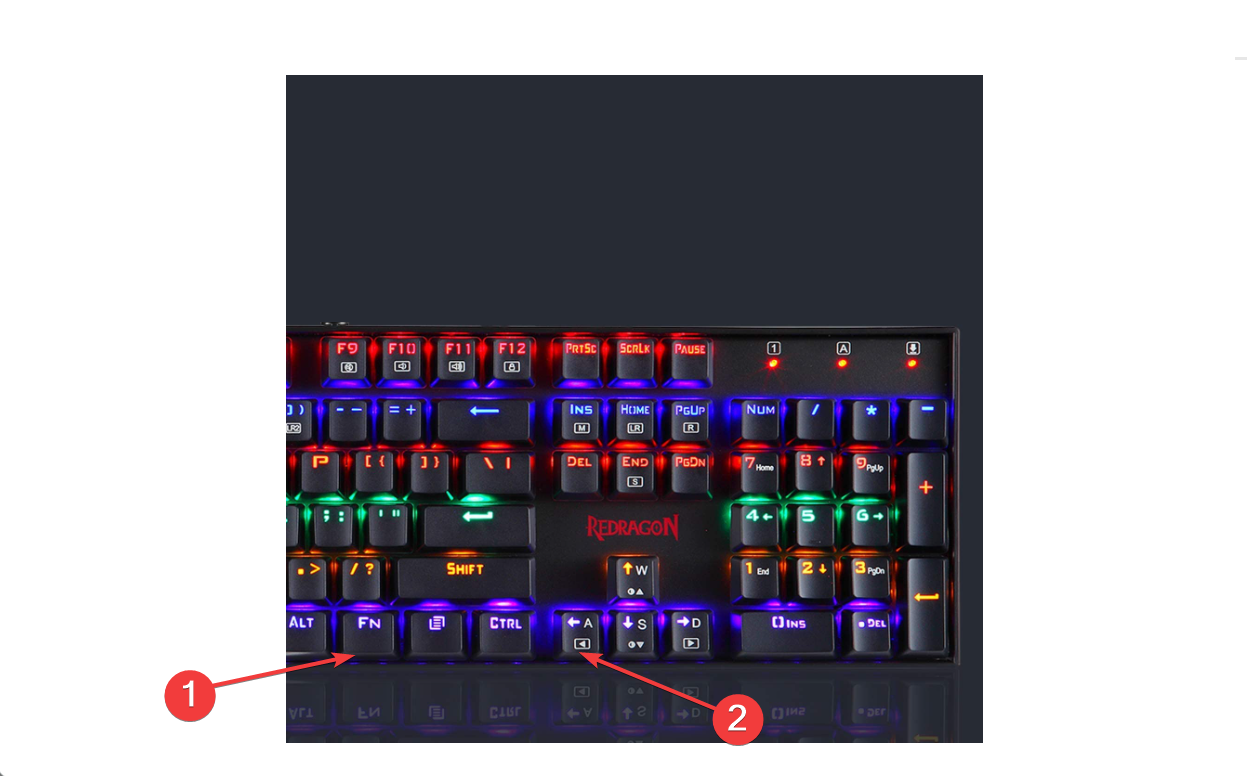
Choose and lock a single RGB color
Press FN + Left or FN + Right to scroll through available colors. Stop when you find the color you prefer. The keyboard automatically saves this setting.
Adjust brightness and speed settings
Press FN + Up or FN + Down to change brightness. Speed controls do not apply in static mode, but brightness helps match your desk lighting.
Firmware-dependent shortcuts for older and newer batches
Different production batches use different RGB controllers. If the standard shortcuts do not work, your unit may follow an alternate shortcut set.
Shortcut set A: newer RGB batches
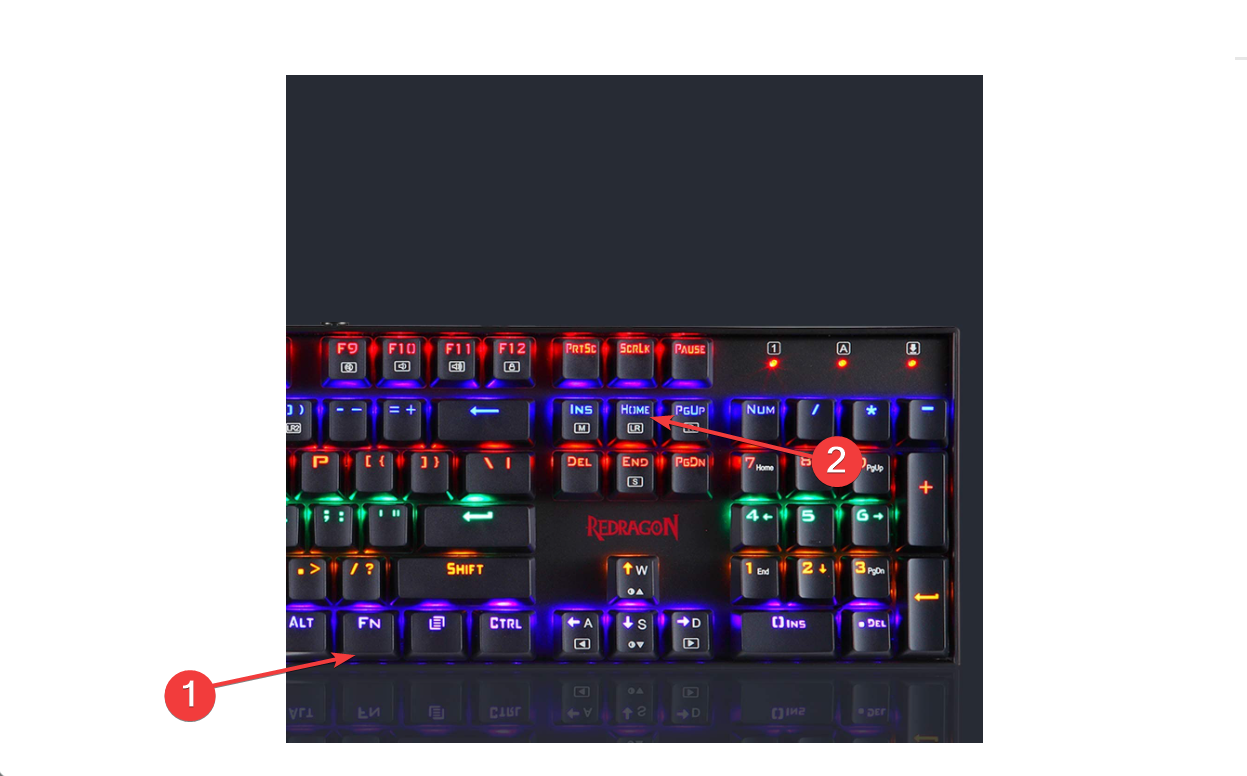
Press FN + Pause to switch directly to static mode. Press FN + Home to cycle through fixed color presets. These shortcuts typically appear on newer K551-R models.
Shortcut set B: older rainbow-only batches
Older K551 units display rainbow effects only. These models cannot show one uniform color, regardless of shortcut combination.
Shortcut set C: Vara units with zone programming
Some newer Vara keyboards allow limited zone-based control. Press FN + ~ to enter programming mode, then select a zone and tap a color to apply it. This still does not provide true per-key RGB but adds more flexibility than older rainbow models.
Reset the RGB lighting to fix incorrect or stuck colors
A lighting reset helps when static mode does not appear or colors cycle incorrectly. This option restores default behavior.
Perform a lighting reset
Press FN + Esc for five seconds until the keyboard resets. This clears lighting memory and reloads factory presets.
Troubleshooting when single-color mode does not work
Static mode may not appear if your model has hardware limits or incorrect shortcuts. These checks help confirm the cause.
- Your keyboard uses fixed rainbow zones: Non-RGB K551 units cannot produce one uniform color. These models use multicolor LED strips and rely on fixed lighting zones.
- Static mode is not in the cycle: If static mode does not appear, hold FN and tap Ins several times to ensure you reach every preset. Some modes require multiple taps to cycle through secondary effects.
- Keyboard not saving lighting between reboots: If your single color resets after shutdown, perform a lighting reset. Afterward, reselect static mode and your preferred color. This ensures the keyboard stores the effect correctly.
Recommended presets for common single colors
Many users prefer red or white for better clarity. These presets work well in low-light setups and reduce eye strain during long sessions.
Best single colors for low-light gaming
Red offers the least glare, while white provides maximum visibility. Pick the option that matches your desk environment.
FAQs about Redragon K551-R Vara RGB modes
Does the K551 support per-key RGB? No. The keyboard supports per-mode color selections only.
Can I save multiple custom profiles? No. The keyboard stores one lighting state at a time.
Why are my colors not uniform? Your unit may use multicolor LEDs or have uneven zone lighting.
What is the difference between K551 and K551-R Vara? The K551-R Vara includes RGB hardware and supports static colors, while the standard K551 uses fixed rainbow lighting.
Summary
- Identify your K551 model to confirm RGB support.
- Use FN + Ins to cycle into static mode.
- Press FN + Left or FN + Right to choose a single color.
- Adjust brightness with FN + Up or FN + Down.
- Reset lighting if modes do not work correctly.
The Redragon K551-R Vara can display a single static RGB color when the correct variant and firmware support the feature. Once you identify your model, use the lighting shortcuts to apply and store your preferred color. This gives your desk setup a cleaner look and helps you tailor the keyboard to your gaming environment.

Discussion (0)
Be the first to comment.