



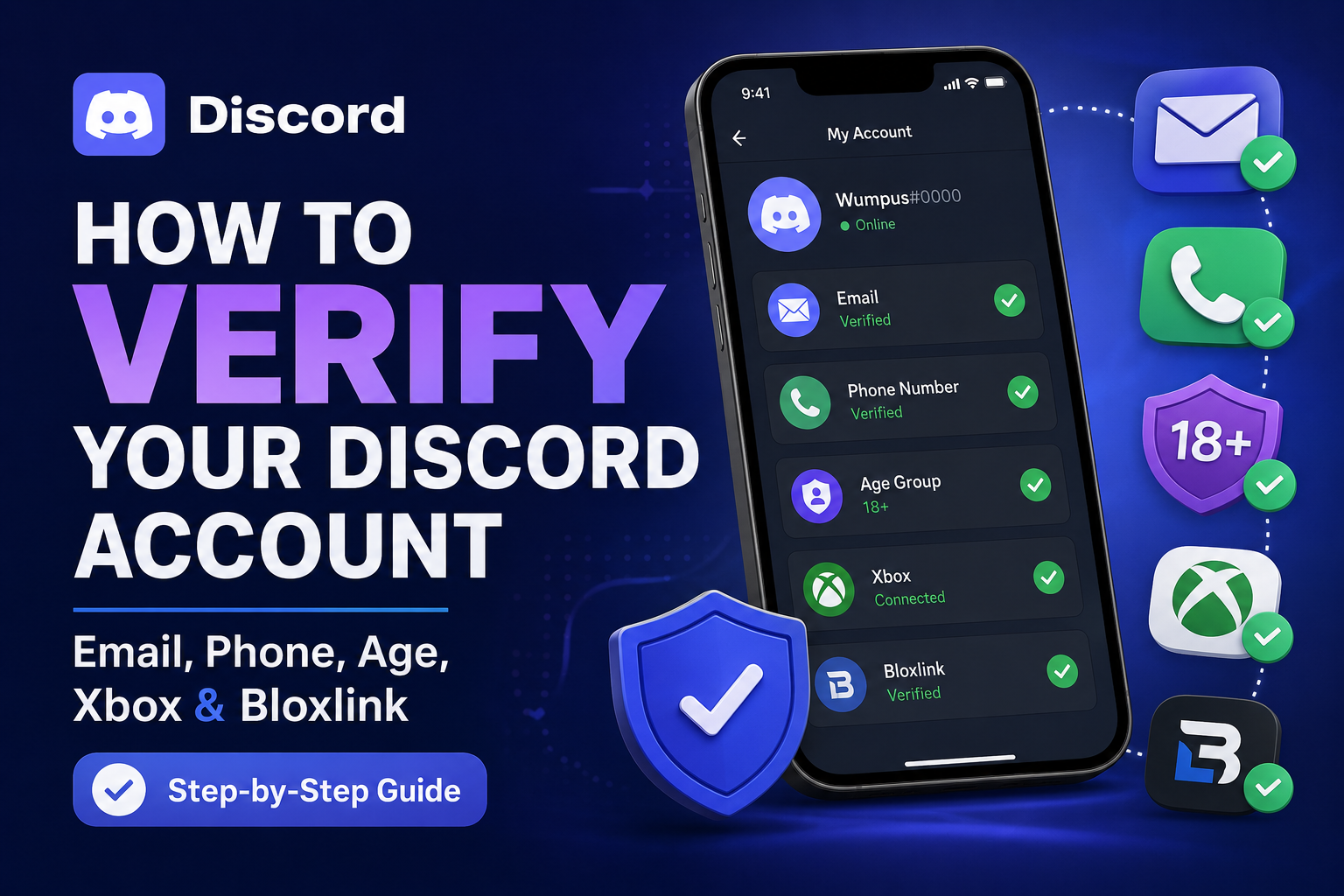
Discord can ask you to verify your account in several different ways. You may need to confirm your email address, enter a phone number, prove your age, link an Xbox account, or complete a server-specific check through a bot such as Bloxlink.
These processes are not interchangeable. Email and phone verification protect your Discord account, age assurance controls access to restricted features, while Xbox and Bloxlink verification connect Discord to another platform. (Discord Support)
How do I verify my Discord account?
To verify your Discord account, open User Settings > My Account.
- If you see Resend Verification Email, request the email and follow the verification link in your inbox.
- If Discord displays Verification Required, select Start Verification, enter a valid mobile number, and submit the SMS code.
- If your Age Group says Unconfirmed, select Confirm Age and complete one of the methods shown.
- If a server asks you to verify through Bloxlink or another bot, follow that server’s separate verification process.
Discord’s email verification works through its desktop, browser, and mobile apps. Phone verification requires a valid mobile number that is not already connected to another Discord account. (Discord Support)
How to verify a Discord account on PC
You can verify Discord through either the Windows desktop application or the Discord website.
Verify Discord with your email address
- Open Discord and sign in to your account.
- Select the cogwheel beside your username to open User Settings.
- Open My Account.
- Find the banner that says Resend Verification Email.
- Select the button to send a new verification message.
- Open the inbox for the email address connected to your Discord account.
- Open Discord’s message and follow the verification link.
- Return to Discord after the confirmation page appears.
Discord allows you to resend an expired or missing verification email from the My Account page. (Discord Support)
Verify Discord with a phone number
Follow these steps when Discord shows a Verification Required screen:
- Select Start Verification.
- Enter your mobile phone number, including the correct country code.
- Select Next.
- Wait for Discord to send an SMS.
- Enter the verification code from the message.
- Complete any CAPTCHA that appears.
The phone number must be attached to a mobile device and cannot already be associated with another Discord account. Discord does not accept landline, VoIP, or burner numbers for this process. (Discord Support)
How to verify a Discord account with email on mobile
The process is similar in the Android and iPhone Discord apps:
- Open the Discord mobile app.
- Tap your profile picture in the lower-right corner.
- Open Settings using the cogwheel.
- Select Account.
- Tap the Verify banner at the top of the page.
- Open the verification email sent by Discord.
- Follow the link inside the message.
- Return to the Discord application.
Discord may open the verification page in your default browser. You do not need to keep the Discord application open while completing the email confirmation. (Discord Support)
What to do if the Discord verification email is not arriving
First, confirm that the email shown under Settings > My Account is spelled correctly. Discord permits only one account to be associated with an email address, so an “Email is already registered” message usually means the address belongs to another Discord account. (Discord Support)
Next, try the following:
- Check your Spam, Junk, Promotions, and Updates folders.
- Search your inbox for “Discord.”
- Add these addresses to your email provider’s allowed sender list:
- Return to Discord and request another verification email.
- Try requesting the message from another device.
- On mobile, switch between Wi-Fi and cellular data before requesting it again.
Discord states that its support staff cannot manually send account verification emails, although you can contact Discord Support when the automated process continues to fail. (Discord Support)
Can you verify a Discord account without a phone number?
You can verify your Discord account without a phone number when Discord only requires email verification. In that situation, confirming the email address connected to the account is sufficient.
However, you cannot substitute email verification when Discord specifically displays a phone verification request. A server using Discord’s highest verification level can also require every participant to have a verified phone number. (Discord Support)
There are three common situations:
Discord only asks for an email
Select Resend Verification Email and confirm your email address. No phone number is needed.
A particular server requires phone verification
The server may be using Discord’s highest security level. You can ask the server administrator whether a different verification method is available, but Discord’s built-in requirement cannot be completed with email alone.
Discord has locked the account behind phone verification
You must provide a supported mobile number or contact Discord Support if you believe the verification was triggered incorrectly. Temporary SMS websites, VoIP services, landlines, and burner numbers are not supported. (Discord Support)
Why is Discord asking me to verify with a phone number?
Discord may request phone verification when its systems detect behavior associated with spam or automated activity. Examples listed by Discord include joining several servers quickly, messaging multiple people who are not your friends, sending content unusually fast, or using unofficial Discord clients and modifications. (Discord Support)
You may also be asked for a phone number because the server you joined uses Discord’s highest verification level. At that level, members must have a verified phone number before they can participate. (Discord Support)
Avoid repeatedly requesting new codes. If Discord says the number was recently used or you have been rate-limited, its official guidance is to wait between 24 and 48 hours before trying again. (Discord Support)
How to verify your age on Discord
Age verification, which Discord calls age assurance, is separate from email and phone verification. It is mainly used when someone tries to access age-restricted servers or channels, reveal filtered sensitive content, or change certain protective settings. (Discord Support)
Start Discord age verification
- Open Discord.
- Go to User Settings > My Account.
- Find the Age Group section.
- If the status is Unconfirmed, select Confirm Age.
- You may also receive the prompt automatically when attempting to open age-restricted content.
- Select one of the verification methods offered to your account.
- Follow the on-screen instructions.
- Return to My Account to check your confirmed age group.
Discord may also send a confirmation through its official Discord profile after the check has been completed. (Discord Support)
Age verification methods
Depending on your account, device, and country, Discord may offer one or more of the following methods:
Video selfie
Discord’s verification provider estimates your age using a short video selfie. Discord says the facial estimation runs on the device and that the video does not leave it.
Government-issued ID
You scan a supported government ID and take a matching selfie. Discord says the documents are submitted directly to its verification provider and are deleted after the age check has been completed.
Google Wallet ID pass
Some users may be offered the option to share their age through a passport ID pass stored in Google Wallet.
Credit card check
Some accounts may be able to confirm adulthood using a credit card. Discord states that this option may create a small temporary authorization charge, which is then refunded.
Google Wallet and credit card checks were still being tested in mid-2026, so they may not appear for every account. (Discord Support)
Does everyone need to verify their age?
No. Discord says most people can continue using the service without completing age assurance. Users who do not verify can retain their account, servers, friends, direct messages, and voice chat, but they may be blocked from age-restricted content and certain safety-setting changes. (Discord Support)
Discord also says legitimate age assurance prompts appear inside the Discord application. It does not send age verification links or results through unsolicited emails or text messages, so messages claiming otherwise should be treated cautiously. (Discord Support)
What happens if Discord gets your age wrong?
You can retry using the ID verification option. If Discord determines that you are below the minimum permitted age in your country, it may disable the account. Users who were incorrectly classified can appeal and verify their date of birth through the account violation screen. (Discord Support)
How to verify a Discord account on Xbox
Discord account verification and Xbox account linking are two different processes.
Discord does not operate as a normal standalone application on Xbox. Complete any required email, phone, or age verification through Discord on a computer or mobile device. You can then connect the verified Discord account to Xbox. (Discord Support)
Link Discord from an Xbox console
- Sign in to your Xbox console.
- Press the Xbox button on the controller.
- Go to Profile & system.
- Open Settings.
- Select Account.
- Open Linked social accounts.
- Find Discord under Not Linked.
- Select Link.
- Follow the displayed authorization instructions.
Once connected, Discord can display your Xbox Gamertag and game activity, and the connection can also be used for Discord voice chat on supported Xbox consoles. (Discord Support)
Link Xbox from Discord
On desktop:
- Open User Settings.
- Select Connections.
- Choose the Xbox icon.
- Sign in to your Microsoft account.
- Approve the connection.
On mobile:
- Open your Discord profile.
- Select the settings cogwheel.
- Go to Connections.
- Tap Add.
- Select Xbox.
- Sign in and authorize the connection.
Only one Xbox account can be connected to a Discord account at a time. (Discord Support)
How to verify a Discord account with Bloxlink
Bloxlink verification does not verify your Discord email, phone number, or age. It connects your Roblox identity to Discord so participating servers can assign the correct nickname, roles, and permissions.
Complete Bloxlink verification
- Join the Discord server that requires Bloxlink.
- Open its verification or welcome channel.
- Enter the
/verifycommand, unless the server provides a dedicated verification button. - Open the link sent by Bloxlink.
- Sign in with Discord when requested.
- Enter your Roblox username.
- Complete the Roblox ownership check.
- Return to Discord and wait for Bloxlink to update your roles.
Bloxlink’s official documentation says the /verify command generates a website link. Its verification system may ask users to prove ownership through a Roblox game or by placing a temporary code on their Roblox profile. (GitHub)
Use only the official Bloxlink bot and website. Do not enter Discord or Roblox credentials on lookalike domains sent through unsolicited direct messages.
Discord also supports connecting Roblox directly through User Settings > Connections, but a server using Bloxlink may still require its separate bot verification before unlocking channels or assigning roles. (Discord Support)
How to fix common Discord verification errors
“This phone number is unable to be associated with this account”
The number is probably connected to another Discord account. One mobile number can be registered with only one Discord account at a time. Remove it from the other account before attempting verification again. (Discord Support)
“Invalid phone number”
Check the country code and number formatting. Make sure the number belongs to a real mobile device. Discord does not support landline or VoIP numbers for account verification. (Discord Support)
“Phone number was recently used”
Wait 24 to 48 hours before trying again. Repeated requests can extend or retrigger the rate limit. (Discord Support)
The email verification link expired
Return to User Settings > My Account and select Resend Verification Email. On mobile, open Settings > Account and tap the verification banner again. (Discord Support)
The account is verified, but you still cannot chat
The server may apply additional restrictions. Depending on its verification level, Discord can require an email to have been verified for more than five minutes, an account to be older than five minutes, or a member to remain in the server for more than ten minutes. Servers can also add their own CAPTCHA, rules-screening, or bot-based verification. (Discord Support)
The Bloxlink verification completed, but channels remain locked
Return to the server’s verification channel and check whether it asks you to rerun a command, accept the server rules, or contact a moderator. Bloxlink verification can link the accounts successfully while a separate server configuration issue prevents roles from being assigned.
Frequently asked questions
Can I use one phone number for two Discord accounts?
Not at the same time. Discord permits a phone number to be connected to only one account. You must remove it from the original account before using it elsewhere. (Discord Support)
Can I verify Discord with email instead of a phone?
Only when Discord asks for email verification. If Discord specifically requires a phone number, confirming the email will not complete that check. (Discord Support)
Does Discord verification give me a public badge?
Email, phone, and age verification are security and access checks. They are not the same as verifying an official game, brand, organization, or community server.
How long does Discord age verification take?
Discord says age assurance normally takes a few minutes. A successful result should appear in your account settings, and you may receive a direct message from Discord’s official profile. (Discord Support)
Is Bloxlink required to use Discord?
No. Bloxlink is used by Roblox-focused Discord communities. You only need it when a particular server requires Roblox account verification.
Final checks
Use the message shown in Discord to determine which process is required:
- Resend Verification Email means you must confirm your email.
- Start Verification means Discord requires a phone number.
- Confirm Age means age assurance is required.
- Linked social accounts connects Discord to Xbox.
- Bloxlink
/verifyconnects your Roblox identity to participating Discord servers.
Email, phone, age, Xbox, and Bloxlink verification solve different problems. Completing the correct process should remove the relevant restriction without resorting to temporary numbers, unofficial clients, or suspicious third-party verification links.


Discussion (0)
Be the first to comment.