



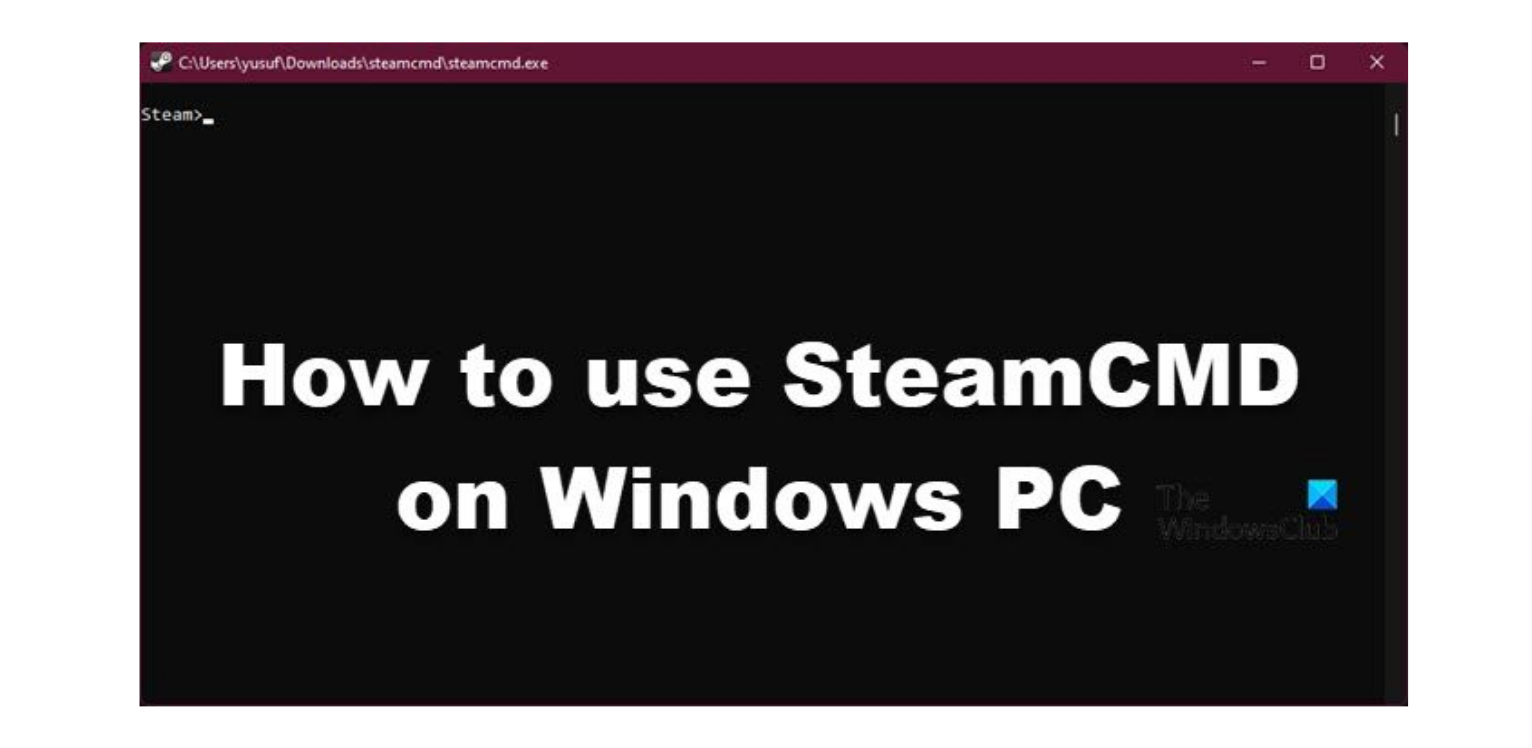
SteamCMD is a command-line version of Steam used to install and manage dedicated game servers. It is commonly used by developers, server administrators, and advanced users who need more control than the standard Steam client provides.
This guide explains how to download, install, and use SteamCMD on Windows 10 and Windows 11.
What Is SteamCMD
SteamCMD is a lightweight command-line tool provided by Valve. It allows you to:
- Install dedicated game servers
- Update server files
- Download Steam content without the full Steam client
- Manage server configurations
It is mainly used for hosting multiplayer game servers.
How to Download SteamCMD
Follow these steps:
- Open your web browser
- Visit the official Valve Developer website
- Download the SteamCMD for Windows ZIP file
- Create a new folder such as
C:\steamcmd - Extract the ZIP file into that folder
Make sure to download SteamCMD only from official Valve sources.
How to Install SteamCMD
After extraction:
- Open the
steamcmdfolder - Double-click
steamcmd.exe - Wait for SteamCMD to update itself automatically
Once the update completes, you will see the SteamCMD command prompt.
Basic SteamCMD Commands
Here are some common commands:
To log in anonymously:
login anonymous
Set the install directory:
force_install_dir C:\game_server
Download a server:
app_update 90 validate
The app ID number varies depending on the game.
To exit SteamCMD:
quit
Example: Installing a Game Server
Here is a simple example of installing a dedicated server.
Steps:
- Run
steamcmd.exe - Type:
login anonymous
- Set install folder:
force_install_dir C:\csgo_server
- Download server:
app_update 740 validate
- Wait for the download to complete
- Type:
quit
Your server files will now be installed.
How to Update an Existing Server
To update:
- Open SteamCMD
- Log in
- Set the same install directory
- Run:
app_update <appID> validate
SteamCMD will download only necessary updates.
Common SteamCMD Errors
You may encounter issues such as:
- Login failures
- Disk write errors
- App not found errors
To fix them:
- Run SteamCMD as administrator
- Check internet connection
- Verify correct app ID
- Ensure enough disk space
SteamCMD vs Steam Client
SteamCMD is lightweight and command-line based. It is used mainly for server hosting and management.
The Steam Client has a full graphical interface and is used for playing games, not for managing dedicated servers.
Choose based on your needs.
Final Thoughts
SteamCMD is a powerful tool for managing dedicated game servers on Windows. While it may seem complex at first, learning basic commands makes it easy to install and update servers efficiently. Always download SteamCMD from official Valve sources and verify app IDs before installing content.
FAQs
Is SteamCMD free
Yes, SteamCMD is free.
Does SteamCMD work on Windows 11
Yes, it works on both Windows 10 and Windows 11.
Do I need a Steam account to use SteamCMD
Some servers allow anonymous login, while others require a Steam account.
Can I use SteamCMD to play games
No, it is designed for server management, not gameplay.
Is SteamCMD safe
Yes, if downloaded from the official Valve website.


Discussion (0)
Be the first to comment.