



Residential VPNs are becoming increasingly popular, offering several advantages over traditional VPN connections. If you're considering making the switch, CometVPN is one of our favorites. However, residential VPNs work slightly differently from standard VPNs, so getting started can take a little explanation.
In this guide, we'll explore why you might want a residential VPN and show you how to get started with CometVPN.

Access content across the globe at the highest speed rate.
🔥 Save 81% + 2 bonus months! 🔥
70% of our readers choose Private Internet Access
70% of our readers choose Private Internet Access
2
Browse the web from multiple devices with industry-standard security protocols.
🔥 Save 73%! 🔥

Faster dedicated servers for specific actions (currently discounted)
🔥 Save 69%! 🔥
Why Use a Residential VPN?
Residential VPNs offer several advantages over traditional VPN connections, particularly when anonymity and access are priorities.
Anonymity
The biggest difference is the type of IP address that masks your real IP. Instead of appearing to connect from a known VPN or datacenter IP, a residential VPN makes your traffic appear to come from a regular home internet connection.
This can provide an additional layer of anonymity, particularly when combined with the VPN obfuscation offered by CometVPN.
Obfuscation disguises VPN traffic itself, making it harder for websites or networks to identify that you're using a VPN in the first place. Together, these features can make residential VPN connections less obvious than conventional VPN traffic.
Note: A Residential VPN still uses an encrypted connection to a separate server and many providers offer the same features, as well as a broad country selection. It’s just the type of IP addresses and the way these are assigned is different behind the scenes.
Bypassing Strict Blocks
Residential IPs can also help bypass strict geographical restrictions and VPN bans. For example, streaming services such as Netflix that prohibit VPN usage may be more likely to accept a connection that resembles a normal household user. It now blocks traffic coming from most recognizable VPN servers.
Good residential VPN providers like CometVPN also offer dedicated IP addresses. This is an IP that doesn’t change. For Netflix, this means you never get flagged for “account sharing” or constantly changing locations. It just looks like you are at home.
Moreover, residential IPs can reduce CAPTCHAs, suspicious activity warnings, and other anti-bot measures. This is particularly useful for web scraping, automated tools, and other activities that generate repeat requests. Because the connection looks more like ordinary residential traffic, websites may be less likely to flag it as automated or suspicious.
Getting Started
To get started with a residential VPN with CometVPN, follow these simple steps:
1) Go to CometVPN.com and download the relevant apps for your devices. This includes Windows, Mac, Android, and iOS.
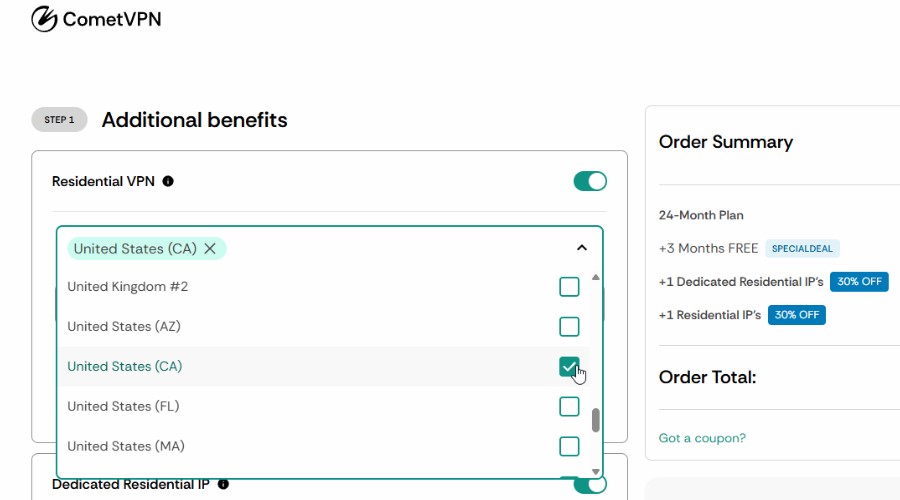
2) Select one of the plans, but be sure to add the Residential VPN upgrade and choose your desired location. Likewise, add the Dedicated Residential IP upgrade if you require this.
Rotating vs Dedicated Residential IPs
CometVPN gives you two options for your residential connection: Residential IP or Residential Dedicated IP. The right choice depends on whether you value privacy or consistency.
A regular residential IP can change between connections, giving you a different residential address while maintaining the appearance of a normal home internet connection. This can be useful when privacy is the priority, or when you don't want websites continually associating your activity with one IP address.
A Dedicated Residential IP, on the other hand, stays the same. This makes it a better choice when you need a consistent location and connection identity. For example, it can be useful for streaming services, websites, or other accounts where repeatedly appearing from different IP addresses could trigger additional verification.
Using the App
Both the desktop and mobile apps follow a similar interface, which is easy to get connected.
1) Launch the app and ensure you are signed into your account.
2) Click or tap VPN Location and browse or search for your desired country, state, or region. For example, California. CometVPN has USA VPN servers covering every state.
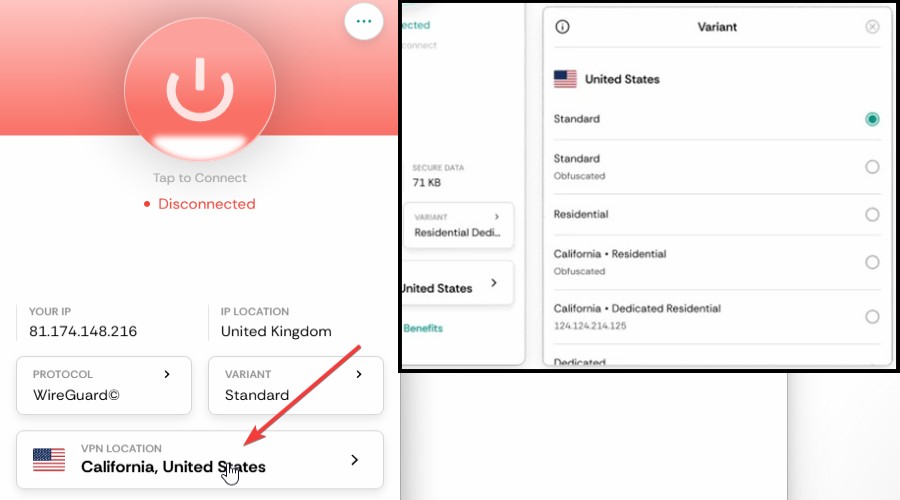
3) Click or tap the Variant button and select Residential IP or Residential Dedicated IP.
4) Now you are ready to connect.
Top Tip 1: It’s a good idea to sign out of any service or website you’re trying to bypass restrictions for and clear any cache or cookies. Then turn on the residential VPN and sign back in.
Top Tip 2: If you are streaming on a Smart TV or streaming box (like a Roku or Fire TV), Netflix’s Household policy might trigger a prompt asking to update your Primary Location. If this happens, you may choose to select the location of the VPN.
The Final Word on Using a Residential VPN
Using a Residential VPN might be daunting at first, but there’s only a couple of extra steps when using a service like CometVPN.
Simply remember to choose the correct plan add-ons and select the residential variant when connecting to the location in the app.
Other than that, the process will be familiar to anyone that has used a consumer VPN.
Now you can get all the benefits of a home user IP address, while maintaining privacy, security, and unblocking restricted content.


Discussion (0)
Be the first to comment.