



At the time of writing, Corsair gaming keyboards are among the most popular peripherals for gamers. The Corsair gaming keyboard software offers powerful customization options that allow users to personalize their keyboard settings for improved performance, key remapping, lighting effects, and more. In this guide, we’ll walk you through how to use the Corsair gaming keyboard software to fully optimize your keyboard for gaming or productivity tasks.
Step 1: Download and Install Corsair Gaming Keyboard Software
Before you can begin customizing your Corsair gaming keyboard, you’ll need to download and install the Corsair software. Here’s how to get started:
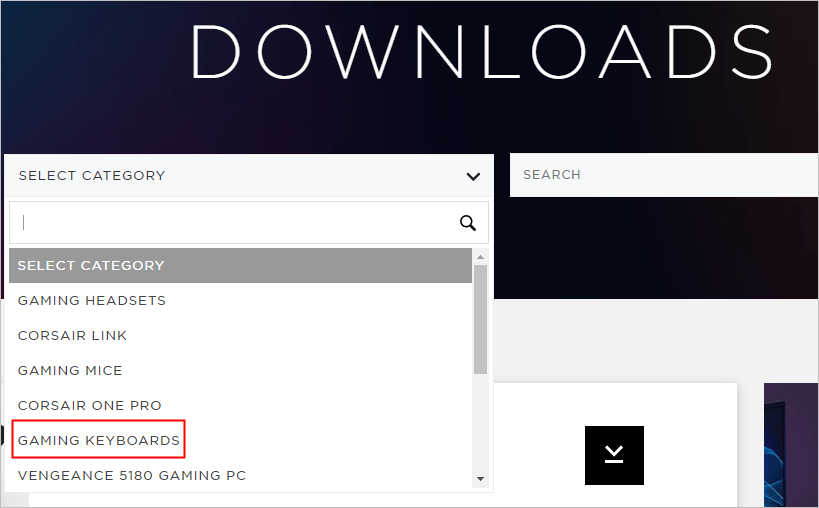
- Visit the official Corsair website and navigate to the "Downloads" section. Scroll down to the Select Category section and choose your keyboard.
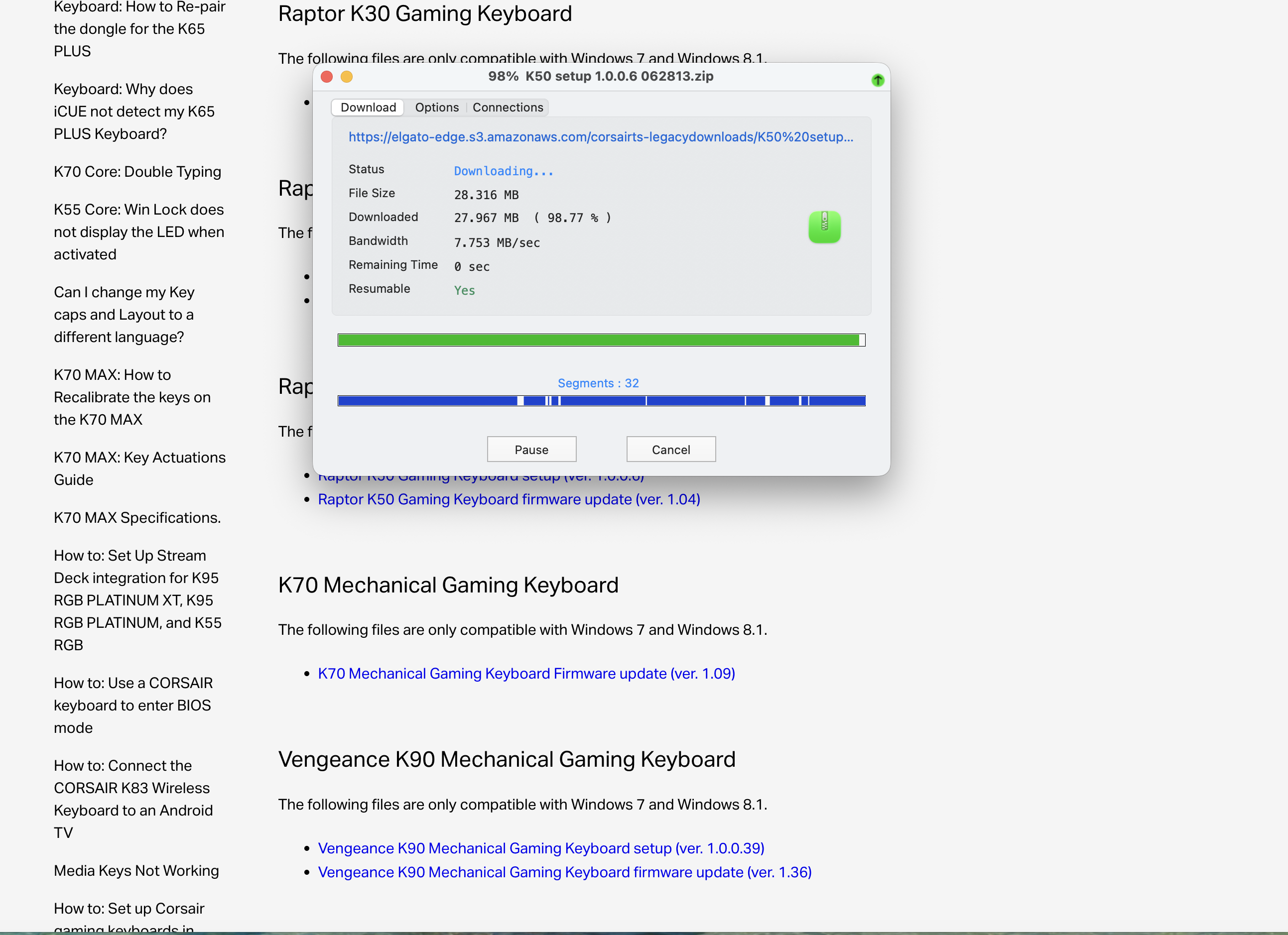
- But if it's an older keyboard, then go to Legacy Software Downloads for Keyboards and look for the specific keyboard.

- Search for your specific Corsair gaming keyboard model and download the latest version of the Corsair iCUE software.
- Run the installer and follow the on-screen instructions to complete the installation.
- Once installed, launch the iCUE software and connect your Corsair gaming keyboard to your PC via USB.
With the software installed and your keyboard connected, you're ready to dive into the customization options.
Step 2: Customize Keyboard Lighting
One of the most popular features of the Corsair gaming keyboard software is its ability to customize the lighting. Here’s how you can adjust the RGB settings:
- Open the iCUE software and select your Corsair gaming keyboard from the list of devices.
- Navigate to the "Lighting" tab, where you’ll find various options to customize the keyboard’s lighting effects.
- Choose from preset lighting profiles or create your own custom lighting scheme with individual key color assignments.
- Use the "Lighting Layers" feature to set different lighting effects for various applications or gaming modes.
This feature is especially useful for gamers who want to match their keyboard’s lighting to their gaming setup or personal style.
Step 3: Remap Keys and Assign Macros
If you want to improve your gaming performance, remapping keys and assigning macros to your Corsair gaming keyboard can give you a competitive edge. Here’s how you can do it:
- In the iCUE software, select the "Actions" tab.
- Click on the key you want to remap and choose from various actions, such as "Keystroke," "Mouse Button," or "Macro."
- For macros, record a sequence of keypresses and assign it to a specific key for quick access during gameplay.
- Save your new key remaps and macros to a profile for easy switching between different setups.
With these customizations, you can streamline your gaming experience by having critical actions at the tips of your fingers.
Step 4: Set Up Game-Specific Profiles
The Corsair iCUE software allows you to create different profiles for each game, so you can customize the settings for optimal performance. Here's how to set up game-specific profiles:
- Go to the "Profiles" tab in iCUE and create a new profile for your game.
- Adjust the keyboard lighting, remap keys, and assign macros according to the game you're playing.
- Enable "Game Detection" so that iCUE will automatically switch to the correct profile when the game starts.
By creating custom profiles, you can ensure that your keyboard is perfectly tuned to each game’s unique commands and visual needs.
Step 5: Monitor Performance and Set Key Repeat Rate
If you’re looking to improve your typing or gaming speed, you can use the iCUE software to adjust the key repeat rate. Here's how to do that:
- In the iCUE software, navigate to the "Settings" tab.
- Adjust the "Key Repeat Rate" slider to control how fast your keystrokes are repeated when a key is held down.
- Monitor your performance in real-time to ensure the settings meet your preferences.
Fine-tuning this feature can enhance your gaming experience, especially in fast-paced games that require rapid key presses.
Troubleshooting Common Problems
- If the keyboard isn’t detected in iCUE, ensure the USB connection is secure and the software is up-to-date.
- If lighting or macros are not working, try restarting the iCUE software or resetting the keyboard to default settings.
- If there are issues with key remapping or profile switching, check that the latest driver and firmware updates for the keyboard are installed.
Tips
- Regularly update the iCUE software and your Corsair keyboard firmware to ensure optimal performance.
- Experiment with different lighting effects and macro combinations to discover what works best for you.
- Backup your profiles and settings to avoid losing your customizations after software or hardware updates.
FAQ
How do I reset my Corsair gaming keyboard settings?
To reset your settings, go to the "Settings" tab in iCUE and select "Reset to Defaults."
Can I use multiple profiles for different games?
Yes, you can create multiple profiles for various games and switch between them either manually or automatically using game detection.
What’s the best way to optimize my keyboard for gaming?
Customize key remaps, set up macros, adjust lighting to suit your game, and fine-tune the key repeat rate for the fastest responses.
Summary
- Download and install the Corsair iCUE software for full keyboard customization.
- Customize lighting, remap keys, and assign macros to improve gameplay performance.
- Create specific profiles for different games and set up automatic switching.
- Adjust key repeat rates and monitor your performance for a tailored experience.
Conclusion
Learning how to use the Corsair gaming keyboard software is an essential step to unlocking the full potential of your keyboard. By customizing the lighting, remapping keys, and setting up game-specific profiles, you can enhance both your gaming and productivity experiences. Whether you are fine-tuning your keyboard for a specific game or optimizing performance for general use, the Corsair iCUE software provides everything you need for a personalized setup.


Discussion (0)
Be the first to comment.