




Typing special characters and symbols on iPhone and iPad does not require extra apps. iOS and iPadOS already include multiple built-in methods, but many of them stay hidden behind long-press gestures, keyboard modes, or layout changes. Once you know where to look, typing accents, currency symbols, math signs, or punctuation becomes fast and predictable.
Table of contents
- Use the iPhone and iPad on-screen keyboard
- Type hidden symbols using long-press shortcuts
- Type special characters on iPad differently
- Use an external keyboard on iPad
- Add more symbols by changing keyboard language
- Emoji vs symbols: what’s the difference
- Copy and reuse special characters quickly
- Tips for typing symbols faster on iOS
- FAQs
- Summary
Use the iPhone and iPad on-screen keyboard
This is the most common way to type symbols, and it works on every iPhone and iPad. Most special characters hide behind secondary keyboard pages or long-press gestures.
Switch to the symbols keyboard
- Tap 123 to open numbers and basic symbols.
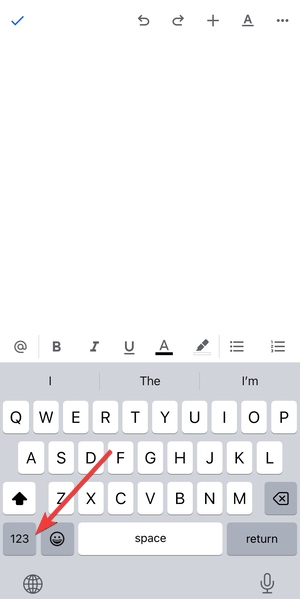

- Tap #+= to reveal additional punctuation and special characters.


- Tap ABC to return to the standard keyboard.
This method covers everyday symbols like @, #, %, &, parentheses, and brackets.
Type accented letters with long-press
- Press and hold a letter like a, e, or n.


- Slide your finger to the accent you want.
- Release to insert the character.
This works for accented letters used in names, foreign words, and proper spelling.
Type hidden symbols using long-press shortcuts
Many symbols do not appear on the visible keyboard at all. iOS hides them behind long-press gestures on common keys.
Currency, punctuation, and math symbols
- Long-press $ to access €, £, ¥, and other currencies.
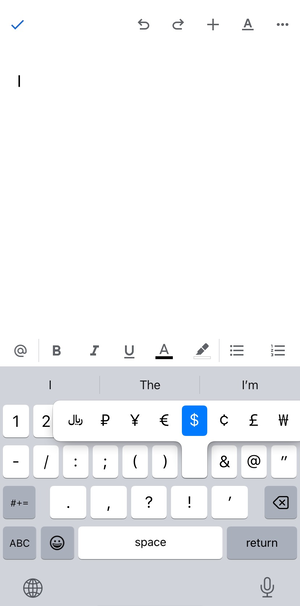
- Long-press - to type en dashes and em dash alternatives.
- Long-press 0 to type the degree symbol (°).
These shortcuts save time when you type prices, temperatures, or formatted text.
Smart punctuation and typographic symbols
- Long-press quotation marks for curly quotes.
- Long-press apostrophes for typographic variants.
- Use these symbols to format professional emails or documents.
Type special characters on iPad differently
The iPad keyboard behaves differently from the iPhone keyboard, especially in landscape mode. These differences often confuse users switching between devices.
iPad split and floating keyboard behavior
- Split keyboards hide some symbol keys.
- Floating keyboards reduce available characters.
- Switch back to the full keyboard to access all symbols.
Extra symbol keys in landscape view
In landscape mode, the iPad keyboard shows more symbols directly on keys. This layout reduces the need to switch keyboard pages.
Use an external keyboard on iPad
External keyboards unlock faster and more precise ways to type special characters. This method works best for writing, coding, or long documents.
Option and modifier key shortcuts
- Hold Option and press a key to type symbols.
- Example: Option + 2 types ™ on many layouts.
- Modifier shortcuts vary by keyboard language.
Discover available shortcuts with long-press
Press and hold keys while holding Option to preview available characters. This removes guesswork and speeds up learning.
Add more symbols by changing keyboard language
Different keyboard layouts unlock different sets of symbols. This method works well for international users.
Switch keyboard layouts in iOS settings
- Open Settings.
- Tap General → Keyboard.
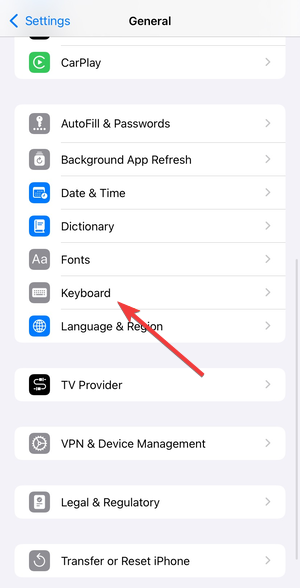

- Add a new keyboard language.
You can switch layouts and change the keyboard language on iPhone instantly using the globe icon.
When regional keyboards unlock extra symbols
European keyboards often expose additional currency and punctuation symbols. Language-specific layouts also add native accents and quotation styles.
Emoji vs symbols: what’s the difference
Symbols behave like text, while emojis often behave like images. Symbols copy, search, and scale like normal characters, while emoji may not.
Use symbols for documents, emails, and forms. Use emoji for messaging and casual communication.
Copy and reuse special characters quickly
Some symbols remain hard to remember. Saving them avoids repeated searching.
- Save symbols in Notes.
- Use Text Replacement for frequently used characters.
- Paste symbols when needed instead of retyping.
Tips for typing symbols faster on iOS
- Swipe between symbol pages instead of tapping keys repeatedly.
- Learn long-press shortcuts for common symbols.
- Remove unused keyboard languages to reduce clutter.
- Use text replacement for repeated symbols.
FAQs
Why don’t I see certain symbols on my keyboard?
Some symbols only appear after long-pressing keys or switching keyboard pages.
Do symbols work in all apps?
Yes, system-level symbols work across apps, unlike some emoji variations.
Can I type symbols without switching keyboards?
Yes, long-press shortcuts and external keyboards reduce keyboard switching.
Summary
- Use 123 and =\ to access basic symbols.
- Long-press letters and keys for hidden characters.
- Take advantage of iPad landscape layouts.
- Use external keyboards for faster symbol entry.
- Save frequently used symbols for reuse.
Typing special characters on iPhone and iPad becomes simple once you know where iOS hides them. With long-press shortcuts, keyboard layouts, and optional hardware keyboards, you can type almost any symbol quickly and consistently without installing extra apps.



Discussion (0)
Be the first to comment.