




If you want to turn on the Kill Switch in Proton VPN, you can enable it directly from the Proton VPN app settings. The Kill Switch is a security feature that blocks your internet connection if the VPN disconnects unexpectedly.
This prevents your real IP address and data from being exposed while browsing. Once enabled, the Kill Switch automatically protects your connection whenever the VPN drops. This guide explains how to turn on the Kill Switch in Proton VPN on Windows 11.
What Is the Kill Switch in Proton VPN?
The Kill Switch is a safety feature that stops all internet traffic if the VPN connection fails. Normally, if a VPN disconnects suddenly, your device reconnects to the internet using your regular network.
However, this can reveal your real IP address.
The Proton VPN Kill Switch prevents this by:
- Blocking internet access when the VPN disconnects
- Protecting your real IP address
- Preventing accidental data leaks
- Maintaining privacy while browsing
Your internet connection resumes only after the VPN reconnects.
Why Enable the Proton VPN Kill Switch?
Turning on the Kill Switch improves your privacy and security.
It is especially useful if you:
- Use public Wi-Fi networks
- Download files frequently
- Want maximum privacy protection
- Do not want your real IP address exposed
Without a Kill Switch, temporary VPN disconnections can reveal your real location.
How to Turn On Kill Switch in Proton VPN
Follow these steps to enable the Kill Switch feature.
Step 1: Open the Proton VPN App
- Launch Proton VPN on your Windows 11 PC.
- Sign in to your Proton VPN account if needed.
Step 2: Open Settings
- Click the Settings icon inside the Proton VPN app.
- Go to the Connection or Security settings section.
Step 3: Enable the Kill Switch
- Locate the Kill Switch option.
- Toggle the switch to On.
Once enabled, Proton VPN will block your internet traffic whenever the VPN connection drops.
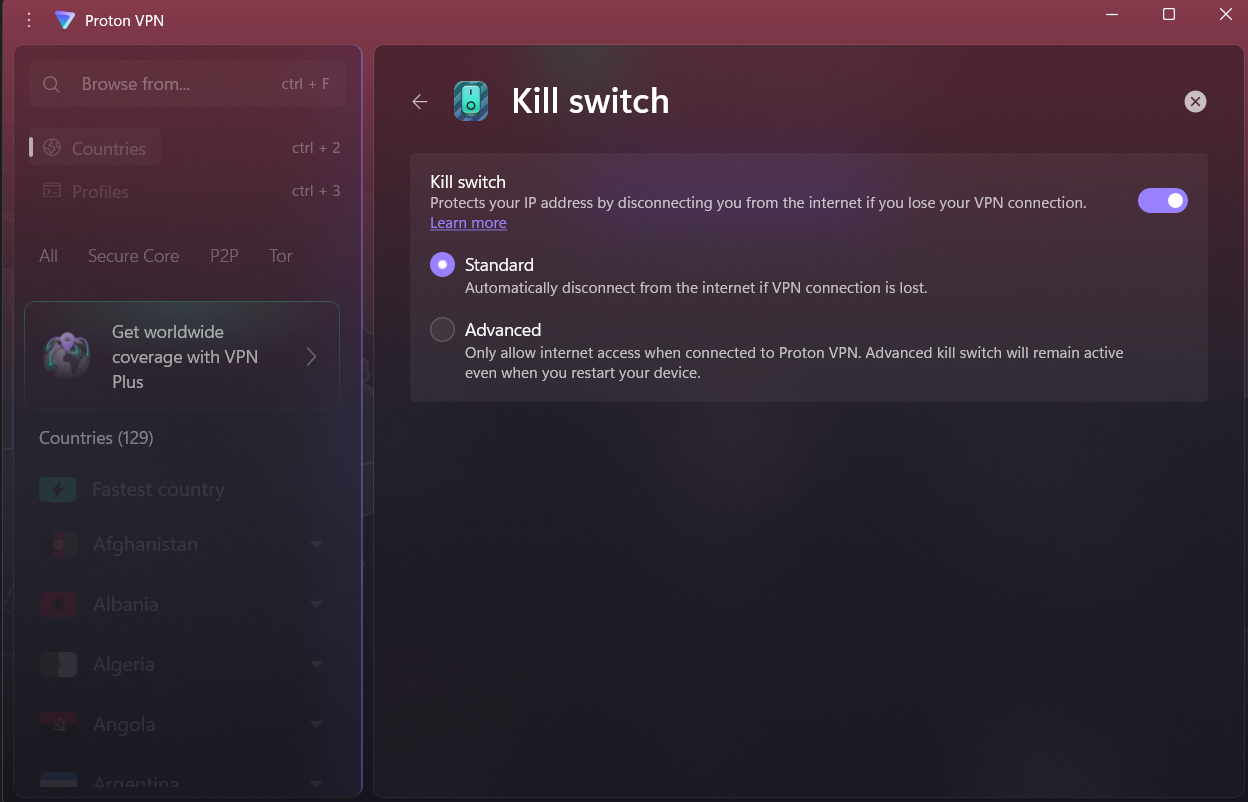
Enable Permanent Kill Switch (Optional)
Proton VPN also offers a Permanent Kill Switch option.
This feature keeps your device offline unless the VPN is connected.
To enable it:
- Open Proton VPN Settings.
- Find Permanent Kill Switch.
- Turn it On.
Your internet will only work through the VPN connection.
Test the Kill Switch
After enabling the Kill Switch, you can test it.
- Connect to a VPN server.
- Disconnect the VPN manually.
If the Kill Switch is working, your internet connection will stop until the VPN reconnects.
When Should You Use the Kill Switch?
The Kill Switch is recommended when:
- Using unsecured public networks
- Downloading files or torrents
- Accessing sensitive information online
- Prioritizing privacy protection
It ensures your real IP address never appears during temporary VPN failures.
Final Thoughts
Knowing how to turn on the Kill Switch in Proton VPN helps protect your privacy when using a VPN connection. This feature prevents your internet traffic from being exposed if the VPN disconnects unexpectedly.
For stronger protection, consider enabling the Permanent Kill Switch. With these settings active, Proton VPN can maintain secure and private internet access on your Windows 11 PC.
FAQs
What does the Kill Switch do in Proton VPN?
It blocks internet access if the VPN connection drops, preventing your real IP address from being exposed.
Where is the Kill Switch in Proton VPN settings?
You can find it in the Proton VPN app under Settings in the Connection or Security section.
What is the Permanent Kill Switch?
It keeps your device offline unless the VPN connection is active.
Should I enable the Kill Switch?
Yes, if you want stronger privacy protection while using a VPN.


Discussion (0)
Be the first to comment.