




Keyboard backlighting makes it easier to type in low-light environments. Many laptops and external keyboards include built-in lighting, but the method to turn it on or off depends on your device brand and settings.
This guide explains how to turn keyboard lighting on or off on Windows 10 and Windows 11 computers, including laptops and external keyboards.
Check If Your Keyboard Supports Backlighting
Before troubleshooting, confirm your keyboard supports lighting.
Look for:
- A light icon on the function keys
- A keyboard icon with rays of light
- Manufacturer documentation confirming backlit support
If your keyboard does not have built-in lighting, it cannot be enabled through software.
Method 1: Use Keyboard Shortcut Keys
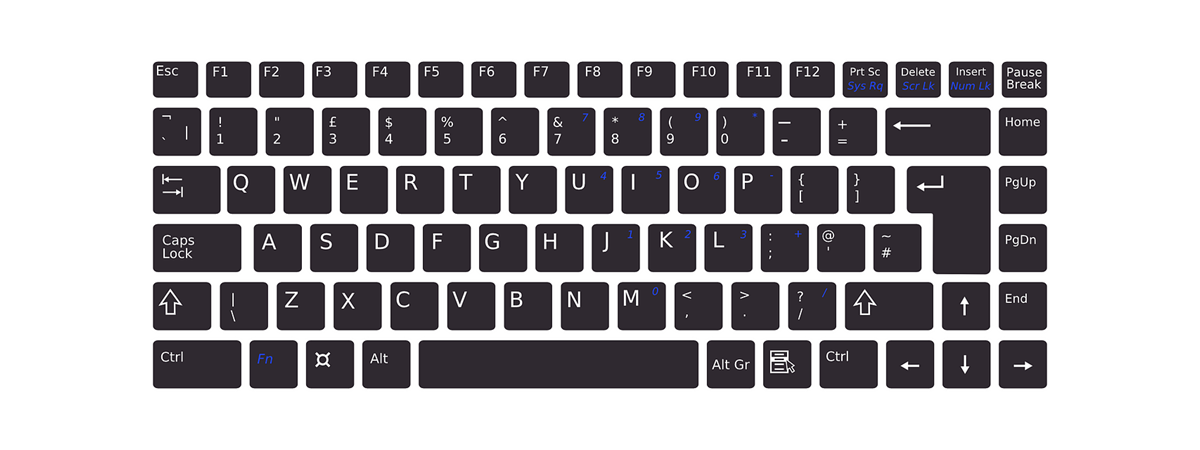
Most laptops allow you to control keyboard lighting using function keys.
Common combinations:
- Press Fn + F5
- Press Fn + F4
- Press Fn + F3
- Press a key with a keyboard light symbol
Some laptops require pressing the key without the Fn button, depending on BIOS settings.
Try pressing the backlight key multiple times to adjust brightness or turn it off completely.
Method 2: Enable Keyboard Backlight in Windows Settings
Some devices allow brightness control through Windows settings.
Steps:
- Open Settings
- Go to System
- Select Keyboard or Device settings if available
- Look for backlight brightness options
Not all systems display this option.
Method 3: Use Manufacturer Software
Many brands include dedicated software to control keyboard lighting.
Examples:
- Dell users can use Dell Power Manager
- HP users can check HP Command Center
- Lenovo users can use Lenovo Vantage
- ASUS users can use Armoury Crate
Open your manufacturer app and look for keyboard or lighting controls.
Method 4: Enable Keyboard Lighting in BIOS
If the lighting does not work, check BIOS settings.
Steps:
- Restart your PC
- Enter BIOS by pressing F2, F10, Delete, or Esc during startup
- Navigate to Advanced or Keyboard settings
- Look for Keyboard Backlight options
- Enable it and save changes
Restart the system after saving.
How to Turn Off Keyboard Lighting Automatically
Some laptops turn off keyboard lighting automatically after inactivity.
You can adjust this in:
- BIOS settings
- Manufacturer software
- Power settings
Look for options such as timeout duration or auto-dim.
Troubleshooting Keyboard Backlight Not Working
If keyboard lighting does not turn on:
- Update keyboard drivers in Device Manager
- Install Windows updates
- Restart your PC
- Check manufacturer support page for firmware updates
If the keyboard was recently repaired or replaced, verify hardware compatibility.
Final Thoughts
Turning keyboard lighting on or off in Windows depends mainly on your laptop or keyboard manufacturer. Most systems use function key shortcuts, while others rely on BIOS settings or dedicated software. If the lighting does not respond, checking drivers and firmware usually resolves the issue.
FAQs
How do I know if my keyboard has backlight
Check for a light icon on the function keys or confirm through your laptop specifications.
Why is my keyboard light not turning on
It may be disabled in BIOS, drivers may be outdated, or the keyboard may not support backlighting.
Can I control keyboard brightness in Windows 11
Some laptops allow brightness control through manufacturer apps.
Does every laptop support keyboard lighting
No, backlighting is a hardware feature available only on certain models.
Can I keep the keyboard light on permanently
Yes, if your BIOS or manufacturer software allows disabling auto-timeout.

Discussion (0)
Be the first to comment.