




Learning how to switch tabs with keyboard shortcuts boosts speed, reduces hand strain, and keeps your workflow focused. Whether you browse with Chrome, Firefox, Safari, or Edge, these universal tab-switching shortcuts work across modern browsers and operating systems. This guide blends everything into a simple, streamlined set of steps so you can move between tabs without touching your mouse.
Switch Tabs On Windows
Windows supports several built-in shortcuts for fast tab navigation. These work across major browsers and feel much quicker than clicking each tab manually.
- Press Ctrl + Tab to move to the next tab.

- Press Ctrl + Shift + Tab to move to the previous tab.

- Press Ctrl + 1 through Ctrl + 8 to jump to a specific tab position.
- Press Ctrl + W to close the current tab instantly.
- Press Ctrl + Shift + T to reopen the most recently closed tab.
These shortcuts feel especially useful when handling research, spreadsheets, or any workflow with many tabs open at once.
Switch Tabs On Mac
Mac keyboard shortcuts keep navigation simple and direct. They differ from Windows shortcuts but work consistently across Safari, Chrome, Firefox, and Edge.
- Press Command + Option + Right Arrow to switch to the next tab.
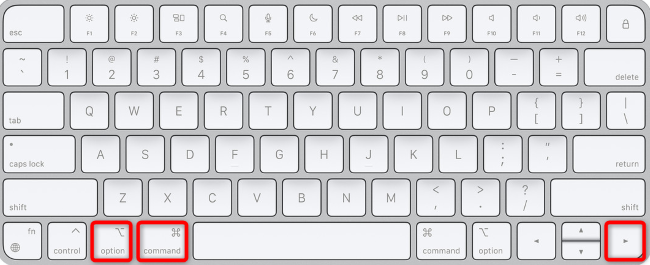
- Press Command + Option + Left Arrow to switch to the previous tab.
- Press Command + 1 through Command + 9 to jump directly to a tab.
- Press Command + W to close the active tab.
- Press Command + Shift + T to restore a closed tab.
When you learn these shortcuts, switching and using tabs becomes second nature and helps you stay focused without moving your hands away from the keyboard.
Troubleshooting Common Problems
- Shortcuts not working: Some extensions or custom browser settings override shortcut behavior. Disable add-ons temporarily and test again.
- Arrow-key shortcuts move text cursor: Click once outside any text field before using tab navigation shortcuts.
- Command or Ctrl shortcuts open browser menus: Ensure you are pressing the correct modifier keys for your operating system.
- Tab order seems random: Some browsers show tabs in the order of recent use when pressing Ctrl + Tab. Change tab behavior in your browser’s settings if needed.
Tips
- Practice your most frequently used shortcut combinations for speed and muscle memory.
- Close unneeded tabs often to improve shortcut accuracy and reduce clutter.
- Use pinned tabs for websites you visit daily so they stay in predictable positions.
- Pair keyboard navigation with browser profiles or workspaces to keep tasks organized.
FAQ
Do These Shortcuts Work In All Browsers?
Yes. Chrome, Firefox, Safari, and Edge all support the same core keyboard shortcuts for switching, closing, and restoring tabs.
Why Does Ctrl + Tab Switch Tabs Out Of Order?
Some browsers use a “recently used” tab order. Look for a setting like “Use classic tab cycling” if you want strict left-to-right navigation.
Can I Change Browser Shortcut Keys?
Most browsers offer limited customization, but third-party extensions can remap shortcuts if you need custom behavior.
Do These Shortcuts Work With Incognito or Private Windows?
Yes. Tab navigation shortcuts behave the same across regular windows, private windows, and guest profiles.
Are There Shortcuts For Switching Windows Instead Of Tabs?
Yes. On Windows, use Alt + Tab. On Mac, use Command + ` or Command + Tab to switch applications.
Summary
- Windows uses Ctrl-based shortcuts for switching, closing, and restoring tabs.
- Mac uses Command-based shortcuts for the same actions.
- Keyboard navigation saves time, reduces fatigue, and keeps you focused.
- Shortcuts remain consistent across all major browsers.
Conclusion
Mastering how to switch tabs with keyboard shortcuts creates a faster, smoother browsing experience. These shortcuts help you work more efficiently, keep your hands on the keyboard, and reduce constant movement between the mouse and trackpad. With just a few combinations, you can move through your browser instantly and stay focused on what matters.



Discussion (0)
Be the first to comment.