



Switching between Apple Music plans takes only a few minutes, but timing and setup matter. When you move between Individual and Family, Apple applies the change at the next billing date, not instantly. Knowing what happens to billing and shared members helps you avoid surprises.
Table of contents
- Things to know before switching Apple Music plans
- Switch from Apple Music individual to family plan
- Switch from Apple Music family to individual plan
- Switch Apple Music plans if you use Apple One
- Fix issues when Apple Music family plan doesn’t appear
- Tips for switching Apple Music plans smoothly
- FAQs
- Summary
Things to know before switching Apple Music plans
This section sets expectations so you know exactly what changes and when.
How billing works when you change plans
Upgrading from Individual to Family schedules the new price for the next renewal. Downgrading from Family to Individual keeps Family access active until the current billing period ends.
What happens to family members
When you leave a Family plan, invited members lose access at the end of the billing cycle. Their libraries and playlists remain tied to their Apple IDs.
Apple Music vs Apple One considerations
If you get Apple Music through Apple One, you cannot switch plans directly. You must change your Apple One tier or cancel Apple One first.
Switch from Apple Music individual to family plan
Upgrading lets you share access with up to five people using Family Sharing.
Switch plans on iPhone or iPad
- Open Settings.
- Tap your Apple ID at the top.


- Select Subscriptions.
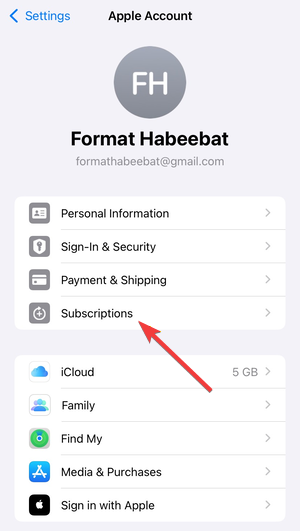

- Choose Apple Music.
- Select the Family plan and confirm.
Switch plans on Mac
- Open App Store.
- Click your name.
- Go to Account Settings.
- Under Subscriptions, click Manage.
- Select Apple Music and choose the Family option.
Switch plans on Windows or web
- Open a browser and sign in to your Apple ID account page.
- Open Subscriptions.
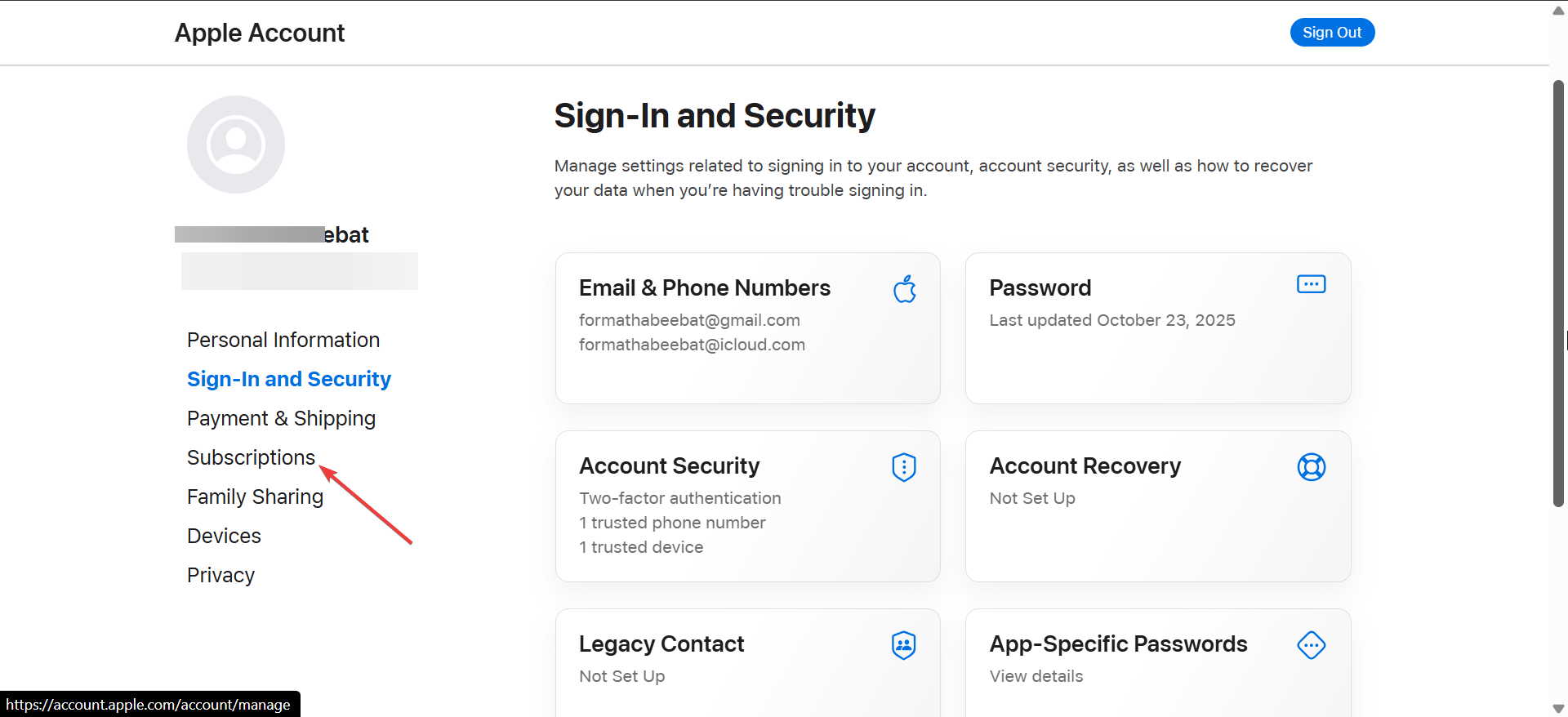

- Select Apple Music.
- Change to the Family plan and confirm.
Invite family members after switching
- Open Settings and tap your Apple ID.
- Tap Family.
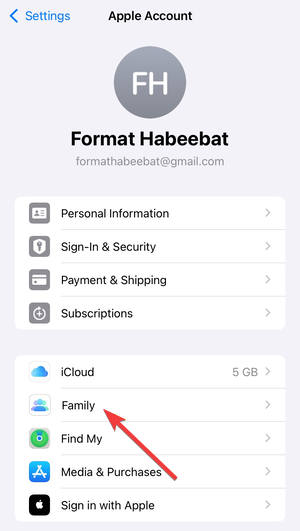
- Select Add Member (or Invite Others).
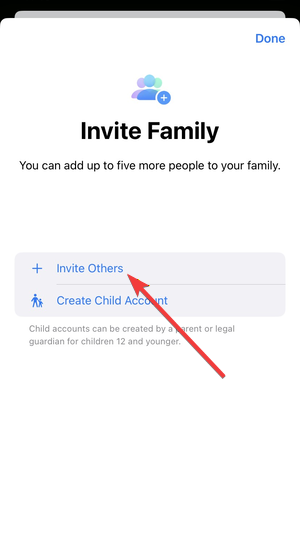

- Send invitations and wait for members to accept.
Switch from Apple Music family to individual plan
Downgrading removes sharing but keeps your personal library intact.
What happens immediately vs at the next billing date
Apple schedules the downgrade for the next renewal. Family members keep access until that date.
How family members can keep their music
Each member can start an Individual plan with their own Apple ID. Playlists, downloads, and recommendations stay available.
Switch Apple Music plans if you use Apple One
Apple One adds an extra layer that affects switching.
Remove Apple Music from Apple One
Apple does not allow removing only Apple Music from Apple One. You must cancel the bundle to subscribe separately.
Choose the right Apple One tier instead
If sharing matters, upgrade to an Apple One Family tier. If not, downgrade Apple One or cancel and choose an Individual plan.
Fix issues when Apple Music family plan doesn’t appear
- Family Sharing not set up correctly: Make sure you act as the family organizer. Enable Family Sharing before switching plans.
- Wrong Apple ID or region mismatch: Sign in with the organizer’s Apple ID. Confirm all accounts use the same country or region.
- Subscription managed by another service: If a carrier or third party manages your subscription, change plans through that provider first.
Tips for switching Apple Music plans smoothly
- Check your renewal date before changing plans.
- Set up Family Sharing before upgrading.
- Confirm all members use compatible regions.
- Avoid canceling unless you want service to end.
FAQs
Does switching plans delete my music?
No. Your library and playlists stay linked to your Apple ID.
Can I switch plans mid-cycle?
Yes, but changes apply at the next billing date.
Can family members use different Apple IDs?
Yes. Each member keeps a separate Apple ID under Family Sharing.
Summary
- Plan changes apply at the next billing cycle.
- Family members lose access only after the cycle ends.
- Apple One subscriptions require bundle changes.
- Family Sharing setup prevents most issues.
Switching between Apple Music plans works smoothly when you plan around billing dates and Family Sharing. Choose the plan that matches how many people need access, confirm your organizer role, and complete invitations right away to avoid interruptions.


Discussion (0)
Be the first to comment.