



Renaming files one by one is one of those small tasks that quickly becomes frustrating when you’re dealing with dozens or hundreds of files. Windows actually gives you several ways to rename files in bulk, but most users only know the basic method and stop there.
The key is choosing the right method depending on what you’re trying to achieve. Some approaches are quick and simple, while others give you more control.
What “Bulk Renaming” Means in Windows
Bulk renaming doesn’t always mean complex changes. In many cases, it’s just about applying a consistent naming pattern across multiple files.
For example:
- Adding a common prefix or suffix
- Renaming files sequentially
- Cleaning up messy file names
Windows has built-in tools for this, but they vary in flexibility.
Method 1: Quick Rename Using File Explorer
This is the simplest and most commonly used method.
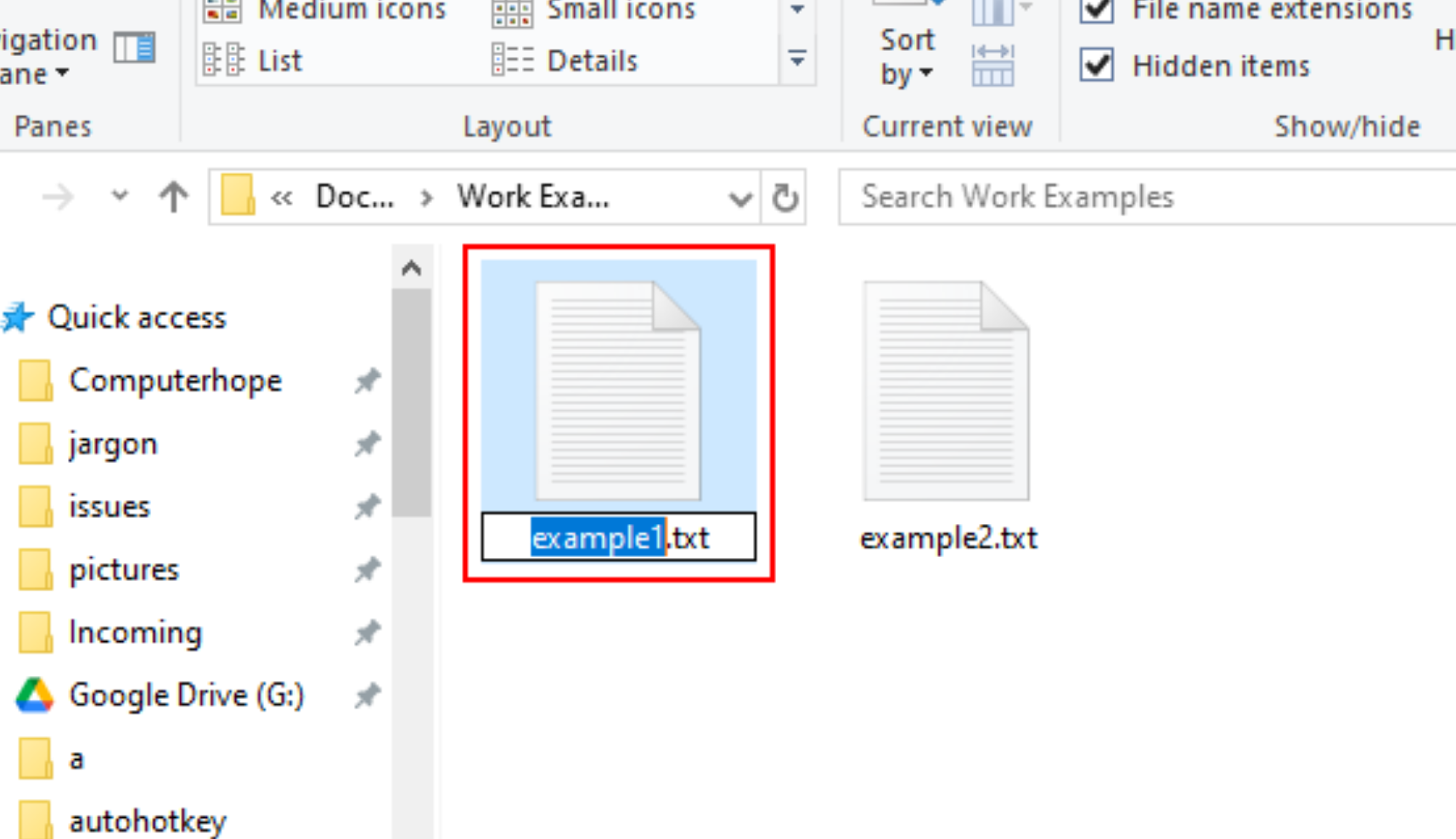
Select all the files you want to rename, right-click, and choose Rename, or press F2.
Type the new name and press Enter.
Windows will automatically rename all selected files using the same base name and add numbers in brackets.
For example:
- File (1)
- File (2)
- File (3)
This works well when you just need a clean, consistent naming pattern quickly.
Method 2: Use Tab for Faster Renaming
If you want slightly more control without extra tools, you can rename files individually but faster.
Select the first file, press F2, rename it, then press Tab instead of Enter.
This automatically moves to the next file in the list.
It’s not true bulk renaming, but it’s efficient when each file needs a slightly different name.
Method 3: Use Command Prompt for More Control
For more advanced renaming, Command Prompt gives you flexibility.
Open Command Prompt in the folder and use commands like:
ren *.jpg photo_*.jpg
This renames all JPG files by adding a prefix.
You can also replace parts of file names or apply patterns across multiple files.
It’s more powerful than File Explorer, but requires basic command-line familiarity.
Method 4: Use PowerShell for Advanced Renaming
PowerShell takes things further.
You can rename files based on patterns, metadata, or conditions.
For example:
Get-ChildItem *.txt | Rename-Item -NewName { $_.Name -replace "old","new" }
This replaces specific text across multiple file names.
It’s especially useful when dealing with large sets of files or complex renaming rules.
Real-World Usage: Which Method Should You Use?
For most users, File Explorer is enough.
If you just want to rename files quickly with a consistent pattern, the built-in rename feature is the fastest option.
If you need more control, such as replacing text or applying specific formats, PowerShell is the better choice.
Command Prompt sits somewhere in between, useful but less flexible than PowerShell.
Common Mistakes to Avoid
One common issue is not previewing what the rename will look like.
Bulk renaming can quickly create confusing file names if you’re not careful.
Another mistake is overwriting important naming details. Once renamed, it can be difficult to revert changes without backups.
It’s always a good idea to test on a small set of files before applying changes to everything.
Limitations You Should Know
Windows’ built-in tools are useful but not extremely advanced.
If you need features like complex rules, previews, or batch editing with conditions, third-party tools may be more suitable.
However, for most everyday use cases, Windows provides everything you need.
Final Thoughts
Renaming multiple files in Windows doesn’t have to be tedious. The built-in tools are simple but effective once you know how to use them properly.
The key is choosing the right method for your situation instead of forcing one approach for everything.
For quick tasks, keep it simple. For more control, use PowerShell.
Either way, you can save a lot of time with just a few small changes to how you work.
FAQs
How do I rename multiple files at once?
Select all files, press F2, and enter a new name. Windows will number them automatically.
Can I replace text in multiple file names?
Yes, using PowerShell or Command Prompt.
Is there a way to preview changes before renaming?
Not with basic tools. You need third-party software for previews.
Can I undo a bulk rename?
Yes, immediately using Ctrl + Z, but only if you haven’t performed other actions.
Do I need extra software for bulk renaming?
No, Windows tools are sufficient for most tasks.

Discussion (0)
Be the first to comment.