




Starting Rocket League on PC feels easy once you know where to install the game, how to configure your settings, and how to master the basics. This guide walks you through installation, first match setup, gameplay mechanics, and early skill progression.
1) Download Rocket League on PC
Rocket League is one of the free games you can claim on Epic Games Launcher. Go to the official Epic Games website and download the launcher. Next, double-click the downloaded file and follow the onscreen instructions to complete the installation.
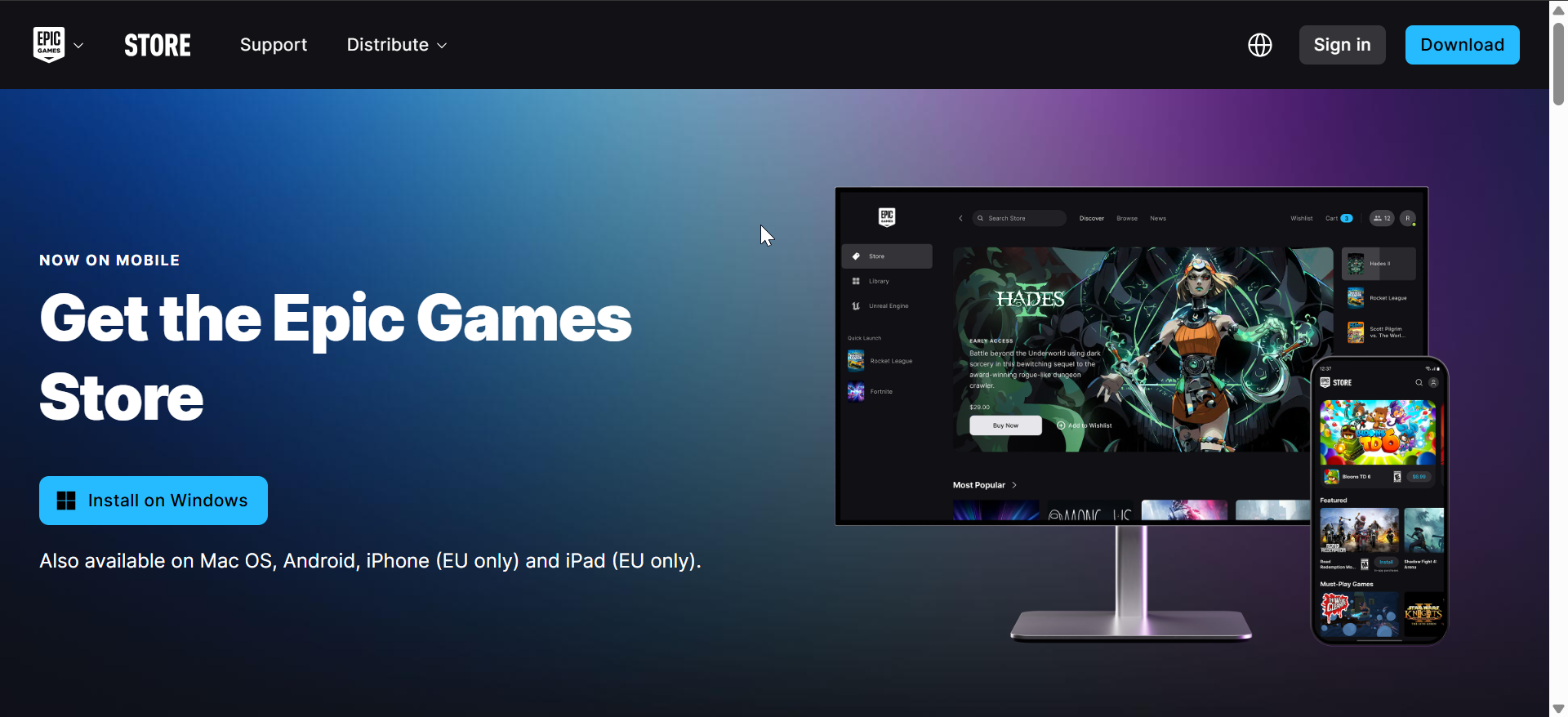
Now, create an account or sign in to your Epic account to access the library and your Rocket League profile. Finally, search for Rocket League in the store and click Get to add it to your library. Select Install, confirm your folder location, and wait while the game downloads.

2) Configure your settings before your first match
Preparing your controls, video options, and camera angles makes Rocket League easier to play. These adjustments help you adapt faster to the game’s pace.
Set up your keyboard or controller
Rocket League supports keyboard, mouse, and gamepad controls. Set your steering sensitivity, adjust deadzones, and map buttons to match your play style.
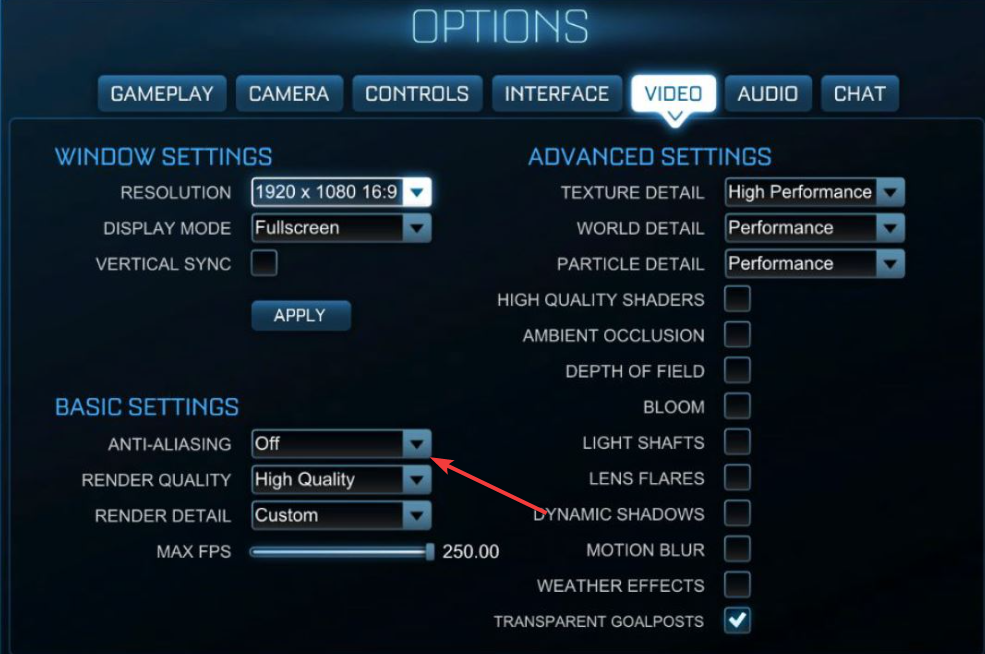
Optimize video settings for PC performance
Lower-end PCs run better when you reduce shadows, disable motion blur, and lower anti-aliasing. Higher-end systems can raise details for a smoother and sharper picture.
Adjust camera settings for better visibility
Turn off camera shake, raise your field of view, and increase camera distance to improve ball tracking. These changes give you a clearer view of the field.

3) Learn the basic gameplay mechanics
Rocket League mixes car movement with soccer-like gameplay. Understanding movement, boost control, and jumping prepares you for your first matches.
Car movement and ball control
Practice steering, reversing, powersliding, and basic ball dribbling. This helps you stay in control during fast-paced plays.
Boost management
Boost pads appear across the field and refill your meter. Learn when to conserve boost and when to use it to challenge for the ball.
Basic aerials and jumping
Use double jumps to reach higher shots and start learning the timing behind aerial hits. These skills become essential as you improve.
4) Play your first online match
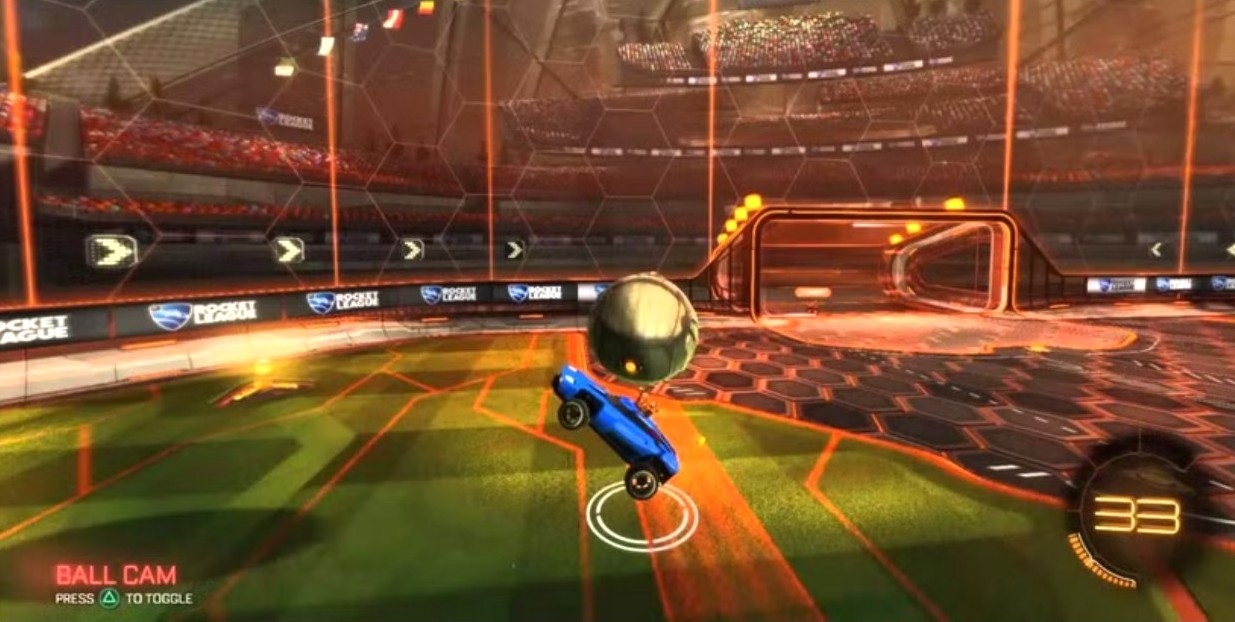
Online play opens access to casual and ranked playlists. Your first matches help you learn positioning and pace.
Casual vs. ranked modes
Casual matches let you practice without pressure. Ranked matches track your skill rating and place you into competitive tiers.
Training modes and practice packs
Free Play, Custom Training, and other training tools help you develop consistency. Use practice packs designed to improve shooting, dribbling, and aerial skills.

5) Improve your performance with advanced settings
Fine-tuning your PC and controller settings reduces lag and improves input response. This helps you make cleaner plays in competitive matches.
Lower your input latency
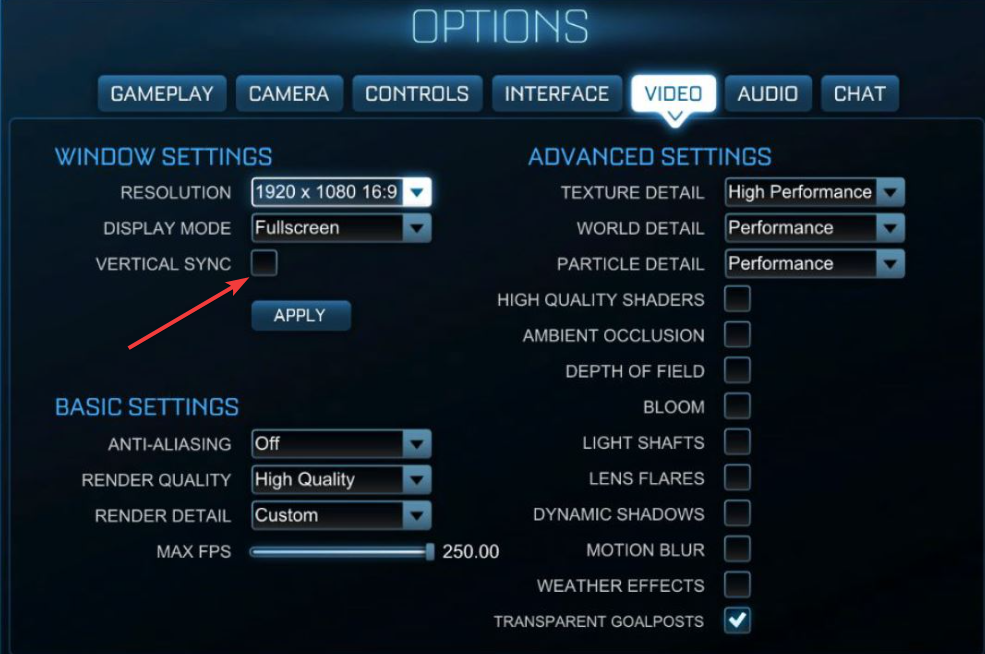
Turn off VSync, raise your frame rate cap, and keep your drivers updated. These optimizations help you achieve a more responsive experience.
Best Steam Input settings
If you use Steam’s overlay, configure your controller layout using Steam Input. Adjust your deadzones and sensitivity for a smoother feel.
6) Progress from beginner to advanced play
A simple timeline helps new players learn Rocket League without feeling overwhelmed.
First 30 minutes of play
Adjust camera settings, try Free Play, and learn how your car handles. Spend a few minutes gathering boost and shooting at the net.
First 24 hours
Focus on learning rotations, practicing power shots, and improving your boost awareness. Start experimenting with casual matches.
First week
Begin practicing aerials, shadow defense, and controlled dribbles. Consider trying ranked matches once you feel comfortable.
7) Troubleshooting common Rocket League issues on PC
- Game not launching: Restart the Epic Games Launcher, clear its cache, and verify your installation files. Updating your GPU driver often resolves launch problems.
- Low FPS or stutter: Lowering textures, disabling anti-aliasing, and closing background apps improves stability. Making changes one at a time helps you track what works.
- Controller not detected: Check the Windows Game Controllers panel, switch USB ports, or reset Steam Input settings. Testing with another cable helps determine whether the controller is recognized.
Tips for playing Rocket League on PC
- Learn how to rotate with your teammates instead of chasing the ball.
- Save most of your boost for challenges, recoveries, and clear shots.
- Use Free Play to warm up before every match.
- Keep camera shake disabled for cleaner visibility.
FAQs
Can I use any controller with Rocket League on PC? Most controllers work, including Xbox, DualShock, and DualSense gamepads.
Does Rocket League support crossplay? Yes, players on PC, Xbox, PlayStation, and Switch can compete together.
Can I play Rocket League offline? You can practice offline in Free Play or against bots.
Do I need a strong gaming PC? Rocket League runs well on mid-range systems, and low-end hardware can still handle it at lower settings.
Summary
- Check your system requirements before installation.
- Install Rocket League using the Epic Games Launcher.
- Configure your controls, camera settings, and video options.
- Learn basic mechanics like boost usage and ball control.
- Improve steadily through training, online play, and advanced settings tweaks.
Rocket League starts out simple but rewards steady practice. This guide gives you everything you need to install the game, learn the basics, and build the skills needed to compete online.


Discussion (0)
Be the first to comment.