




If you want to make text bigger on Windows 11, you can adjust the built-in accessibility settings in just a few clicks. Windows 11 allows you to increase text size without changing screen resolution or scaling the entire display.
This feature is helpful if text appears too small, especially on high-resolution monitors or laptops. In this guide, you will learn why increasing text size can improve readability and how to do it safely in Windows 11.
Why Make Text Bigger on Windows 11?
Small text can cause eye strain, especially if you work long hours on your PC. Increasing text size improves visibility without affecting images or overall layout as much as full display scaling does.
You may want to make text bigger if:
- You use a high-resolution display
- Text appears too small in apps and menus
- You experience eye fatigue
- You want better accessibility support
Windows 11 provides a dedicated setting for text size adjustment.
How to Make Text Bigger on Windows 11
Follow these steps to increase text size.
Step 1: Open Accessibility Settings
- Click the Start button.
- Select Settings.
- Click Accessibility in the left panel.
Step 2: Adjust Text Size
- Click Text size under the Vision section.
- Use the slider to increase the percentage.
- Click Apply.
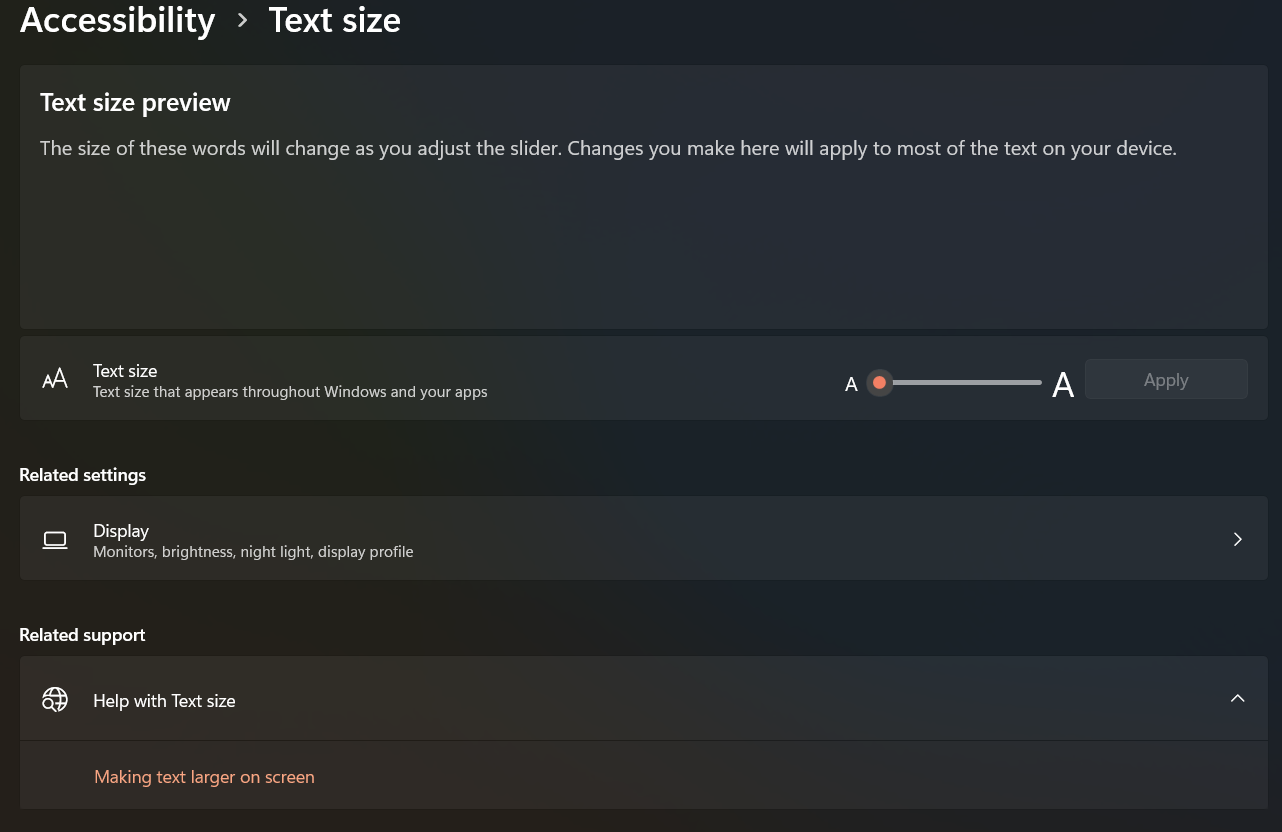
Windows will briefly sign you out of the interface and apply the new text size.
The change affects:
- System menus
- File Explorer
- Settings
- Dialog boxes
- Supported apps
How Is Text Size Different from Display Scaling?
Text size only increases text elements. Display scaling increases everything, including icons, apps, and UI elements.
To adjust display scaling:
- Open Settings.
- Go to System > Display.
- Under Scale & layout, change the Scale percentage.
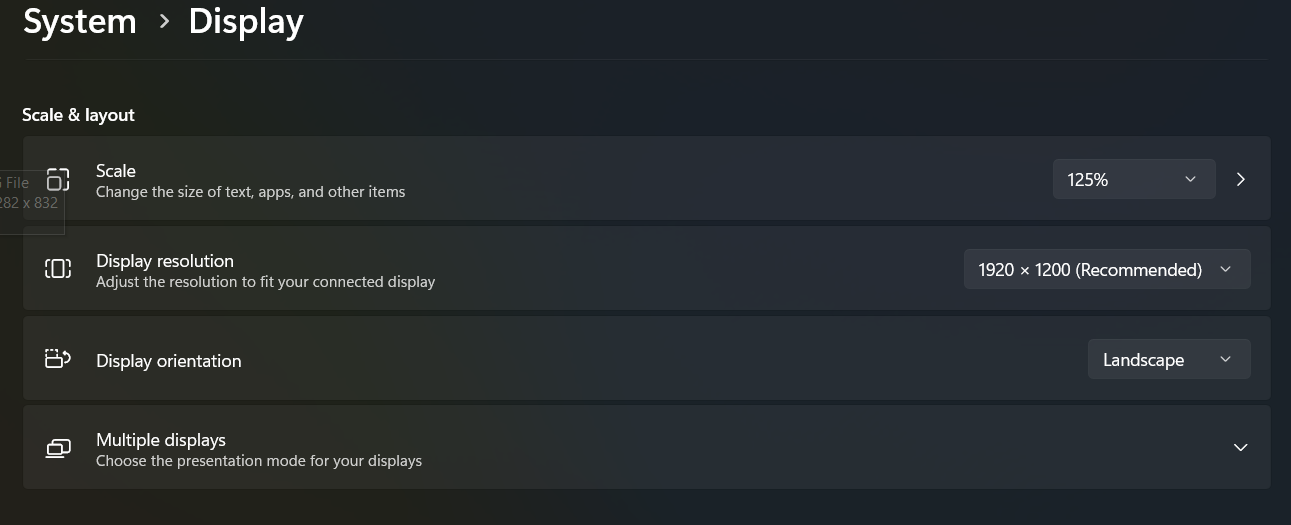
If you only need larger text, use the Text size option instead of scaling the entire display.
Will Larger Text Affect All Apps?
Most modern apps support Windows text scaling. However:
- Some older programs may not fully adjust
- Layouts in legacy apps may appear slightly misaligned
If an app does not scale properly, updating it may help.
How to Reset Text Size to Default
To return to the default setting:
- Open Settings > Accessibility > Text size.
- Move the slider back to 100%.
- Click Apply.
The system will restore standard text size.
Final Thoughts
Learning how to make text bigger on Windows 11 can greatly improve comfort and readability. The built-in Text size feature allows you to enlarge fonts without changing the entire display layout.
If text still feels too small, you can combine text size adjustments with display scaling for better results. Windows 11 provides flexible accessibility tools to help you customize your viewing experience.
FAQs
How do I make text bigger on Windows 11?
Go to Settings > Accessibility > Text size, adjust the slider, and click Apply.
Does increasing text size affect screen resolution?
No. It only changes text size, not resolution.
What is the difference between text size and scaling?
Text size enlarges only text. Scaling increases the size of everything on the screen.
Can I make text bigger temporarily?
Yes. Use the Magnifier tool by pressing Windows + Plus (+).


Discussion (0)
Be the first to comment.