



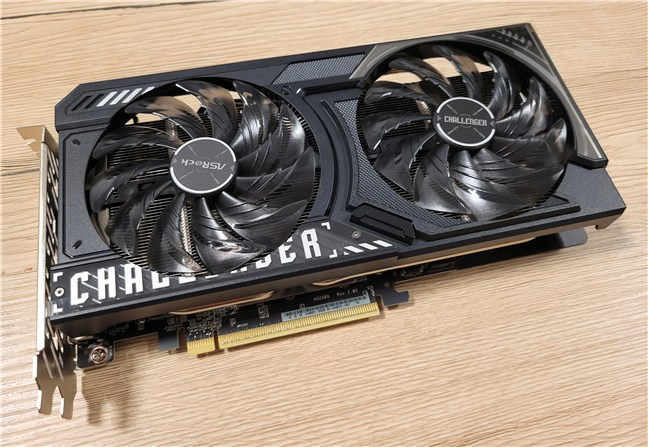
AMD Radeon graphics cards are reliable for gaming, video editing, and daily computing. However, like any hardware component, they can occasionally cause display issues. You may notice flickering screens, black screens, resolution problems, or random signal loss.
If your display is not behaving normally, this guide will walk you through the most common AMD Radeon display problems and how to fix them on Windows 10 and Windows 11.
Typical AMD Radeon Display Issues
Users commonly report:
- Screen flickering
- Black screen after boot
- No display signal
- Incorrect resolution
- Monitor not detected
- Driver crashes
- Screen freezing during gaming
The cause can range from driver conflicts to hardware configuration issues.
Fix 1: Update AMD Graphics Drivers
Outdated or corrupted drivers are the most frequent cause of display problems.
To update using AMD Software:
- Right-click on the desktop
- Select AMD Software: Adrenalin Edition
- Go to the Home tab
- Click Check for Updates
- Download and install available updates
- Restart your PC
Updating drivers often resolves flickering and crash-related issues.
Fix 2: Perform a Clean Driver Installation
If updating does not help, perform a clean install.
- Open AMD Software
- Select the driver update
- Choose Factory Reset during installation
- Complete the setup
- Restart your system
This removes leftover driver files that may cause conflicts.
Fix 3: Check Display Cables and Ports
Loose or damaged cables can cause:
- Intermittent signal loss
- Black screens
- Flickering
Try:
- Switching HDMI or DisplayPort cables
- Using a different monitor port
- Testing with another monitor
Sometimes the issue is physical rather than software-related.
Fix 4: Adjust Display Settings
Incorrect resolution or refresh rate settings can cause display instability.
- Press Windows + I
- Go to System
- Click Display
- Select Advanced display
- Ensure the correct resolution and refresh rate are selected
Match the refresh rate to your monitor’s specifications.
Fix 5: Disable Hardware Acceleration in Apps
If flickering occurs in browsers or apps:
- Open the app settings
- Disable Hardware Acceleration
- Restart the application
This reduces GPU strain in certain cases.
Fix 6: Check for Windows Updates
Sometimes display issues are linked to Windows compatibility.
- Open Settings
- Go to Windows Update
- Click Check for updates
- Install any pending updates
Keeping Windows updated ensures driver compatibility.
Fix 7: Reset AMD Radeon Settings
Corrupted settings inside AMD Adrenalin can cause issues.
- Open AMD Software
- Go to Settings
- Look for Reset or restore options
- Restart your PC
Resetting returns settings to default values.
Fix 8: Disable FreeSync (If Applicable)
If you use AMD FreeSync and experience flickering:
- Open AMD Software
- Navigate to Display settings
- Disable FreeSync
- Test your system
FreeSync conflicts can cause screen instability on certain monitors.
Fix 9: Check for Overheating
Overheating GPUs may cause:
- Random screen freezes
- Black screen crashes
- Performance drops
Use AMD Software to monitor GPU temperature. Ensure proper airflow and clean dust from fans if needed.
When to Suspect Hardware Failure
If none of the above solutions work, possible hardware issues include:
- Faulty GPU
- Damaged VRAM
- Failing power supply
- Defective monitor
Testing the GPU in another system can confirm hardware faults.
Final Thoughts
Display problems on AMD Radeon graphics cards are usually caused by driver issues, incorrect settings, or cable faults. In most cases, updating or reinstalling drivers solves the problem. Always start with software troubleshooting before assuming hardware failure.
These fixes apply to both Windows 10 and Windows 11 systems using AMD Radeon GPUs.
FAQs
Why does my AMD screen keep flickering
Outdated drivers or incorrect refresh rate settings are common causes.
How do I fix AMD black screen issue
Perform a clean driver install and check cables.
Does Windows 11 cause AMD display issues
Occasionally, compatibility updates may affect drivers. Keep both Windows and drivers updated.
Is AMD Adrenalin necessary
Yes, it manages drivers and display settings.
Can a bad HDMI cable cause display problems
Yes, damaged or loose cables often cause signal instability.


Discussion (0)
Be the first to comment.