




Running Android apps on a PC sounds appealing, but it only becomes valuable when it fits into your workflow. The Windows Subsystem for Android in Windows 11 is designed to bridge that gap without relying on heavy emulators.
This guide focuses on two things that matter. How to install WSA properly, and where it genuinely adds value in real use.
What WSA Actually Is
WSA is a virtualized Android layer built into Windows. It allows Android apps to run like native desktop apps.
You can:
- Open Android apps in windows
- Pin them to Start or taskbar
- Use them alongside desktop apps
It feels integrated, but under the hood, it is still running a lightweight virtual environment.
System Requirements That Actually Matter
Before installing, check the basics that commonly cause issues:
- Windows 11 with latest updates
- Virtualization enabled in BIOS
- At least 8 GB RAM for smooth usage
- SSD recommended for better responsiveness
If virtualization is disabled, WSA will not run at all.
Method 1: Install via Microsoft Store (Recommended)
This is the cleanest and most stable method.
Steps
- Open Microsoft Store
- Search for Windows Subsystem for Android
- Click Install
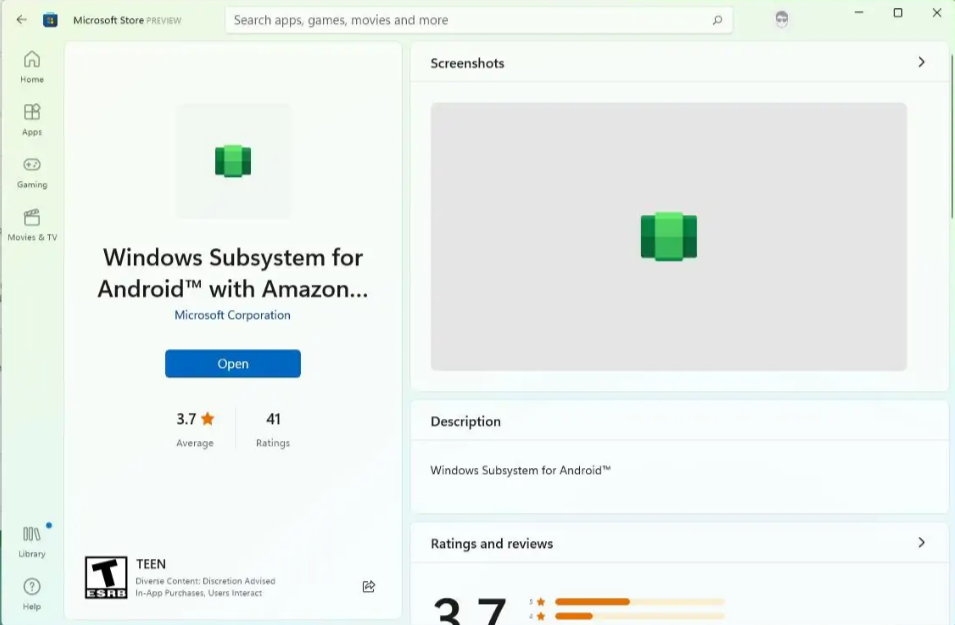
This will also install the Amazon Appstore, which is the official source for Android apps.
Once installed, WSA runs only when needed. It does not stay active all the time.
Method 2: Install Manually (When Store Is Not Available)
If WSA is not available in your region, you can install it using an offline package.
This involves:
- Downloading the official package
- Installing via PowerShell
This method works, but it is more technical and not necessary for most users.
How WSA Behaves After Installation
Once installed, Android apps behave like regular Windows apps.
- They open in resizable windows
- They appear in Start menu
- They can run alongside other applications
WSA itself runs in the background only when an app is active.
Where WSA Actually Makes Sense
This is where most guides stay generic. In practice, WSA is useful only in specific scenarios.
Accessing Mobile-Only Apps
Some apps do not have proper Windows versions. WSA allows you to use them without switching to your phone.
This is one of the most practical use cases.
Productivity and Utility Apps
Certain mobile apps are simpler or faster than their desktop equivalents.
Examples include:
- Note-taking apps
- Lightweight communication tools
- Personal finance apps
These fit well into a desktop workflow when used selectively.
Development and Testing
For developers, WSA provides a quick way to test Android apps without setting up a full emulator.
It is faster to launch and easier to integrate into a workflow.
Casual Gaming
WSA works for light Android games.
It is not meant for heavy or competitive gaming, but it handles simple titles well.
Cross-Device Continuity
If you use Android regularly, WSA allows you to continue using the same apps on your PC without breaking your workflow.
Where WSA Falls Short
Being practical about limitations matters.
WSA is not ideal for:
- High-performance gaming
- Apps that depend heavily on Google Play Services in unsupported setups
- Apps designed strictly for small screens
Performance is decent, but not comparable to native desktop apps.
Performance and System Impact
WSA runs a virtualized environment, so it uses system resources.
- RAM usage increases when apps are active
- CPU usage depends on the app
- Background usage is minimal when idle
On modern systems, this is manageable. On lower-end systems, it can feel heavy.
Real-World Insight
Most users try WSA out of curiosity. The ones who continue using it usually have a clear reason.
Either:
- They depend on specific Android apps
- Or they integrate it into a focused workflow
Without that, it tends to sit unused.
Should You Install WSA
Install it if:
- You rely on Android-only apps
- You want mobile and desktop workflows to overlap
- You need a lightweight testing environment
Skip it if:
- You prefer native desktop apps
- You do not have a clear use case
Final Thoughts
The Windows Subsystem for Android in Windows 11 is a well-designed feature, but it is not universally necessary.
Its value depends entirely on how you use your system. When it fits your workflow, it feels seamless. When it does not, it becomes unnecessary overhead.
The difference comes down to intent, not capability.
FAQs
What is WSA in Windows 11
It allows Android apps to run on Windows without an emulator.
Do I need virtualization enabled
Yes, WSA will not work without it.
Is WSA better than Android emulators
For integration and simplicity, yes. For performance tuning, not always.
Can I run all Android apps
No, compatibility is good but not complete.
Does WSA slow down the system
Only when actively running apps, otherwise impact is minimal.



Discussion (0)
Be the first to comment.