




If you want to install Ubuntu on PC, the process is simpler than it looks. You basically download Ubuntu, create a bootable USB drive, and follow a guided setup on your computer.
Ubuntu is one of the easiest Linux distributions to get started with. Whether you want to try something new, speed up an older PC, or set up a development environment, this guide will walk you through everything clearly.
What Is Ubuntu?
Ubuntu is a free, open-source operating system based on Linux. It comes with a clean interface, built-in apps, and regular updates, making it suitable for both beginners and experienced users.
People commonly use Ubuntu for:
- Daily computing like browsing and documents
- Programming and development
- Running lightweight systems
- Learning Linux basics
It works as a full replacement for Windows if needed.
Why Install Ubuntu on PC?
Before installing, it helps to know why people switch or try Ubuntu.
Some practical reasons include:
- It is completely free to use
- Runs smoothly even on older hardware
- Fewer background processes compared to Windows
- Strong security with fewer malware risks
- Great for coding and development tools
For many users, it feels faster and less cluttered.
What You Need Before You Start
Make sure you have everything ready before installing Ubuntu.
You will need:
- A PC with at least 4 GB RAM (8 GB is better)
- Around 25 GB of free storage
- A USB drive (minimum 8 GB)
- Internet connection
Also, take a few minutes to back up important files. This step is important, especially if you plan to replace Windows.
Step 1: Download Ubuntu
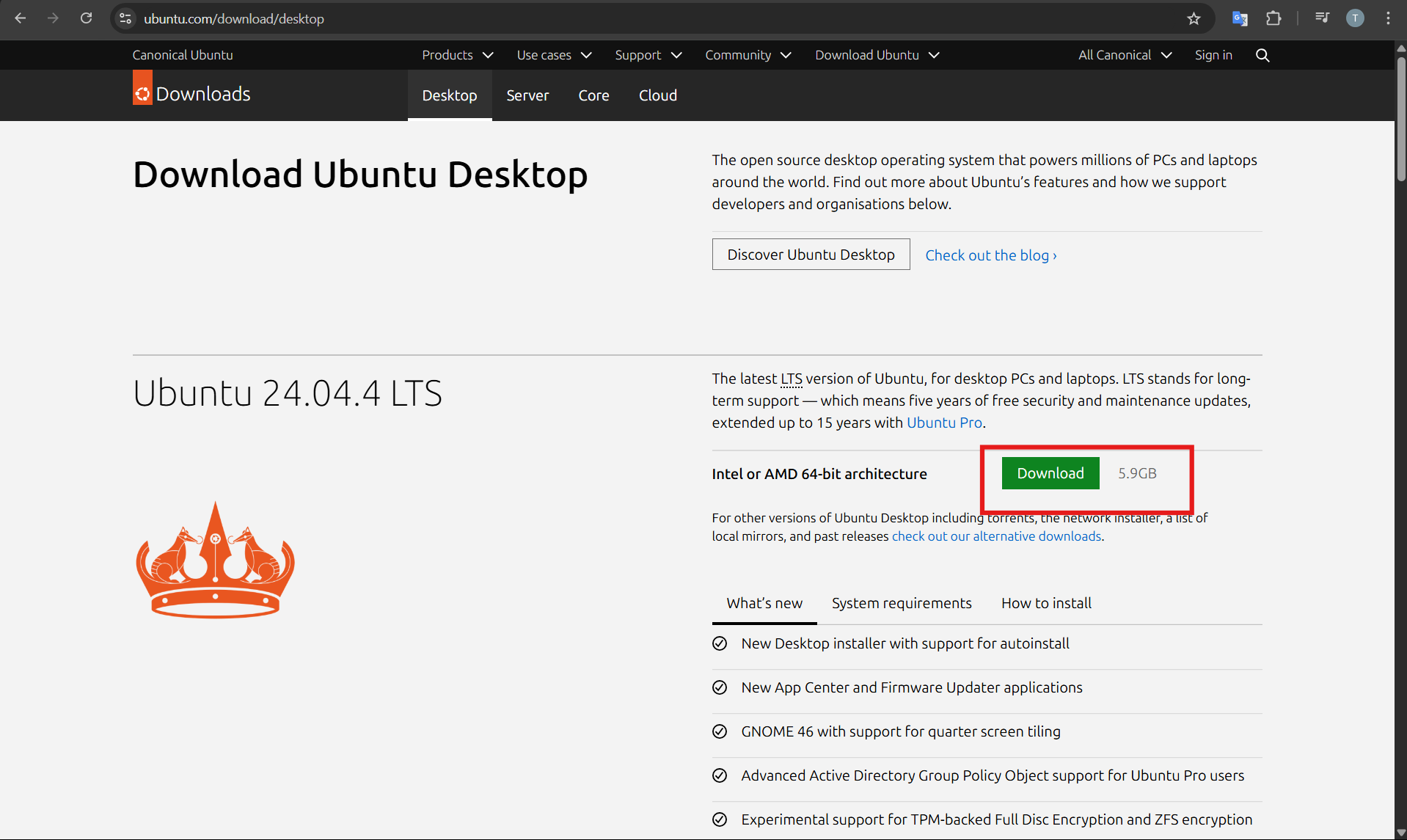
Start by downloading the official Ubuntu file.
- Open your browser
- Go to the Ubuntu official website
- Download the Ubuntu Desktop ISO file
This file is what you will use to install Ubuntu.
Step 2: Create a Bootable USB
Now you need to turn your USB drive into an installer.
- Download a tool like Rufus
- Insert your USB drive
- Open Rufus
- Select the Ubuntu ISO file
- Click Start
This will prepare your USB so your PC can boot from it.
Step 3: Boot Your PC from USB
Next, you need to start your PC using the USB.
- Restart your computer
- Press the boot menu key (usually F12, ESC, or Delete)
- Select your USB drive
After this, Ubuntu will load.
Step 4: Start the Ubuntu Installation
Once Ubuntu opens, you will see two options.
- Try Ubuntu
- Install Ubuntu
Click Install Ubuntu to begin.
Then follow these steps:
- Select your language
- Choose your keyboard layout
- Connect to Wi-Fi if needed
The installer will guide you through the rest.
Step 5: Choose Installation Type
This is the most important step.
You will see options like:
- Install alongside Windows (recommended for beginners)
- Erase disk and install Ubuntu (removes everything)
If you are unsure, choose install alongside Windows. This lets you use both systems.
Step 6: Set Up Your Account
Now enter your details:
- Your name
- Computer name
- Username
- Password
These will be used to log in to Ubuntu.
Step 7: Complete Installation
Click Install and wait.
The process may take some time depending on your system.
Once done:
- Restart your PC
- Remove the USB drive
Ubuntu will now be installed.
First Boot Experience
When your system restarts:
- If you chose dual boot, you will see a menu to choose Ubuntu or Windows
- Select Ubuntu to continue
Log in with your password, and you are ready to go.
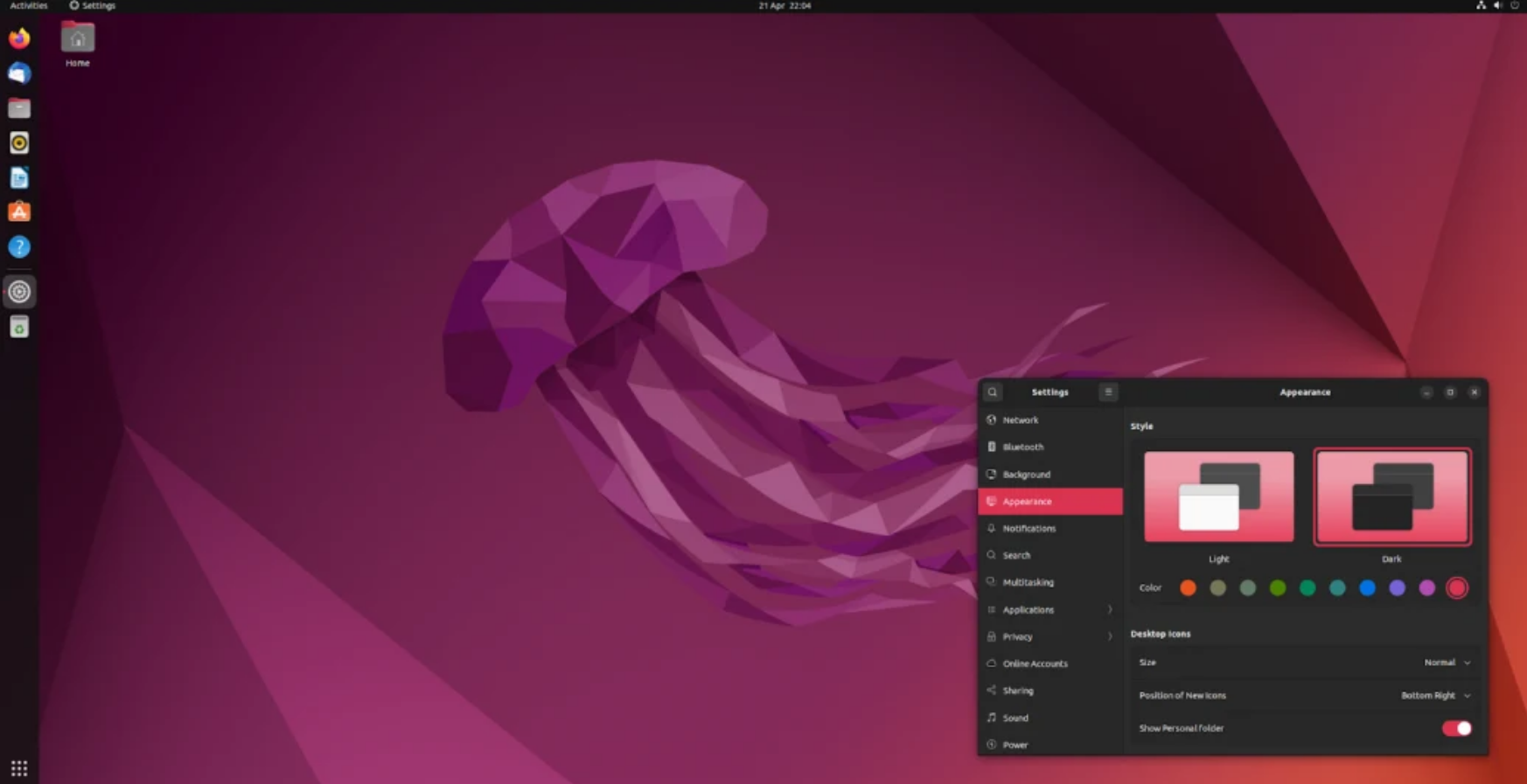
You can now install apps, update the system, and start using Linux.
Tips for a Smooth Experience
A few small tips can make things easier:
- Keep your laptop plugged in during installation
- Use a stable internet connection
- Do not interrupt the installation process
- Update the system after installation
These steps help avoid common issues.
Final Thoughts
Learning how to install Ubuntu on PC is easier than most people expect. The process is guided, and you do not need advanced technical skills to complete it.
Ubuntu is a solid choice if you want a fast, clean, and reliable operating system. Whether you use it alongside Windows or switch completely, it is a great way to explore Linux without complications.
FAQs
Can I install Ubuntu without deleting Windows?
Yes. You can choose the dual boot option to keep both operating systems.
Is Ubuntu safe to use?
Yes. Ubuntu is considered secure and regularly updated.
How long does installation take?
Usually between 15 to 30 minutes, depending on your system.
Do I need coding knowledge to use Ubuntu?
No. Ubuntu is beginner-friendly and works well for everyday use.


Discussion (0)
Be the first to comment.