




Connecting a PlayStation 2 to a modern smart TV can feel confusing because the console outputs an analog 480i signal, while new TVs expect digital HDMI inputs. You can still hook it up reliably with the right cable or adapter.
Use this guide to choose the method that fits your TV’s ports, improve picture quality, and fix signal issues. But before starting, look at the back or side of your TV and note the ports. Most modern models only offer HDMI.
Some older or mid-range TVs still include component or composite inputs. Note that each port supports different quality levels. HDMI provides the cleanest digital path, while composite offers the lowest clarity.
Method 1: Use a PS2-to-HDMI adapter
HDMI adapters convert the PS2’s analog output into a digital format your smart TV accepts. This method works on any TV with HDMI ports. The adapter delivers a stable signal and simplifies the setup process.
Below are the steps to connect PS2 to TV using HDMI adapter
- Plug the PS2’s AV cable into the adapter.
- Connect an HDMI cable from the adapter to the TV.
- Power the adapter through USB if required.
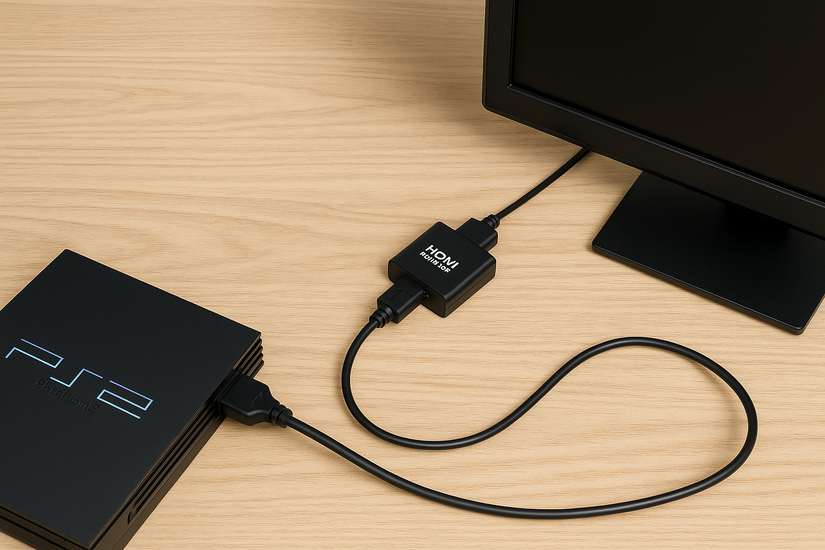

- Turn on the PS2 and switch the TV to the correct HDMI input.
Method 2: Connect with component cables
Component (YPbPr) cables offer the best native image quality for a PS2. Some smart TVs still support these ports with color-coded inputs.
This method gives you clearer color reproduction and reduced visual noise. Follow the steps below use the component cables:
- Match the green, blue, and red video plugs to the TV’s component inputs.
- Connect the red and white audio plugs.
- Switch the TV to the Component input.
- Turn on the PS2 and adjust the display settings if needed.

Tip: Component cables preserve the PS2’s natural image output without compression. Many TVs process component signals better than composite, which improves color and reduces blur.
Method 3: Use composite cables (yellow/red/white)
Composite is the PS2’s default cable and works on TVs that still include AV ports. Some models require a composite-to-3.5mm breakout adapter.
This method works when you already own the original cable and want a quick setup.
- Connect the yellow plug to the video input.
- Connect the red and white plugs to the audio inputs.
- Select the AV input on your TV.
- Turn on the PS2 and verify the signal.

Optional: Use an upscaler for better picture quality
Upscalers convert 240p and 480i signals into sharp 720p or 1080p. Tools like RetroTINK or equivalent adapters improve clarity on large screens.
You get less shimmer, better colors, and reduced distortion on 4K displays.
Smart TV settings to adjust for best results
Modern TVs use picture processing effects that increase input lag or distort older signals. Adjusting a few settings improves responsiveness and clarity.
Below are some of the recommended settings for PS2 gameplay:
- Enable Game Mode to reduce input lag.
- Set Aspect Ratio to 4:3 to avoid stretching.
- Turn off Motion Smoothing for a cleaner image.
- Lower Sharpness to avoid artificial edges.
Cable and adapter compatibility by smart TV brand
Each manufacturer handles analog signals differently. Some support component natively, while others require adapters.
Check the brand-specific notes when choosing your method.
- Samsung: Newer models rely on HDMI only.
- LG: Some models include components via breakout adapters.
- Sony Bravia: Good support for legacy inputs, but varies by series.
- TCL Roku TV: Most units only include HDMI inputs.
Troubleshooting common “no signal” or display problems
Signal issues often occur when the TV cannot detect the analog input correctly. Wrong ports, loose cables, or unsupported formats trigger repeated black screens. You can fix signal issues by doing the following:
- Try a different HDMI port if using an adapter.
- Switch between 480i and 480p in the PS2 settings.
- Replace damaged cables.
- Ensure the adapter receives USB power.
Tips on reducing input lag on a smart TV
- Disabling extra effects produces a more responsive experience
- Use Game Mode
- Use wired controllers to reduce delay.
FAQs
Can you use USB ports for PS2 video? No. USB ports cannot process analog video signals.
Why does my TV show black and white colors? Your cables might be in the wrong component ports, or your adapter may not support the signal type.
Can a PS2 work on a 4K TV? Yes. The console works, but picture quality varies based on cable type and upscaling.
Do you need a special HDMI cable for PS2? You need a PS2-to-HDMI adapter, not a standard HDMI cable.
Summary
- Check your TV ports to confirm HDMI, component, or composite support.
- Use a PS2-to-HDMI adapter for the simplest, most compatible setup.
- Choose component cables for the best native image quality.
- Adjust smart TV settings to reduce lag and improve clarity.
- Troubleshoot signal issues with input changes, new cables, and proper power.
Connecting a PS2 to a smart TV still works well with the right cable or adapter. Choose the method that matches your TV’s ports, adjust your picture settings, and consider an upscaler if you want better clarity on a large display. This setup gives you a stable signal, minimal lag, and a better experience with classic PS2 games.


Discussion (0)
Be the first to comment.