




Hard refresh clears outdated files that Chrome stores to speed up browsing. Cached images, scripts, and styles sometimes cause pages to load old content or behave unpredictably. A hard refresh forces Chrome to request fresh data from the website and resolve most display or loading problems.
In this guide, we will show you how to perform a hard refresh on the Chrome desktop and mobile apps and help restore normalcy on your browser.
Table of contents
- Use keyboard shortcuts to hard refresh Chrome
- Use Chrome’s reload button for a hard refresh
- Use Chrome DevTools for a deeper hard reload
- Disable cache while DevTools is open
- Perform a hard refresh on Chrome mobile (Android and iOS)
- When hard refresh does not fix the issue
- How to verify Chrome actually bypassed cache
- Summary
Use keyboard shortcuts to hard refresh Chrome
Keyboard shortcuts trigger is the fastest way to hard refresh your browser. They work on most pages and do not require changing settings.
Hard refresh on Windows and Linux
Press Ctrl + Shift + R or Ctrl + F5. Chrome reloads the page and ignores previously cached files.
Hard refresh on macOS
Press Command + Shift + R. Chrome refetches the full page and all linked assets.
Use Chrome’s reload button for a hard refresh
If you prefer using the mouse, Chrome includes a quick option built into the reload icon. Shift-clicking the button forces Chrome to reload without using cached files.

Use Chrome DevTools for a deeper hard reload
DevTools offers advanced reload options that override caching more aggressively than shortcuts. This helps when the page still loads outdated content.
Open DevTools and trigger advanced reload options
Press F12 or Ctrl + Shift + I on Windows and Linux, or Command + Option + I on Mac. Right-click the reload icon to access Hard reload and Empty cache and hard reload.
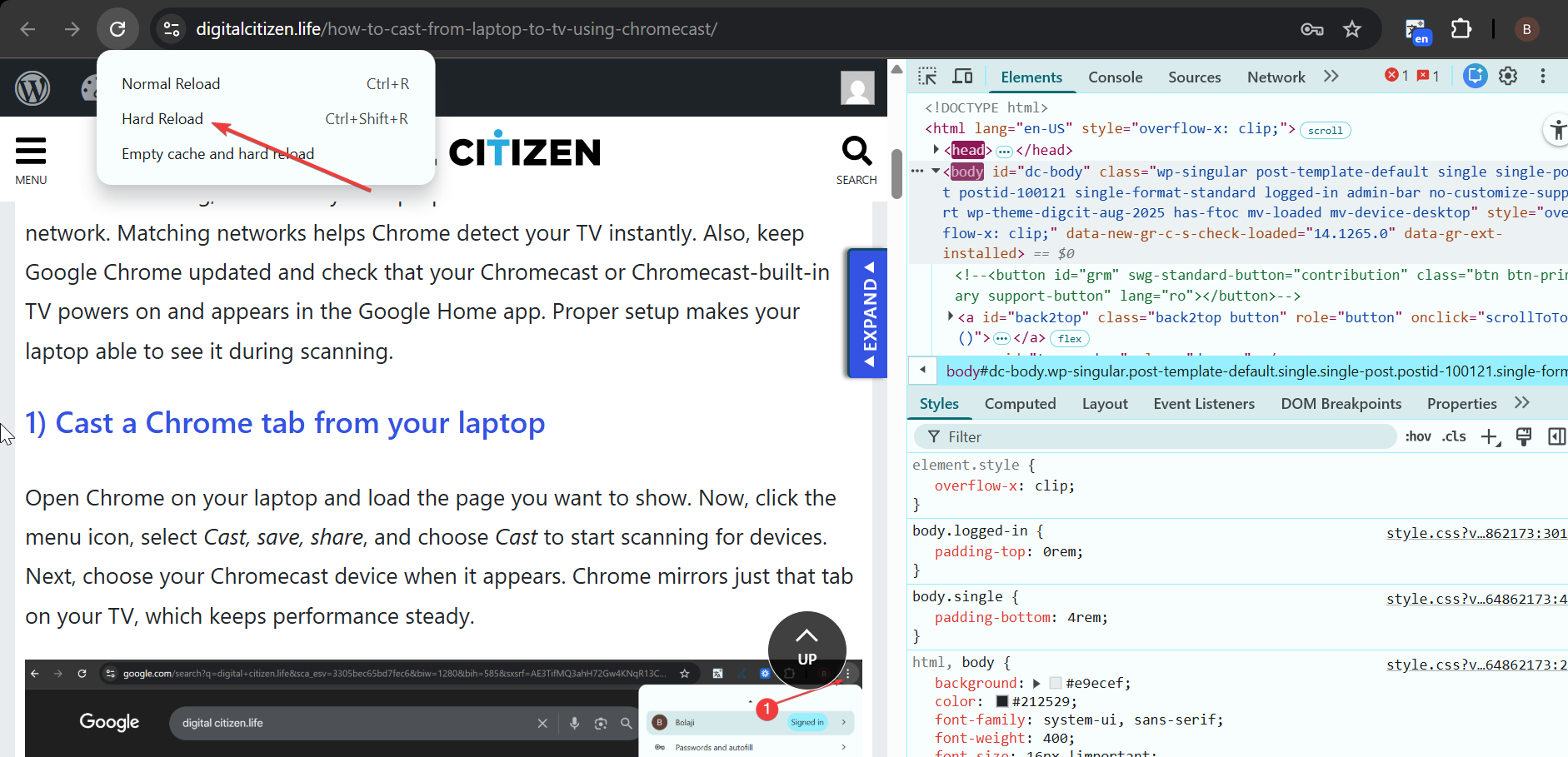
Use “Empty cache and hard reload”
This option clears cached assets for the current site before loading new versions. It resolves stubborn issues where older scripts or styles continue to load.

Disable cache while DevTools is open
Developers who test site updates may want Chrome to avoid caching entirely. Disabling cache ensures every request pulls fresh data.
To do this, press F12 to open DevTools and switch to the Network tab. Check the Disable cache box. This setting only works while DevTools remains open.

Perform a hard refresh on Chrome mobile (Android and iOS)
Chrome mobile does not support keyboard shortcuts, so hard refresh requires clearing cached data for the specific website.
Hard refresh on Chrome for Android
Tap the menu button, open History, and clear cached images and files for the affected site. Reload the page to force Chrome to download new content.
Hard refresh on Chrome for iPhone
Open Chrome settings and clear cached images and data for the site that fails to load correctly. Reload the page to fetch updated assets.

When hard refresh does not fix the issue
Sometimes websites serve cached versions from a server or content delivery network. In these cases, browser-side refresh might not update the content immediately.
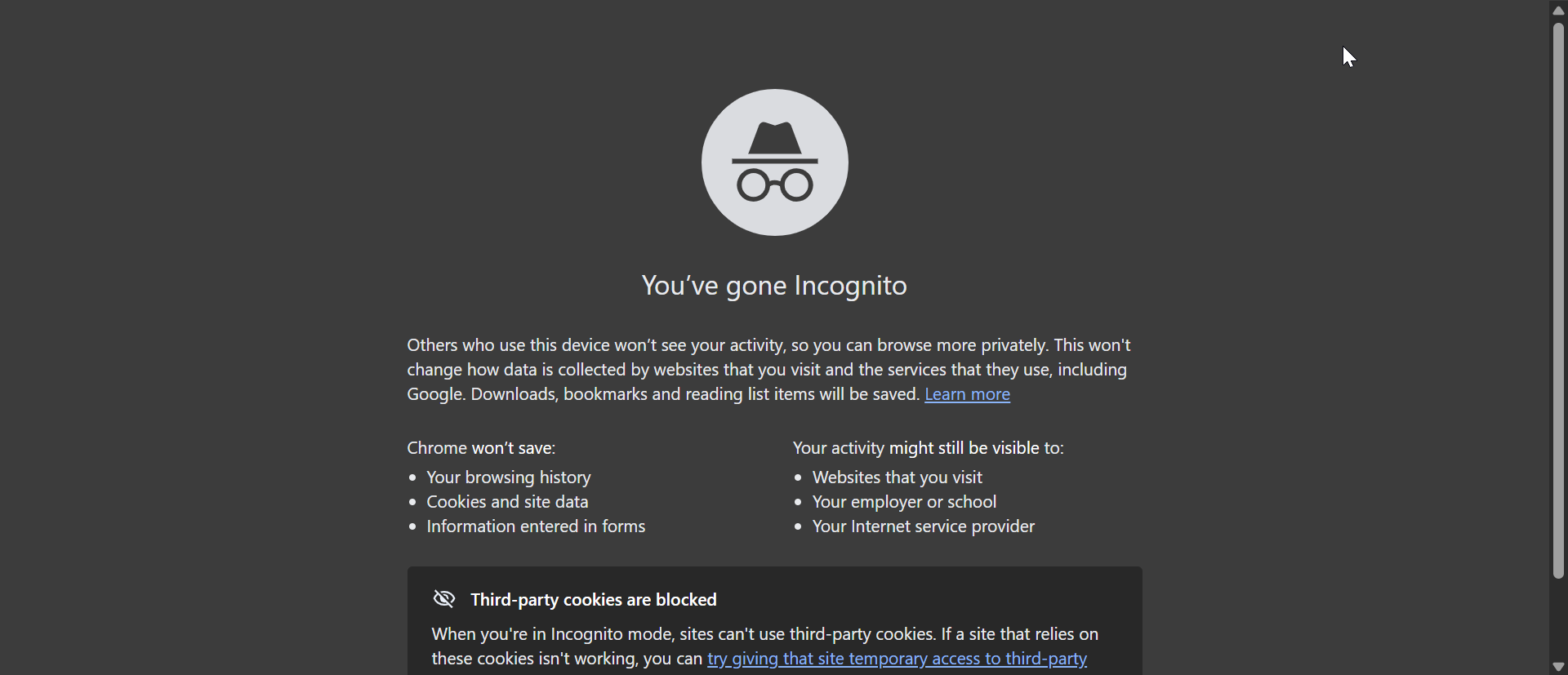
Try incognito mode
Open a new incognito tab to load the page without existing cookies or cache. This helps confirm whether the issue relates to cached data.
Clear cookies and cached files for the specific site
Chrome may still store older cookies or local storage. Clearing data for the site fixes problems tied to outdated session information.
How to verify Chrome actually bypassed cache
You can confirm that Chrome requested fresh resources by checking requests in DevTools.
Open DevTools and switch to the Network tab. Look for status codes, timestamps, and indicators showing whether the browser fetched files from the server.
FAQs
Does a hard refresh delete my cookies? A hard refresh only forces Chrome to reload page assets. It does not remove cookies or saved login data for the site.
Why does Chrome still load old files after a hard refresh? Some sites store cached versions on their servers or through CDNs. In those cases, the browser may not control what gets refreshed.
Is a hard refresh the same as clearing cache? A hard refresh bypasses cache for the current page, but clearing cache removes stored files entirely. Clearing cache affects all sites, not just one.
Why does a page look broken until I do a hard refresh? Stale CSS or scripts can load from cache and cause layout issues. Hard refresh forces Chrome to download updated resources.
Summary
- Use keyboard shortcuts like Ctrl + Shift + R, Ctrl + F5, or Command + Shift + R to trigger a quick hard refresh.
- Shift-click the reload button to force Chrome to ignore cached content.
- Use DevTools for Hard reload and Empty cache and hard reload when pages still load old files.
- Disable cache in DevTools or clear per-site data on mobile when shortcuts are not available.
- Verify results through the Network panel to ensure Chrome fetched fresh resources.
Hard refresh resolves most display, script, and loading errors caused by outdated cache data in Chrome. If problems continue, deeper methods like DevTools reload or clearing per-site storage help ensure the browser retrieves fresh versions of all files. These steps give you reliable ways to troubleshoot stale content across desktop and mobile.


Discussion (0)
Be the first to comment.