




Shark robot vacuums work reliably, but they can run into problems with charging, sensors, navigation, brushes, or software. These issues often show up as power failures, poor suction, mapping errors, or connectivity problems in the app. This guide walks you through a full step-by-step diagnostic flow to fix the most common failures on any Shark robot model.
Table of contents
Start with a quick diagnostic overview
A fast inspection helps you understand whether you are dealing with a mechanical, electrical, or software issue. This also reduces the time spent trying random fixes.
Check the vacuum’s status lights and app alerts
Light patterns and app notifications indicate the subsystem that triggered the failure. This helps you choose the correct repair path.
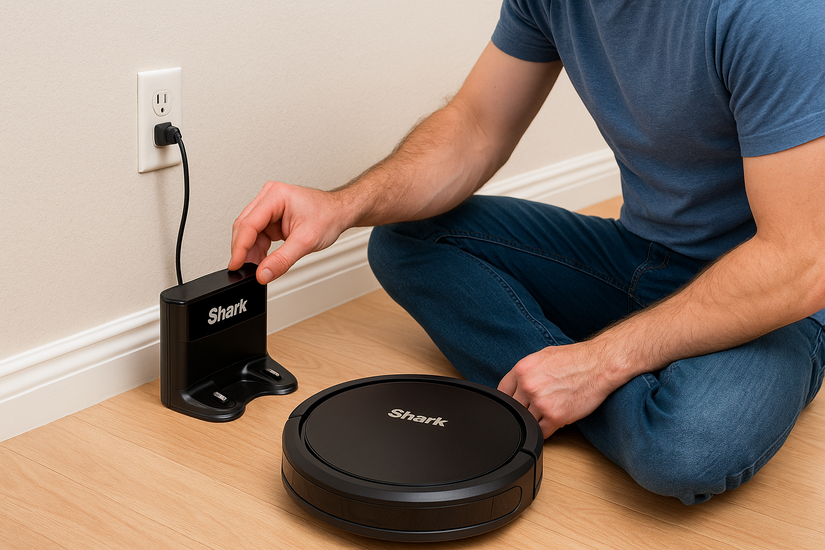
Inspect the charging dock and battery conditions
Dirty charging pins, cable issues, or a loose battery can mimic a dead robot. Checking these parts first prevents unnecessary troubleshooting.
Fix charging and power problems
Power failures appear often and usually stem from charging issues, battery wear, or damaged connectors.
Clean charging contacts on robot and dock
Use a dry cloth to remove dust or oxidation from both sets of contacts. Clean contacts improve the electrical connection and help the robot charge normally.
Confirm dock placement and outlet stability
Keep the dock on a flat, stable floor with at least three feet of clearance in front. Make sure the outlet provides consistent power and the cable is firmly connected.
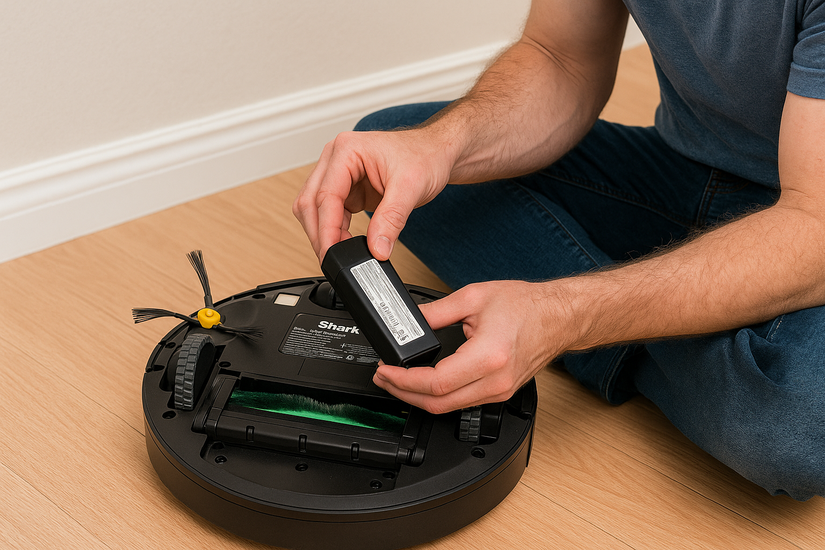
Reseat or replace the battery on compatible models
Open the battery compartment and check whether the connector sits tightly. A reseated or replaced battery solves most no-light or intermittent power issues.
Reset the robot to clear power state corruption
Hold the Power button or use the SharkClean app to restart the robot. A reset clears temporary firmware errors that cause charging failures.
Fix suction, brush, and roller issues
Mechanical blockages reduce cleaning performance and cause brush stall errors.
Remove hair and debris from the main brush
Pull the brush out and cut away tangled strands. Reduced friction prevents motor overload and helps the robot run smoothly.
Clean or replace side brushes
Bent or jammed side brushes impact edge cleaning and navigation. Replacing them restores proper movement along walls and tight spaces.
Clear the airflow path and empty the dust bin
A packed dust bin or clogged channel forces the robot to overheat and shut down. Cleaning it improves airflow and suction strength.
Inspect wheels for stuck debris
Small obstructions around wheels cause spinning, dragging, or poor steering. Removing debris restores full mobility.
Fix navigation and mapping problems
Mapping failures occur when sensors get dirty or lighting conditions disrupt detection.
Clean cliff sensors, front sensors, and top sensors
Sweeping dust off the sensors improves obstacle detection and prevents false cliff warnings.
Improve lighting and remove reflective flooring obstacles
Robot sensors struggle with reflections or low light. Adjusting these conditions improves mapping accuracy.
Recalibrate navigation via map reset or app setup
Clearing the old map forces the robot to rebuild a clean layout. This helps when corrupted mapping data causes erratic paths.
Fix Wi-Fi, app, and firmware issues
Connectivity and software failures interfere with commands, updates, and navigation.
Reconnect the robot to Wi-Fi and reset the network
If the robot disconnects frequently, reset your network and re-add the robot to the app. Stable Wi-Fi ensures accurate communication.
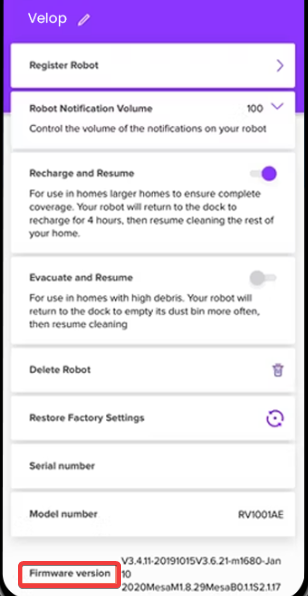
Update the robot’s firmware through the SharkClean app
Firmware updates fix known bugs, navigation issues, and charging defects. Keeping the robot updated improves long-term reliability.
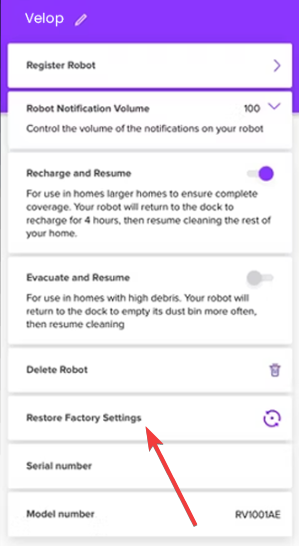
Factory reset the robot when software corruption persists
A full reset clears deep app conflicts and restores original settings. Use this only after other software fixes fail.
Interpret error codes and alert tones
Shark models use specific lights and sounds to indicate mechanical or software issues.
Brush and wheel warnings
These alerts usually appear when debris jams a component. Cleaning or replacing the affected part resolves the warning.
Battery, power, or overheating alerts
These codes point toward loose connectors, worn batteries, or airflow blockages. Resolving these issues prevents mid-clean shutdowns.
Sensor and cliff detection errors
Dirty sensors cause false edge warnings and navigation problems. Cleaning them often fixes the issue immediately.
When to replace parts instead of repairing
Some Shark components wear out over time and cause repeated failures. Batteries, brushes, wheels, filters, and sensors may need replacement if cleaning does not restore performance. Replacing worn pieces extends the robot’s lifespan.
Tips to prevent future failures
- Weekly cleaning checklist: Clean the brush roll, wheels, and bin to maintain consistent suction and movement.
- Monthly sensor and filter maintenance: Dust on sensors or clogged filters disrupts navigation and air circulation. Cleaning them helps the robot run more efficiently.
- Battery care best practices: Charge the robot in a cool, dry place and avoid leaving it docked for long periods when not in use. Good battery habits increase longevity.
FAQs
Why does my Shark robot vacuum keep stopping mid-clean? This happens when the robot overheats, hits a blockage, or encounters battery issues. Cleaning and battery checks usually resolve it.
Why will my Shark robot not return to its dock? Obstacles, weak sensors, or a misaligned dock often cause this behavior. Clear the path and clean the sensors to improve docking accuracy.
Why does my robot spin in circles or bump into walls? Dirty or blocked sensors prevent the robot from detecting objects. Cleaning the sensors restores correct navigation.
Is it worth repairing an older Shark model? Most repairs are affordable, but older models may require battery replacements or parts that are harder to source. Compare repair cost to replacement value.
Summary
- Check lights, app alerts, and charging conditions to identify the core issue.
- Clean charging contacts, reseat the battery, and reset the robot to fix power failures.
- Clear debris from brushes, wheels, and airflow paths to restore suction and mobility.
- Clean sensors, improve lighting, and rebuild maps to fix navigation issues.
- Reset Wi-Fi, update firmware, and factory reset the robot to solve software problems.
Fixing a Shark robot vacuum usually comes down to checking power, cleaning mechanical parts, or resetting software. A structured approach saves time and prevents unnecessary component replacements. Regular maintenance helps your robot run smoothly and reduces future breakdowns.

Discussion (1)
My robot Navigator Shark advises it is disconnected. What does that mean and how can I fix it?