



Knowing what motherboard you have can help when upgrading hardware, updating drivers, checking compatibility, or troubleshooting system issues. Windows provides several easy ways to find motherboard details without opening your PC case.
This guide explains how to check your motherboard model on Windows 10 and Windows 11 using built-in tools and simple commands.
Why You Might Need to Know Your Motherboard Model
Your motherboard determines what components your system supports.
You may need motherboard details to:
- Update BIOS or firmware
- Install correct chipset drivers
- Upgrade CPU or RAM
- Check hardware compatibility
- Diagnose system issues
Fortunately, Windows makes this information easy to access.
Find Motherboard Information Using System Information
System Information is the simplest method for most users.
Steps:
- Press Windows + R
- Type msinfo32 and press Enter
- Look for BaseBoard Manufacturer
- Check BaseBoard Product
- Note the BaseBoard Version
These fields display your motherboard brand and model.
Check Motherboard Model Using Command Prompt
Command Prompt provides quick motherboard details.
Steps:
- Press Windows + S
- Type Command Prompt
- Run it as administrator
- Enter the following command and press Enter:
wmic baseboard get product,manufacturer,version,serialnumber
This command shows the motherboard manufacturer and model instantly.
Use PowerShell to Find Motherboard Details
PowerShell can also display motherboard information.
Steps:
- Right-click the Start button
- Select Windows Terminal (Admin)
- Run this command:
Get-CimInstance Win32_BaseBoard
You’ll see detailed motherboard information including model and serial number.
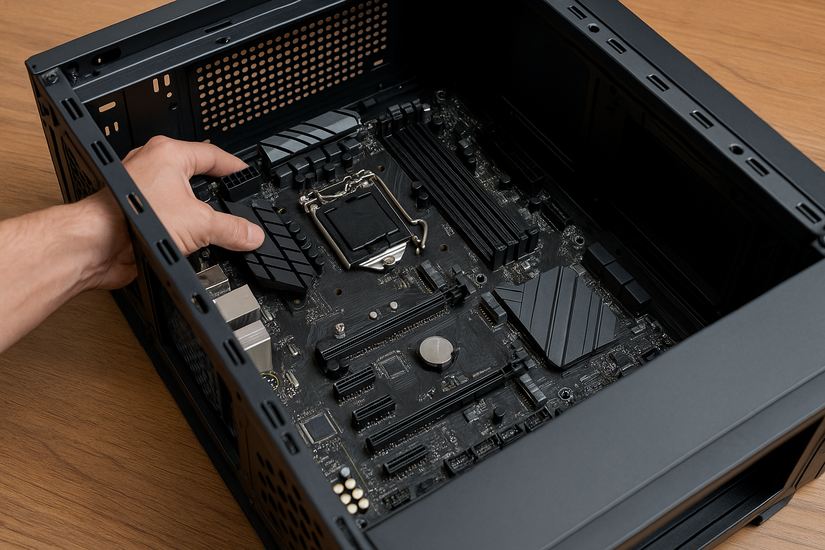
Physically Check the Motherboard (Last Option)
If software methods do not work, you can check the motherboard directly.
This involves:
- Turning off the PC
- Opening the case
- Looking for printed model numbers on the board
This method is usually unnecessary for most users.
Final Thoughts
Finding out what motherboard you have on Windows 10 and Windows 11 is quick and easy using built-in tools like System Information, Command Prompt, or PowerShell. These methods provide accurate details without opening your computer.
Knowing your motherboard model makes upgrades, troubleshooting, and driver installation much simpler.
FAQs
How do I check my motherboard model without opening my PC
Use System Information or Command Prompt to view motherboard details.
Does this work on both Windows 10 and Windows 11
Yes, all methods work the same on both versions.
Can Device Manager show motherboard details
No, Device Manager does not list motherboard model information.
Why does my motherboard model not show correctly
Some OEM systems may display limited information.
Is third-party software necessary to find motherboard details
No, Windows tools are usually sufficient.


Discussion (0)
Be the first to comment.