




Here’s a clear, up to date guide on how to check if your Windows 11 computer uses an ARM64 or x64 64 bit processor. You will learn how to find this information with multiple methods that work on current systems. The steps below reflect changes in Windows 11 and the removal of 32 bit support.
Most Windows 11 computers use 64 bit processors. That can mean one of two architectures: x64 which runs on Intel and AMD chips, and ARM64 which runs on ARM chips such as Qualcomm. Every method below shows which one your system uses.
Start with the easiest method first. It gives you the processor type in a few clicks. If that does not work, use the alternatives that follow.
Quick Method: Use Settings
- Open Settings by pressing Windows key + I.
- Select System then About.
- Look under Device specifications.
- Check the entry labeled System type.
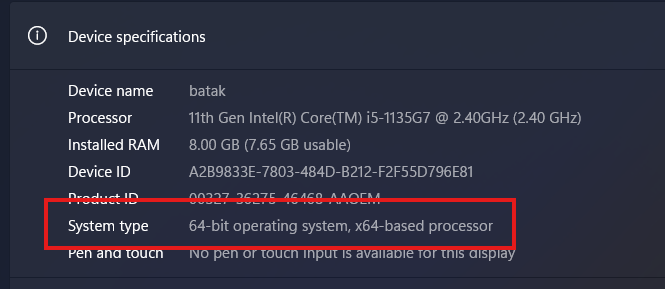
If it says x64 based processor, you are on a 64 bit x64 system. If it says ARM based processor, you are on a 64 bit ARM64 system.
This page also shows whether your copy of Windows is 64 bit.
Alternative: System Information App
You can use the built in System Information tool when Settings does not show enough detail.
- Press Windows key + R to open Run.
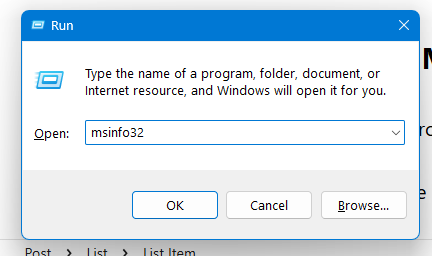

- Type msinfo32 and press Enter.
- In the System Information window, look for System Type in the right pane.
The value tells you the architecture. x64 based PC means a 64 bit x64 processor. ARM64 based PC means a 64 bit ARM64 processor.
This view also lists the processor name and many other system details.
Command Line Method
You can also check the processor type using Command Prompt.
- Open Start and type Command Prompt.
- Run this command:
systeminfo | findstr /C:"System Type"
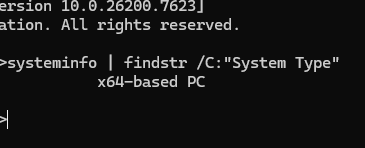
The output shows whether the PC is x64 or ARM64.
Optional: Environment Variable Check
A simple Windows variable also shows the architecture.
- Open Command Prompt or PowerShell.
- Type
echo %PROCESSOR_ARCHITECTURE%in Command Prompt. - Or type
$env:PROCESSOR_ARCHITECTUREin PowerShell.
You will see AMD64 for x64 systems and ARM64 for ARM64 systems.
Comparison: ARM64 vs x64
| Feature | x64 | ARM64 |
|---|---|---|
| Processor type | Intel and AMD | ARM chips such as Qualcomm |
| App compatibility | Runs most desktop apps natively | Runs ARM apps natively and many x64 apps through emulation |
| Typical devices | Traditional laptops and desktops | Thin laptops, tablets, and always connected PCs |
Why This Matters
Knowing your processor architecture helps with app installs, driver support, and performance. Windows 11 no longer supports 32 bit processors. Every supported PC uses either x64 or ARM64.
FAQs
Will my ARM64 PC run all Windows apps?
Windows on ARM runs many x64 apps through emulation. Native ARM apps run faster and more smoothly.
Can I install 32 bit software on Windows 11?
x64 systems support many 32 bit apps. ARM64 systems often run them through emulation, but not every app works well.
How do I check this without opening Settings?
Use the Command Prompt or System Information methods listed above.
Discussion (0)
Be the first to comment.