




The Ultimate Performance power plan in Windows 11 is designed to deliver maximum system performance by reducing power-saving features and hardware latency. It is especially useful for high-performance computers used for gaming, video editing, 3D rendering, and other demanding tasks.
This power plan ensures that your CPU and hardware components run at their highest performance levels. In this guide, you will learn what the Ultimate Performance power plan is and how to enable it in Windows 11.
What Is the Ultimate Performance Power Plan?
The Ultimate Performance power plan is a special Windows power mode that prioritizes performance over energy efficiency. Microsoft originally designed it for workstations and high-end systems.
Unlike Balanced or Power Saver modes, Ultimate Performance reduces delays caused by power management features.
Key characteristics include:
- Maximum CPU performance
- Reduced hardware latency
- Faster response from system components
- Fewer power-saving restrictions
However, this mode may increase power consumption and heat generation.
When Should You Use Ultimate Performance Mode?
You may want to enable the Ultimate Performance power plan in Windows 11 if you:
- Use demanding software such as video editors or 3D tools
- Play resource-intensive games
- Run virtual machines or development environments
- Need maximum hardware performance
It is most useful on desktop PCs or workstations rather than laptops.
How to Enable Ultimate Performance Power Plan in Windows 11
In many systems, this power plan is hidden by default. You can enable it using a command.
Step 1: Open Windows Terminal
- Right-click the Start button.
- Select Windows Terminal (Admin).
Step 2: Enable the Ultimate Performance Plan
Type the following command and press Enter:
powercfg -duplicatescheme e9a42b02-d5df-448d-aa00-03f14749eb61
This command activates the Ultimate Performance power plan.
Step 3: Select the Power Plan
After enabling it:
- Open Control Panel.
- Go to Hardware and Sound.
- Click Power Options.
- Switch from Balanced to Performance.
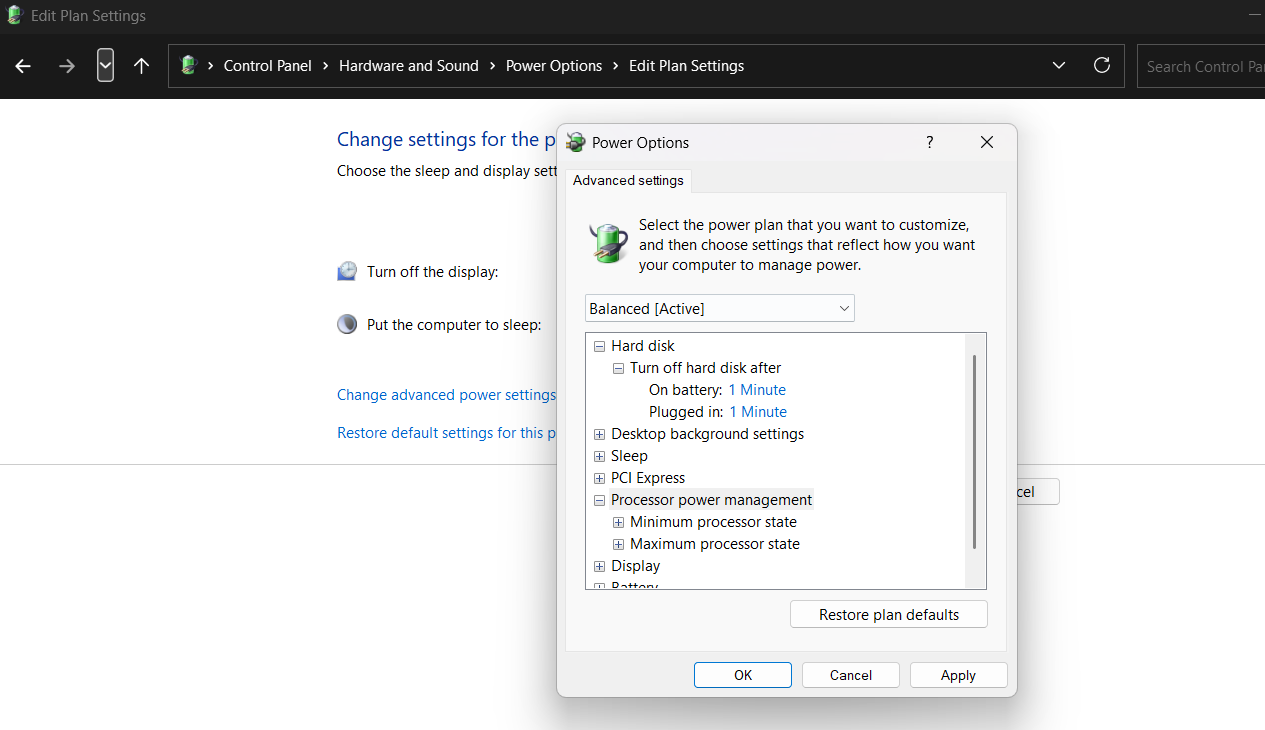
Your system will now run using the new power plan.
Check Available Power Plans
To see all power plans on your system:
- Open Windows Terminal.
- Run the command:
powercfg /list
This will display all available power plans.
Disable the Ultimate Performance Plan
If you want to switch back to a normal power plan:
- Open Control Panel.
- Go to Power Options.
- Select Balanced or another power mode.
You can also remove the Ultimate Performance plan using PowerShell commands if needed.
Does Ultimate Performance Improve Gaming?
The Ultimate Performance power plan may slightly improve responsiveness by preventing hardware throttling. However, the performance difference is usually small compared to the Balanced plan.
Most modern systems already manage power efficiently, so the benefit depends on your hardware and workload.
Final Thoughts
The Ultimate Performance power plan in Windows 11 is designed for users who want the highest possible performance from their system. By minimizing power management delays, it allows hardware components to operate at full capacity.
While this mode can improve responsiveness for demanding tasks, it also increases power usage. Therefore, it is best suited for high-performance desktops and workstations rather than laptops.
FAQs
What is the Ultimate Performance power plan?
It is a Windows power mode designed to maximize system performance by reducing power-saving features.
Is the Ultimate Performance power plan available in Windows 11?
Yes, but it may be hidden by default and can be enabled using the powercfg command.
Does Ultimate Performance improve gaming performance?
It may slightly improve responsiveness, but the difference is usually small on modern systems.
Should I use Ultimate Performance on a laptop?
It is generally not recommended because it increases power consumption and reduces battery life.

Discussion (0)
Be the first to comment.