




If you're facing issues with your PayPal account or need to resolve a transaction dispute, you might need to contact PayPal directly. While PayPal encourages users to use its Message Center for most inquiries, and there is general publicly available email to reach them, there are still situations where they make exceptions.
This guide will walk you through the steps to email PayPal and other support options available.
Step 1: Access the PayPal Help Center
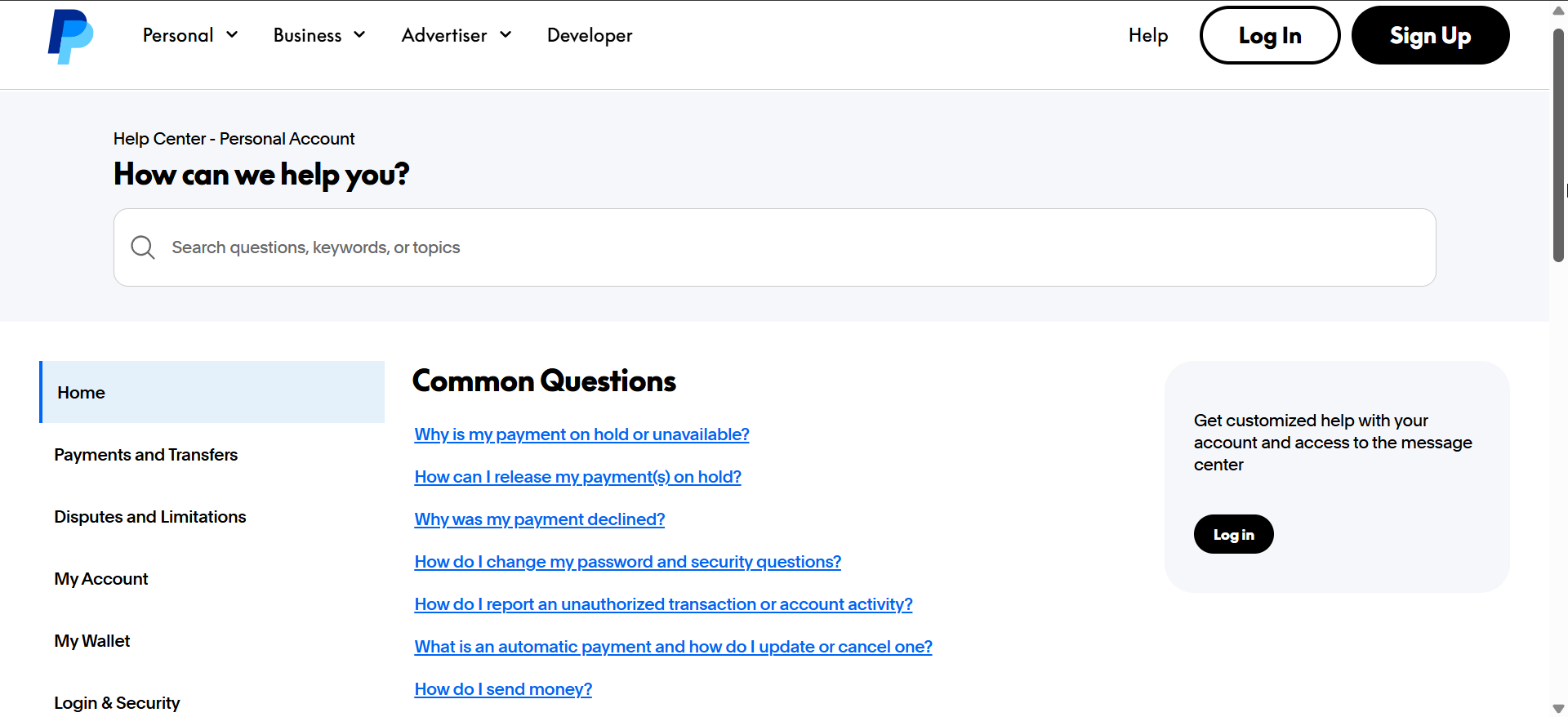
Open the PayPal website or app and sign in with your credentials. Next, from the main dashboard, scroll to the bottom and click on Help & Contact. On the mobile app, this can be accessed from the Settings menu.
Step 2: Choosing the correct issue type
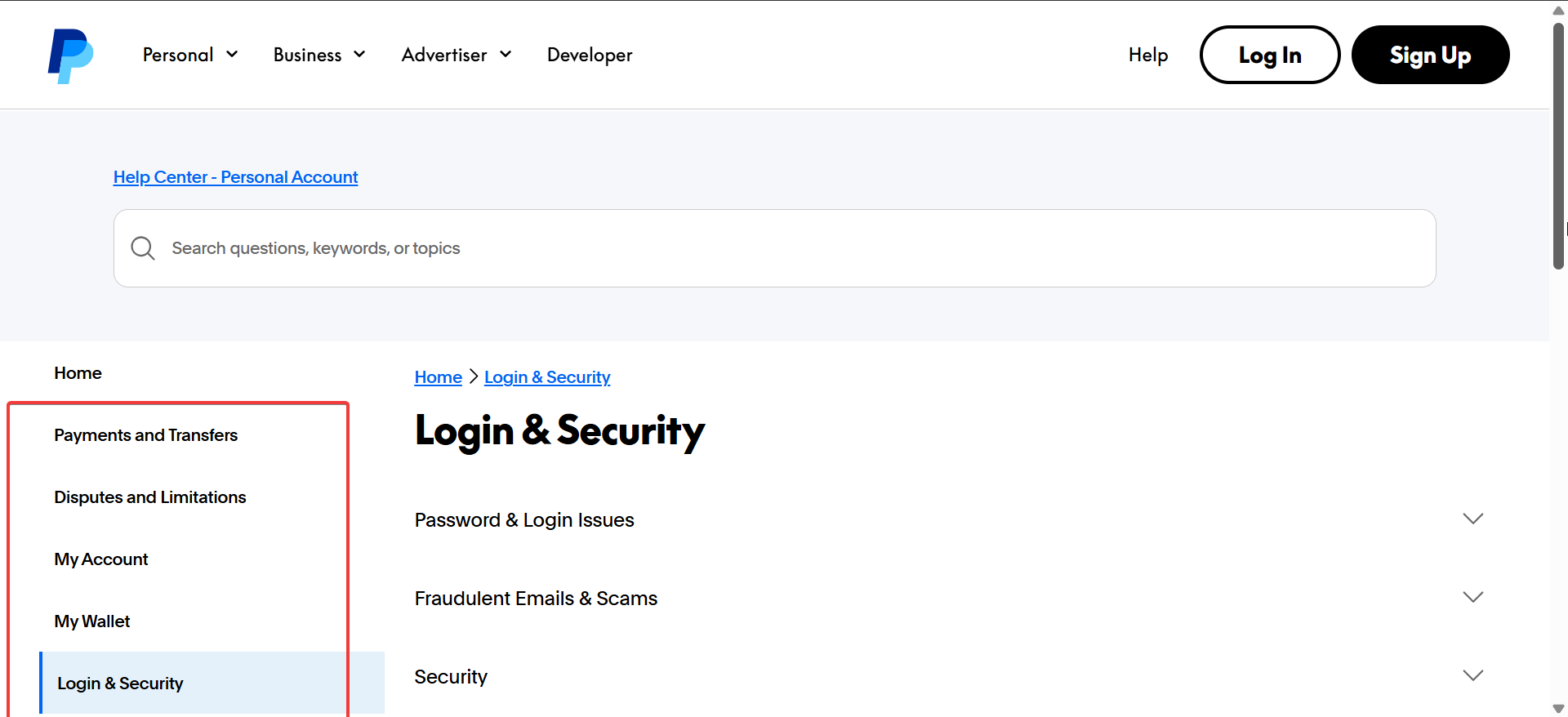
Once in the Help Center, you'll be asked to describe your issue. It’s important to choose the correct category that best matches your problem. This ensures that your inquiry is directed to the right team and can be resolved more quickly.
Step 3: Composing your email or message
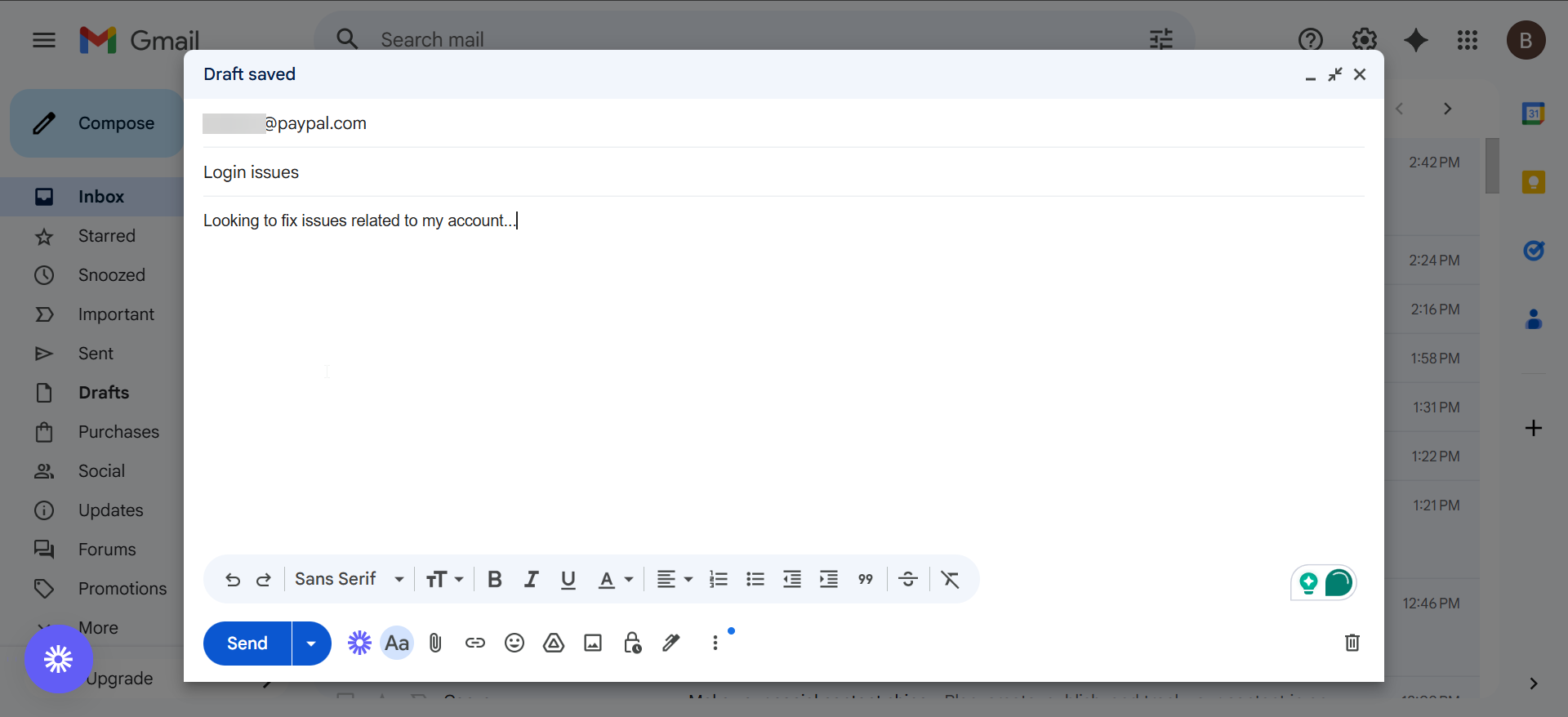
After selecting your issue, you’ll be presented with several communication options. The email option will appear if is an option for your enquiry. Now, make sure you provide all relevant details:
- Transaction ID: Include any related transaction number to help the support team locate your issue.
- Account Information: Ensure your PayPal email and any related account information are listed for verification.
- Clear Description: Be concise but detailed in explaining the problem. The more specific you are, the quicker your issue will be resolved.
Step 4: Waiting for a Response
Once your email has been sent, you’ll typically receive a response within 24–72 hours. Keep an eye on your inbox, and make sure to check your spam folder. If you haven’t received a reply after several days, consider following up using the Message Center or another support method.
What to do if you can't find the email option
- No direct email option: If you can’t find the email option in the Help Center, don’t worry. PayPal may have restricted email support for certain inquiries. In this case, proceed with using Message Center, or try reaching out through their phone or live chat support.
- Contacting PayPal via social media: PayPal is active on social media platforms like Twitter (@AskPayPal). If you're not getting a response through traditional methods, social media is a viable way to get in touch with their support team. Keep your inquiry clear and concise to increase the likelihood of a prompt response.
PayPal email security tips
It’s essential to be cautious when dealing with emails that seem to be from PayPal. Scammers often try to impersonate PayPal through phishing emails. Always check for these signs of authenticity:
- Official domain: Legitimate emails from PayPal will come from @paypal.com or @paypal.co.uk.
- Personalized greeting: PayPal emails should address you by your full name or account email.
FAQs
Can I contact PayPal through social media? Yes, PayPal has active social media channels like Twitter (@AskPayPal) where you can reach out for support if you're not getting a response through other methods.
What if I can't find an email option? If the email option isn’t available, you can still use the Message Center or contact PayPal via live chat or phone support for assistance.
How long does it take for PayPal to respond to an email? PayPal typically responds within 24–72 hours, depending on the complexity of your issue.
How can I verify that an email from PayPal is legitimate? Ensure the email is from a verified PayPal domain (e.g., @paypal.com) and addresses you by your full name. Be cautious of unsolicited emails asking for personal information.
Summary
- Access PayPal's help center
- Choose the correct issue
- Compose your message
- Wait for a Response
Conclusion
Emailing PayPal may be necessary for resolving complex issues, but it’s important to follow the right steps for an efficient experience. PayPal prefers using the Message Center for quick support, but email can still be used for certain issues.
Always ensure that you communicate clearly and securely, and avoid phishing attempts by verifying the authenticity of any emails you receive. By following these steps, you’ll be able to navigate PayPal’s customer service and get the help you need.


Discussion (2)
Outdated.
Email support is no longer offered. Just a chat with the most stupid AI bot.
This was clearly written by PayPal as it gives you no way to actually contact support…except via a 3rd party app.