




Roblox Studio does not install on tablets because it only supports Windows and macOS. You can still use Roblox Studio through safe workarounds that let you access a full desktop environment from your tablet. This guide shows you the best options and how to set them up.
Table of contents
- Why Roblox Studio cannot download on tablets
- Use remote desktop to run Roblox Studio on a tablet
- Use a cloud PC service to access Roblox Studio
- Use tablet-friendly Roblox creation tools instead
- Safest way to download Roblox Studio if you switch to PC or Mac
- Troubleshooting common tablet setup issues
- Tips for a smoother Roblox Studio experience on tablets
- FAQs
- Summary
Why Roblox Studio cannot download on tablets
Roblox Studio requires desktop-level CPU power and keyboard-based controls. Tablets do not meet the platform requirements and as such, you cannot download Roblox Studio on mobile devices and tablets. You avoid scams and unsafe APK files when you understand these limits upfront.
Use remote desktop to run Roblox Studio on a tablet
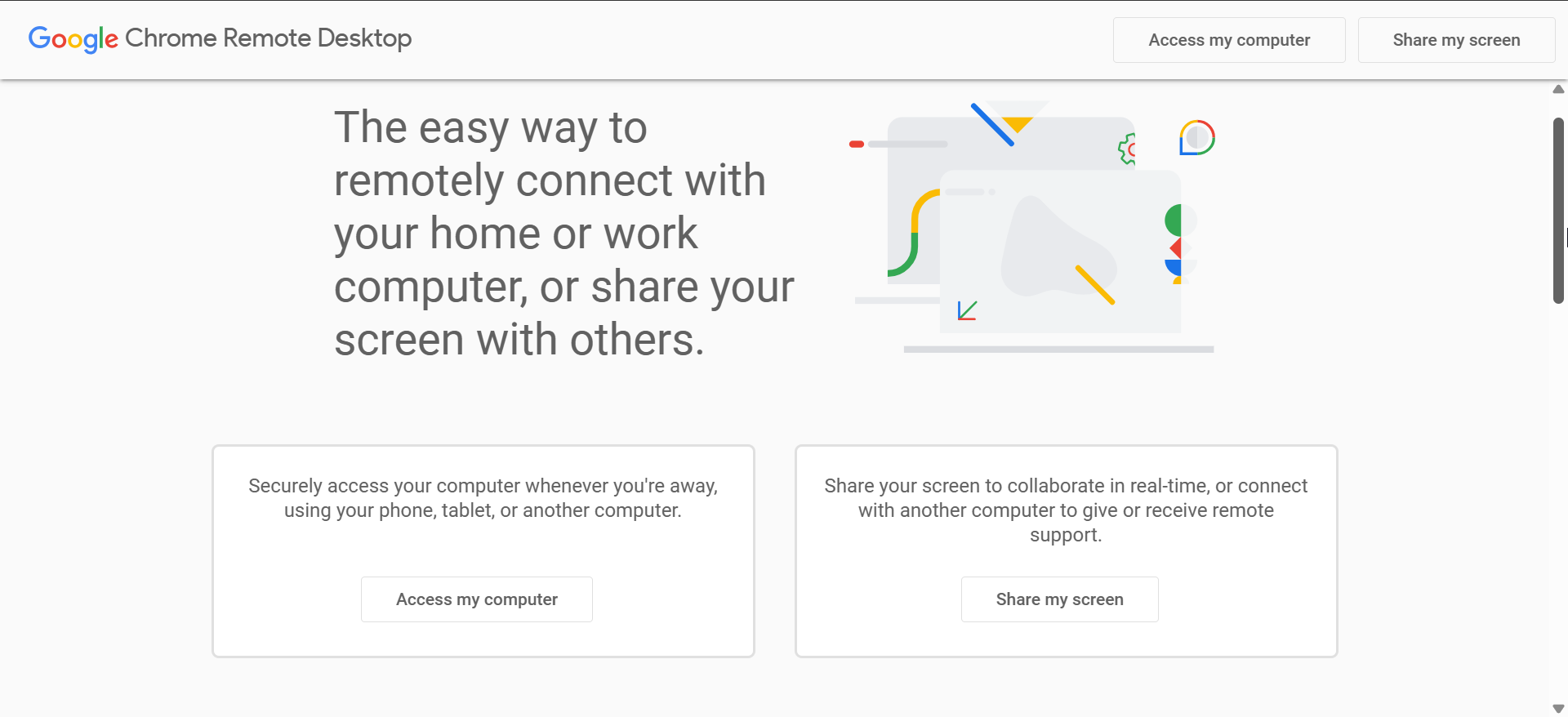
Remote desktop gives you the closest experience to using Roblox Studio directly on a tablet. You install Roblox Studio on a Windows PC or Mac and then control it from the tablet.
Requirements for remote desktop access
You need a Windows or macOS computer, a stable internet connection, and a remote desktop app. These tools let your tablet stream the desktop session in real time.
How to set up Microsoft Remote Desktop or Chrome Remote Desktop
Install Roblox Studio on your computer. Install Microsoft Remote Desktop or Chrome Remote Desktop on both devices. Connect your tablet to the host computer and open Roblox Studio through the desktop session. Performance depends on your network connection.
Touchscreen tips for using Studio on tablets
Switch your remote desktop app to pointer mode for better accuracy. Use on-screen keyboards for shortcuts like Ctrl-S. Adjust sensitivity if the cursor moves too fast.
Use a cloud PC service to access Roblox Studio
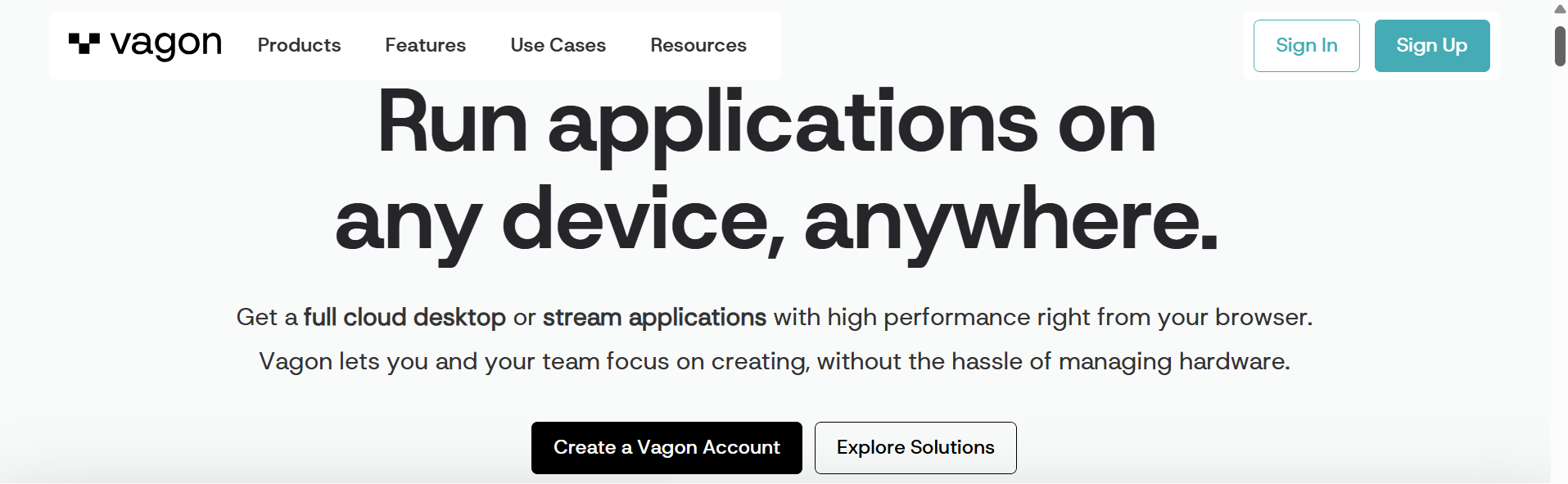
A cloud PC lets you run full Windows apps without owning a physical computer. Your tablet connects to a remote Windows machine where Roblox Studio runs normally.
When a cloud PC is useful
Cloud PCs help users who do not have a desktop or laptop available. Stable high-speed internet matters because the service streams a full Windows environment to your tablet.
Steps for running Roblox Studio through cloud PC
Sign up for a cloud PC provider and open a Windows session. Install Roblox Studio inside the cloud desktop. Launch the cloud PC app on your tablet and open Roblox Studio inside the session.
Use tablet-friendly Roblox creation tools instead
Tablets support lighter creative tools that work well for scripting, modeling, or drawing. These tools help you create assets for later use in Roblox Studio.
Recommended mobile creation tools
You can use code editors, 3D modeling apps, and texture tools like Figma that export standard file formats. These tools help you prepare assets before moving to Studio for full game assembly.

What you can and cannot build on a tablet
You can script, design textures, and create models. You cannot access the full game editor, terrain tools, or Studio’s plugin system.
Safest way to download Roblox Studio if you switch to PC or Mac
If you eventually move to a supported device, you can install Roblox Studio directly from the official source.
Official download steps
Open the official Roblox website on your PC or Mac. Sign in and select Create. Download and install Roblox Studio from the official prompt. Avoid third-party APK sites entirely.

Logging in and syncing work across devices
Sign in with your Roblox account so your Studio projects stay synced. You can create assets on your tablet and import them when you return to your PC or cloud session.
Troubleshooting common tablet setup issues
- Remote desktop lag and input delays: Switch to a 5 GHz Wi-Fi network or use Ethernet on the host computer. Reduce the streaming quality if the remote desktop app supports it.
- Cloud PC not loading Roblox Studio: Confirm that your cloud PC plan supports app installations. Restart the remote Windows session and reinstall Roblox Studio if the launcher fails.
- Tablet controls not working correctly: Enable pointer mode in your remote desktop settings. Turn on the extended on-screen keyboard for shortcut keys.
Tips for a smoother Roblox Studio experience on tablets
- Connect to a strong 5 GHz Wi-Fi network
- Use a Bluetooth keyboard and mouse for precision
- Keep your host computer awake to avoid connection drops
- Test latency before building large projects
- Reduce remote screen resolution when lag appears
FAQs
Can I install Roblox Studio on an Android tablet? No. Roblox Studio supports only Windows and macOS.
Can I install Roblox Studio on an iPad? No. iPadOS does not meet the platform requirements.
Is it safe to download Roblox Studio APKs? No. These files are unsafe and not official.
What is the best way to use Roblox Studio without a computer? Remote desktop or cloud PC services offer the safest and most stable options.
Summary
- Roblox Studio cannot install on tablets because it supports only Windows and macOS.
- Remote desktop lets you access Studio from a tablet by streaming a desktop session.
- Cloud PCs offer a full Windows environment without needing a real computer.
- Mobile-friendly creation tools support scripting and asset building.
- The official Roblox Studio installer should only be used on supported devices.
You now understand the safest paths to run Roblox Studio on a tablet and what tools make the experience smoother. Remote desktop or cloud PC access provides the closest experience to native use, while mobile creation tools help you work on assets until you switch to a supported device.


Discussion (0)
Be the first to comment.