




If you want to download, install, and use Steam on Windows 11 or Windows 10, you can install the Steam client from the official Steam website. Steam is one of the largest digital distribution platforms for PC games, allowing users to purchase, download, and play thousands of games.
In addition to gaming, Steam also provides features such as game updates, cloud saves, multiplayer services, and community tools. This guide explains how to install Steam on Windows and start using it.
What Is Steam?
Steam is a digital gaming platform developed by Valve that allows users to buy, download, and manage PC games. It also offers social features that connect players with friends and gaming communities.
Steam provides access to:
- Thousands of PC games
- Automatic game updates
- Multiplayer gaming services
- Game achievements and cloud saves
- Community forums and guides
Because of these features, Steam is widely used by gamers around the world.
System Requirements for Steam
Steam runs on most modern Windows computers.
Typical requirements include:
- Windows 10 or Windows 11
- Internet connection
- At least 1 GB of storage space for the client
- Graphics hardware compatible with modern games
Keep in mind that individual games may have their own system requirements.
How to Download Steam on Windows
Follow these steps to download the Steam installer.
Step 1: Visit the Steam Website
- Open your web browser.
- Go to the Steam official website.
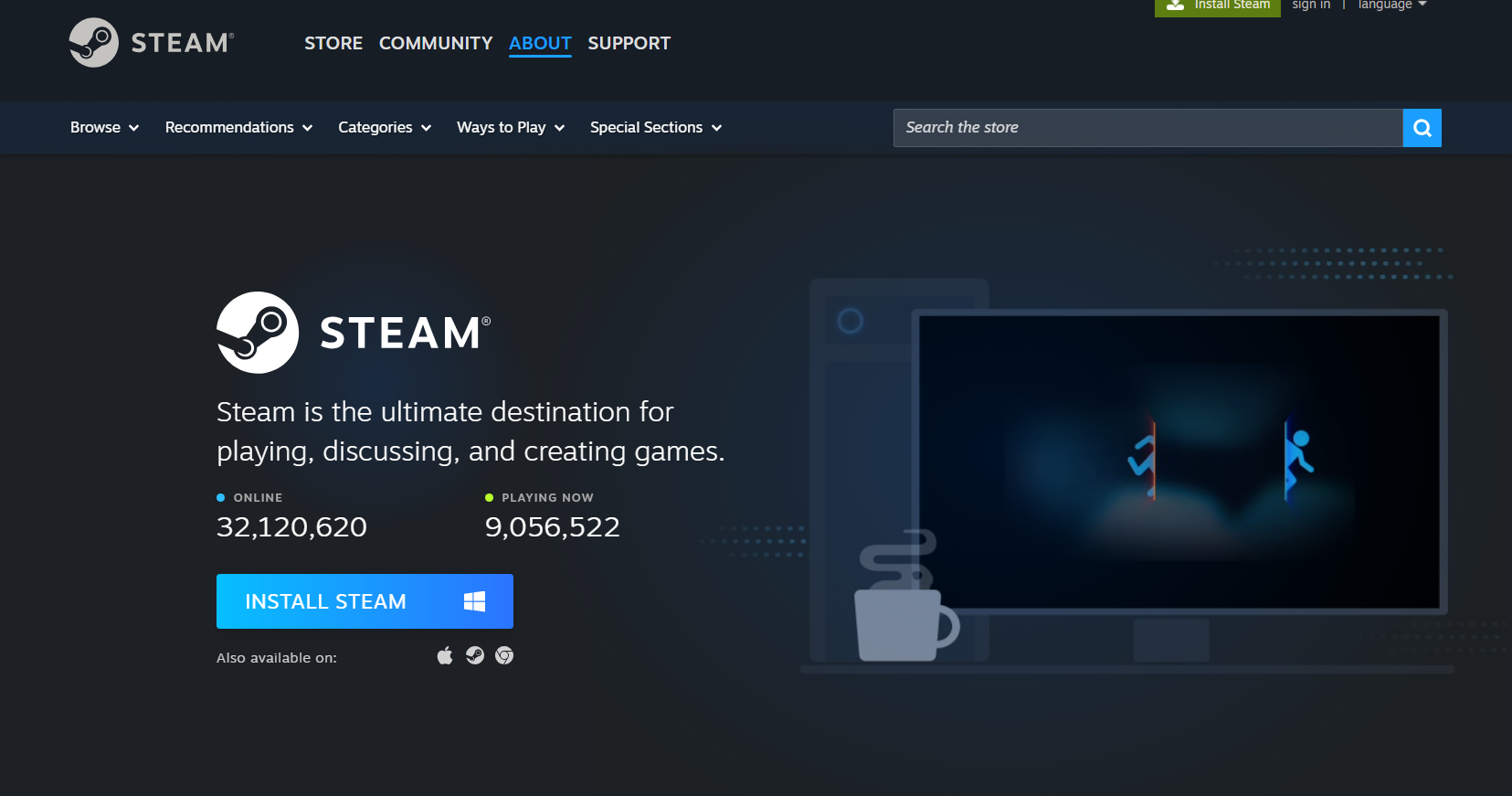
Step 2: Download the Steam Installer
- Click Install Steam at the top of the page.
- Click Install Steam again to download the installer.
The setup file will download to your computer.
How to Install Steam on Windows
Once the installer is downloaded, follow these steps.
Step 1: Run the Installer
- Locate the SteamSetup file in your downloads folder.
- Double-click the file.
The installation wizard will open.
Step 2: Follow the Setup Instructions
- Choose your preferred language.
- Select the installation location.
- Click Install.
Step 3: Complete the Installation
- Wait for the installation to finish.
- Click Finish.
Steam will launch automatically.
Create or Sign In to Your Steam Account
After opening Steam, you must sign in to your account.
Steps:
- Click Create a New Account if you are a new user.
- Follow the registration process.
- Verify your email address.
Existing users can simply sign in using their credentials.
How to Download Games on Steam
Once you are logged in, you can start downloading games.
Steps:
- Open the Steam Store tab.
- Search for a game you want.
- Click Add to Cart.
- Complete the purchase.
- Click Install to download the game.
Downloaded games appear in your Library.
Manage Your Games in the Steam Library
The Steam Library is where you manage installed games.
From the Library, you can:
- Launch games
- Update games automatically
- View achievements
- Manage game settings
- Uninstall games
Steam keeps all your purchased games connected to your account.
Final Thoughts
Learning how to download, install, and use Steam on Windows 11 and Windows 10 allows you to access one of the largest collections of PC games available. Installing the Steam client only takes a few minutes, and once set up, you can browse the store, download games, and connect with the gaming community.
With features like automatic updates, cloud saves, and multiplayer support, Steam has become one of the most popular gaming platforms for PC users.
FAQs
Is Steam free to download?
Yes. The Steam client is free to download and install.
Do I need an account to use Steam?
Yes. You need a Steam account to purchase and play games.
Can Steam run on Windows 11?
Yes. Steam works on both Windows 10 and Windows 11.
Where are Steam games stored?
Games are stored in the Steam Library folder on your computer.

Discussion (0)
Be the first to comment.