




When you download historical data from Yahoo Finance, you get a clean record of stock prices you can reuse for analysis, charts, or backtesting. This quick guide shows you how to download Yahoo Finance historical data in just a few clicks.
You can use this download to calculate returns, test trading ideas, or track how a stock, ETF, or index behaved over time. The steps below focus on the Yahoo Finance website and show you how to export historical stock data as a CSV file you can open in Excel or Google Sheets.
How To Download Historical Data From Yahoo Finance
These steps work the same way whether you download stock history, ETF data, or index data from Yahoo Finance. You only need a browser, an internet connection, and the ticker symbol you want to research.
- Open your web browser and go to the Yahoo Finance homepage.

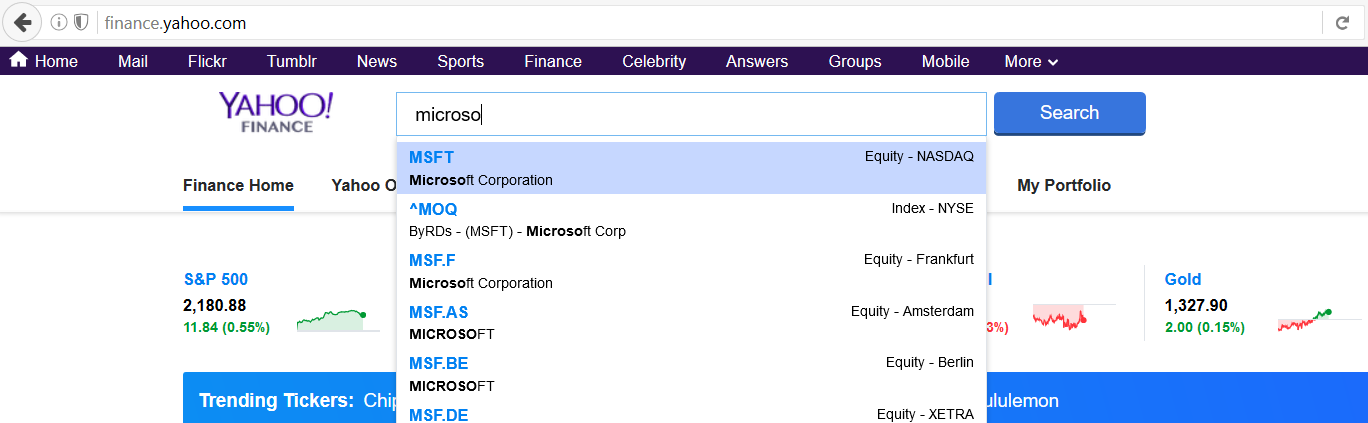
- Type the stock, ETF, or index name or ticker symbol into the search box, then select the correct result from the suggestions.
- On the quote page, look under the price chart and click the Historical Data tab.

- Next to Time Period, click the date selector, choose your start and end dates, and confirm the range you want to download.
- Under Frequency, choose how often you want data points, such as Daily, Weekly, or Monthly, to match your analysis.
- In the Show menu, pick Historical Prices or an option that includes dividends and stock splits if you need adjusted prices for total return.
- Click Apply so Yahoo Finance refreshes the table with your updated date range and frequency.
- In the upper right corner of the historical data table, click Download or Download Data to export Yahoo Finance data as a CSV file.
- When your browser prompts you, choose where to save the CSV file on your computer so you can find it later.
- Open the CSV in a spreadsheet app like Microsoft Excel or Google Sheets to work with Yahoo Finance historical prices, build charts, or run formulas.
This process lets you download historical stock data from Yahoo Finance for one symbol at a time. If you need multiple tickers, repeat the same steps for each symbol and keep each CSV file in a labeled folder.
Troubleshooting Common Problems
Sometimes you may not see the data or download options you expect. These common fixes usually solve issues when you try to download historical data from Yahoo Finance.
- Historical Data tab is missing: Make sure you are on an actual quote page, not a news article. Use the search box, pick the ticker, and confirm you see the main quote with a chart and tabs like Summary and Historical Data.
- Download button does not appear: Some indices or instruments may not include a download link because of licensing limits. If that happens, scroll the table, select the rows with your mouse, copy them, and paste into a blank spreadsheet as a manual workaround.
- CSV will not open correctly: If the file opens in a text editor, close it, then open Excel or Google Sheets first and use the app’s file open option to import the CSV. That keeps the columns and dates aligned.
- Data seems out of order: Yahoo Finance usually shows the newest date first. Use your spreadsheet’s sort feature to reorder the data from oldest to newest before you start calculating returns.
- Latest trading day is missing: Check the calendar for weekends and holidays when the market did not trade. If markets closed, Yahoo Finance will not show data for that date.
- Prices look slightly off by fractions of a cent: Minor decimal differences can appear when you export Yahoo Finance data to CSV. Round the prices to two decimal places in your spreadsheet if you only need standard currency precision.
Tips For Working With Yahoo Finance Historical Data
Once you know how to download historical data from Yahoo Finance, a few small habits make your files more useful and easier to maintain over time.
- Save an untouched copy of every CSV you download, then do your calculations in a separate working file so you can always go back to the raw data.
- Use the Adjusted Close column when you want returns that include dividends and stock splits for long-term total return analysis.
- Rename each file with the ticker and date range, such as AAPL-2010-2020-daily.csv, so you can scan your folder quickly.
- Add a simple notes sheet in your workbook where you record which settings you used on the Yahoo Finance historical data page.
- Filter out days with zero volume if your strategy uses only regular trading days and you want to avoid odd data points.
- Create simple charts in Excel or Google Sheets to spot trends before you build more advanced formulas or models from the exported Yahoo Finance data.
FAQ About Downloading Historical Data From Yahoo Finance
Can You Download Historical Data For Indices And ETFs?
In most cases you can download historical data from Yahoo Finance for stocks, ETFs, and many indices using the same Historical Data tab. For a few indices, the download button may not appear because of licensing limits, so you might need to copy and paste the table into a spreadsheet instead.
What File Format Does Yahoo Finance Use For Downloads?
Yahoo Finance exports historical stock data as a CSV file. CSV works well with Excel, Google Sheets, and most data tools, so you can sort, filter, and chart the downloaded historical prices without any extra conversion.
How Far Back Does Yahoo Finance Historical Data Go?
The available history depends on the symbol. Some stocks and indices include decades of Yahoo Finance historical data, while newer tickers only show prices from their listing date onward. You can check the earliest date by setting the Time Period to the maximum range and inspecting the first row.
Can You Automate Yahoo Finance Historical Data Downloads?
Yahoo Finance does not offer an official one-click bulk downloader for many tickers at once. Some users rely on spreadsheets or third-party tools that reuse the same CSV download link, but for most individual investors, downloading a CSV per ticker from the Historical Data tab stays simple and reliable.
Summary Of Key Steps
If you only need a quick reminder of how to export Yahoo Finance data, keep this short list in mind.
- Search for your stock, ETF, or index on Yahoo Finance and open the main quote page.
- Click the Historical Data tab and set the Time Period, Frequency, and Show options for the data you need.
- Click Apply so the historical table refreshes with your selected range and settings.
- Use the Download button above the table to download historical data from Yahoo Finance as a CSV file.
- Open the CSV in Excel or Google Sheets, sort the rows, and start analyzing the historical stock prices.
Conclusion
Once you learn how to download historical data from Yahoo Finance, you unlock a simple way to study markets with your own tools. You can track performance over time, test ideas with real stock price history, and keep a permanent record of the symbols that matter to you.
Use the Historical Data tab to grab a clean CSV, then let Excel or Google Sheets handle the heavy lifting. With a few saved files and a consistent process, Yahoo Finance historical data becomes a reliable foundation for better investing research and clearer decisions.


Discussion (0)
Be the first to comment.