




DaVinci Resolve 18 is one of the most advanced free video editors available. It combines color correction, visual effects, and audio editing in a single platform. Here’s how to download, install, and troubleshoot it on any operating system.
Step 1: Check your system requirements first
Windows requirements
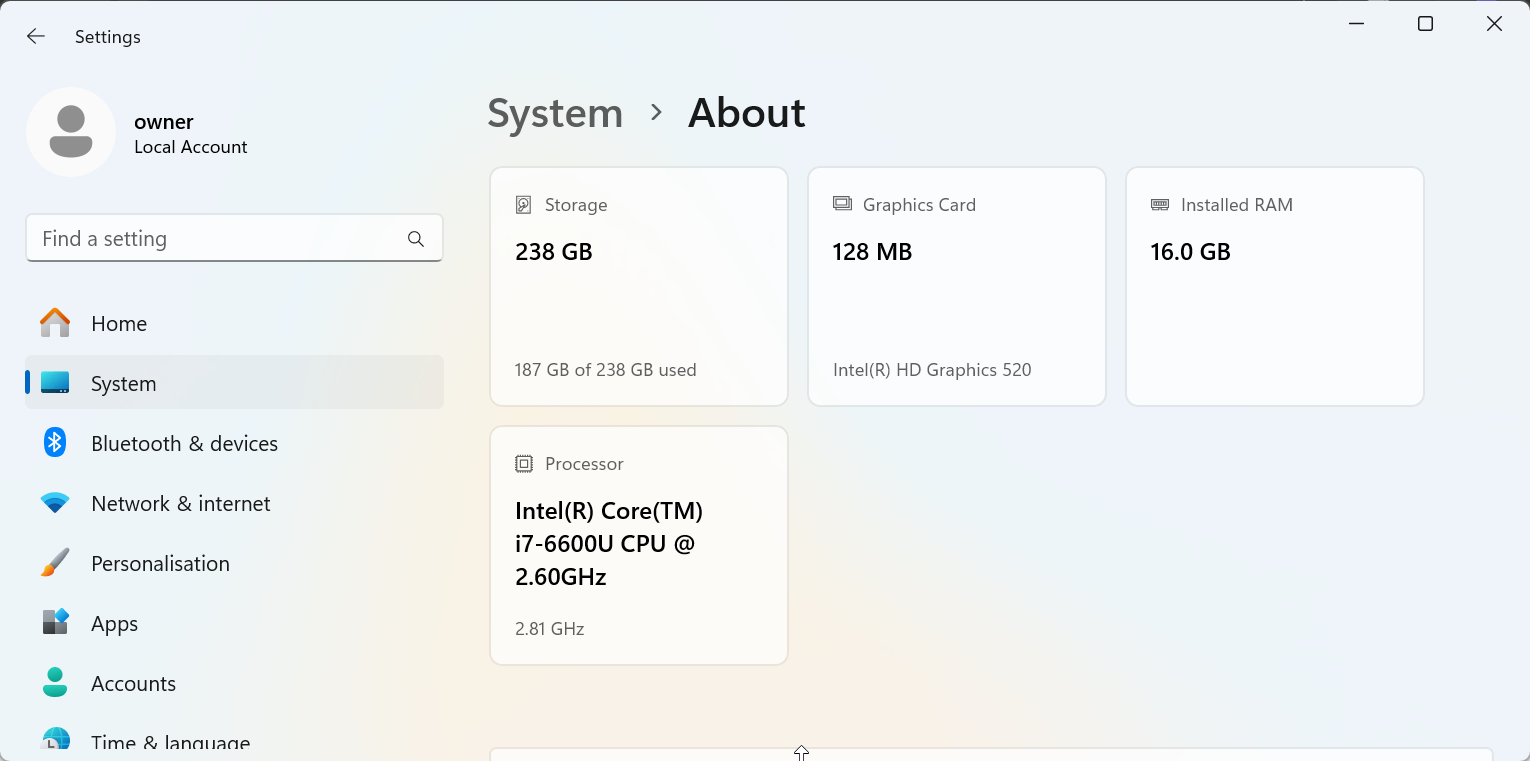
You need Windows 10 or 11 (64-bit), at least 16 GB RAM, and an AMD/NVIDIA GPU with 4 GB VRAM. Make sure you have the latest GPU driver installed.
macOS requirements
DaVinci Resolve 18 supports macOS Monterey and newer, including Apple Silicon. A Mac with 16 GB RAM and a Metal-capable GPU is recommended for the best playback speed.
Linux requirements
Supported distributions include CentOS 7.3+ and Ubuntu 18.04+. You’ll need 32 GB RAM and an NVIDIA card with the latest proprietary driver.
Step 2: Download DaVinci Resolve 18 from the official source
Always download DaVinci Resolve directly from the official support page to avoid malware or outdated builds. To get started, open your browser and go to the official download page.
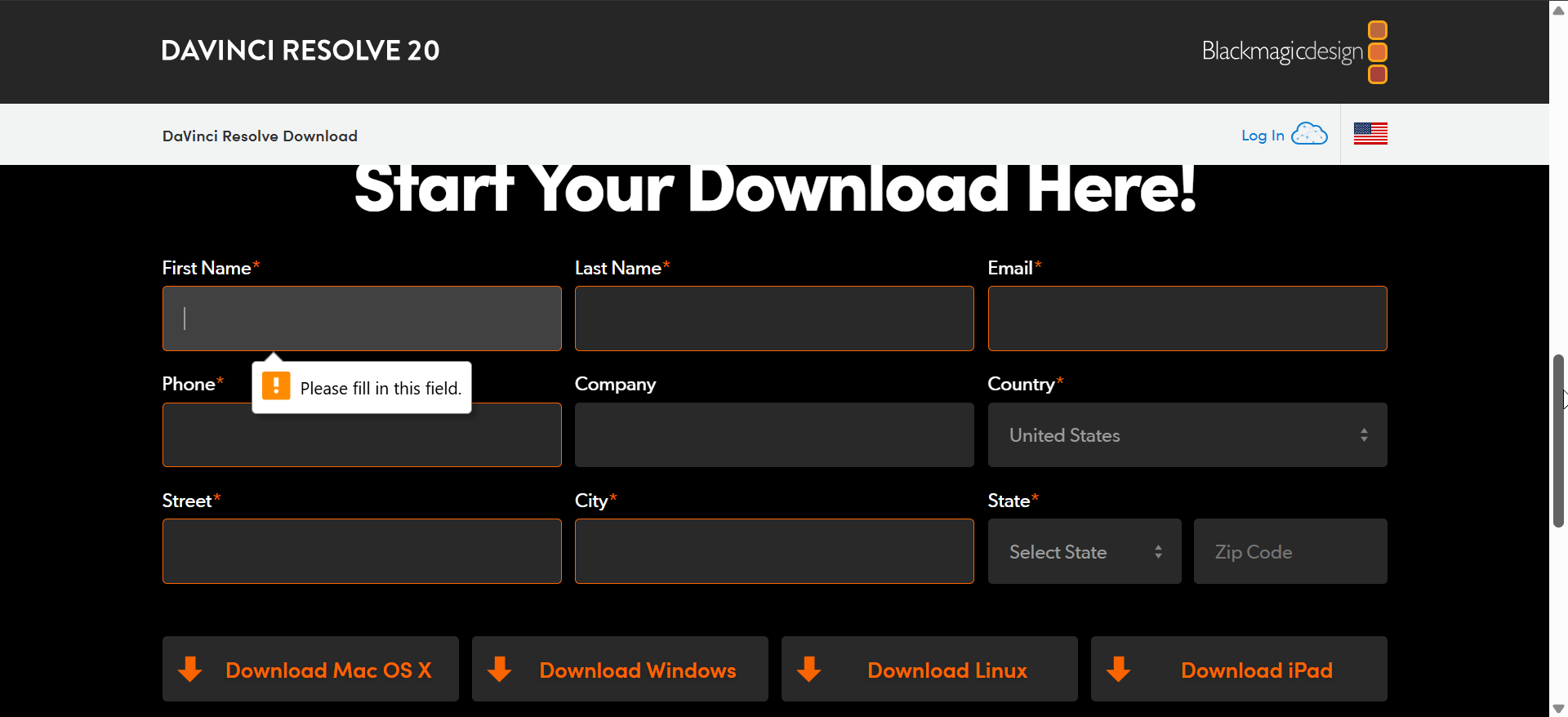
Scroll down to find the DaVinci Resolve 18 section and fill out the form there. Next, click the Download button attached to your device, and the download will start automatically.
Step 3: Install DaVinci Resolve 18
Install on Windows
Locate the downloaded ZIP file, extract it, open the folder, and double-click Setup.exe. Next, select the DaVinci Resolve 18 file and click Install.
Finally, follow the onscreen instructions until the installer finishes, and launch DaVinci Resolve from the Start menu.
Install on macOS
Open the downloaded DMG file and drag the DaVinci Resolve icon into the Applications folder. Finally, open the app and confirm permissions if macOS requests approval.
Install on Linux
Extract the TAR file to a folder and open Terminal in that directory. Next, run sudo ./DaVinci_Resolve_Installer.run to begin installation.
Lastly, accept default options when prompted.
Step 4: Activate or upgrade to Studio 18
If you purchased the Studio version, you’ll need to enter a license key or connect your activation dongle. When the software first launches, you’ll see a prompt to activate. Enter your serial number to unlock Studio 18 features.
But if you are upgrading from Studio 17, you need to back up your project library before updating. Resolve 18 uses an updated database format, so migration ensures you don’t lose edits or timelines.
Step 5: Verify and Launch DaVinci Resolve 18
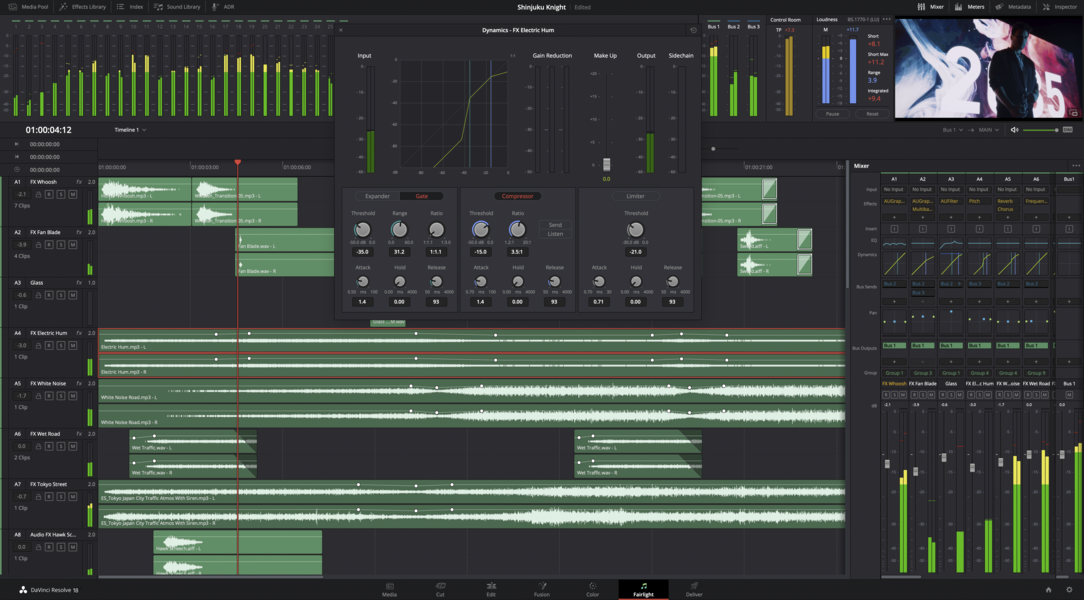
After installation, launch the app. Choose your keyboard layout, set the project library location, and confirm that your GPU is recognized under Preferences > System > Memory and GPU.
Troubleshooting common download or installation problems
- Installer won’t open or crashes: Run the installer as Administrator on Windows or redownload it if corrupted. On macOS, allow the app under System Settings > Privacy & Security.
- GPU or driver errors: Ensure your GPU drivers are current. Outdated NVIDIA or AMD drivers often cause startup crashes in Resolve.
- Registration page doesn’t load: If the download form stalls, clear your browser cache or use a different browser. This usually fixes timeout errors during registration.
Tips for Smooth Performance
- Keep your GPU driver updated
- Use an SSD for media cache
- Enable hardware acceleration
- You can also back up your project database regularly to prevent data loss.
FAQs
Can I still download older 18.0 or 18.5 builds? Yes. Visit the support page and select Previous Versions under DaVinci Resolve to access archived installers.
Is DaVinci Resolve 18 completely free? The base version is free with no time limit, though Studio adds extra tools for professionals.
Why does my installer show version 19? Newer installers replace older ones.
Summary
- Check your PC or Mac meets system requirements.
- Choose Free or Studio 18 based on your needs.
- Download DaVinci Resolve 18 from the official site.
- Install using the right method for your OS.
- Fix any GPU or installer issues if they appear.
- Activate Studio or launch the free version to start editing.
Conclusion
Downloading DaVinci Resolve 18 is a straightforward process if you follow the right steps. Whether you’re using Windows, macOS, or Linux, the key is ensuring your system meets the necessary requirements and downloading directly from the official source.
If you encounter any issues during installation, troubleshooting common errors such as GPU driver conflicts or installer problems can get you back on track. With DaVinci Resolve 18 ready to go, you can begin creating professional-grade video content with all the powerful tools it offers, including color grading, editing, and visual effects.

Discussion (0)
Be the first to comment.