



If you want to customize and change Chrome color and theme in Windows 11, you can do it directly from Google Chrome settings. Chrome allows you to switch themes, adjust accent colors, and even match the browser with your Windows 11 system theme.
Customizing Chrome not only improves appearance but also makes browsing more comfortable. This guide explains why themes matter and how to change Chrome colors safely on a Windows 11 PC.
Why Customize Chrome Color and Theme?
Google Chrome uses a default light theme, but many users prefer a different look.
You may want to change Chrome’s color and theme if:
- You prefer dark mode
- You want better visual contrast
- You like personalized browser styling
- You want Chrome to match Windows 11 colors
Changing themes does not affect performance. It only modifies the visual interface.
How to Change Chrome Theme in Windows 11
Follow these steps to install or switch themes.
Step 1: Open Chrome Settings
- Launch Google Chrome.
- Click the three-dot menu in the top-right corner.
- Select Settings.
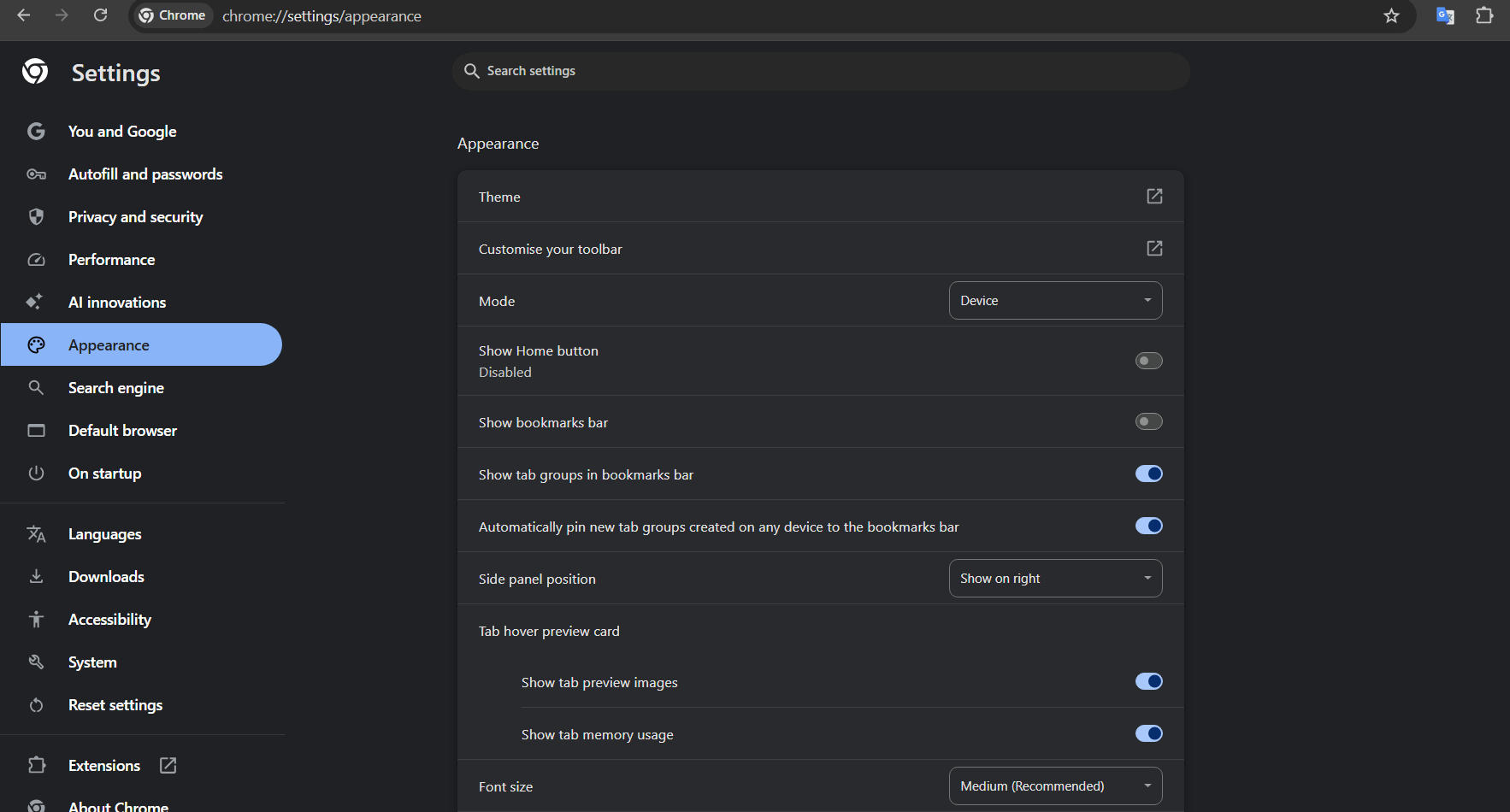
Step 2: Go to Appearance
- In the left panel, click Appearance.
- Click Theme.
This opens the Chrome Web Store theme section.
Step 3: Choose a Theme
- Browse available themes.
- Click a theme you like.
- Click Add to Chrome.
The theme applies instantly.
To remove a theme:
- Go to Settings > Appearance.
- Click Reset to default under Theme.
How to Change Chrome Color Without Installing a Theme
Chrome also lets you adjust colors directly from the New Tab page.
Method: Customize From New Tab
- Open a new tab.
- Click the Customize Chrome button in the bottom-right corner.
- Choose Color and theme.
- Select a preset color or create a custom one.
- Click Done.
This method changes accent colors without installing a full theme.
Enable Dark Mode in Chrome on Windows 11
You can enable dark mode in two ways.
Option 1: Use Windows 11 Dark Mode
- Open Settings.
- Go to Personalization > Colors.
- Under Choose your mode, select Dark.
Chrome will automatically follow the system theme if set to default.
Option 2: Force Chrome Dark Mode
- Open Chrome.
- Go to Settings > Appearance.
- Select a dark theme from the Chrome Web Store.
Sync Chrome Theme Across Devices
If you sign in to Chrome with your Google account:
- Themes sync automatically
- Colors and preferences stay consistent
- Changes apply across devices
Make sure Sync is enabled under Settings > You and Google.
Does Changing Chrome Theme Affect Performance?
No. Themes only change the browser’s appearance. They do not slow down Chrome or affect browsing speed.
However, avoid installing themes from unknown sources outside the official Chrome Web Store.
Final Thoughts
Learning how to customize and change Chrome color and theme in Windows 11 allows you to create a more comfortable browsing experience. Whether you prefer dark mode, custom accents, or full themes, Chrome offers flexible options.
You can switch themes anytime without affecting your data or settings. Choose a design that matches your workflow and Windows 11 setup for a cleaner, more personalized look.
FAQs
How do I change Chrome color in Windows 11?
Open a new tab, click Customize Chrome, select Color and theme, and choose your preferred color.
Can I use dark mode in Chrome on Windows 11?
Yes. Enable Dark mode in Windows settings or install a dark theme from the Chrome Web Store.
How do I remove a Chrome theme?
Go to Settings > Appearance and click Reset to default under Theme.
Does Chrome automatically follow Windows 11 theme?
Yes, if Chrome is set to the default theme, it follows the system light or dark mode.


Discussion (0)
Be the first to comment.