




A weak Wi-Fi signal can turn streaming, calls, and browsing into daily headaches. A WiFi repeater, also called a WiFi extender, can fix that by expanding your router’s coverage and eliminating dead zones.
Setting it up only takes a few minutes. Whether you use the WPS button or a quick browser login, here’s how to connect your WiFi repeater properly for faster, stronger coverage in every room.
What Is a WiFi Repeater and How It Works
A WiFi repeater boosts your existing network by capturing the router’s signal and rebroadcasting it farther. It doesn’t replace your router; it extends its range. Think of it as a relay point that pushes WiFi into hard-to-reach areas.
Here’s how a WiFi Repeater, WiFi Extender, and Mesh Node compare in purpose, connectivity, and ideal usage.
WiFi Repeater: A repeater’s main purpose is to extend your existing WiFi signal wirelessly. It connects to your router over WiFi and rebroadcasts the signal to cover small dead zones or weak areas in your home. It’s ideal for quick fixes where running cables isn’t practical.
WiFi Extender: Unlike a repeater, an extender uses a wired Ethernet connection to boost network range. This setup provides stronger and more stable coverage because it avoids the signal loss that happens with wireless-only repeaters. It’s best suited for larger homes or multi-room setups that need a consistent connection.
Mesh Node: A mesh node is part of a whole-home mesh WiFi system where multiple nodes communicate with each other to create seamless coverage across all areas. These nodes use mesh wireless connections and automatically route traffic for the best performance. They’re ideal for full-home networks that need stable speed everywhere.
Repeaters are the fastest and most affordable way to fix signal dropouts in just one or two rooms.
Step-by-Step: How to Connect a WiFi Repeater
Step 1: Plug In the Repeater Near Your Router
Start setup close to your router so the repeater can detect a strong signal. Plug it into a wall outlet and wait for the Power LED to light up.
Tip: Keep it within 10–15 feet of your router during setup. You can move it later once it’s connected.

Step 2: Connect to the Repeater’s Temporary WiFi Network
Open your device’s WiFi settings and look for the network name shown on the repeater’s label; something like WiFiRepeater_2.4G or EXTENDER_SETUP.
- Connect to that temporary WiFi.
- Enter the default password (printed on the device label or in the manual).
- Once connected, you can access the setup interface.

Step 3: Open the Repeater Login Page
Launch your web browser and enter the setup IP address in the address bar. Common ones include 192.168.10.1, 192.168.0.254, or https://repeater.setup.
Log in using the default username and password (usually admin / admin), then follow the setup wizard that appears.
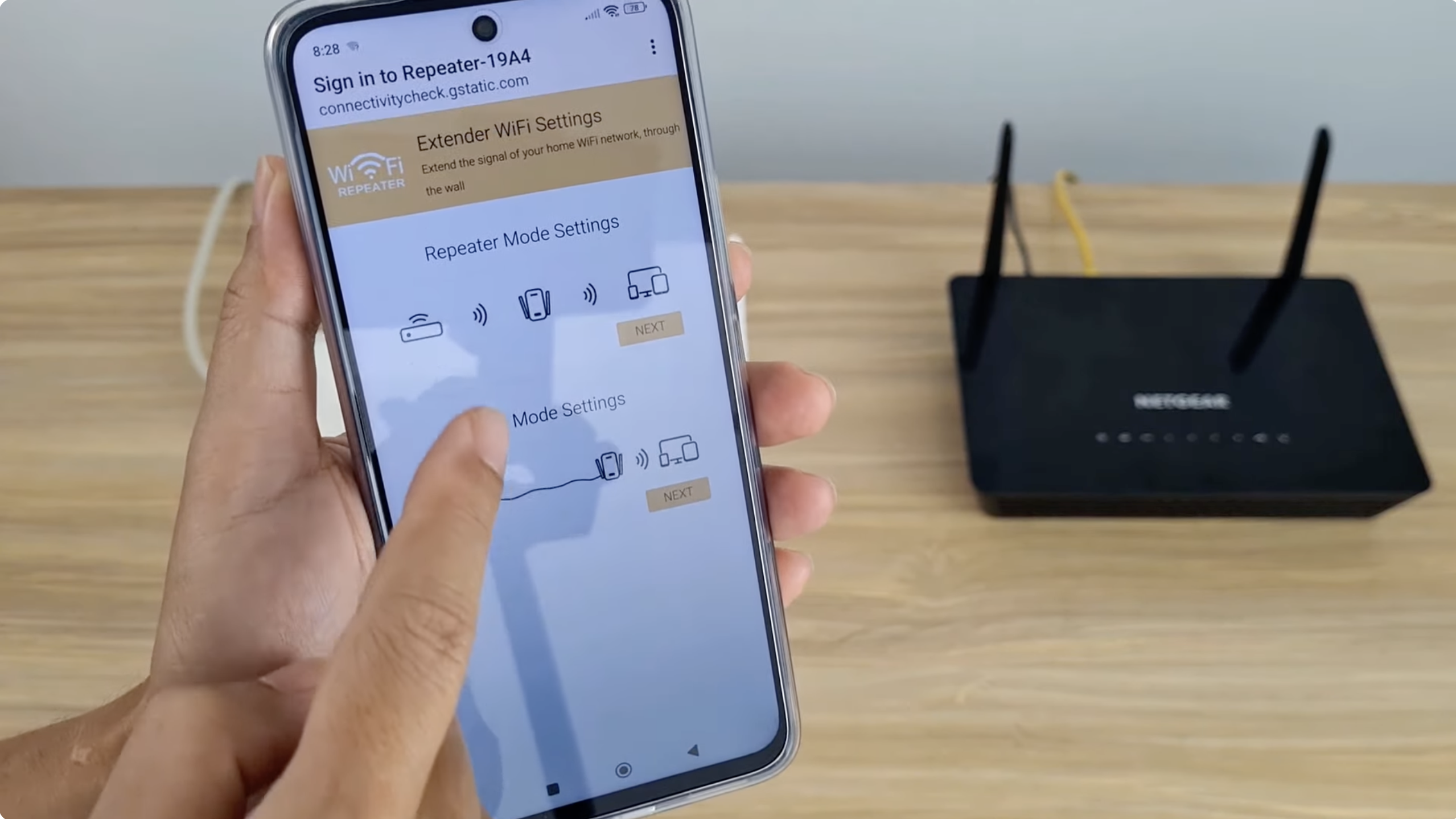
Step 4: Link the Repeater to Your Existing WiFi Network
- Click Scan to search for nearby WiFi networks.
- Select your home network (SSID) from the list.
- Enter your WiFi password exactly as it appears.
- Choose whether to clone your SSID or create a new name like HomeWiFi_EXT.
- Click Apply or Save to finish pairing.
Tip: Cloning the same name and password makes your devices switch seamlessly between router and repeater as you move around the house.
Step 5: Reposition the Repeater
After setup, unplug the repeater and move it halfway between your router and the weak area. This ensures it still receives a solid signal while extending coverage.
- Green or white LED = strong connection.
- Red or orange LED = too far; move it closer to the router.
- Avoid corners, metal shelves, and behind TVs.
Step 6: Test the Connection
Connect your phone or laptop to the repeater’s network and test signal strength. Open a few web pages or run a speed test to confirm everything works properly.
Tip: If pages load slowly, move the repeater a few feet closer to your router until you see improvement.
How to Connect a WiFi Repeater Using WPS (Fastest Method)
If your router supports WPS, setup becomes nearly automatic. You won’t need to open a browser or type any passwords.
- Press the WPS button on your router.
- Within two minutes, press the WPS button on your repeater.
- Wait for the indicator light to turn solid; this means it’s paired successfully.
- Unplug and move the repeater to its optimal location.
If the WPS method fails, use the manual setup steps above instead.
Best Location for a WiFi Repeater
Correct placement makes the biggest difference in performance. Follow these guidelines to get the best signal boost:
- Keep the repeater in the middle of your home, not behind thick walls.
- Avoid placing it near microwaves, cordless phones, or large metal objects.
- Mount it at mid-height for better coverage; waist-to-shoulder level is ideal.
- Use a WiFi analyzer app to check signal strength before finalizing placement.
Troubleshooting Common Setup Problems
Problem: Can’t find the repeater SSID
Cause: The device might not be powered on or is placed too far from your router.
Fix: Plug the repeater into a power outlet closer to your router to establish a stable connection.
Problem: Login page won’t load
Cause: The repeater’s IP address may be incorrect.
Fix: Try entering 192.168.10.1 in your browser, or check your device manual for the correct IP address.
Problem: Slow internet on the repeater
Cause: The signal from the router to the repeater is weak.
Fix: Move the repeater closer to the router to improve the backhaul signal strength and boost speeds.
Problem: No internet after setup
Cause: The WiFi password may have been entered incorrectly during setup.
Fix: Re-run the configuration wizard and ensure the password matches your main router’s credentials.
FAQs
Do WiFi repeaters reduce speed?
Yes, a little. Because they share bandwidth with the main router, speeds can drop slightly. But in areas that used to have no signal, that’s a big improvement.
Is WPS safe?
It’s convenient but not the most secure. Use it for setup, then disable WPS in your router settings afterward.
Can I use two repeaters?
Yes, but don’t chain them in a line. Place each one where it still receives a strong signal directly from the router to avoid speed loss.
Conclusion
Setting up a WiFi repeater is a quick, affordable way to eliminate weak spots in your home or office. Plug it in, connect it to your router, and position it midway between your router and the problem area for the best results.
With proper placement and an occasional firmware update, you’ll enjoy stronger, more reliable internet coverage wherever you need it most.


Discussion (0)
Be the first to comment.