




A Microsoft wireless keyboard usually connects through Bluetooth or a 2.4 GHz USB dongle. Most connection issues come from pairing mode timing out, Bluetooth not being enabled, or receivers plugged into weak USB ports. This guide walks you through both connection methods and shows you how to fix common pairing failures.
Table of contents
- Understanding Microsoft wireless keyboard types
- Prepare your keyboard before pairing
- Connect a Microsoft Bluetooth keyboard on Windows 10 or Windows 11
- Connect a Microsoft wireless keyboard using the USB dongle
- Pairing a Microsoft wireless keyboard with a Surface device
- Common issues and how to fix them
- Tips to optimize wireless performance
- FAQs
- Summary
Understanding Microsoft wireless keyboard types
Microsoft keyboards connect either through Bluetooth or a USB receiver. Knowing the type you have helps you follow the correct steps and avoids failed pairings.

Check if your keyboard uses Bluetooth
Bluetooth keyboards show no included USB receiver and often have a Bluetooth symbol. These models appear in Windows Bluetooth settings during pairing.
Check if your keyboard uses a USB dongle
USB dongle models rely on a small 2.4 GHz transceiver. They do not show up in Bluetooth menus and usually connect automatically once the dongle is inserted.
Prepare your keyboard before pairing
Most issues come from power problems or missed pairing mode timing. Preparing the keyboard prevents interruptions during setup.
Insert or charge the batteries
New batteries ensure stable power. Weak batteries cause intermittent connections or prevent pairing entirely.
Turn on the keyboard and enter pairing mode
Most Microsoft keyboards use a small button to start pairing. Hold it until the LED flashes so Windows can detect the device.
Connect a Microsoft Bluetooth keyboard on Windows 10 or Windows 11
Bluetooth pairing only takes a minute, but you must enable Bluetooth and put the keyboard in pairing mode.
Enable Bluetooth on your PC
Select Start > Settings > Bluetooth & devices and enable Bluetooth. The keyboard cannot appear until Bluetooth is active.

Add the keyboard in Bluetooth settings
Select Add device, choose Bluetooth, and pick your keyboard from the list. Windows may ask you to confirm a PIN.

Confirm successful pairing
Type in a text field to verify input. This confirms Windows installed the correct drivers.
Connect a Microsoft wireless keyboard using the USB dongle
USB dongle models rely on plug and play. Once the receiver is inserted, Windows handles the rest.
Plug the dongle into a USB port
Use a USB port on the PC instead of a hub. Front ports or short extension cables improve signal stability.
Turn on the keyboard and test key input
Begin typing to confirm the connection. If nothing happens, try a different USB port.
Pairing a Microsoft wireless keyboard with a Surface device
Surface devices sometimes fail to pair due to Bluetooth driver quirks. A quick reset usually fixes this.
Reset Surface Bluetooth
Toggle Bluetooth off and on, then try pairing again. This restarts the Bluetooth stack and clears cached attempts.
Reinstall or update Bluetooth drivers
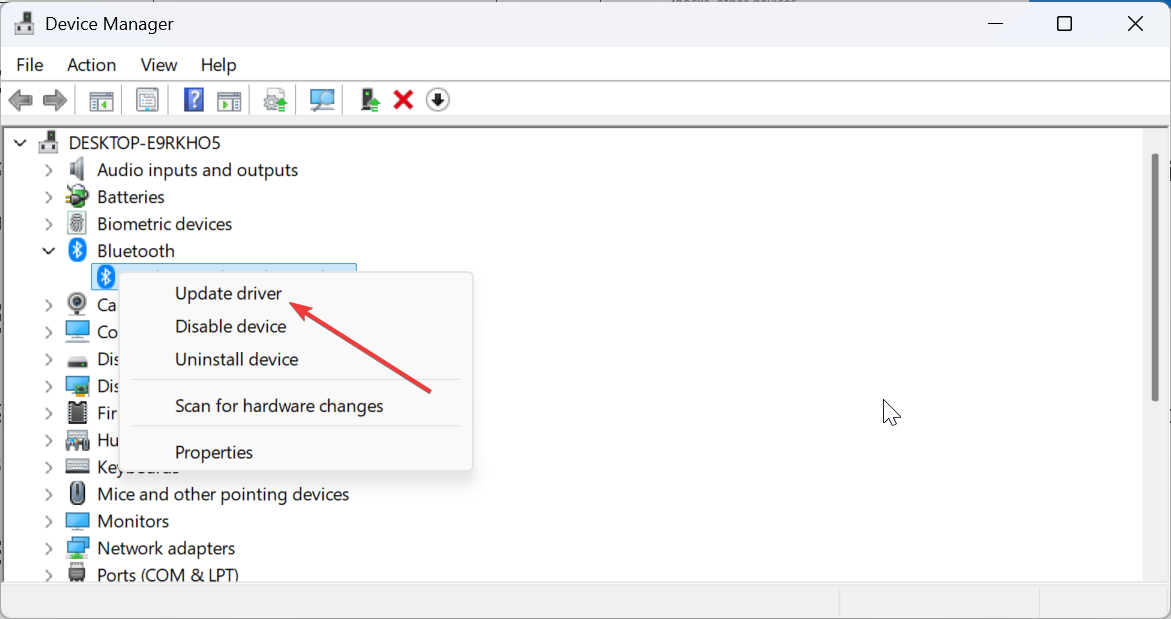
Open Device Manager on your PC, expand Bluetooth, and update the adapter. This resolves inconsistent pairing failures.
Common issues and how to fix them
- Keyboard not showing in Bluetooth: Restart Bluetooth services, re enter pairing mode, and move the keyboard closer to your PC.
- PIN or pairing loop issues: Remove the device from Windows, restart the PC, and try pairing again. Resetting the keyboard also helps.
- Intermittent disconnects: Move the receiver away from USB 3.0 ports and routers. Replace batteries and remove metal objects blocking the signal.
Tips to optimize wireless performance
- Improve signal quality: Place the dongle in a front USB port or use a short extension cable. This reduces interference from PC components.
- Replace batteries regularly: Fresh batteries keep the signal strong and prevent sudden disconnects.
FAQs
Can I use a Microsoft wireless keyboard without its dongle? Most dongle based models cannot pair without the original receiver. Only Bluetooth models work without a dongle.
Why does my keyboard keep disconnecting? Interference, range issues, or weak batteries cause most disconnects. Adjust placement and replace batteries to stabilize the signal.
How do I reset a Microsoft wireless keyboard? Turn it off, hold the pairing button, and power it on while holding the button. This clears old pairing data.
Can I pair one keyboard with multiple devices? Some Bluetooth models support multipoint switching, but most traditional Microsoft wireless keyboards do not.
Summary
- Identify whether your Microsoft keyboard uses Bluetooth or a USB dongle.
- Add the keyboard through Windows Bluetooth settings or plug in the USB receiver.
- Test typing to confirm successful pairing.
- Troubleshoot issues like PIN loops or missing devices with simple resets.
- Improve wireless stability by adjusting placement and replacing batteries.
You can connect a Microsoft wireless keyboard in just a few steps using either Bluetooth or a USB receiver. Clean pairing, fresh batteries, and correct device settings usually fix most issues. If problems persist, resetting Bluetooth or updating drivers restores stable performance.

Discussion (0)
Be the first to comment.