




Most people don’t think about system uptime until something starts behaving oddly. Apps lag, updates don’t apply properly, or performance just feels off. In many cases, the issue isn’t the hardware or software itself. It’s simply that the system hasn’t been restarted in a while.
Knowing your computer’s uptime gives you a quick way to understand how long your system has been running continuously. It’s a small detail, but it can explain a lot about performance and stability.
What is Computer Uptime?
Computer uptime refers to how long your system has been running since the last restart. It doesn’t reset when you lock your PC or put it to sleep. It only resets when you fully reboot.
This matters because Windows accumulates temporary processes, cached data, and background tasks over time. The longer the uptime, the higher the chance of minor issues building up.
Method 1: Check Uptime Using Task Manager
This is the easiest and most practical way for most users.
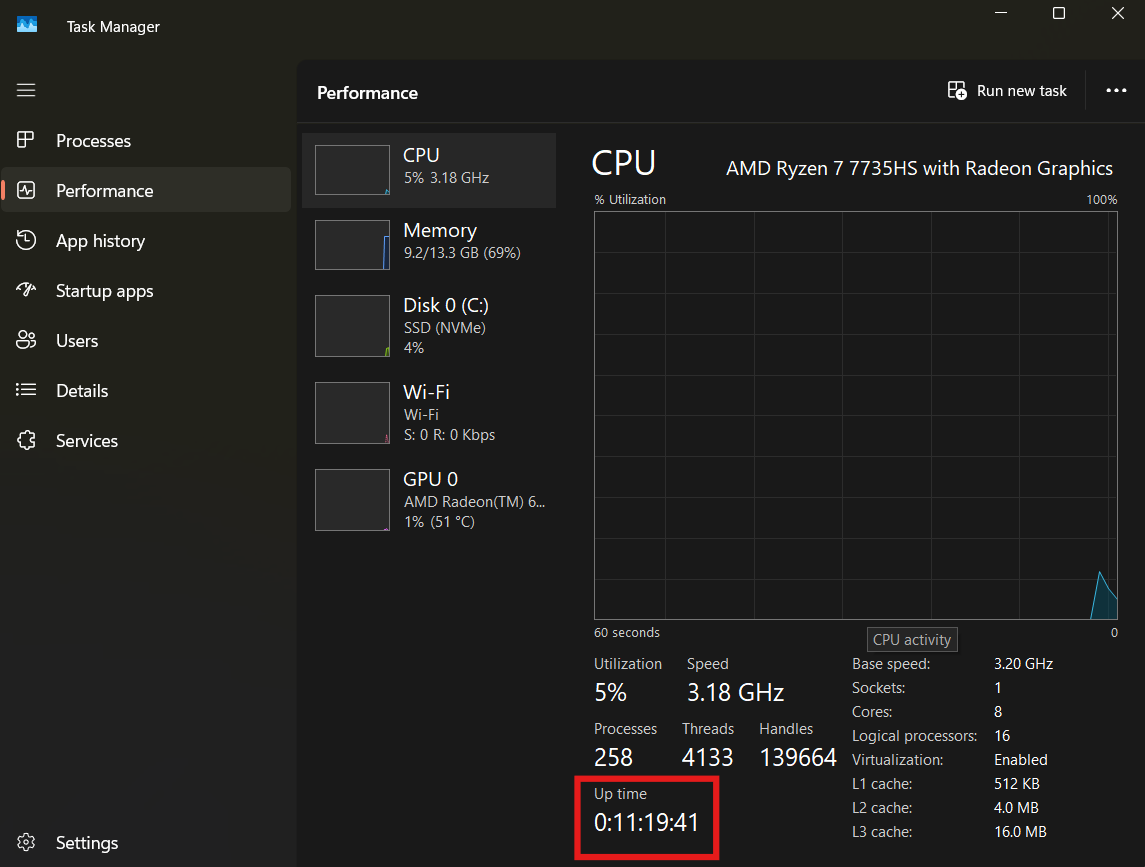
Open Task Manager by pressing Ctrl + Shift + Esc.
Go to the Performance tab, then select CPU.
You’ll see an “Uptime” value displayed there.
It shows how long your system has been running in days, hours, minutes, and seconds.
For most people, this is the quickest way to check without digging into deeper tools.
Method 2: Use Command Prompt
If you prefer a more direct method, Command Prompt gives you the same information in a different format.
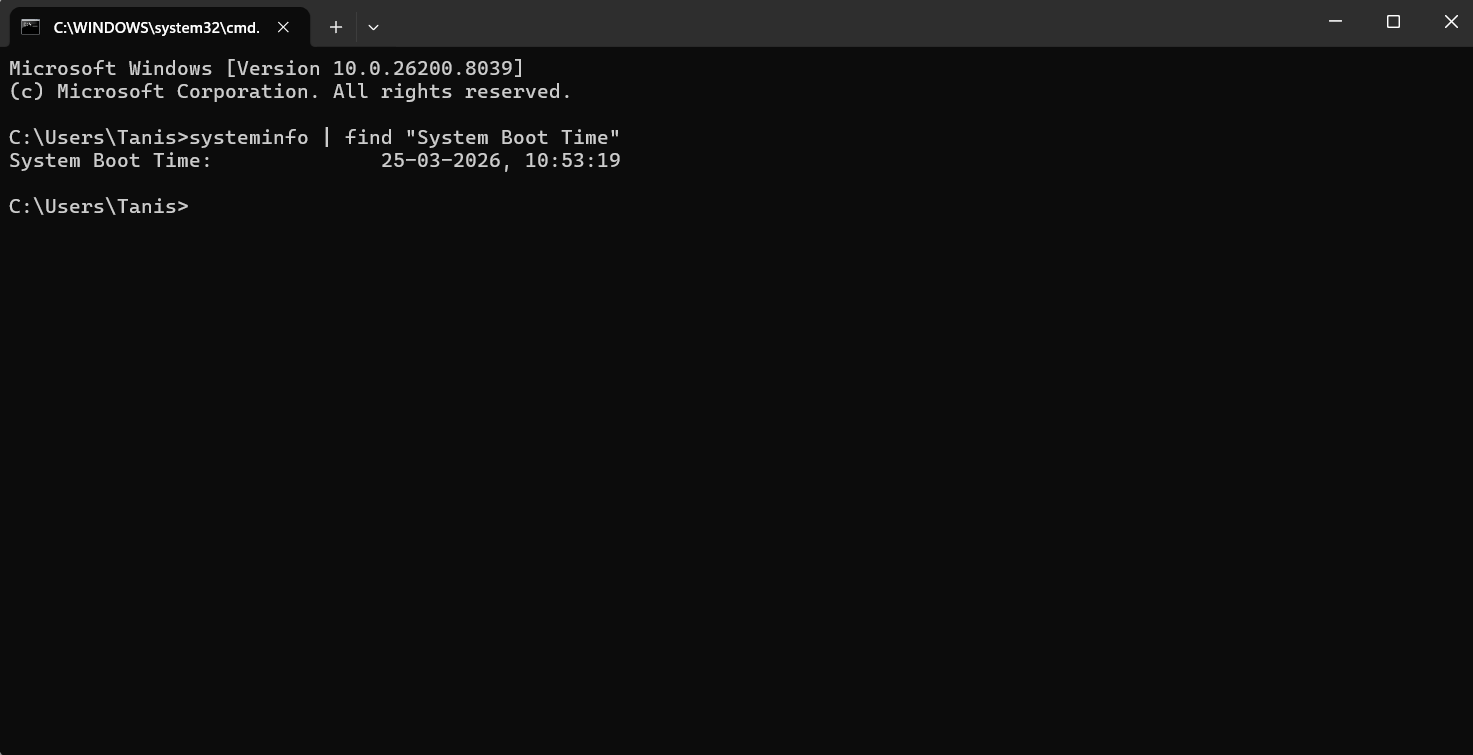
Open Command Prompt and type:
systeminfo | find "System Boot Time"
This will show the exact time your system last booted.
From there, you can calculate uptime based on the current time.
It’s slightly less convenient than Task Manager, but useful if you’re already working in the command line.
Method 3: Use PowerShell
PowerShell provides a cleaner way to get uptime directly.
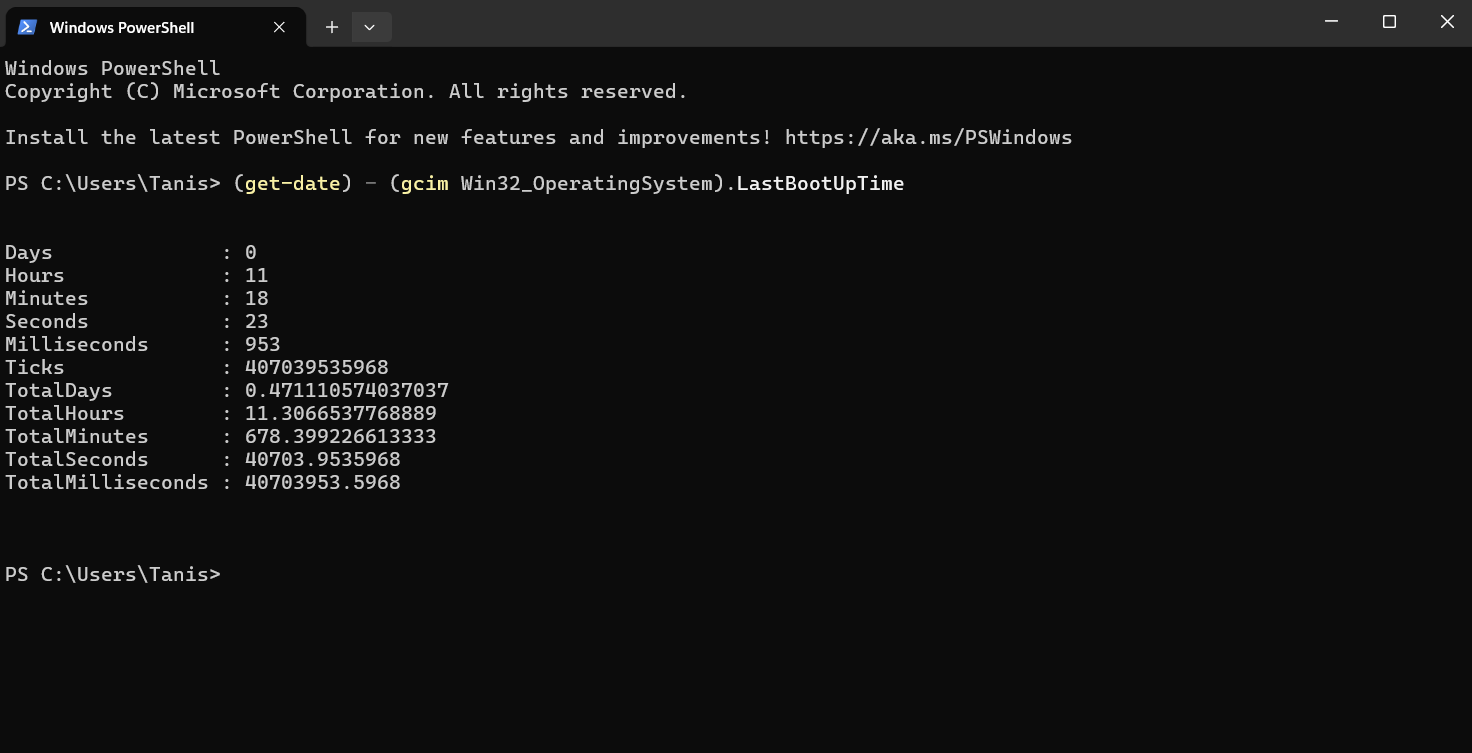
Open PowerShell and run:
(get-date) - (gcim Win32_OperatingSystem).LastBootUpTime
This will return the uptime in a readable format.
It’s more precise and flexible, especially if you’re comfortable using PowerShell commands.
Why Uptime Matters in Real Use
Uptime isn’t just a technical statistic. It directly affects how your system behaves.
If your PC has been running for days or weeks, you might notice:
- Slower performance
- Apps not responding properly
- Updates not installing correctly
- Increased memory usage
A simple restart often resolves these issues because it clears temporary states and resets system processes.
This is especially relevant on laptops where users rely heavily on sleep mode instead of shutting down.
A Common Misconception: Shutdown vs Restart
Here’s something many people miss.
In Windows 10, a normal shutdown doesn’t always reset uptime because of Fast Startup. The system partially hibernates instead of fully shutting down.
That means your uptime may continue even after you “shut down” your PC.
A proper restart is what fully resets uptime.
If you’re troubleshooting issues, always restart instead of shutting down.
When Should You Restart Your PC?
There’s no strict rule, but a practical approach is:
Restart your system every few days if you use it heavily, or whenever you notice performance issues.
For most users, this keeps things running smoothly without overthinking it.
Limitations You Should Know
Uptime alone doesn’t tell you everything.
A system with high uptime can still run perfectly fine if it’s well-optimized. On the other hand, issues can appear even with low uptime due to software bugs or hardware limitations.
So while uptime is useful, it’s just one piece of the bigger picture.
Final Thoughts
Checking your computer’s uptime in Windows 10 is simple, but it gives you useful insight into how your system is behaving.
It helps explain performance issues, reminds you when a restart is overdue, and gives you a better sense of how your system is being used.
It’s not something you need to monitor constantly, but when things feel off, it’s one of the first things worth checking.
FAQs
What is a good uptime for a Windows PC?
There’s no strict limit, but restarting every few days helps maintain performance.
Does sleep mode affect uptime?
No, uptime continues while the system is in sleep mode.
Why is my uptime high even after shutdown?
Because of Fast Startup, which doesn’t fully reset the system.
Is high uptime bad for my PC?
Not necessarily, but it can lead to minor performance issues over time.
How do I reset uptime?
Restart your computer.

Discussion (0)
Be the first to comment.