




If you want to see what updates were installed on your PC, you can easily check Windows Update history in Windows 11. This helps you track updates, troubleshoot issues, and understand what changes were made to your system.
What Is Windows Update History?
Windows Update history shows a record of all updates installed on your computer.
It includes:
- Feature updates
- Quality updates
- Driver updates
- Definition updates (security)
You can also see whether an update was successful or failed.
Why Check Update History?
You may want to view update history to:
- Identify recently installed updates
- Troubleshoot system issues
- Check if an update failed
- Confirm security updates
It is useful for diagnosing problems after updates.
How to Check Windows Update History in Windows 11
Follow these steps.
1: Open Settings
- Press Windows + I
- Go to Windows Update
2: Open Update History
- Click Update history
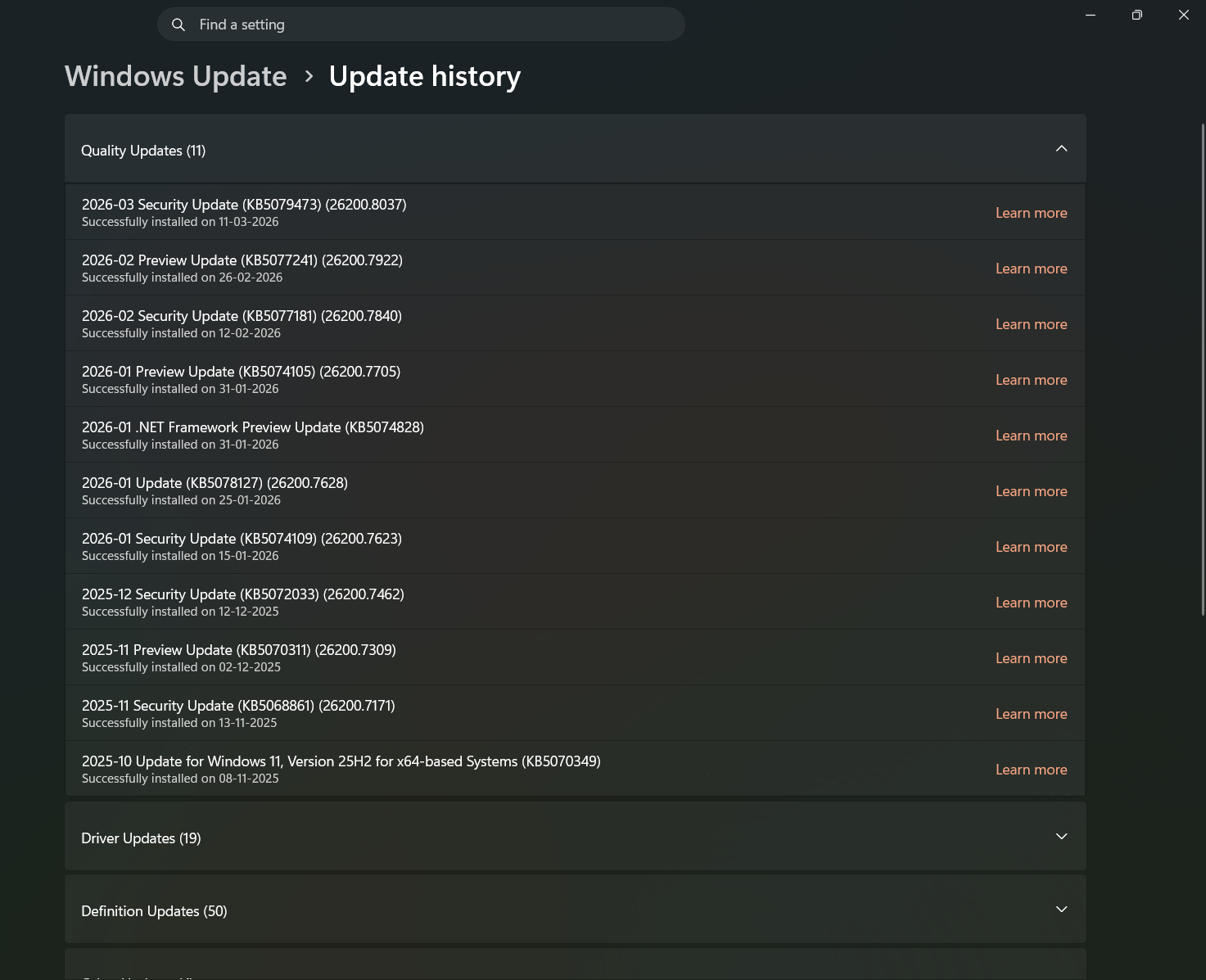
3: View Installed Updates
You will see a list of updates grouped by type:
- Quality updates
- Feature updates
- Driver updates
- Definition updates
Click any category to expand details.
What Information You Can See
Each update entry shows:
- Update name (KB number)
- Installation date
- Status (successful or failed)
This helps you understand what was installed.
How to Uninstall Updates from History
If an update is causing issues, you can remove it.
Steps:
- Go to Update history
- Click Uninstall updates
- Select the update
- Click Uninstall
Restart your PC after removal.
Alternative Method (Control Panel)
You can also check updates through Control Panel.
Steps:
- Open Control Panel
- Go to Programs > Programs and Features
- Click View installed updates
This shows a detailed list of updates.
Tips for Managing Updates
- Keep your system updated for security
- Monitor failed updates
- Avoid uninstalling updates unless necessary
- Restart your system after updates
These practices help maintain system stability.
Final Thoughts
Knowing how to check Windows Update history in Windows 11 helps you stay informed about changes to your system. Whether you are troubleshooting or just checking updates, this feature provides a clear overview of your update activity.
It is a simple but useful tool for managing your system.
FAQs
How do I check update history in Windows 11?
Go to Settings > Windows Update > Update history.
Can I see failed updates?
Yes. Update history shows both successful and failed updates.
Can I uninstall updates from here?
Yes. Use the uninstall option in update history.
What is a KB number?
It is a unique identifier for a Windows update.
Discussion (0)
Be the first to comment.