




TPM isn’t something most people think about until they need it. But if you’ve looked into upgrading to Windows 11 or enabling security features like BitLocker, you’ve probably come across it.
The problem is that TPM isn’t always obvious. Even if your PC supports it, it might not be enabled, which leads to confusion.
Here’s how to check properly, and more importantly, how to understand what you’re actually looking at.
What is TPM (Trusted Platform Module)?
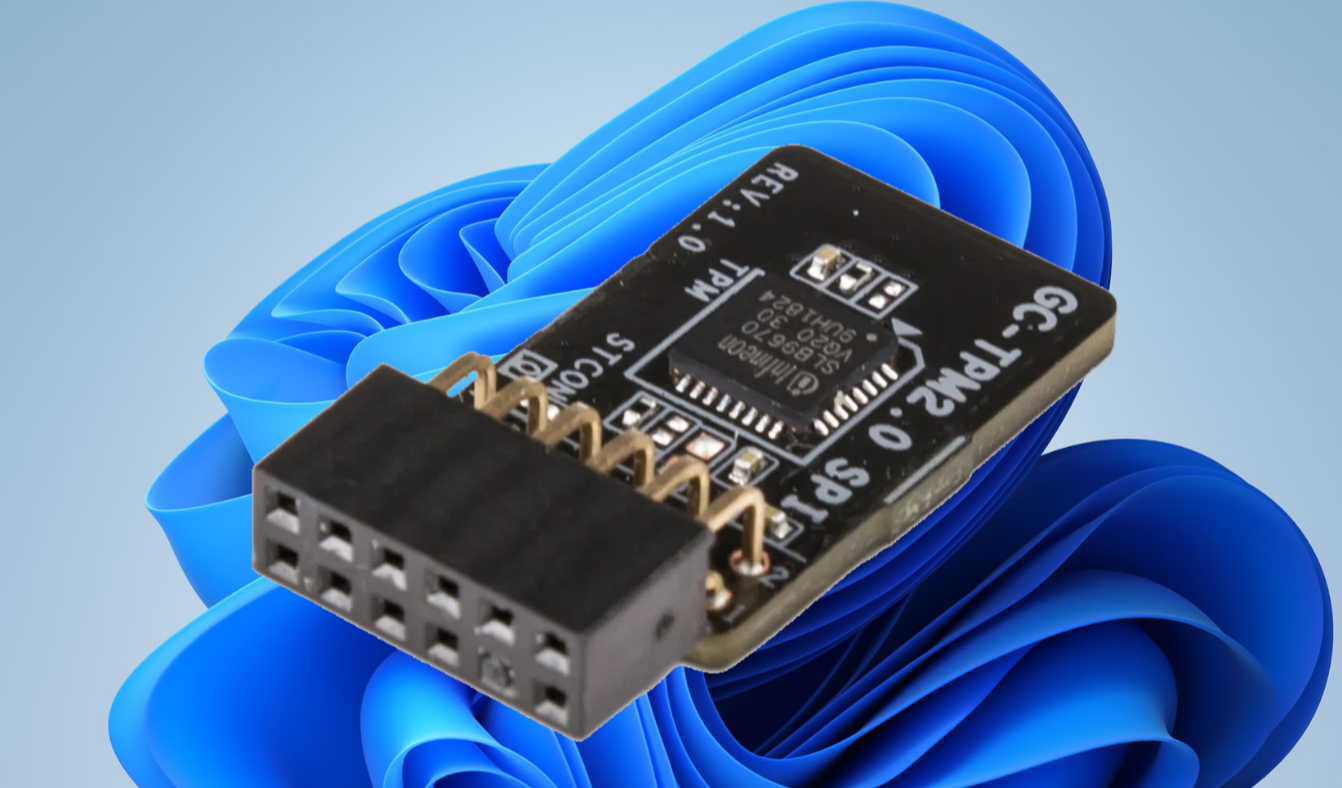
Trusted Platform Module (TPM) is a security feature built into your system that helps protect sensitive data.
It handles things like:
- Encryption keys
- Secure boot processes
- System integrity checks
Windows 11 requires TPM 2.0, which is why this has become a common concern.
Method 1: Use the TPM Management Tool (Best Method)
This is the most direct way to check.
Press Windows + R, type:
tpm.msc
and press Enter.
This opens the TPM Management window.
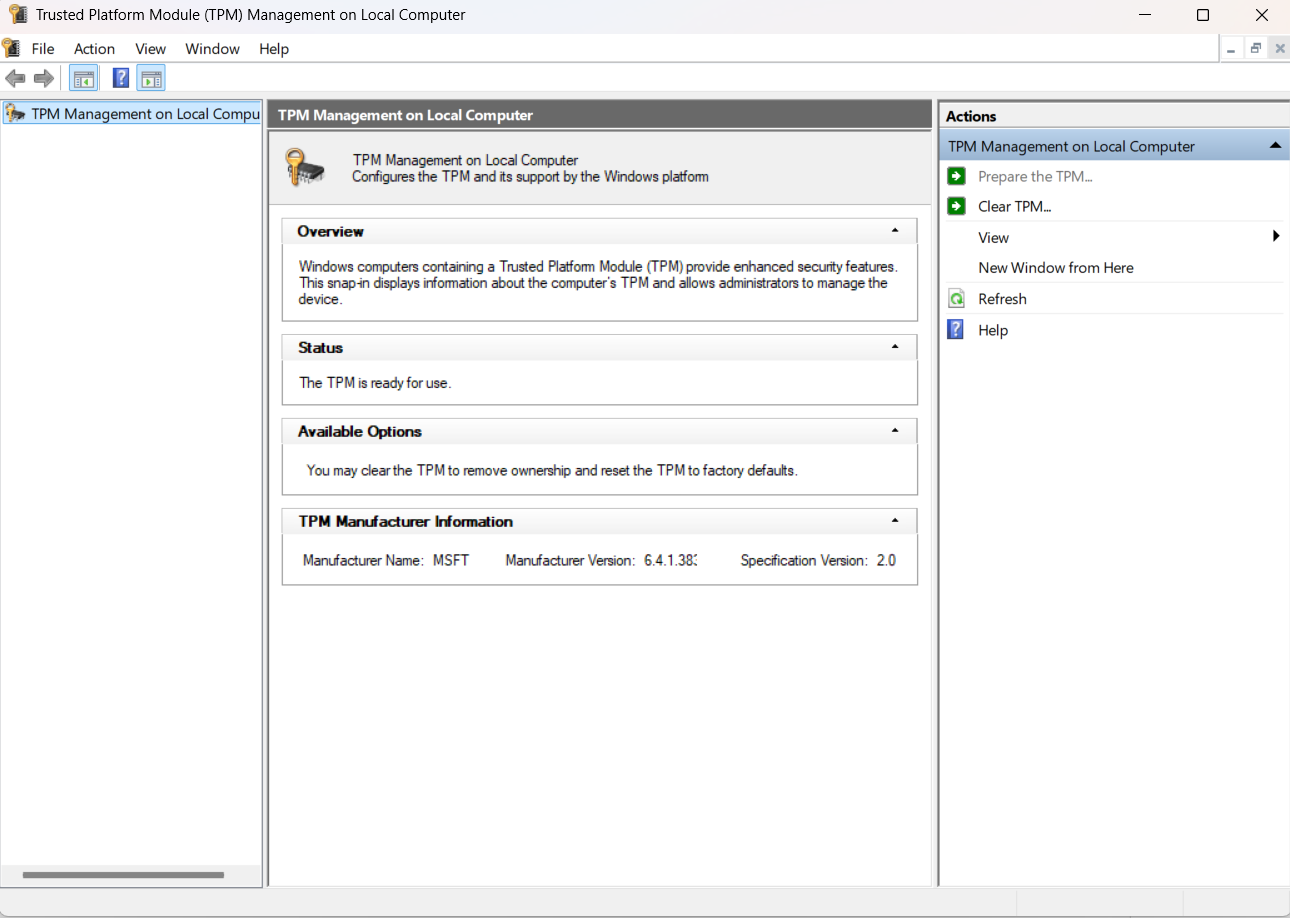
Here’s what to look for:
- If you see “The TPM is ready for use”, your system has TPM enabled
- Check the Specification Version. If it says 2.0, you’re good for Windows 11
- If it says TPM cannot be found, it may be disabled or not present
This method gives you the clearest answer.
Method 2: Check in Device Manager
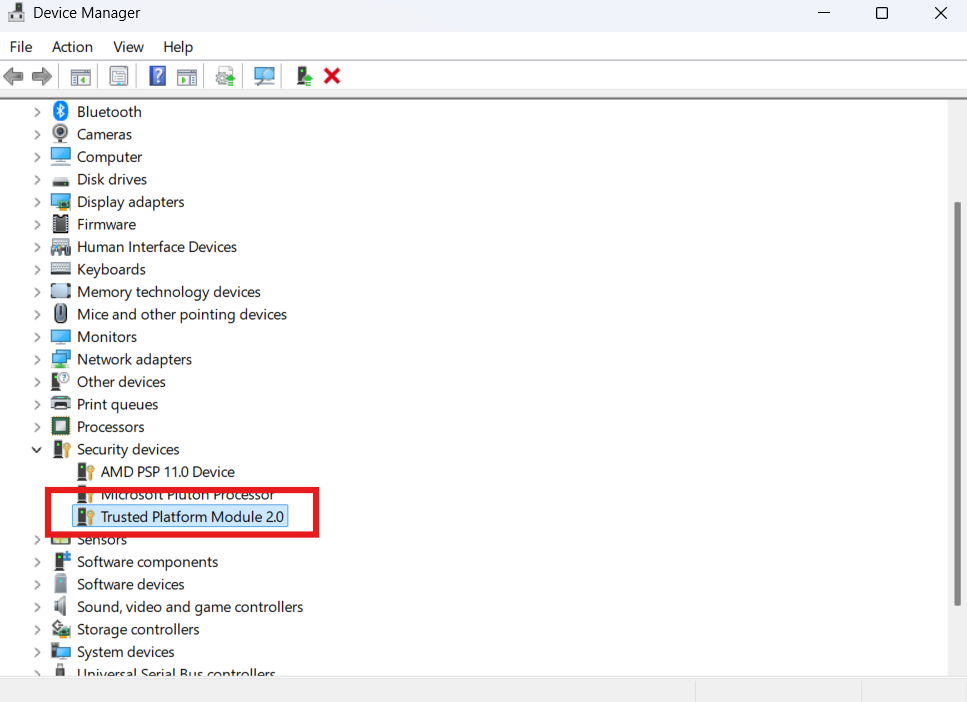
Open Device Manager and expand Security devices.
If you see something like Trusted Platform Module 2.0, your system supports TPM.
If nothing appears, it could mean:
- TPM is disabled in BIOS
- Your system doesn’t have TPM
This method is quick but less detailed than the first one.
Method 3: Use Windows Security
Go to:
Settings > Privacy & Security > Windows Security > Device Security
Look for Security processor details.
If it’s there, TPM is present and active.
This method is more user-friendly but doesn’t always show full details.
Why TPM Might Not Show Up
This is where most confusion happens.
Many modern PCs have TPM, but it’s disabled by default.
Manufacturers often label it differently in BIOS:
- Intel systems: PTT (Platform Trust Technology)
- AMD systems: fTPM (Firmware TPM)
If TPM doesn’t appear in Windows, you may need to enable it in BIOS settings.
Real-World Usage: When TPM Actually Matters
TPM isn’t something you interact with daily, but it plays an important role behind the scenes.
You’ll notice it when:
- Installing Windows 11
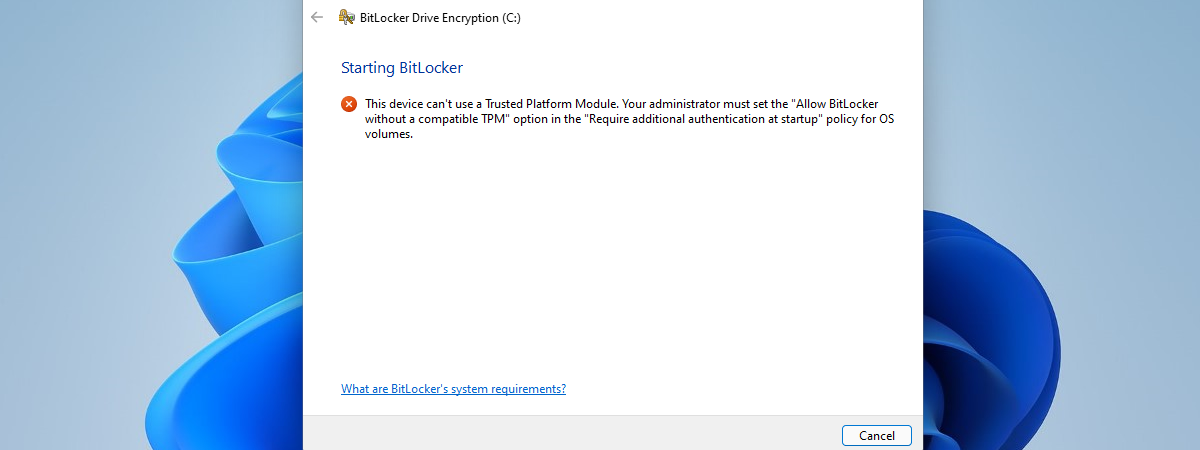
- Enabling BitLocker encryption
- Using certain enterprise security features
For everyday use, it works silently in the background.
Common Mistakes to Avoid
One common mistake is assuming your PC doesn’t have TPM just because it doesn’t show up in Windows.
In many cases, it’s simply disabled.
Another mistake is ignoring the version. TPM 1.2 exists, but Windows 11 requires TPM 2.0.
So it’s not just about having TPM. It’s about having the right version.
Limitations You Should Know
Older systems may not support TPM 2.0 at all.
In some cases, you can upgrade firmware or enable a built-in version, but not always.
Also, enabling TPM in BIOS can reset certain security features, so it’s worth checking before making changes.
Final Thoughts
Checking for TPM in Windows is simple once you know where to look, but understanding what you’re seeing is just as important.
Most modern systems already support TPM. The real issue is whether it’s enabled and meets the required version.
If you’re preparing for Windows 11 or setting up security features, this is one of the first things you should verify.
FAQs
What is TPM used for?
It’s used for security features like encryption, secure boot, and system integrity.
How do I know if I have TPM 2.0?
Use tpm.msc and check the specification version.
Why does my PC say TPM is not found?
It may be disabled in BIOS or not supported by your hardware.
Can I enable TPM myself?
Yes, through BIOS settings, if your system supports it.
Do all PCs have TPM?
Most modern PCs do, but older systems may not.

Discussion (0)
Be the first to comment.