




If you’re running out of space on your main drive, you can easily change the install location of games on the Xbox app (PC). This allows you to install games on another drive like D: or an external SSD.
It’s especially useful for large games from Game Pass.
Why Change Game Install Location?
Changing the install location helps you:
- Save space on your C: drive
- Use faster SSD storage for better performance
- Organize games across multiple drives
- Avoid storage issues during downloads
Method 1: Change Default Install Location (Recommended)
This sets where all future games will be installed.
1: Open Xbox App
Launch the Xbox app on your PC.
2: Open Settings
- Click your profile icon (top-left)
- Go to Settings
3: Go to General Tab
- Click General
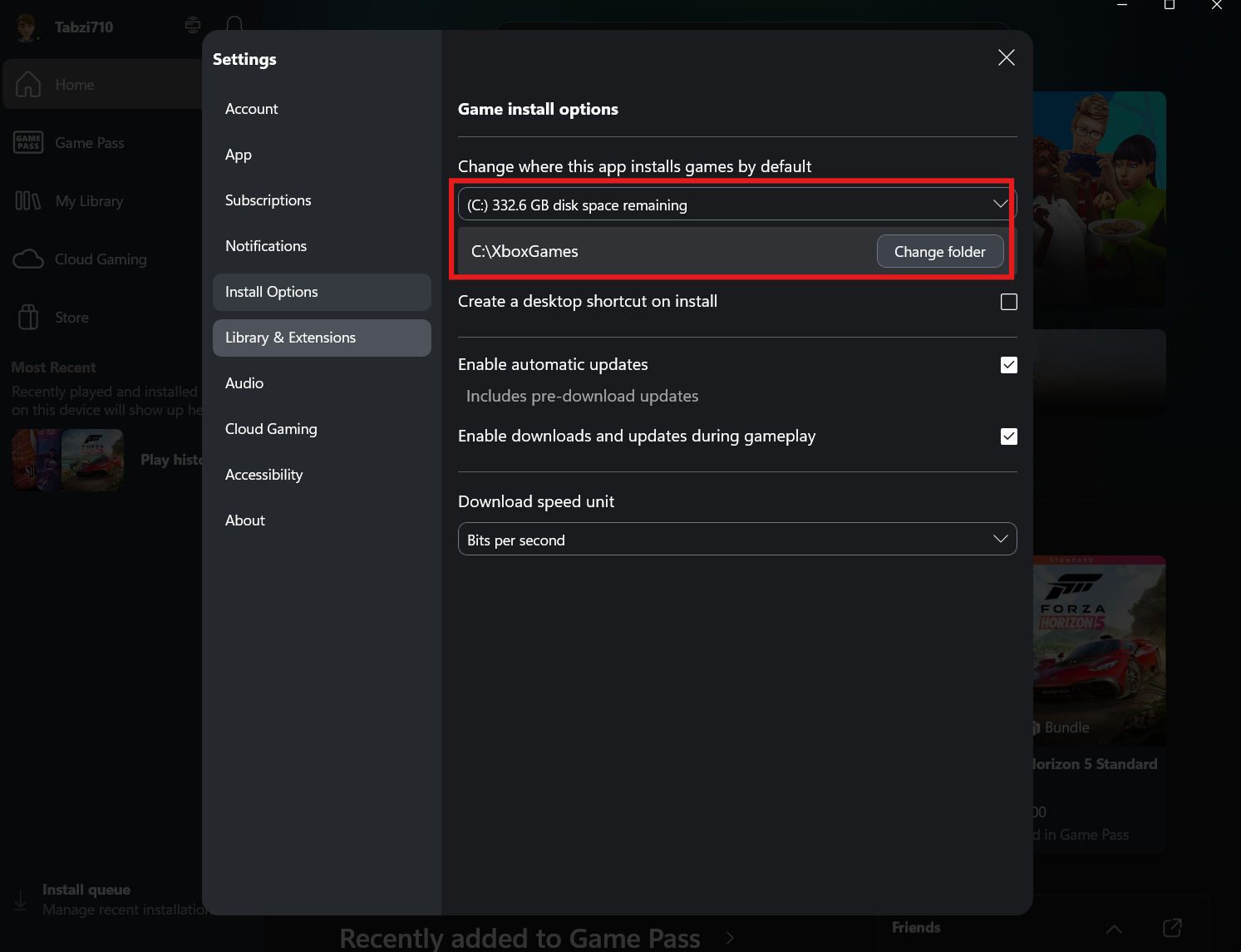
- Find Game install options
4: Select Install Drive
- Under Change where this app installs games by default
- Choose your preferred drive (e.g., D: or E:)
Now, all new games will install to this location.
Method 2: Choose Location During Installation
You can also select location while installing a game.
Steps:
- Click Install on a game
- A pop-up will appear
- Select the drive or folder
- Confirm installation
This works for individual games.
How to Change Install Location in Windows Settings
Sometimes you need to configure this in Windows.
Steps:
- Press Windows + I
- Go to System > Storage
- Click Advanced storage settings
- Select Where new content is saved
- Change New apps will save to
This affects app installations, including Xbox games.
Move Installed Games to Another Drive
You can move games without reinstalling.
Steps:
- Go to Settings > Apps > Installed apps
- Find your game
- Click Move
- Select a new drive
Note: Not all games support this option.
Requirements for Installing Games on Another Drive
Make sure:
- The drive is formatted as NTFS
- You have enough free space
- The drive is properly connected
- You have permission access
Common Issues and Fixes
Cannot select another drive:
- Format drive to NTFS
- Restart Xbox app
Game installs still going to C:
- Recheck default install location
- Restart system
Move option missing:
- Some games do not support moving
Tips for Better Performance
- Install games on SSD for faster load times
- Avoid slow external drives for large games
- Keep at least 10–20% free space on drive
Final Thoughts
Knowing how to change install location of games on Xbox app (PC) helps you manage storage efficiently and improve performance. Whether you set a default location or choose per game, it gives you flexibility over where your games are stored.
FAQs
How do I change install location in Xbox app?
Go to Settings > General > Game install options and select a new drive.
Can I install games on external drive?
Yes, if it is properly formatted and connected.
Can I move games after installing?
Yes, but only for supported games.
Why can’t I change install location?
Your drive may not be formatted correctly or recognized by the system.

Discussion (0)
Be the first to comment.