



You can change your Game Center nickname in under a minute using your device settings. Whether you want a new display name for multiplayer games or your current nickname no longer fits, Apple lets you update it without affecting saves, achievements, or friends.
This guide shows the exact steps on iPhone, iPad, and Mac, plus what to do if the name does not update right away.
Table of contents
What your Game Center nickname is used for
Your Game Center nickname identifies you in online matches, leaderboards, and friend lists. It differs from your Apple ID name, which apps and services outside Game Center may still display.
Changing the nickname only affects Game Center-supported games. It does not rename your Apple ID or change how iCloud identifies you.
How to change Game Center nickname on iPhone and iPad
Most users can update their nickname directly from the Settings app in seconds. The steps stay the same across recent iOS and iPadOS versions.
Change nickname using the Settings app
- Open Settings on your iPhone or iPad.
- Tap Game Center.
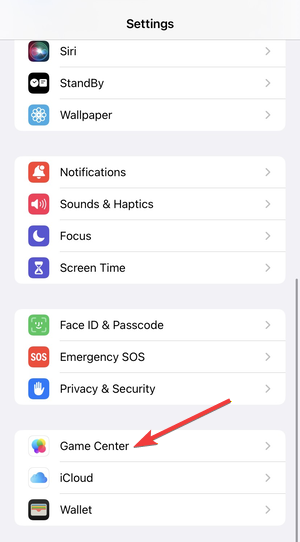

- Next, tap Customize Profile.
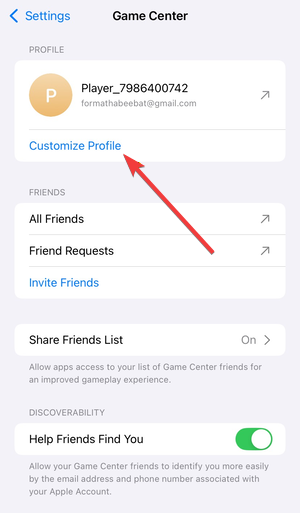

- Now, tap Nickname.
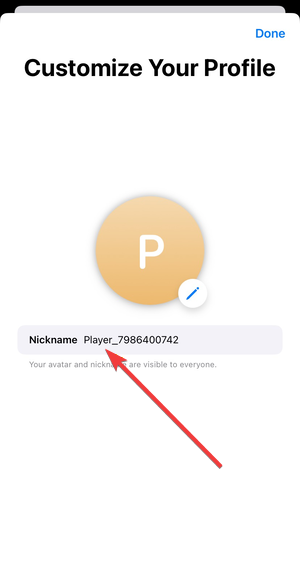

- Enter the new nickname, then tap Done.
Your new nickname saves instantly. Games connected to Game Center may take a short time to refresh it.
How to change Game Center nickname on Mac
macOS stores Game Center inside System Settings, which often confuses users coming from iPhone.
Update nickname from System Settings
- Open System Settings on your Mac.
- Click Game Center.
- Select Nickname.
- Enter the new name and confirm the change.
Once saved, the nickname syncs across devices signed in with the same Apple ID.
Why your Game Center nickname may not change
Sometimes the nickname fails to update, even after you save it. These issues usually involve restrictions or syncing delays.
Screen Time and restrictions blocking changes
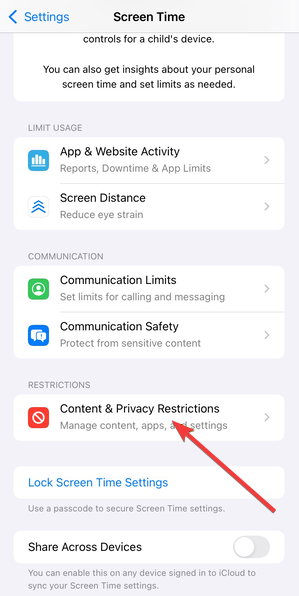
Screen Time restrictions can prevent profile edits. Open Settings, go to Screen Time, and check content and privacy restrictions.
Game Center syncing delays
Some games cache your old nickname locally. Restart the game or sign out and back into Game Center to force a refresh.
Does changing your nickname affect games or progress
Changing your nickname does not delete achievements, saved games, or purchases. Game Center links progress to your Apple ID, not your display name.
Friends will still see your profile, only under the updated nickname.
Tips for choosing a Game Center nickname
- Keep the name short and readable for multiplayer lobbies.
- Avoid special characters that some games reject.
- Pick a unique name to stand out on leaderboards.
- Change it again anytime if a game flags it as unavailable.
FAQs
Can I change my Game Center nickname more than once?
Yes. Apple does not limit how often you can update your nickname.
Why does one game still show my old name?
That game may cache player data. Restart the app or sign out of Game Center.
Does my nickname change on all devices?
Yes. The change syncs across all devices using the same Apple ID.
Summary
- Open Game Center settings on your iPhone, iPad, or Mac.
- Edit the nickname field and save the change.
- Restart games if the new name does not appear immediately.
Changing your Game Center nickname gives you full control over how other players see you, without risking your progress or data.


Discussion (0)
Be the first to comment.