




If your screen is rotated incorrectly or you want a different layout, you can easily change display orientation in Windows to landscape or portrait. This feature lets you rotate your screen depending on how you use your monitor.
It is especially useful for vertical monitors, reading documents, coding, or creative work.
What Is Display Orientation in Windows?
Display orientation controls how your screen content is rotated.
Windows provides four main options:
- Landscape (default horizontal view)
- Portrait (vertical view)
- Landscape (flipped)
- Portrait (flipped)
This allows you to adjust the screen based on your setup.
When Should You Change Display Orientation?
You may want to change orientation in situations like:
- Using a vertical monitor for coding or reading
- Rotating your physical screen
- Fixing a screen that is accidentally flipped
- Improving productivity with multi-monitor setups
It helps match your display with your workflow.
How to Change Display Orientation in Windows 11
Follow these steps to rotate your screen.
Step 1: Open Display Settings
- Press Windows + I
- Go to System > Display
Step 2: Select Your Display
If you have multiple monitors:
- Click the display you want to adjust
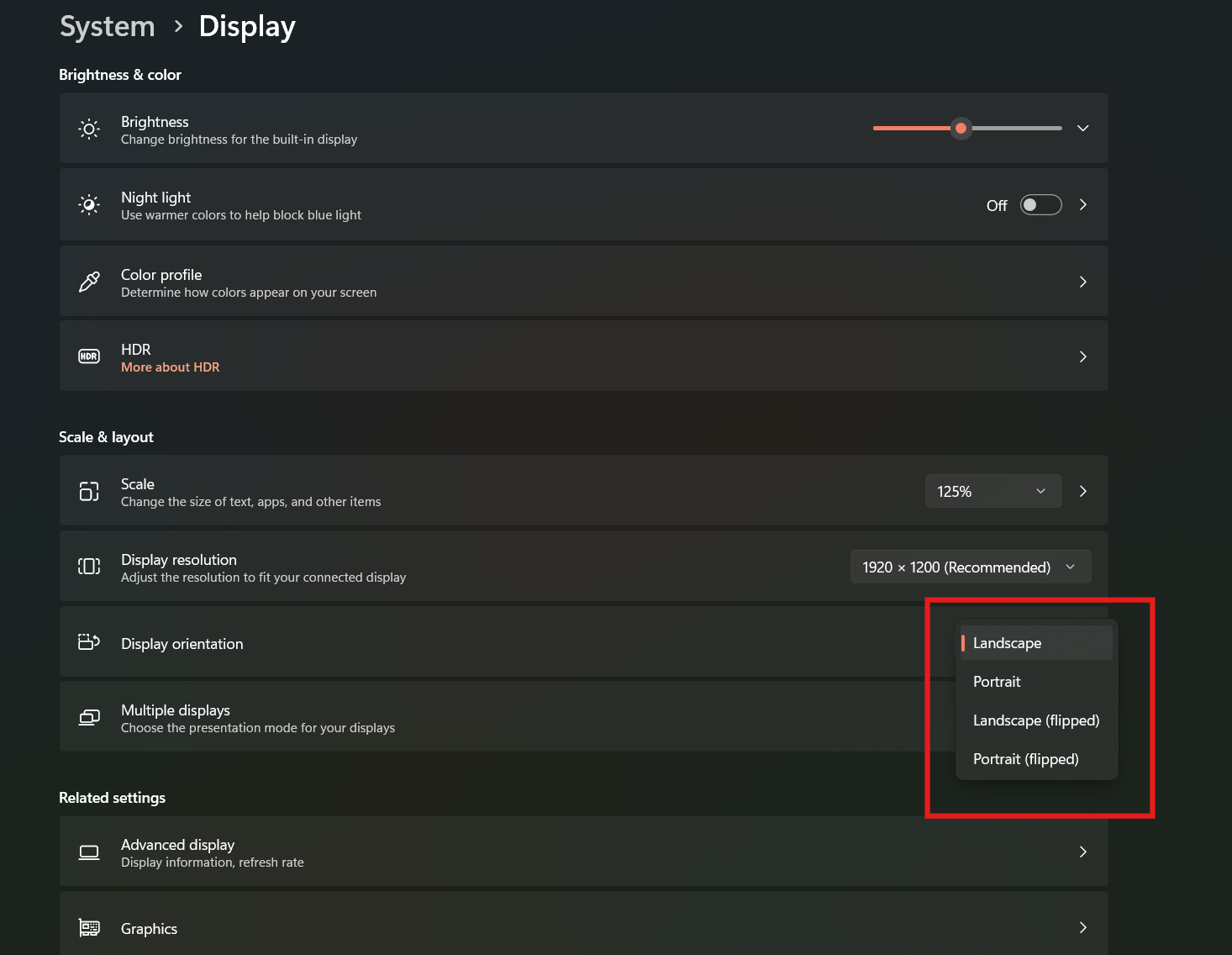
Step 3: Change Display Orientation
- Scroll to Scale & layout
- Find Display orientation
- Select one of the options:
- Landscape
- Portrait
- Landscape (flipped)
- Portrait (flipped)
Step 4: Confirm Changes
- Click Keep changes when prompted
Your screen will rotate instantly.
Shortcut to Rotate Screen (Quick Method)
Windows also supports keyboard shortcuts on some systems.
Try:
- Ctrl + Alt + Up Arrow → Landscape
- Ctrl + Alt + Down Arrow → Upside down
- Ctrl + Alt + Left Arrow → Portrait
- Ctrl + Alt + Right Arrow → Portrait (flipped)
Note: This works mainly with Intel graphics and may not be enabled on all PCs.
Change Orientation Using Graphics Settings
You can also change orientation from your graphics control panel.
For Intel Graphics
- Right-click desktop
- Open Intel Graphics Settings
- Find Display
- Change rotation
For NVIDIA or AMD
- Open respective control panel
- Go to display settings
- Adjust rotation
Tips for Using Portrait Mode
Portrait mode is useful in many scenarios.
- Coding and programming
- Reading long documents
- Social media content creation
- Multi-monitor productivity setups
It allows more vertical content on screen.
Common Issues and Fixes
If rotation is not working:
- Update display drivers
- Restart your system
- Check if rotation lock is enabled (on laptops/tablets)
These steps usually fix the issue.
Final Thoughts
Knowing how to change display orientation in Windows to landscape or portrait helps you customize your workspace. Whether you are fixing a rotated screen or optimizing your setup, this feature is simple but very useful.
It gives you flexibility to match your display with how you work.
FAQs
How do I change display orientation in Windows?
Go to Settings > System > Display and select your preferred orientation.
What is portrait mode used for?
It is useful for reading, coding, and vertical content.
Why is my screen upside down?
It may have been rotated accidentally. Change orientation in display settings.
Do keyboard shortcuts always work?
No. They depend on your graphics driver and system support.
Discussion (0)
Be the first to comment.